Skip to content
FacebookTwitterPinterest
HOWTOHOWTO
  • All
    • Tips
      • Google
      • Facebook
      • Tiktok
    • Instruct
      • What is Q&A?
      • Taobao
    • WordPress
      • Code
      • Plugins
      • Themes
        • Flatsome
        • Theme Nevo
  • Share
    • WordPress
    • Code
    • Plugins
    • Tips
    • Windows
    • Apple
    • Graphics
    • Experience
  • Graphics documents
    • illustrator
    • Sketchup
    • Coreldraw
    • 3ds max
    • Enscape
    • Photoshop
    • Graphics Plugin
  • Course
    • Photoshop course
    • illustrator course
    • Coreldraw course
    • Edit video course
    • Course Sketchup
    • Autocad course
    • Website management course
  • Service
  • Software
    • Windows
      • Tips
      • Office
      • Necessary
      • Tools
    • Apple
  • Game
  • News
    • Technology
    • Review
HOWTOHOWTO
  • Home > 
  • Graphics > 
  • Adobe Photoshop > 
  • How to combine funny pictures with Photoshop

How to combine funny pictures with Photoshop

By Angel 25/12/2025 0 715 Views
How to combine funny pictures with Photoshop
Article categories

If you are looking for ways to create fun photos for your friends and family, or you are a Photoshop learner looking for unique ways to create photo collages, you have found the right website!

The result of humorous collage using Photoshop

Photoshop is the most outstanding image editing tool with advanced features that help people achieve great creativity in photo editing and compositing techniques. Here, howto.edu.vn will guide you How to combine funny pictures with Photoshop.

How to combine funny pictures with Photoshop

You can see that this is a photo of two famous actors, The Rock Johnson and Kevin Hart. Maybe you don't know: they are two close friends. I'll do a little funny thing with the two of them. That's an island of the two people's faces.

Funny jigsaw puzzle pattern
  • The best way to remove acne in photoshop in 2022
  • Top 1 Image sharpening app not to be missed
  • Website management services effectively take care of websites
  • How to create Photoshop actions extremely quickly
  • How to use Clone Stamp Tool Photoshop

Step 1: Open the image and make a selection

In the menu view, select File > Open Then select the image you want to use.
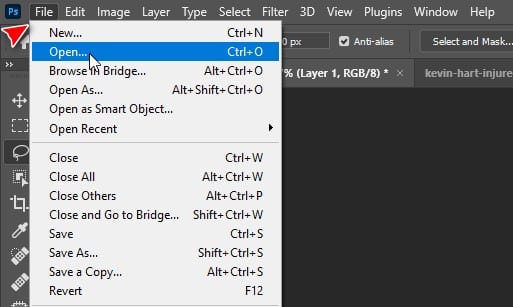
Open the file to be manipulated

You choose the Lasso Tool to create the necessary selection.
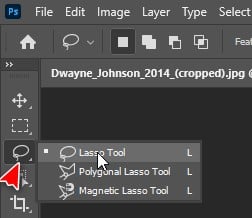
Lasso Tool to create the necessary selection

With a little ingenuity, you can draw a selection as shown.
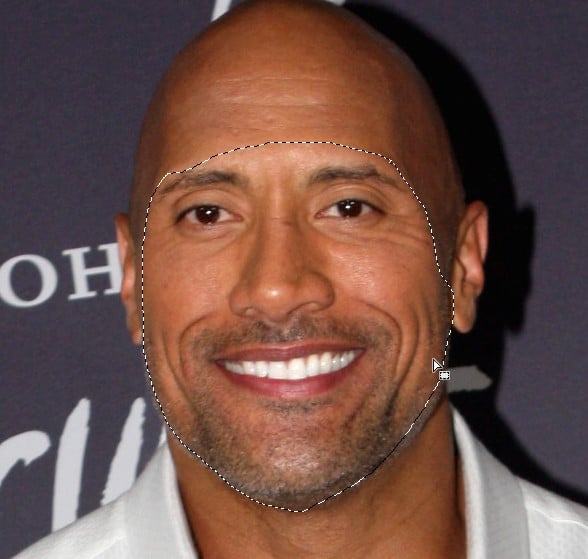
Images need to be merged

Step 2: Copy the image

In this step, you will use the newly cut face to copy it to the image you want. Please press Ctrl C  Then select the image to combine, continue pressing Ctrl V.
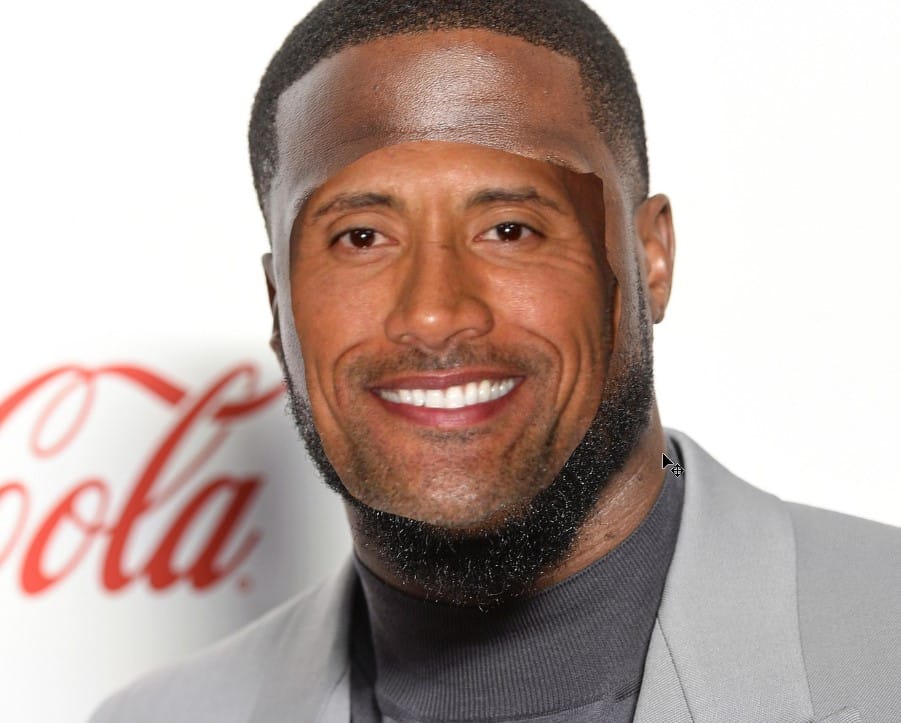
Funny jigsaw puzzles

It's great, you just need to edit the face size to match.

Step 3: Edit face size

Please press the key Ctrl T and adjust the face accordingly. You may need some time to adjust. If you find it difficult, there is a tip: adjust it Opacity down for easier operation.
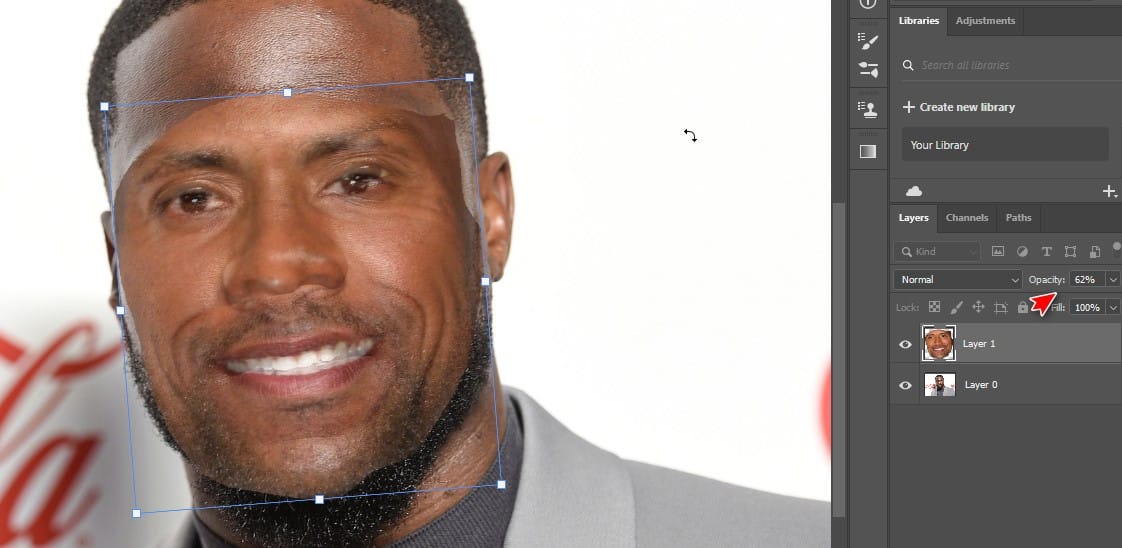
It's great, you just need to edit the face size to match.

Step 3: Edit face size

Please press the key Ctrl T and adjust the face accordingly. You may need some time to adjust. If you find it difficult, there is a tip: adjust it Opacity down for easier operation.

Edit face size
Edit face size

If the operation is done, press Enter to complete.

Step 4: Create overlap for the face and body

In this step, hold down the key Ctrl At the same time, left click Layer
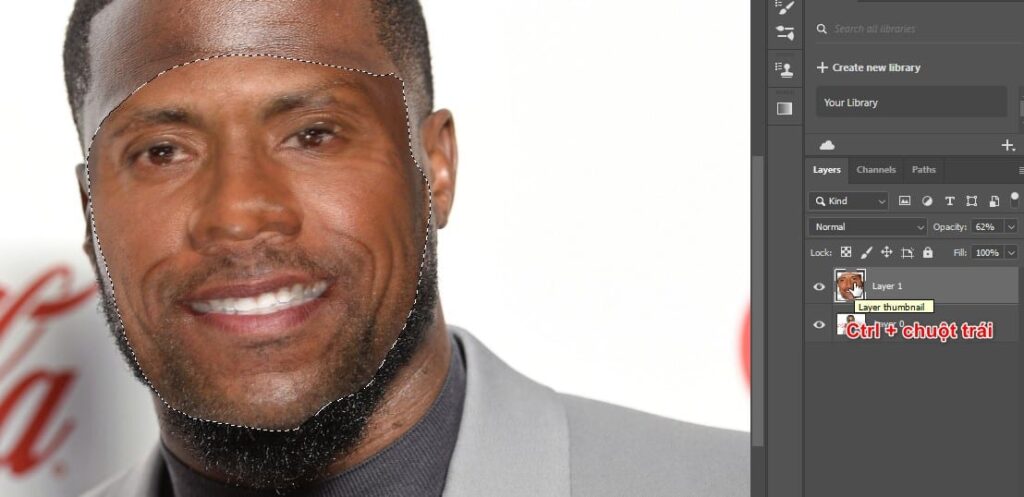
hold shift

Once you have the selected area, you will continue with the following steps: Select > Modify > Contract.
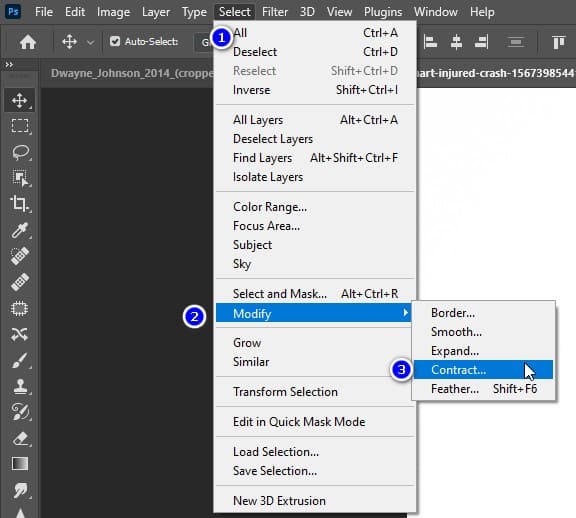
edit contract
edit contract


Depending on the resolution of the image, you can choose from 5 to 30 as long as you feel it is appropriate.
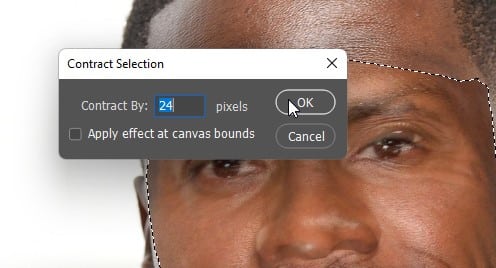
edit contract
edit contract


Here I will select 24 pixels, then press OK.

Step 5: Delete the lower layer face

Delete the face in the lower layer by selecting the lower layer and clicking Delete
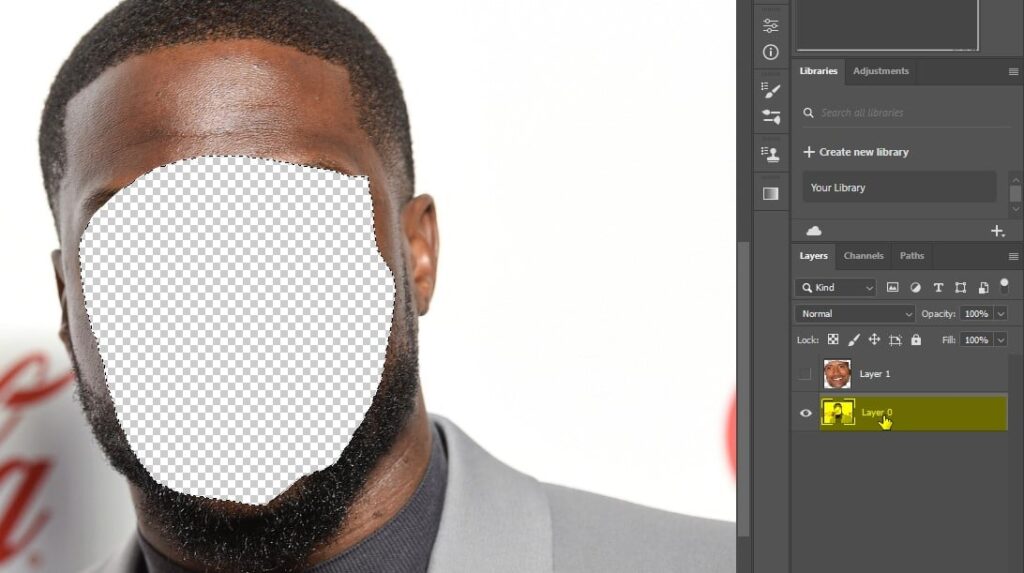
how to combine funny pictures with photoshop 10

You're almost there. Continue to select both Layer by pressing Shift to both panels as follows:
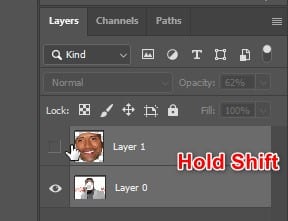
how to combine funny pictures with photoshop 11


Step 6: Use Auto-Blend

To be able to complete, you need to choose Edit on the toolbar, select Auto-Blend Layers…
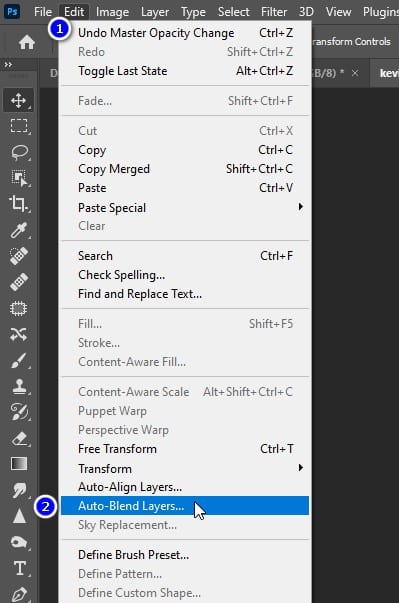
Auto-blend
Auto-blend


The computer will display a table Auto-Blend Layers
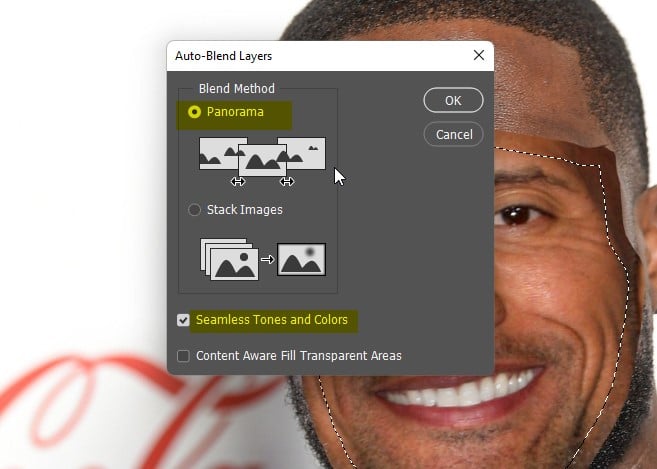
how to combine funny pictures with photoshop 13


You'll choose Panorama and Seamless Tones and Colors.

With Seamless Tones and Colors will help you adjust your face to suit your skin color and lighting automatically.

Please choose OK Let the machine run the results for you.

Funny image
Funny pictures after completion

It's great, you can make a funny photo yourself.

If the result you choose is not satisfactory, go back to the steps to adjust it to suit your image.

Epilogue.

Through the last article, I just guided you How to combine funny pictures with photoshop is extremely hot. This tool can be applied to many different subjects. You can also easily change faces from one person to another as you desire. Hope through the way funny picture collage using photoshop This will be of great help to you.

If you find it useful, don't forget to comment and rate me 5* so I can have more motivation to share more useful articles for you guys.

Please stop by and follow Facebook fanpage to be updated with the latest information from us.

Tags : Tags funny puzzle   funny jigsaw   Photoshop user guide
Share
FacebookShare on FacebookpinterestShare on PinterestMessengerShare on Facebook Messenger
twitterShare on TwitterlinkedinShare on LinkedinvkShare on VkredditShare on ReddittumblrShare on TumblrvideoShare on Viadeobuffer. bufferShare on Bufferpocket. pocketShare on PocketwhatsappShare on WhatsappViberShare on ViberemailShare on EmailskypeShare on SkypediggShare on DiggmyspaceShare on MyspacebloggerShare on Blogger YahooMailShare on Yahoo mailtelegramShare on Telegram gmailShare on GmailAmazonShare on AmazonSMSShare on SMS

Angel

As a student at the center. I always try to find out new things. I want to learn more by giving what I know to patch up the places I don't know.

Related articles

How to combine funny pictures with Photoshop

Fix Crash Report Photoshop error quickly and effectively

By thindv 19/07/2026 0

Crash Report Photoshop is a very annoying error in…

How to combine funny pictures with Photoshop

Adobe photoshop cs6 professional editing software

By How To 28/06/2026 0

Adobe photoshop cs6 super light photo editing software...

How to combine funny pictures with Photoshop

How to create moving images in photoshop

By Tung Thai 31/03/2026 0

How to create moving images in photoshop. Creating images…

Leave a Comment Cancel reply

Categories Instruct 2 simple ways to create standard Facebook Fanpage for beginners

2 simple ways to create standard Facebook Fanpage for beginners

08/08/2026
How to ask the Facebook help center to handle related issues

How to ask the Facebook help center to handle related issues

07/08/2026
Downloading Facebook to your computer or phone is simple

Downloading Facebook to your computer or phone is simple

07/08/2026
Facebook photo size Optimize social media posts

Facebook photo size Optimize social media posts

05/08/2026
Facebook Ads payment thresholds

Facebook Ads payment thresholds

05/08/2026

Recent comments

  • male2 years ago
    On How to create a fade effect in Photoshop
    Great
  • phat phat3 years ago
    On Who is 5SMedia?
    Useful article
  • Minh Anh4 years ago
    On How to create basic materials in vray Sketchup
    Very good, admin
Copyright © 2026 HOWTO - Powered by HOWTO

5SMedia.net | hocdohoacaptoc.com | huongdansudung.vn | webantam.com

Back to Top
Hello!
  • All
    • Tips
      • Google
      • Facebook
      • Tiktok
    • Instruct
      • What is Q&A?
      • Taobao
    • WordPress
      • Code
      • Plugins
      • Themes
        • Flatsome
        • Theme Nevo
  • Share
    • WordPress
    • Code
    • Plugins
    • Tips
    • Windows
    • Apple
    • Graphics
    • Experience
  • Graphics documents
    • illustrator
    • Sketchup
    • Coreldraw
    • 3ds max
    • Enscape
    • Photoshop
    • Graphics Plugin
  • Course
    • Photoshop course
    • illustrator course
    • Coreldraw course
    • Edit video course
    • Course Sketchup
    • Autocad course
    • Website management course
  • Service
  • Software
    • Windows
      • Tips
      • Office
      • Necessary
      • Tools
    • Apple
  • Game
  • News
    • Technology
    • Review
EN
EN
VI
Hello!

  • Lost your password ?