Skip to content
FacebookTwitterPinterest
HOWTOHOWTO
  • All
    • Tips
      • Google
      • Facebook
      • Tiktok
    • Instruct
      • What is Q&A?
      • Taobao
    • WordPress
      • Code
      • Plugins
      • Themes
        • Flatsome
        • Theme Nevo
  • Share
    • WordPress
    • Code
    • Plugins
    • Tips
    • Windows
    • Apple
    • Graphics
    • Experience
  • Graphics documents
    • illustrator
    • Sketchup
    • Coreldraw
    • 3ds max
    • Enscape
    • Photoshop
    • Graphics Plugin
  • Course
    • Photoshop course
    • illustrator course
    • Coreldraw course
    • Edit video course
    • Course Sketchup
    • Autocad course
    • Website management course
  • Service
  • Software
    • Windows
      • Tips
      • Office
      • Necessary
      • Tools
    • Apple
  • Game
  • News
    • Technology
    • Review
HOWTOHOWTO
  • Home > 
  • Graphics > 
  • Adobe Photoshop > 
  • How to blend colors beautifully in Photoshop

How to blend colors beautifully in Photoshop

By Tung Thai 02/12/2025 0 754 Views
How to blend colors beautifully in Photoshop
Article categories

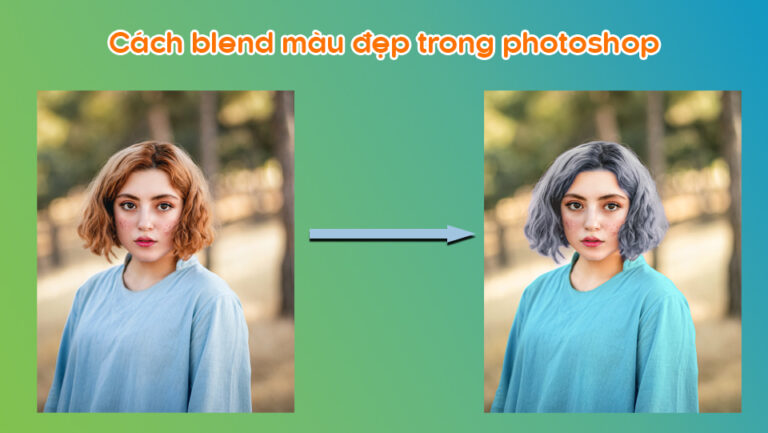
How to blend colors beautifully in Photoshop. To blend beautiful colors is not easy for many graphic designers, here is the article How to blend colors beautifully in Photoshop I'll give you basic instructions on how to blend colors that are similar to the photo color you want, helping you get the most satisfactory color photo. Please follow my instructions and follow along:

Limbs 3 See more: How to blend colors simply in photoshop

Limbs 3 See more: Pts Courses From AZ. Quick Image Editing Design

How to blend colors beautifully in Photoshop

Step 1: Open 2 photos that need color correction

You choose File > Open then open the image you want to color correct and the image has the color you like

Step 2: Move 2 photos to your page

  • You copy the image that you have previously blended to the image you want to blend
  • Press Ctrl + A select all objects then press Ctrl + C copy that object
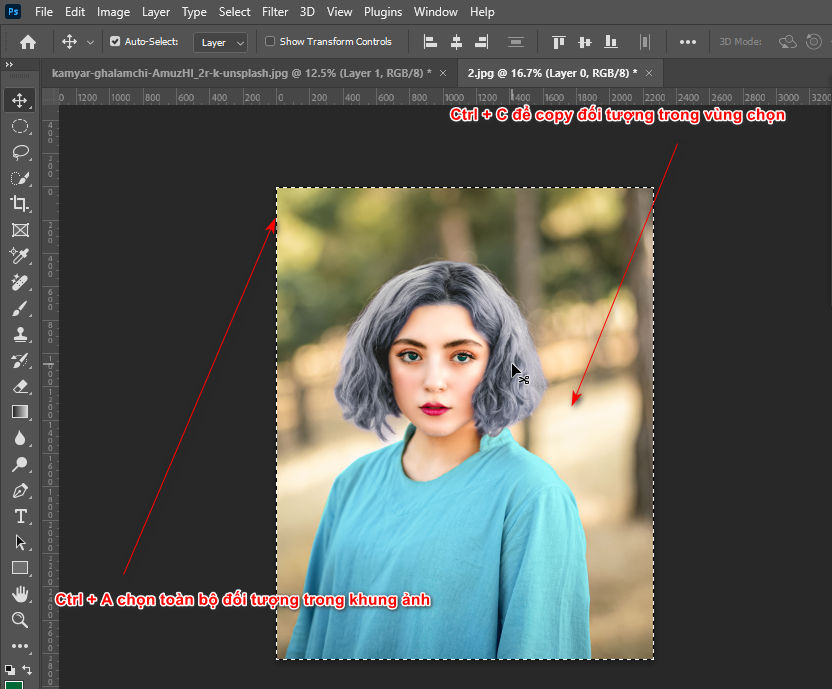
How to blend colors beautifully in Photoshop
Step 2 Move the object to another page
  • You then move over to the page you want to paste using the command Ctrl + V
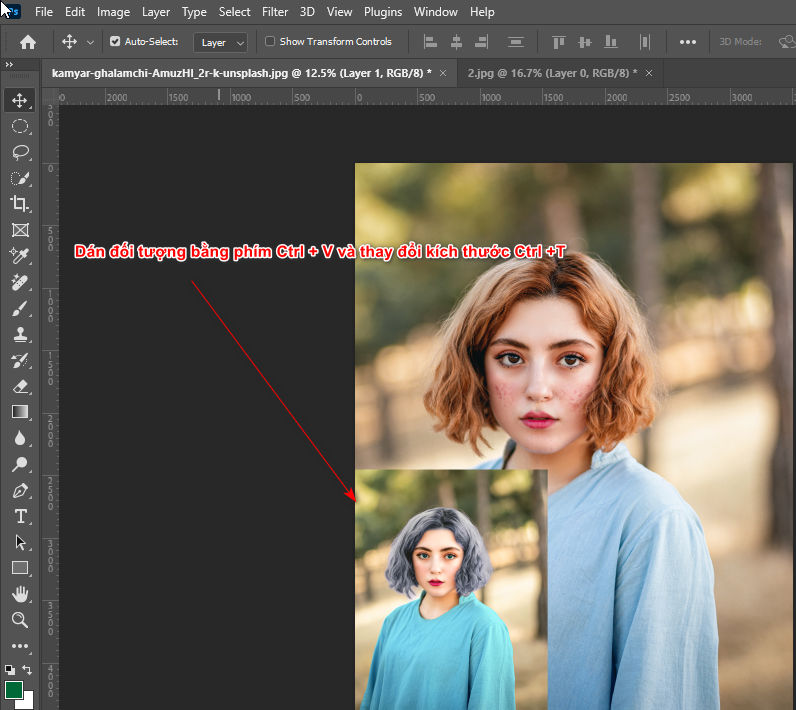
How to blend colors beautifully in Photoshop
Step 2.1 Paste and resize the image

Step 3: Use the color suction tool

  • You use tools Color Sample Tool (I) located in the color absorber tool Eyedropper tool (I)
  • Now click on the area of the image that has been blended, then click again on the area of the image that you want to blend.
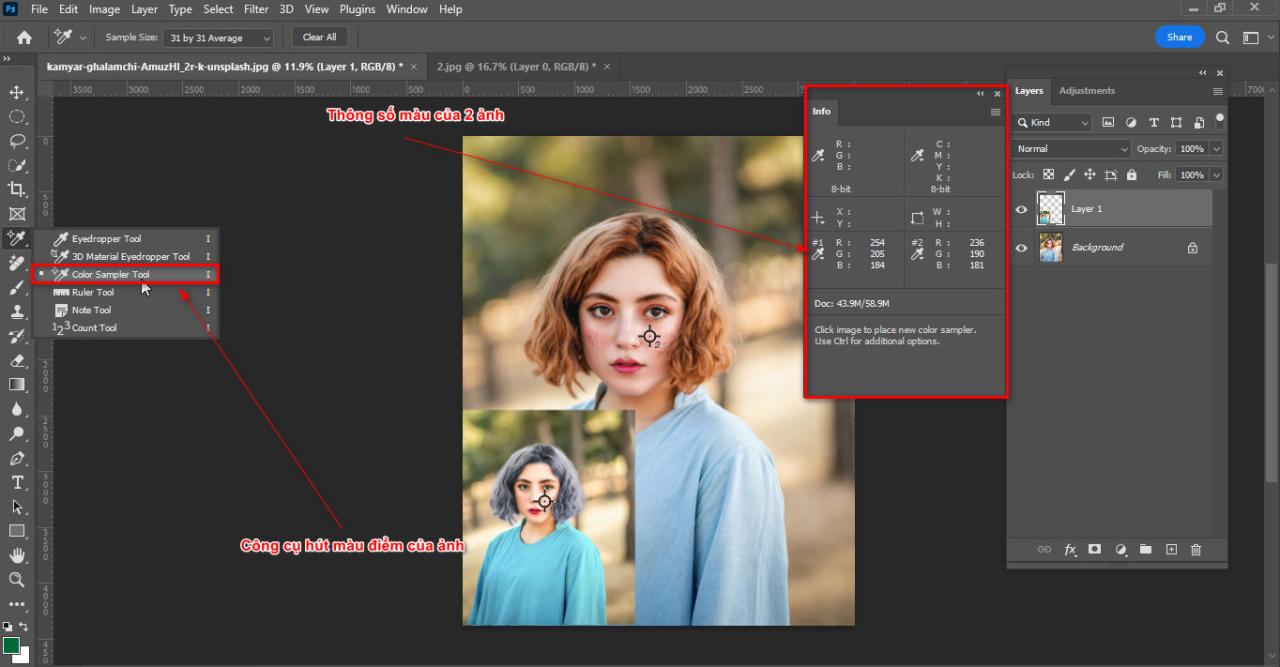
How to blend colors beautifully in Photoshop
Step 3 Use the photo color suction tool
  • Then you go to tools Adjustments layer is open in Window
  • Then you choose the tool Curves and select the hand icon on the tool panel Curves
  • Press and hold both keys Ctrl + Shift Then move the mouse cursor to the area of the blended image and click
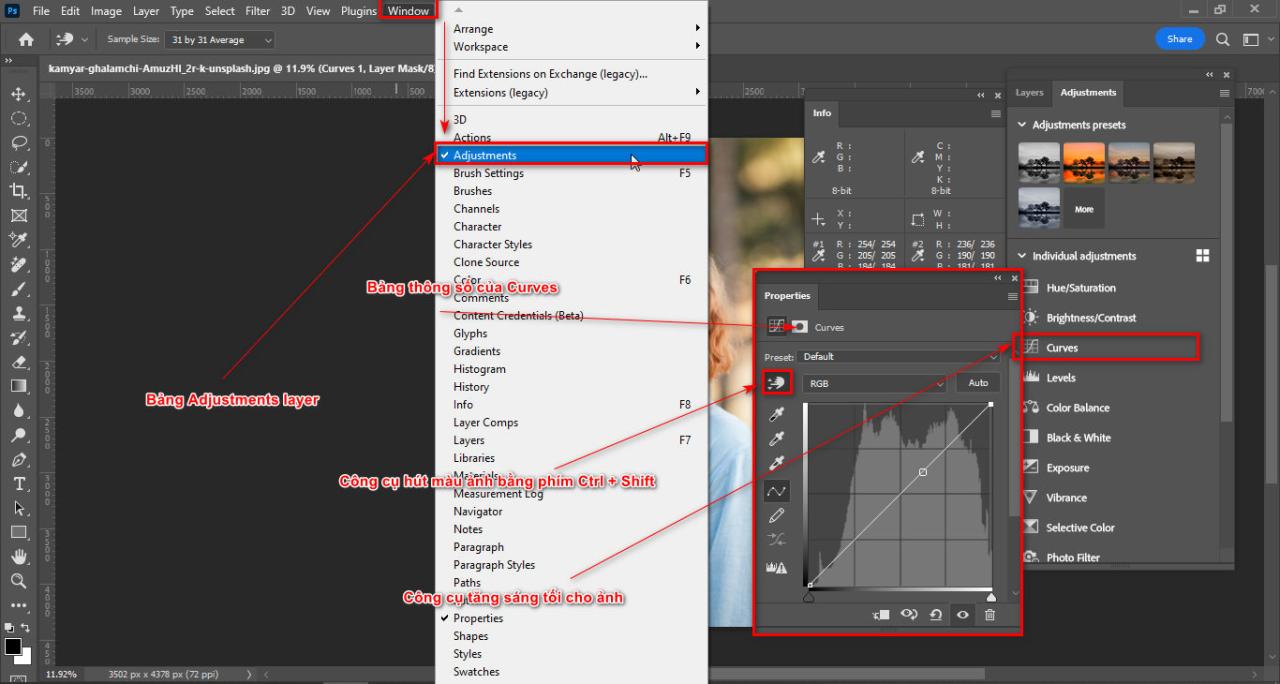
How to blend colors beautifully in Photoshop
Step 3.1 Use the Curves tool on the Adjustments panel

Step 4: Change the RGB color parameters of the image

  • You part Red Include the hand icon on the tool Curves change parameters
  • Drag the bar down and then change the parameters Output According to the attracted point of the image that you want to blend the previous color
  • Similarly, I also changed the parameters of Green, Blue so that it is similar to point 2
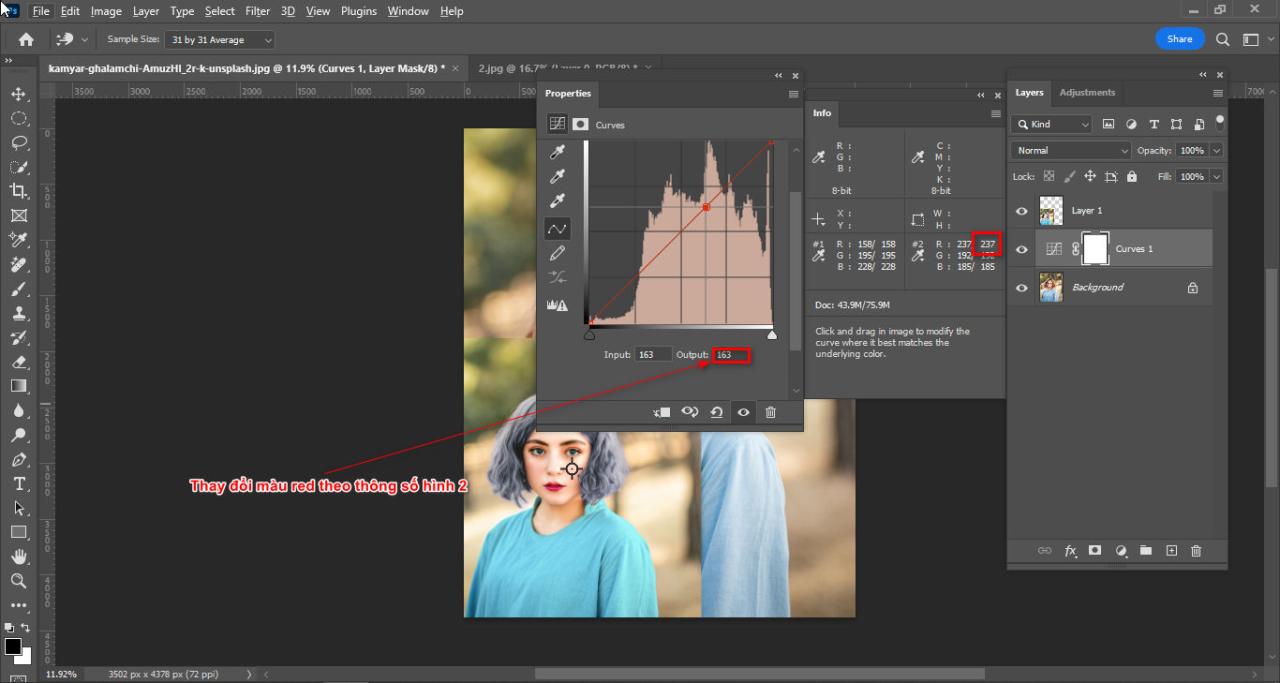
How to blend colors beautifully in Photoshop
Step 4 change RGB color parameters

Step 5: You will get a color blended photo
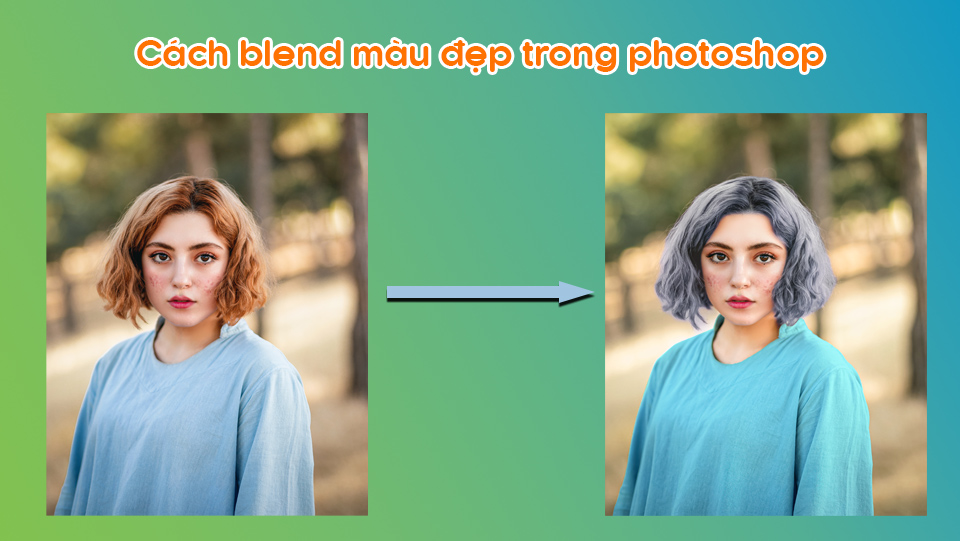
How to blend colors beautifully in Photoshop

[note]

  • Instructions for removing photoshop background very quickly
  • Instructions for smoothing skin in Photoshop
  • How to create snow in Photoshop is extremely simple
  • How to create rain in Photoshop is extremely simple
  • The best way to remove acne in photoshop in 2022

[/note]

In short

Posts How to blend colors beautifully in Photoshop helps us blend the image color you like and also helps you know what a tool is Color Sample Tool (I) that few people talk about for you to hear and understand. If you feel photoshop course If this is good, please contact us immediately Graphic Express for advice.

Good luck with your homework How to blend colors beautifully in Photoshop Good luck, and don't forget to share this article.

Tags : Tags adobe photoshop   How to blend colors beautifully in Photoshop   learn adobe photoshop   study pts   study graphic design
Share
FacebookShare on FacebookpinterestShare on PinterestMessengerShare on Facebook Messenger
twitterShare on TwitterlinkedinShare on LinkedinvkShare on VkredditShare on ReddittumblrShare on TumblrvideoShare on Viadeobuffer. bufferShare on Bufferpocket. pocketShare on PocketwhatsappShare on WhatsappViberShare on ViberemailShare on EmailskypeShare on SkypediggShare on DiggmyspaceShare on MyspacebloggerShare on Blogger YahooMailShare on Yahoo mailtelegramShare on Telegram gmailShare on GmailAmazonShare on AmazonSMSShare on SMS

Tung Thai

As a student at the center. I write what I know to share with you.
1 is to share with you so you can know and learn.
2 improve knowledge and remember longer, with the motto of giving to receive, I want to write more

Related articles

How to blend colors beautifully in Photoshop

Fix Crash Report Photoshop error quickly and effectively

By thindv 19/07/2026 0

Crash Report Photoshop is a very annoying error in…

How to blend colors beautifully in Photoshop

Adobe photoshop cs6 professional editing software

By How To 28/06/2026 0

Adobe photoshop cs6 super light photo editing software...

How to blend colors beautifully in Photoshop

How to create moving images in photoshop

By Tung Thai 31/03/2026 0

How to create moving images in photoshop. Creating images…

Leave a Comment Cancel reply

Categories Instruct 2 simple ways to create standard Facebook Fanpage for beginners

2 simple ways to create standard Facebook Fanpage for beginners

08/08/2026
How to ask the Facebook help center to handle related issues

How to ask the Facebook help center to handle related issues

07/08/2026
Downloading Facebook to your computer or phone is simple

Downloading Facebook to your computer or phone is simple

07/08/2026
Facebook photo size Optimize social media posts

Facebook photo size Optimize social media posts

05/08/2026
Facebook Ads payment thresholds

Facebook Ads payment thresholds

05/08/2026

Recent comments

  • male2 years ago
    On How to create a fade effect in Photoshop
    Great
  • phat phat3 years ago
    On Who is 5SMedia?
    Useful article
  • Minh Anh4 years ago
    On How to create basic materials in vray Sketchup
    Very good, admin
Copyright © 2026 HOWTO - Powered by HOWTO

5SMedia.net | hocdohoacaptoc.com | huongdansudung.vn | webantam.com

Back to Top
Hello!
  • All
    • Tips
      • Google
      • Facebook
      • Tiktok
    • Instruct
      • What is Q&A?
      • Taobao
    • WordPress
      • Code
      • Plugins
      • Themes
        • Flatsome
        • Theme Nevo
  • Share
    • WordPress
    • Code
    • Plugins
    • Tips
    • Windows
    • Apple
    • Graphics
    • Experience
  • Graphics documents
    • illustrator
    • Sketchup
    • Coreldraw
    • 3ds max
    • Enscape
    • Photoshop
    • Graphics Plugin
  • Course
    • Photoshop course
    • illustrator course
    • Coreldraw course
    • Edit video course
    • Course Sketchup
    • Autocad course
    • Website management course
  • Service
  • Software
    • Windows
      • Tips
      • Office
      • Necessary
      • Tools
    • Apple
  • Game
  • News
    • Technology
    • Review
EN
EN
VI
Hello!

  • Lost your password ?