Sometimes when you use a computer, it is inevitable that the Windows operating system fails. It can be corrupted due to software installation, or corrupted due to a virus on the computer. This article will guide you in detail how to fix windows errors by resetting Windows 10 to default to help your computer operate normally again.
Note: The reset will have many options so be careful when resetting data. You should read each operation carefully to avoid making mistakes.
The most detailed way to reset Windows 10
To Reset Windows 10, Windows gives us 2 options: reset without losing data and 1 option is Reset windows and lose data (only lose data on C drive) and return to factory settings.
See more > Once installed, it is indispensable Ultimate font installer for windows operating system
I. How to Reset Windows 10 without losing data
Reset Windows 10 quickly
Enter Windows windows > Select Settings (settings) > Select Update and Security (Update and Security) (Select Recovery (restore) select Get started (Start) > select Keep my files (Keep my files) > Select How to install > Click next (continued) > Select Reset (Restore).
2. Detailed instructions for Resetting Windows 10
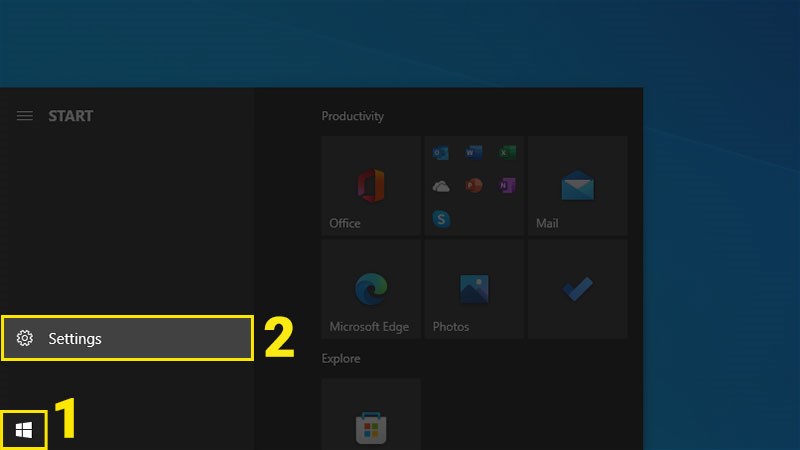
Step 1: Open Settings (Settings) by key combination Windows + I or click on the icon Windows and choose Settings.
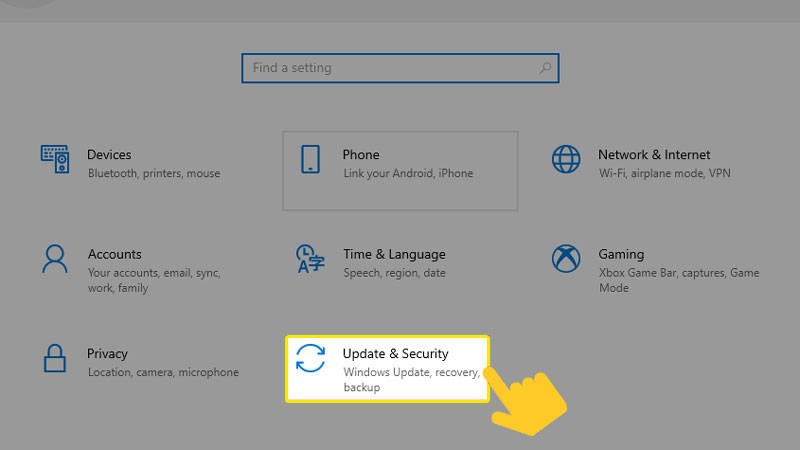
Step 2: Select Update and Security (Update and Security) in the interface Settings (Setting).
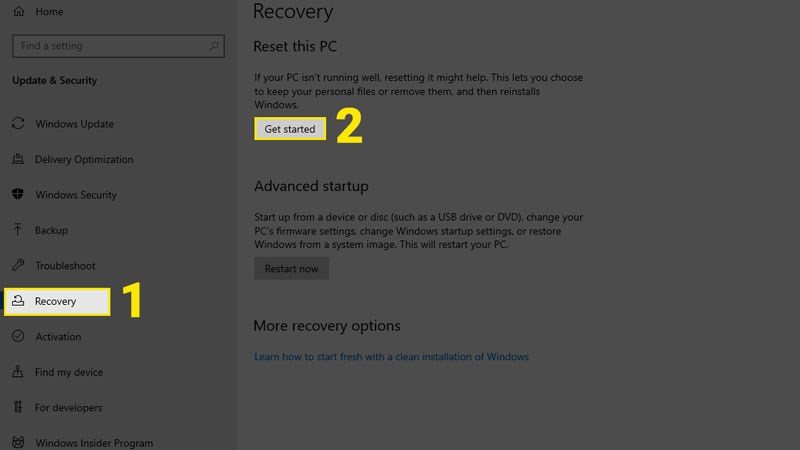
Step 3: Move to the card Recovery (Restore) and select Get started (Start) in section Reset this PC (Restore this computer).
Step 4: At the window Reset this PC, select Keep my files (keep my files).
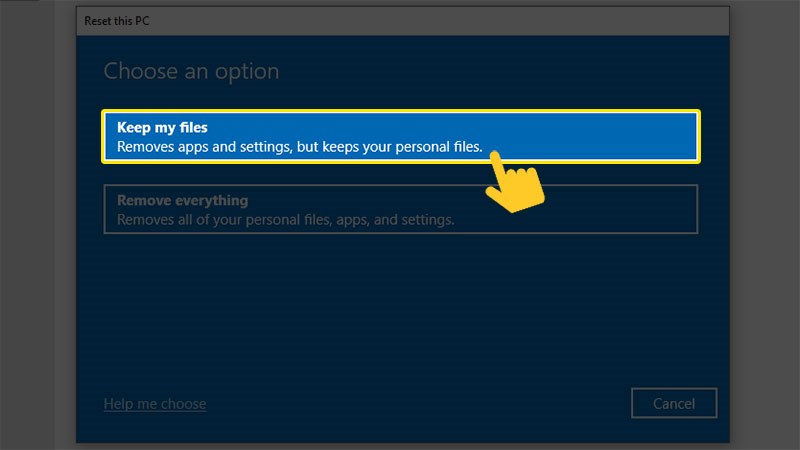
Step 5: In this step, you will have two options to reinstall Windows Cloud download (via the cloud) or Local reinstall (file system available).
With Cloud download, the system will download and install the latest Windows files from the Microsoft homepage. If you choose this method, remember to check your network connection. As for Local reinstall, the system will use existing files on the computer to reinstall Windows.
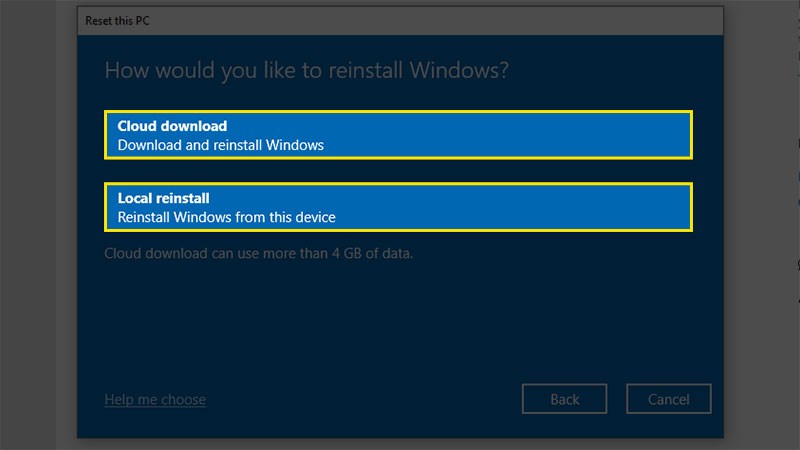
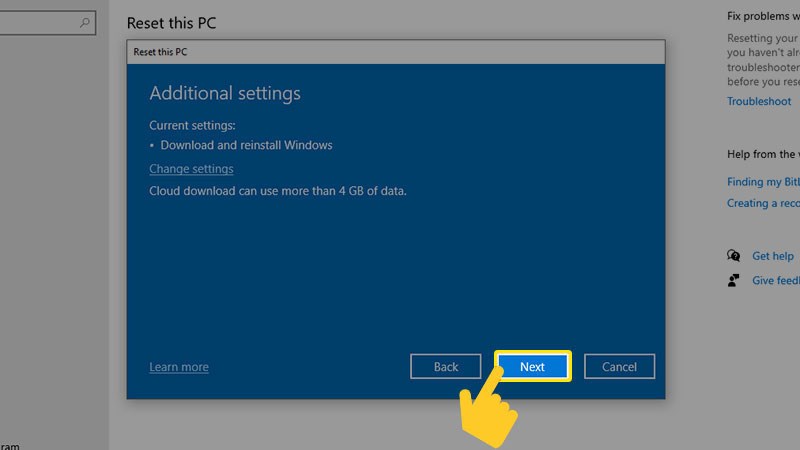
Step 6: Select next to confirm the reinstall option Windows.
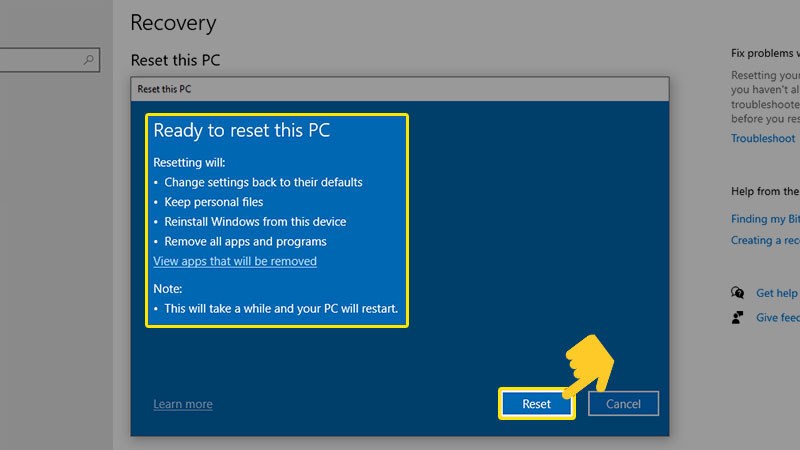
Step 7: The system notifies you of items to proceed. You just need to check the installation information and select Reset to perform the restore.
II. Reset Windows 10 and erase everything
1. Quick guide
Open Settings > Select Update and Security > Select Get started at the card Recovery > select Remove everything > Select How to install > Click next > Select Reset.
2. Detailed instructions
Step 1: Click on the icon Windows and choose Settings (Settings) or quickly open with a key combination Windows + I.
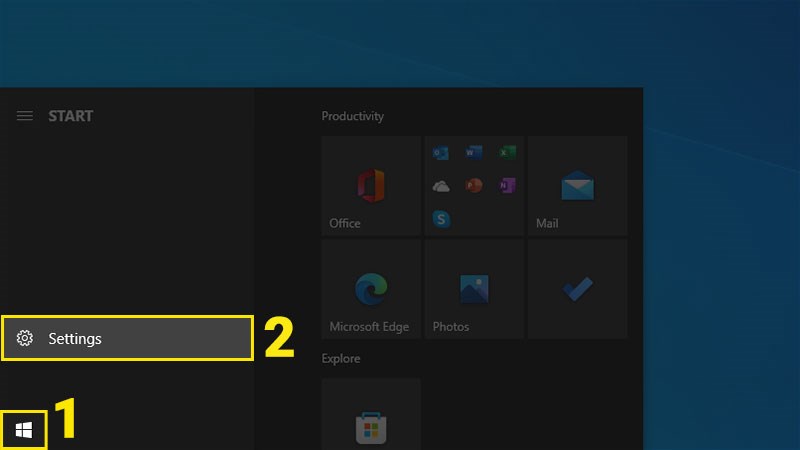
Step 2: Enter Update and Security (Update and Security).
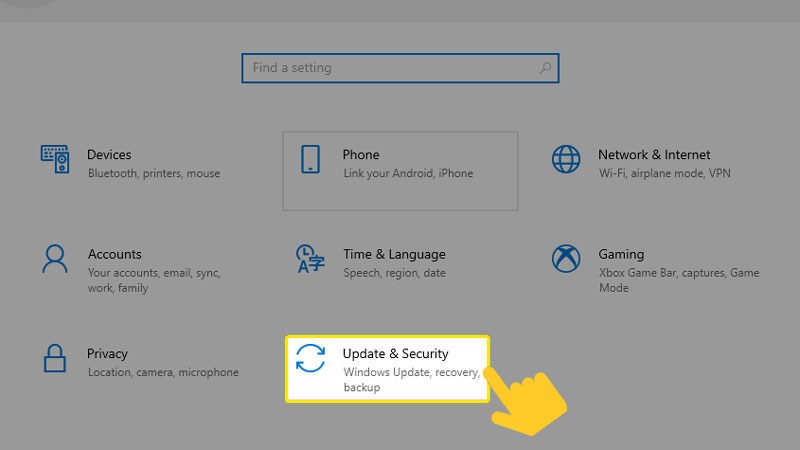
Step 3: Find the card Recovery (Restore), in the right frame, select Get started (Get Started) right below the item Reset this PC (Restore this computer).
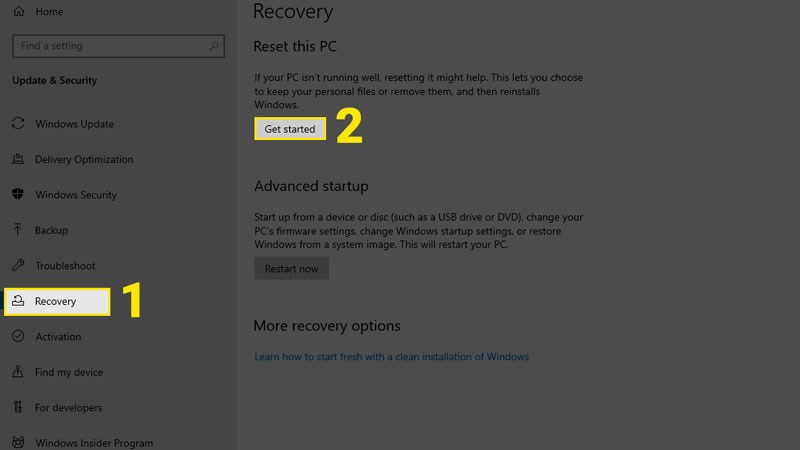
Step 4: At the window Reset this PC, you choose Remove everything (Delete all).
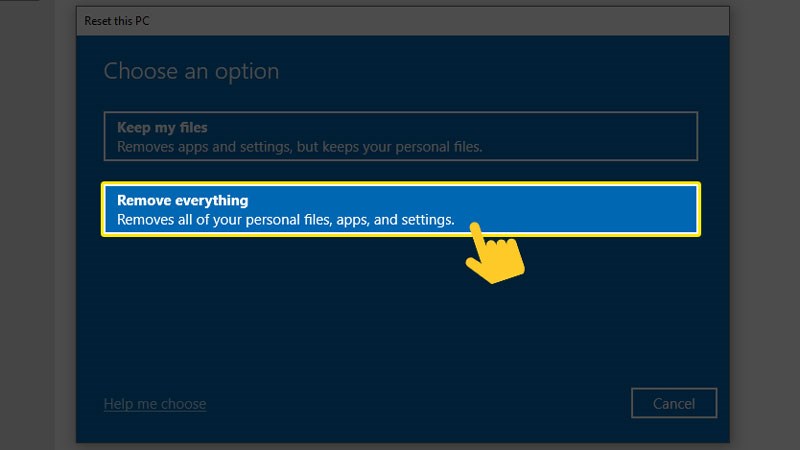
Step 5: Choose the appropriate installation method (via cloud – Cloud download or install using existing system files on the computer – Local reinstall).
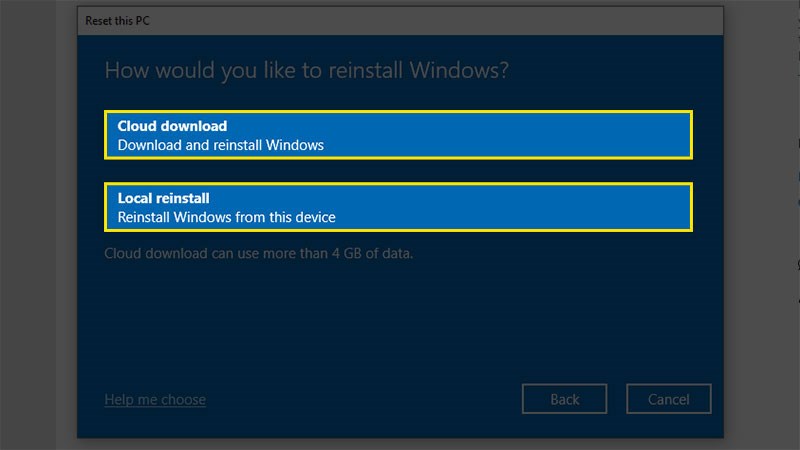
Step 6: Select next to confirm the operation and go to the next step.
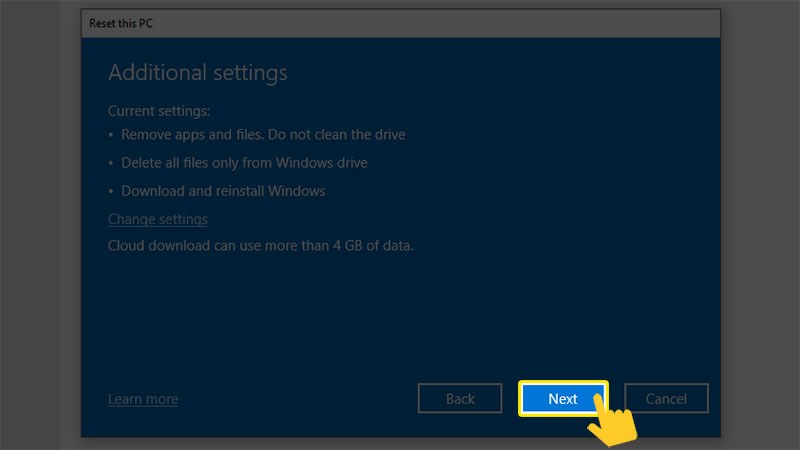
Step 7: Review the installation information and select Reset to perform the restore.
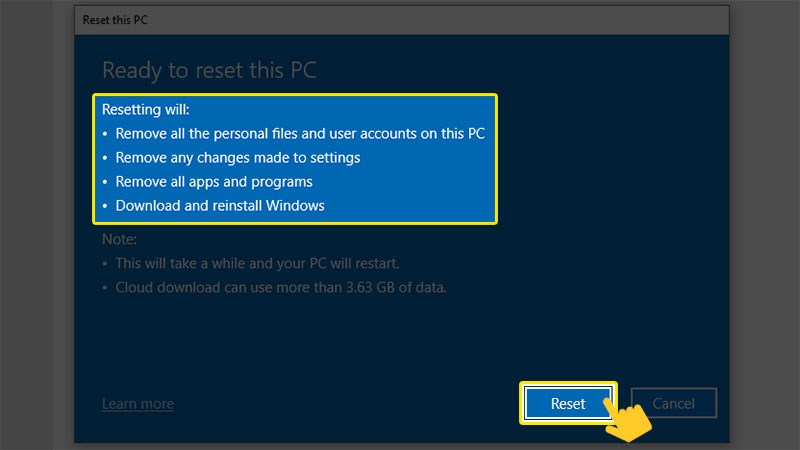
III. Reset Windows 10 from Boot mode
1. Quick guide
Open Settings > Select Update and Security > Select Restart now at the card Recovery > select Troubleshoot > Select Reset this PC > Choose how to erase data > Insert the recovery drive or Windows installation drive if required > Select the operating system > Select the drive you want to erase data > Select Reset.
2. Detailed instructions
Step 1: First, you need to open Settings (Settings) by key combination Windows + I.
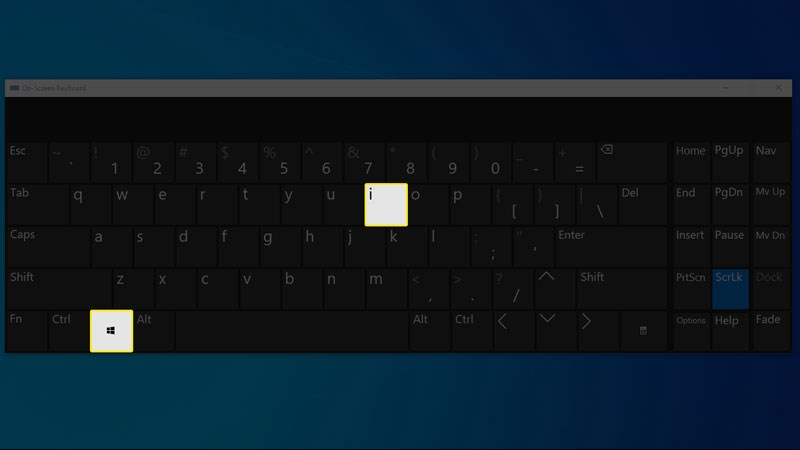
Step 2: Similar to the two methods above, you choose Update & Security (Update and Security) to enter the update and security interface of Windows.
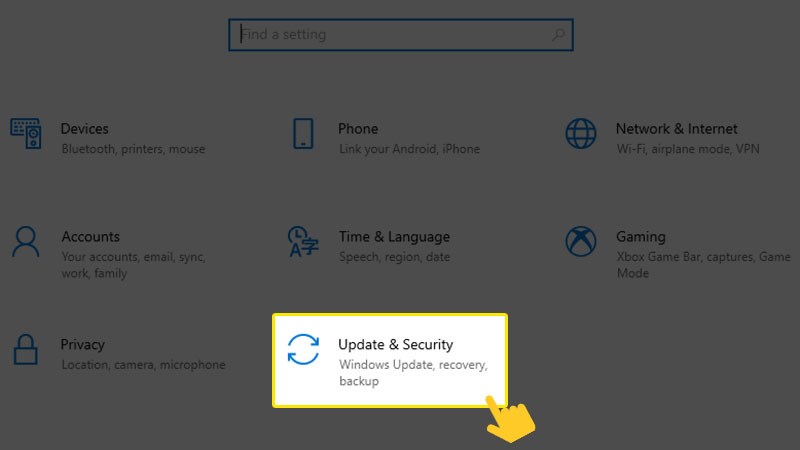
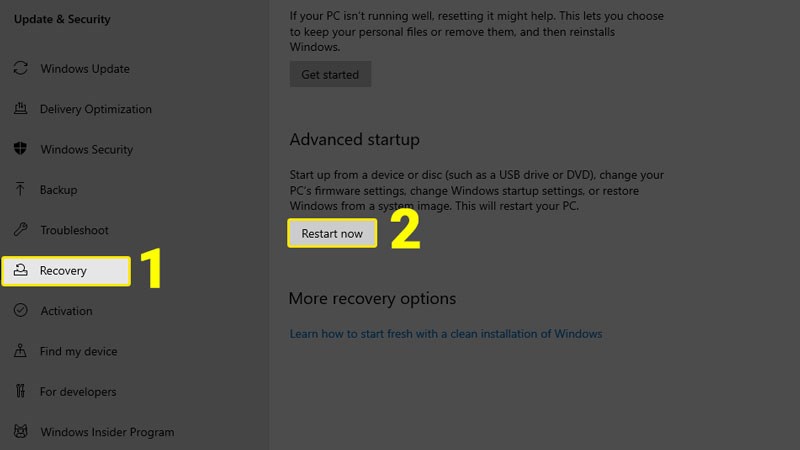
Step 3: At the card Recovery (Restore), select Restart now (Restart now) in section Advanced startups to start Windows in elevated mode.
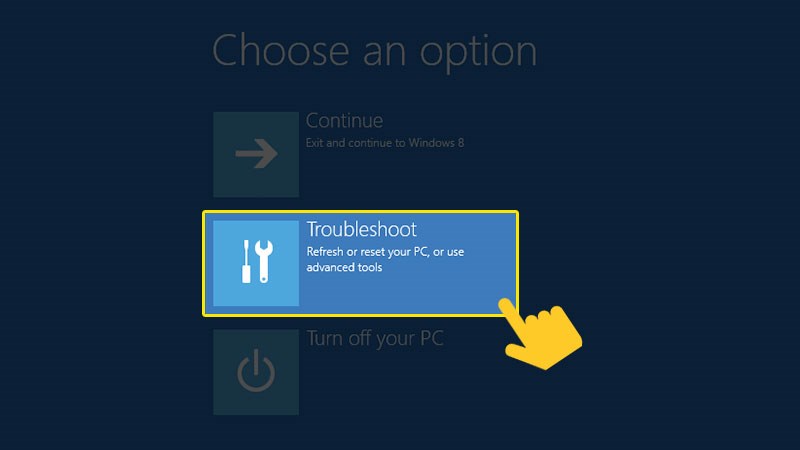
Step 4: After Windows booted in advanced mode, select Troubleshoot (Resovle problem).
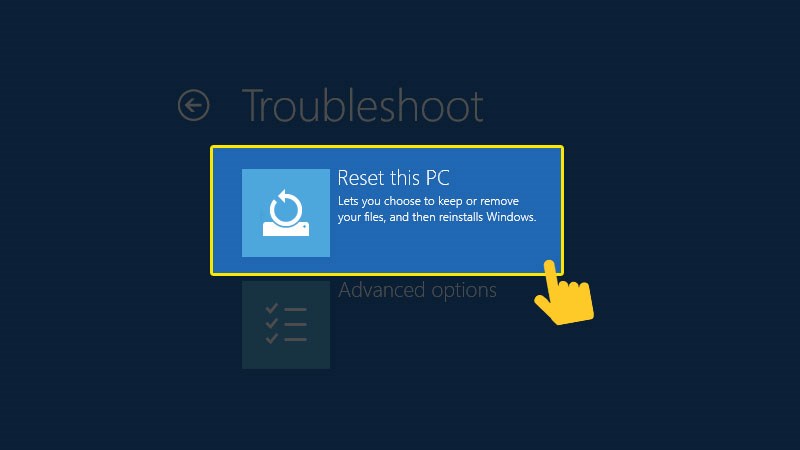
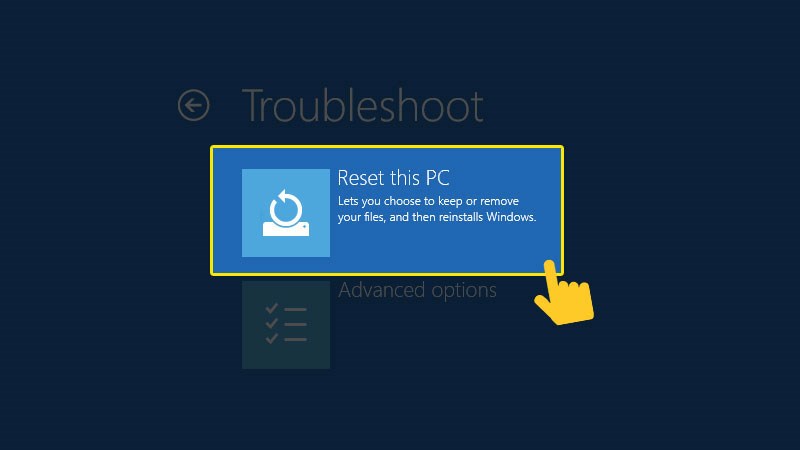
Step 5: Click on Reset this PC (Reinstall this computer).
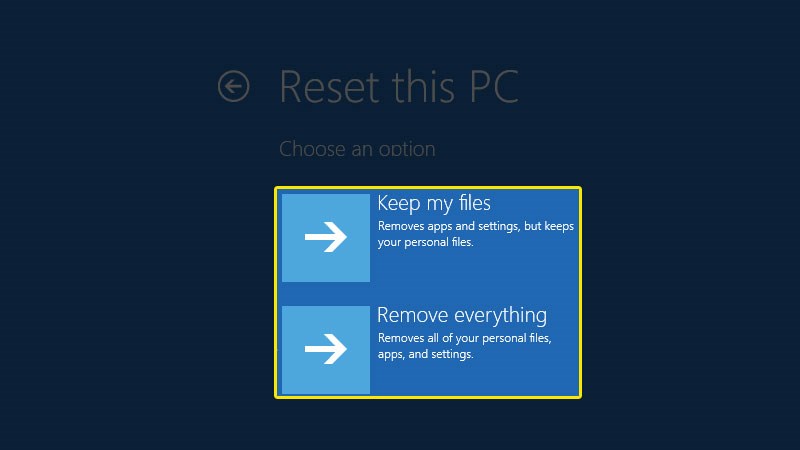
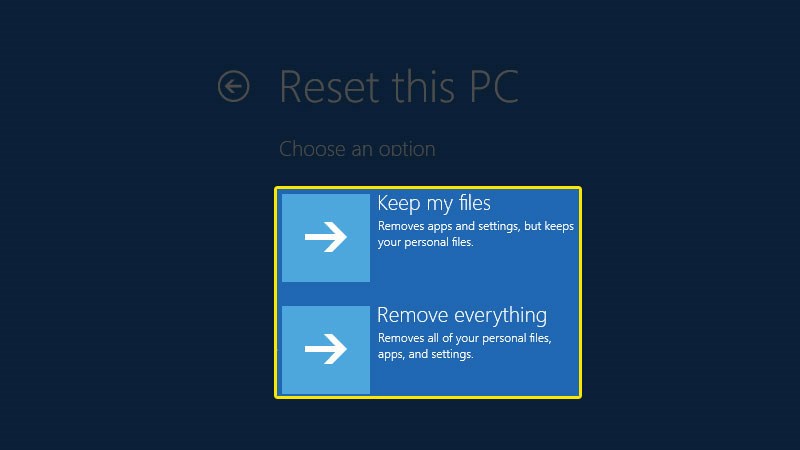
Step 6: In the next step, select Keep my files if you want to retain personal files, or Remove everything if you want to erase the entire Windows installation drive and data on your computer. Here, I will choose Remove everything as an example.
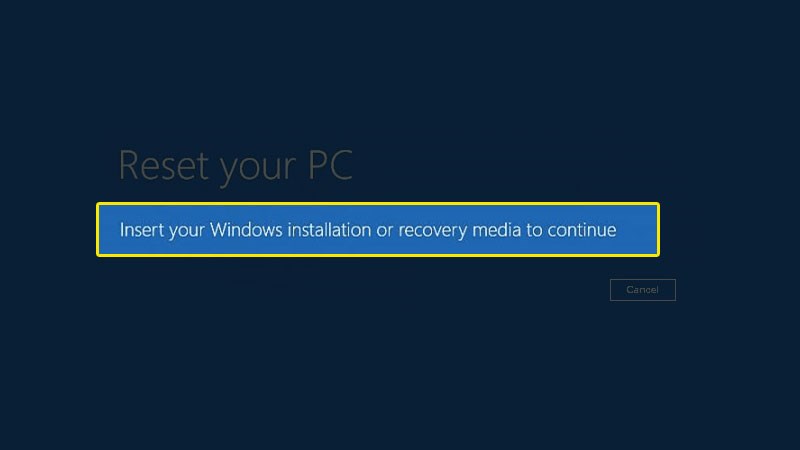
Step 7: If you receive a notification Insert your Windows installation or recovery media to continue then you must insert the recovery drive or Windows installation drive to continue. Skip this step if you don't receive a notification.
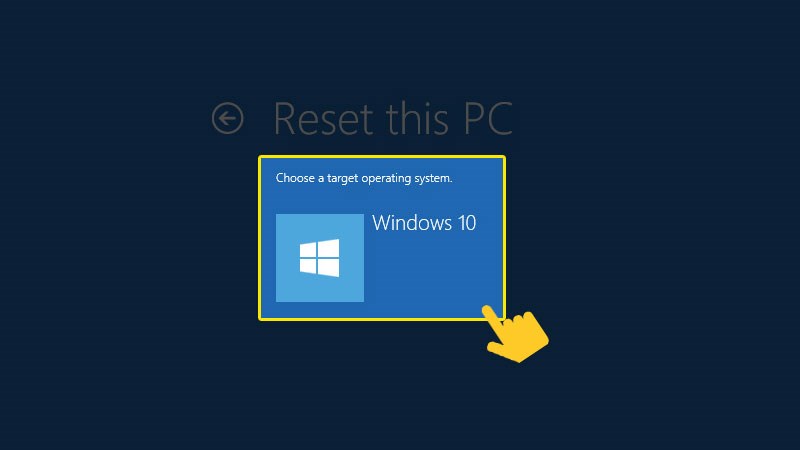
Step 8: Select the operating system you want to install.
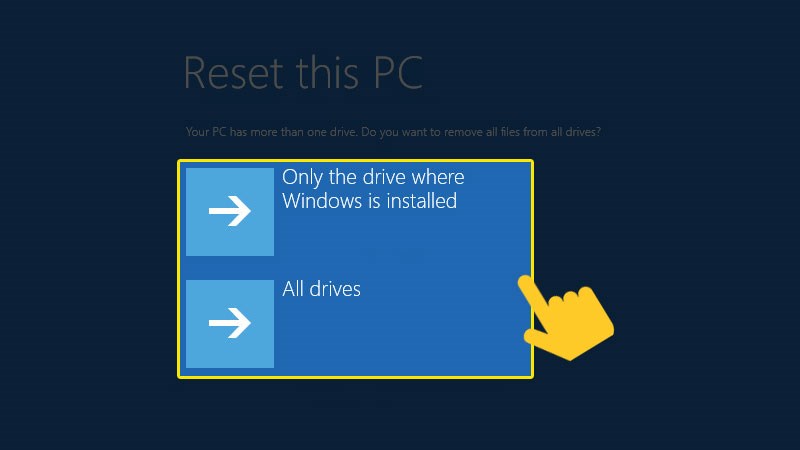
Step 9: If your computer has more than 1 drive, you need to choose to erase only on the Windows installation drive (Only the drive where Windows is installed) or erase on all drives in the computer (All drives).
Step 10: Select Reset to start the recovery process.
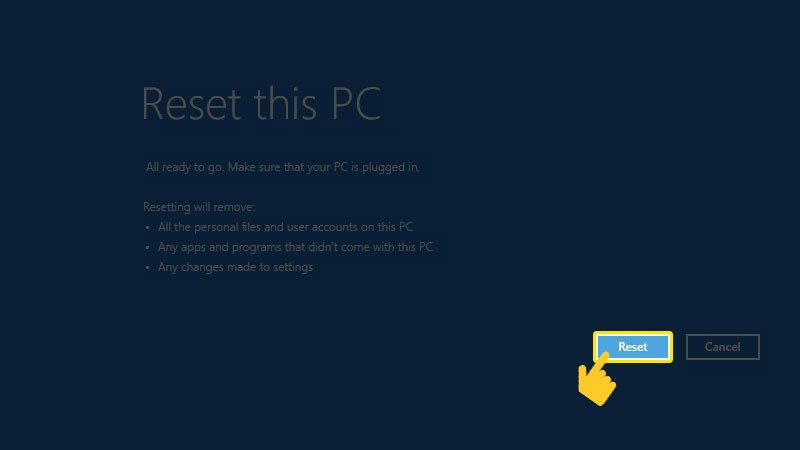
Click Reset to get started
see more :>> Create bootable USB with just 1 click and you're done
IV. Reset Windows 10 without losing data from the login screen (Login Screen)
1. Quick guide
Hold Shift and click Restart > select Troubleshoot > Select Reset this PC > Choose how to delete data > Select operating system > Select the drive you want to delete data > Select Reset.
2. Detailed instructions
Step 1: At the login screen. Click the icon power button In the right corner of the screen, press and hold the key Shift and choose Restart (Restart).

Step 2: After booting in advanced mode, perform the next steps similar to method III from step 4 onwards. First, you choose Troubleshoot.
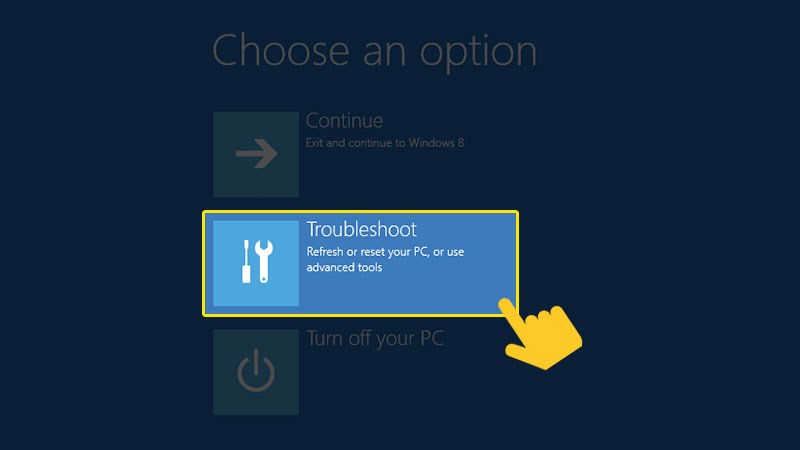
Step 3: Select Reset this PC (Reinstall this computer).
Step 4: Depending on your needs, you choose Keep my files (Retain personal files) or Remove everything (Delete all).
Step 5: Select the operating system to proceed with the installation.
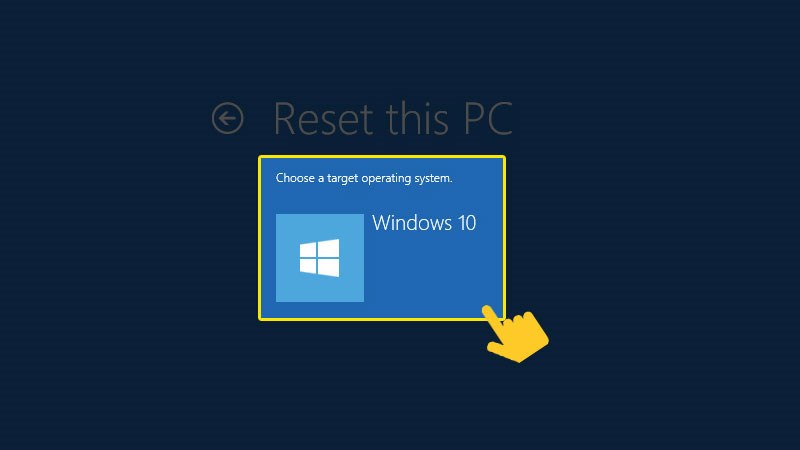
Select operating system
Step 6: Choose how to delete data on the drive, only delete data on the Windows installation drive (Only drive where Windows is installed) or on all drives (All drives).
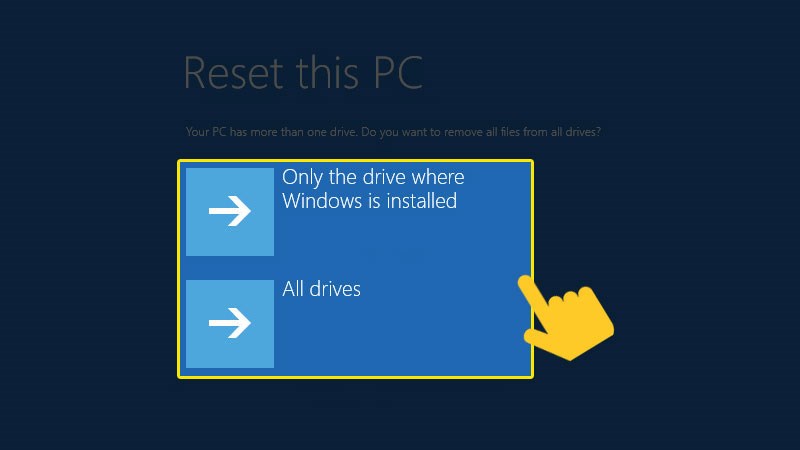
Select the drive you want to delete
Step 7: Click Reset to reinstall the computer.
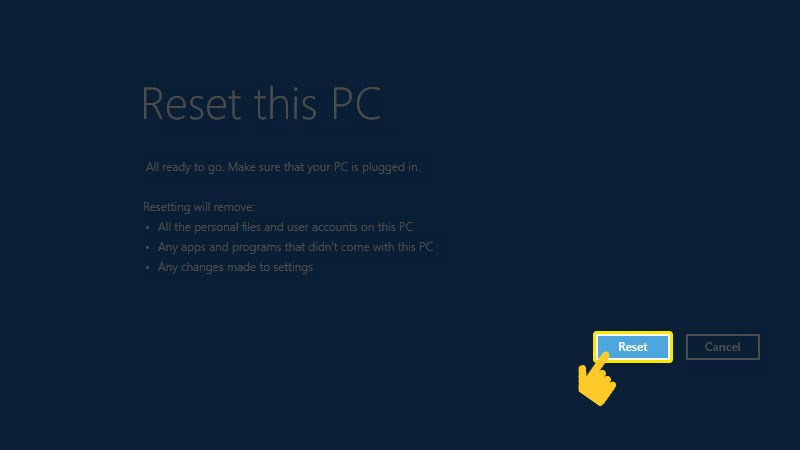
Select Reset to proceed
V. Reset Windows 10 from Fresh Start
1. Quick guide
Open Windows Security > Find the card Devices performance and health and choose Additional info > Select Get started > Click next.
2. Detailed instructions
Step 1: Search Windows Security in the start menu or Cortana.
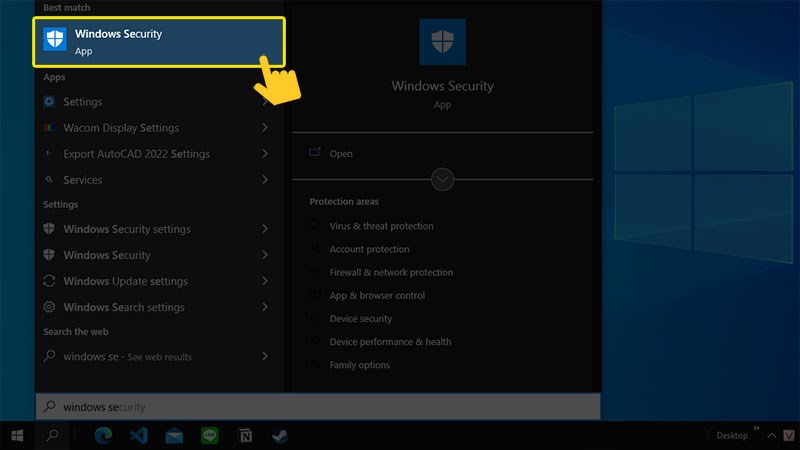
Find Windows Security
Step 2: Find the card Devices performance and health (Device performance and health), you will see the item Fresh start in the right frame. Then you click Additional info (More information).
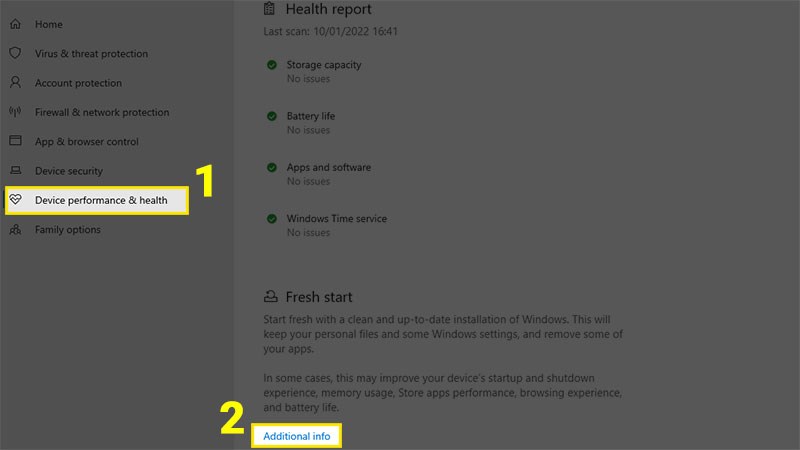
Select Additional info
Step 3: Select Get started (Begin). Select Yes (Agree) if you are asked for permission Fresh start make changes to your device.
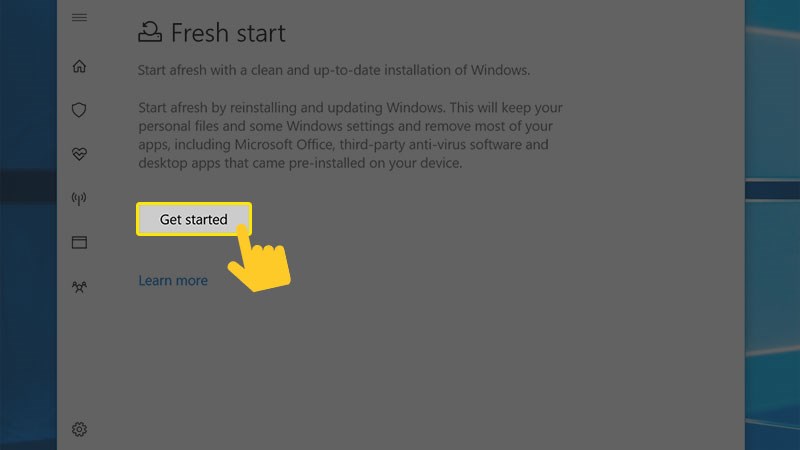
Select Get started
Step 4: Click next To confirm. Fresh start will download and install the latest Windows, while retaining personal data sets.
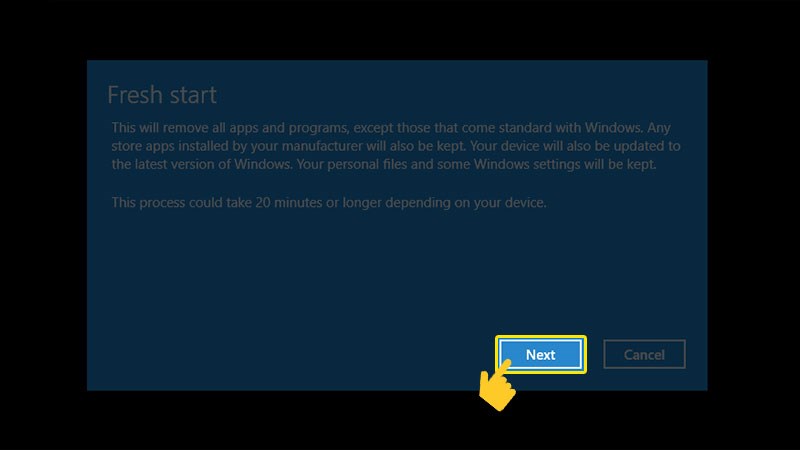
Click Next
Conclude.
Recently, I just summarized the methods reset windows 10 Hope this article will be of great help to you. Wishing you success in fixing your computer.
If you see a good article, don't forget it follow Facebook channel for more great tips.
View article origin