Skip to content
FacebookTwitterPinterest
HOWTOHOWTO
  • All
    • Tips
      • Google
      • Facebook
      • Tiktok
    • Instruct
      • What is Q&A?
      • Taobao
    • WordPress
      • Code
      • Plugins
      • Themes
        • Flatsome
        • Theme Nevo
  • Share
    • WordPress
    • Code
    • Plugins
    • Tips
    • Windows
    • Apple
    • Graphics
    • Experience
  • Graphics documents
    • illustrator
    • Sketchup
    • Coreldraw
    • 3ds max
    • Enscape
    • Photoshop
    • Graphics Plugin
  • Course
    • Photoshop course
    • illustrator course
    • Coreldraw course
    • Edit video course
    • Course Sketchup
    • Autocad course
    • Website management course
  • Service
  • Software
    • Windows
      • Tips
      • Office
      • Necessary
      • Tools
    • Apple
  • Game
  • News
    • Technology
    • Review
HOWTOHOWTO
  • Home > 
  • Graphics > 
  • Adobe Photoshop > 
  • How to use Rectangular Tool photoshop

How to use Rectangular Tool photoshop

By Tung Thai 13/12/2025 0 619 Views
Untitled 1
Article categories

How to use Rectangular Tool photoshop and some usage tips

Rectangular Marquee TooWhat is l in Photoshop?

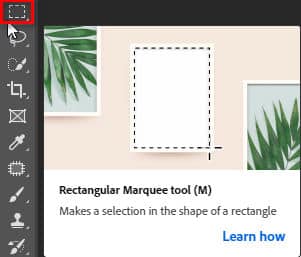
  • Rectangular Marquee Tool is one of the most basic and commonly used tools in Photoshop to cut and collage desired images
  • Rectangular Marquee Tool or press the key MRectangular Marquee Tool Used to cut a rectangular or square or circular object according to the size you want to cut
Rectangular Tool photoshop
Rectangular Marquee Tool

[note]

  • Fix the 2 most common errors in Photoshop
  • How to use Quick Selection Tool Photoshop
  • Photoshop online photoshop software in Vietnamese for free
  • Photo sharpening app not to be missed
  • Photoshop course for beginners

[/note]

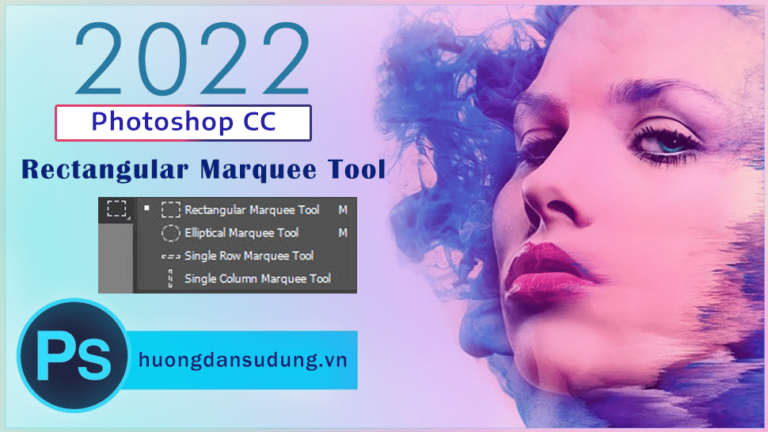
  • Rectangular Marquee Tool Includes 4 different small tools
    (Note: when using this tool, you must use the shortcut keys Ctr+C, Ctrl+V)
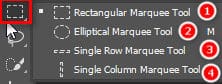
  • To open the tool panel, on the toolbar right click on the icon Rectangle Marquee Tool.
    In the icon appear the selections:- Rectangle Marquee Tool.(No.1)–  Elliptical Marquee Tool. (No. 2)– Single Row Marquee Tool. (No.3)– Single Marquee Column tool. (4)
    Rectangular Tool photoshop
    Four small tools
  • Rectangle Marquee Tool.(number 1): used to cut a square or rectangular object according to the desired size of the object you want to cut. Then I use the keyboard shortcuts Ctrl+C (copy), Ctrl+V (paste) for the object I want to cut.
  • Elliptical Marquee Tool. (number 2): used to cut a circular object according to the desired size of the object you want to cut. Then I use the keyboard shortcuts Ctrl+C (copy), Ctrl+V (paste) for the object I want to cut.
  • Single Row Marquee Tool. (number 3): used to cut a small horizontal line (about 1mm)
  • Single Column Marquee Tool. (number 4): used to cut a small vertical line (about 1mm)
    Both tools number 3 & 4 are rarely used in Photoshop

Tips for using Rectangular Tool photoshop

  1. When you want to cut an object to make it squarer or rounder, you can hold down the key Shift along with cutting action
  2. When I want to move the cutting frame to cut the roundest and squarest shape, I hold down the key Space At the same time, I move the cursor along

Epilogue:

Through this article, I have just introduced it to you. How to use the tool Rectangular Tool photoshop to be most effective. Thereby improving manipulation skills in Photoshop. If you are not familiar with Photoshop, you can refer to it photoshop course by Graphic Express. One-on-one training is very good. Convenient for students and working people.

Good luck. Don't forget to subscribe to the channel Graphic design community | Facebook to receive lots of useful information

Tags : Tags learn photoshop   photoshop   basic photoshop   Graphic design
Share
FacebookShare on FacebookpinterestShare on PinterestMessengerShare on Facebook Messenger
twitterShare on TwitterlinkedinShare on LinkedinvkShare on VkredditShare on ReddittumblrShare on TumblrvideoShare on Viadeobuffer. bufferShare on Bufferpocket. pocketShare on PocketwhatsappShare on WhatsappViberShare on ViberemailShare on EmailskypeShare on SkypediggShare on DiggmyspaceShare on MyspacebloggerShare on Blogger YahooMailShare on Yahoo mailtelegramShare on Telegram gmailShare on GmailAmazonShare on AmazonSMSShare on SMS

Tung Thai

As a student at the center. I write what I know to share with you.
1 is to share with you so you can know and learn.
2 improve knowledge and remember longer, with the motto of giving to receive, I want to write more

Related articles

How to use Rectangular Tool photoshop

Remove tool in photoshop

By How To 27/03/2026 0

Remove tool in Photoshop Introduced in…

How to use Rectangular Tool photoshop

4 Ways to create speed effects in Photoshop

By Tung Thai 27/03/2026 0

Here are 4 ways to create speed effects in Photoshop...

How to use Rectangular Tool photoshop

How to delete excess details in Photoshop

By Tung Thai 05/01/2026 0

How to delete excess details in Photoshop. Delete objects…

Leave a Comment Cancel reply

Categories Adobe Photoshop Remove tool in photoshop

Remove tool in photoshop

27/03/2026
4 Ways to create speed effects in Photoshop

4 Ways to create speed effects in Photoshop

27/03/2026
Graphic Design

Graphic Design The art of creating appeal

27/02/2026
What is google plays app? Is installation necessary?

What is google plays app? Is installation necessary?

24/02/2026
create flatsome slider

How to create a slider that runs super smoothly on flatsome

05/01/2026

Recent comments

  • male2 years ago
    On How to create a fade effect in Photoshop
    Great
  • phat phat2 years ago
    On Who is 5SMedia?
    Useful article
  • Minh Anh3 years ago
    On How to create basic materials in vray Sketchup
    Very good, admin
Copyright © 2026 HOWTO - Powered by HOWTO

5SMedia.net | hocdohoacaptoc.com | huongdansudung.vn | webantam.com

Back to Top
Hello!
  • All
    • Tips
      • Google
      • Facebook
      • Tiktok
    • Instruct
      • What is Q&A?
      • Taobao
    • WordPress
      • Code
      • Plugins
      • Themes
        • Flatsome
        • Theme Nevo
  • Share
    • WordPress
    • Code
    • Plugins
    • Tips
    • Windows
    • Apple
    • Graphics
    • Experience
  • Graphics documents
    • illustrator
    • Sketchup
    • Coreldraw
    • 3ds max
    • Enscape
    • Photoshop
    • Graphics Plugin
  • Course
    • Photoshop course
    • illustrator course
    • Coreldraw course
    • Edit video course
    • Course Sketchup
    • Autocad course
    • Website management course
  • Service
  • Software
    • Windows
      • Tips
      • Office
      • Necessary
      • Tools
    • Apple
  • Game
  • News
    • Technology
    • Review
EN
EN
VI
Hello!

  • Lost your password ?