Photoshop Tutorial for Beginners
If you are a person who is passionate about professional photography or image editing, you are certainly not too unfamiliar with the name Photoshop. Today I will introduce the tools and interface in Photoshop for beginners, intending to learn about it. You can practice right on your computer.
- Photoshop online photoshop software in Vietnamese for free
- What is Photoshop? How to learn Photoshop effectively and quickly
- How to apply materials to subjects in Photoshop
- The best way to remove acne in photoshop in 2022
- Top 1 Image sharpening app not to be missed
- The latest and most beautiful way to adjust colors in Photoshop in 2022
1. Learn Photoshop's working interface
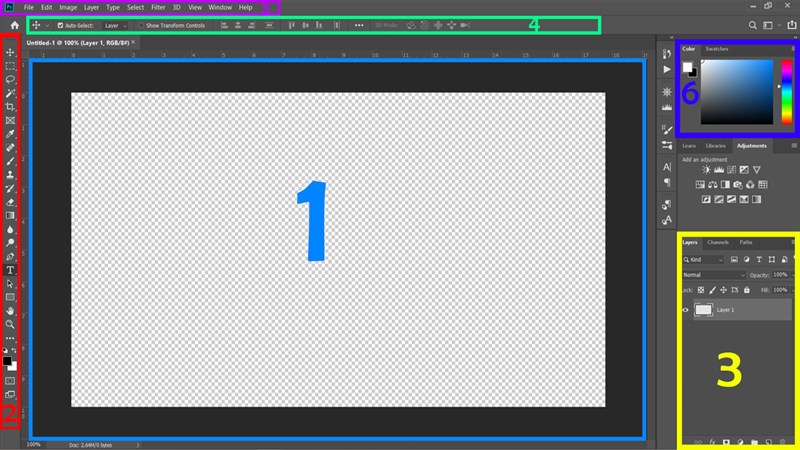
The interface has 5 main parts:
1- The working frame contains the content that needs to be worked on.
2- Toolbar, contains tools for you to work with your content.
3- Layer frame for you to manage layers during work.
4- Custom bar with tools of your choice.
5- Photoshop menu bar.
6- Photoshop color palette.
2. Photoshop framework
Photoshop's working framework is quite simple, including a background frame and 2 height and length measurement bars. You can turn these 2 bars on or off with a key combination CTRL + R.

3. Toolbar in Photoshop
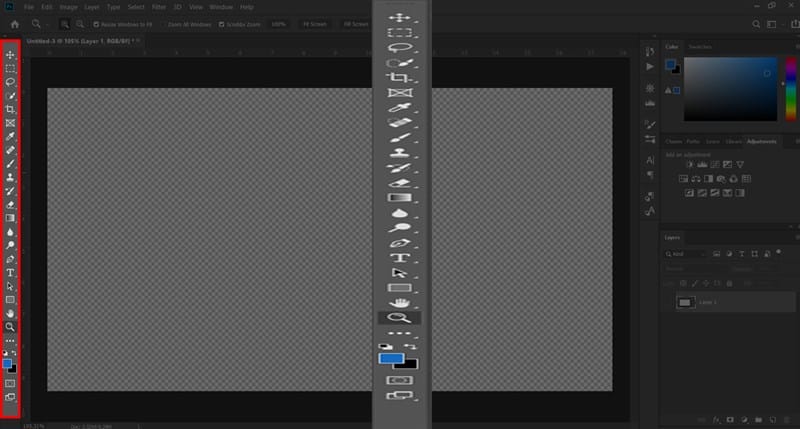
Where you can choose tools to edit content on the framework, this bar also has many tools such as:
- Move tool (V): tool used to move objects to where you want.
- Marquee Tool (M): Tool to select an area with a fixed shape
- Lasso Tool (L): This selection tool allows us to select an area of arbitrary shape.
- Quick Selection Tool (W): Create a selection of points that have similarities.
- Crop Tool (C): Used to trim or expand the working frame and working content.
- Frame Tool (K): Create a placeholder frame for the image.
- Eyedropper Tool (I): Used to select color.
- Spot Healing Brush Tool (J): Automatically erase excess marks or bad details based on surrounding details.
- Brush Tool (B): Color a custom area.
- Clone Stamp Tool (S): Draws an area based on the pixels of another area in the image.
- History Brush Tool(Y): Restore part of the image to its previous state.
- Eraser Tool (E): Erase a custom image area.
- Gradient Tool (G): Helps blend between 2 colors.
- Blur Tool: Used to blur an image area.
- Dodge Tool (O): Brightens the selected image area.
- Pen Tool (P): Draw any lines, can be customized, curved,...
- Horyzontal Type Tool (T): Used to add text to the work content.
- Path Selection Tool (A): Used to move drawing lines from the Pen Tool.
- Rectangle Tool (U): Tool for drawing common shapes such as rectangles, ellipses, lines,... in vector form.
- Hand Tool (H): Used to move the working image when zoomed up.
- Zoom Tool (Z): Used to enlarge or reduce the image.
- Change Color: Used to select color and fill the background color.
4. Layer frames and how to use them in Photoshop for beginners
- If you are a beginner learning about Photoshop, you need to clearly understand what functions these tools have and how they work.
- Layers are places that contain image objects, they are created to manage each separate image part. This means that when you are selecting a layer, you are only allowed to affect the object layer and the color of that layer. Each layer is considered an image layer.
- A layer is a transparent surface on which one or more objects or no objects can be placed. Photoshop allows us to create an unlimited number of layers and can arrange them. If any layer is above, the object belonging to that layer will lie on the object of the remaining layers by dragging and dropping.
- At the same time, the principle of layering will allow you to easily mix many different image arrays. From there, create the perfect photo according to your wishes.
Note: When you perform operations with tools, What layer's content? then Select that layer to perform the operation Please. If you choose the wrong layer, you will encounter a little problem when performing the operations. If you accidentally choose and operate incorrectly Lauer, you can Undo Follow the previous action and select the correct layer again and continue working.
The Layer frame has 4 main parts including:
- 1- Select the layer's blending mode
- 2- Opacity adjusts the layer's transparency
- 3- The frame contains layers, managing the layers you have
- 4- Contains accompanying functions to create effects for Layers, create or delete Layers

5. Open a file to work in Photoshop
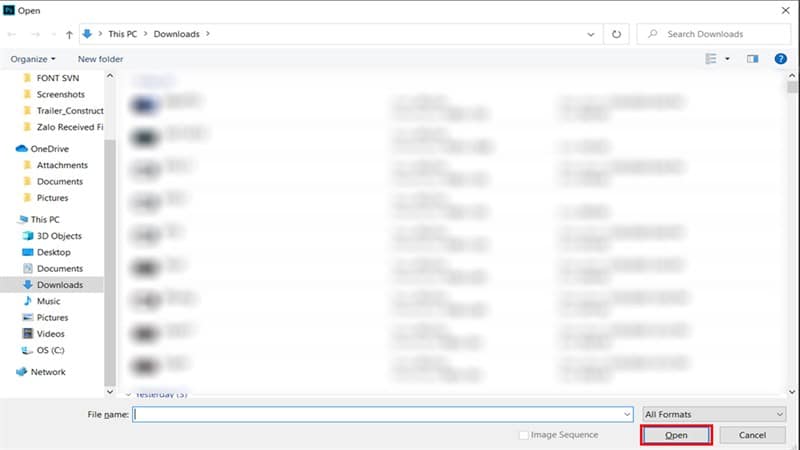
On the bar Menu you choose to enter File > Open then the Open window will be opened Select File to open > Open. Or you can use a key combination CTRL + O to quickly open the window Open.
6. How to create a new File in Photoshop
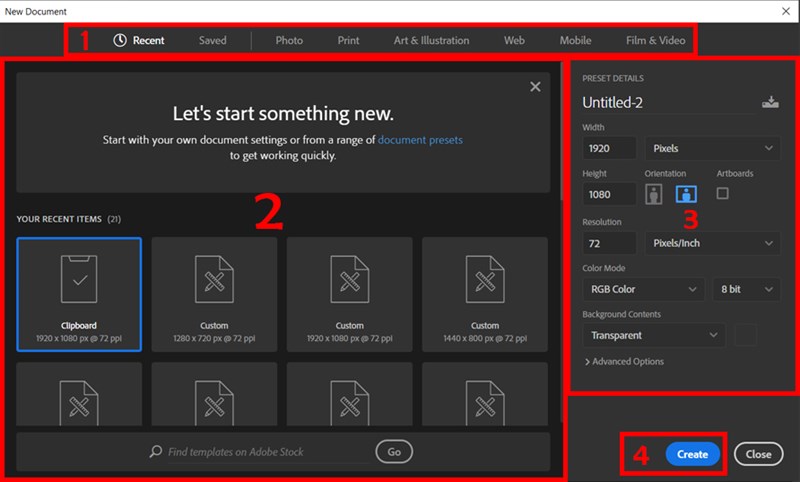
To create a new File you can select File > New or you can use key combination CTRL + N to open the window New Document. The New Document window includes several sections such as:
- 1- You can quickly select the type of framework available here
- 2- Where you choose the available working frame size.
- 3- Create a canvas of arbitrary size by changing the parameters Width, Height, Resolution and color system.
- 4- Click Create to complete creating a new frame
7. How to save a File after processing
To save a file, select it File > Save or key combination CTRL + S to save the file on the original file or save for the first time to create the original file. If you save a file other than the original file, you need to click File > Save as or key combination CTRL + SHIFT + S to save.
After choosing to save, just name and choose the format in which you want to save the file. If you want to save an image file, you can choose JEPG or PNG. To save the file to continue working in Photoshop next time, you need to choose PSD format,... depending on your purpose, you can choose different file formats. Then choose Save good Save as That's your choice.
summary
Just now I just Instructions for using Photoshop for beginners This helps you have the ability to supplement your knowledge without having to go to school. However, there is a saying: "No teacher challenges you to do it". If you have a real need, you should also find a center to study properly and have a clear roadmap. It will help you improve your knowledge and skills more.
By the way, I also introduce it to you. Photoshop learning course 1 on 1 can help you improve this skill. You can click Photoshop learning course To learn more about the course to see if it's right for you.
If you find it interesting and useful, please share it with everyone. Let's wait for the next part. Monitor fanpage us to be updated with the latest information
Source: User manual