When you use Photoshop software, if you want to pair one object with another, you must separate photoshop background. This will help you pair this object with another object. Helps you combine pictures more quickly and conveniently.
So to separate the background in Photoshop, what do we need to do? How to operate? Learn with the user guide way separate photoshop background Extremely fast and effective
Instructions for removing photoshop background very quickly
To separate the Photoshop background, we will divide it into 2 cases as follows:
- Isolate the background with complex objects related to hair, fur, beard... in Photoshop.
- Separate the background from objects, plants, flowers, leaves...
[note]
- How to create snow in Photoshop is extremely simple
- How to install Photoshop software on Windows Mac simply
- HOW TO Photoshop for beginners
- The latest and most beautiful way to adjust colors in Photoshop in 2022
- Online Computer Graphics Software Installation Service
[/note]
1. How to separate people in photoshop very quickly
When separating people in Photoshop, the tool to use is the tool Object Selection Tool(w) Used to quickly create a selection of the object we need to cut.
Note: this tool is only available in versions 2021 and above.
Step 1: Create a selection
- Use tools Object Selection Tool or tools Quick Selection Tool to create a selection
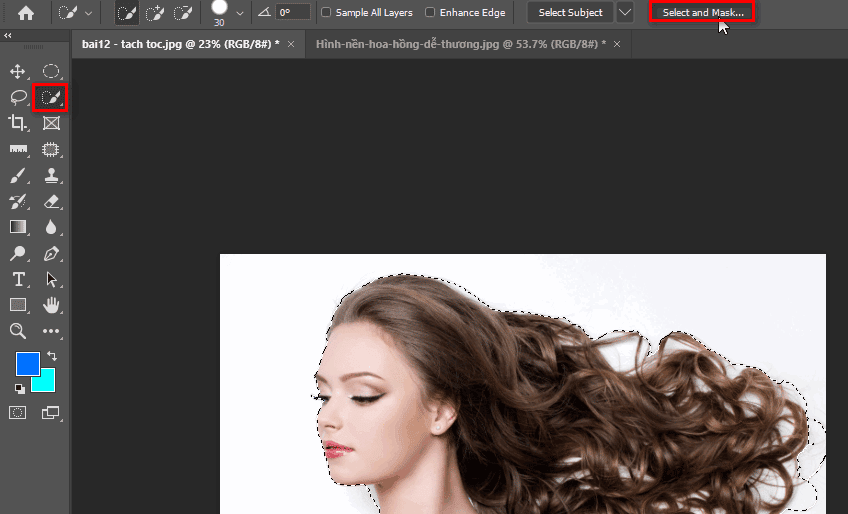
Step 2: Use the tool to select the object
- We look at the menu bar then click on it Select and Mask to temporarily separate the object from the background
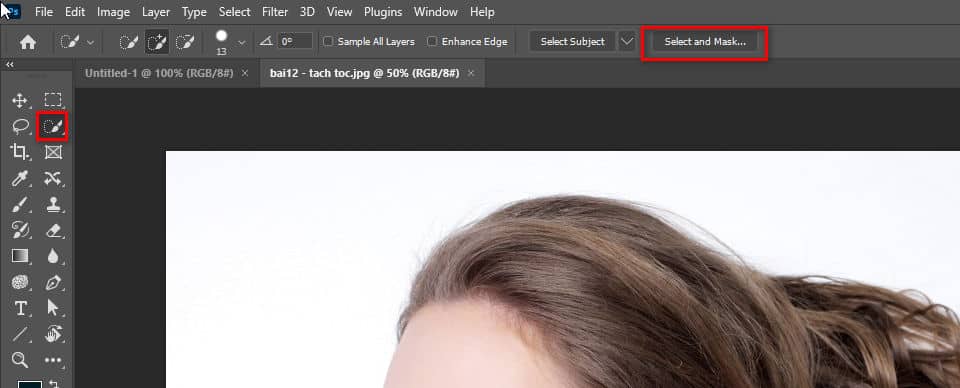
Step 3: Use tools Refine Edge Brush to remove redundant objects
- Select tools Refine Edge Brush Tool to select the remaining areas that you have not separated from the background, click directly on the area that needs to be separated
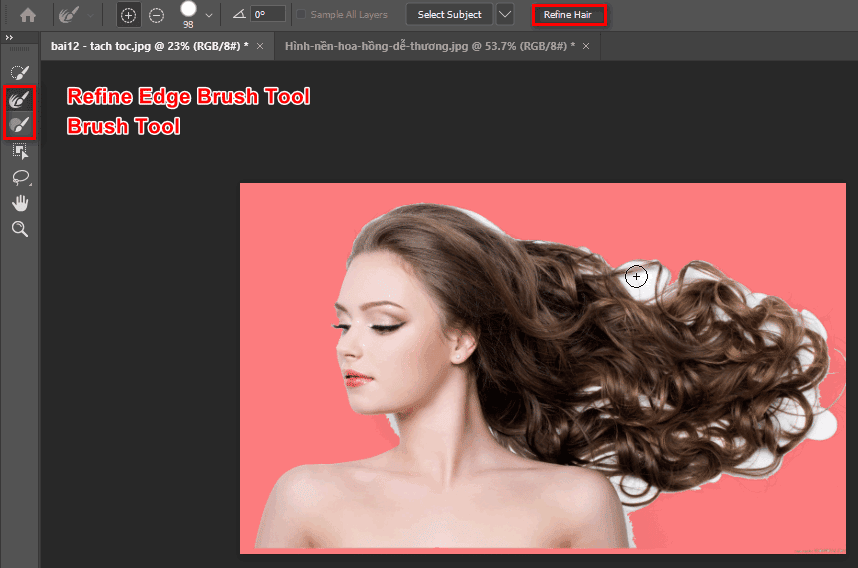
- When using this tool and hitting an object around you that you don't want to select, use the tool Brush Tool (Under tools Refine Edge….) to remove the affected area
Step 5: Use function Refine Hair to separate hair more effectively
- Click to select Refine Hair on the menu bar according to the picture in step 4 to separate the hair and retain more details of the hair
Step 6: Set output settings
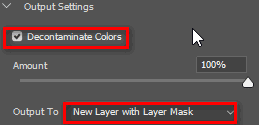
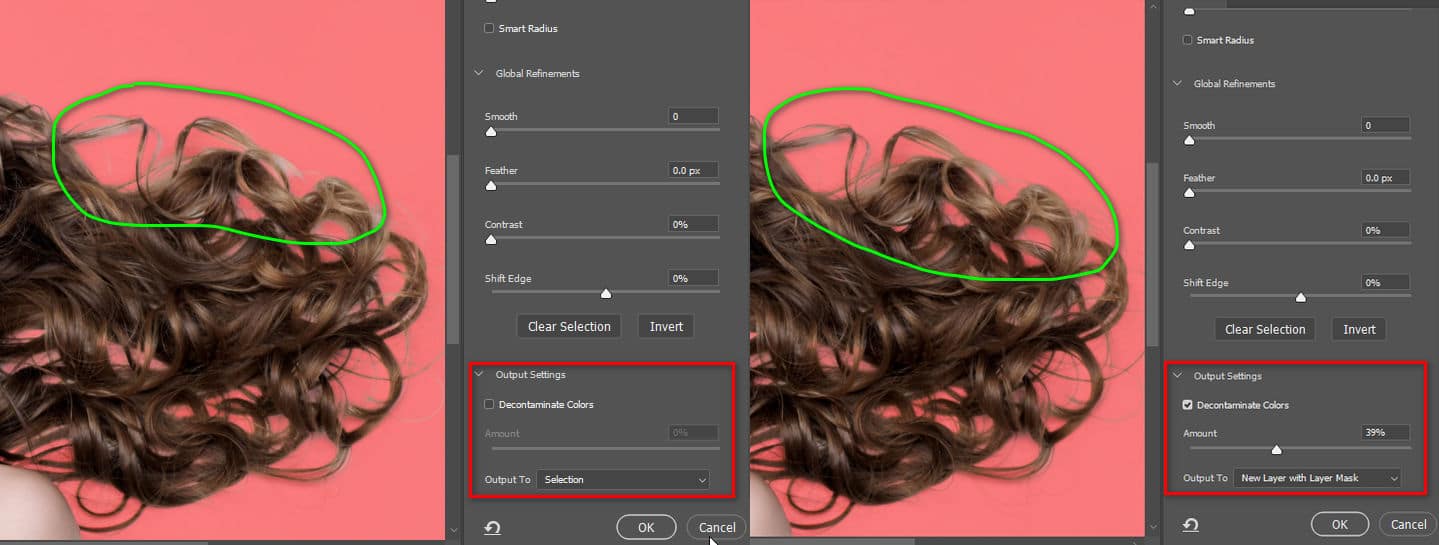
- You look at the right-hand column below the output setting Output Settings Later click mouse in Decontaminate Colors box for softer hair separation. Then we choose New Layer with Layer Mask to create a new layer and add a layer mask > OK
You can see before and after selecting the Amount parameter. In addition, you can optionally drag the slider to make it most suitable.
Step 8: Check to see if the hair separation is ok
To check, create a white or black layer for yourself so that the image has color contrast so you can see whether the borders you just separated are ok or not by doing the following.
Select the icon as shown below > Solid color
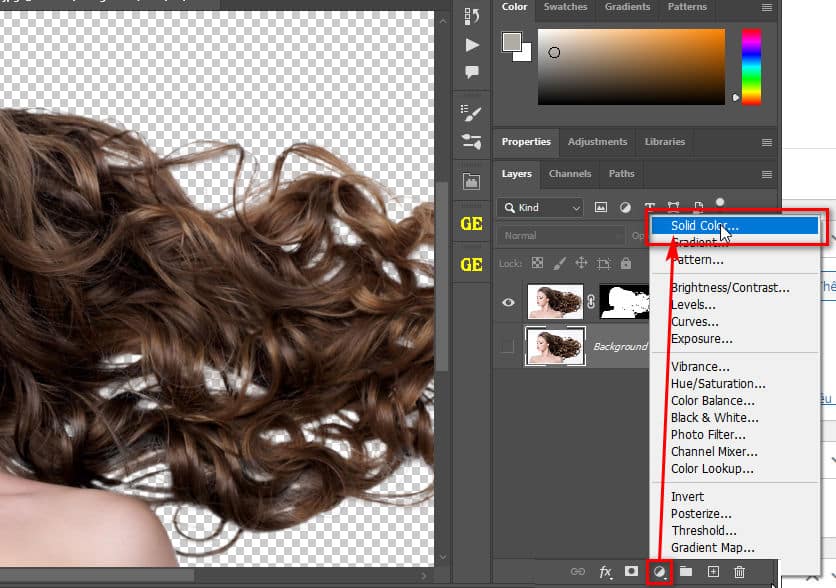
Continue to choose a contrasting color to see whether the hair roots have been completely separated or not.
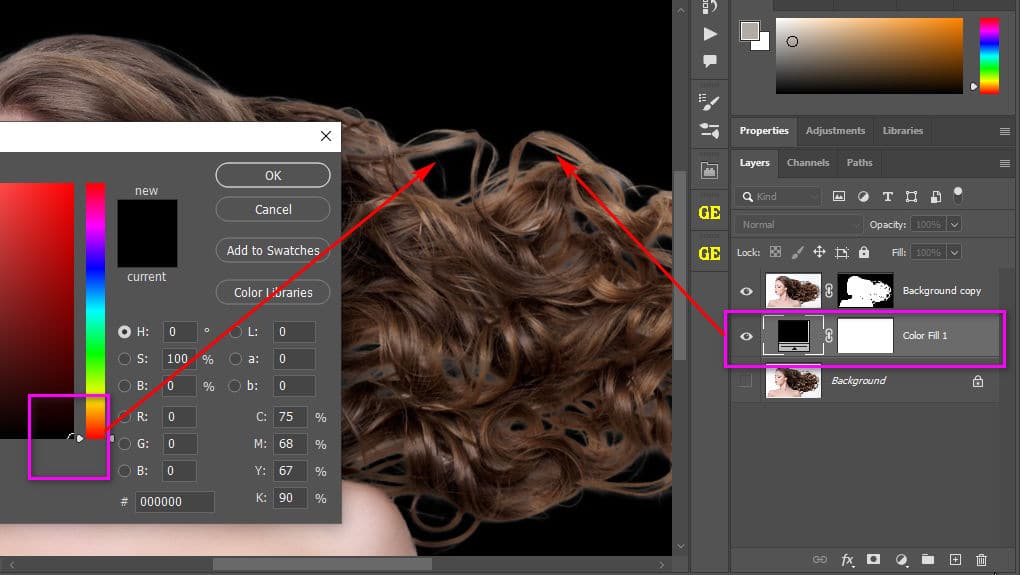
Step 8: Results
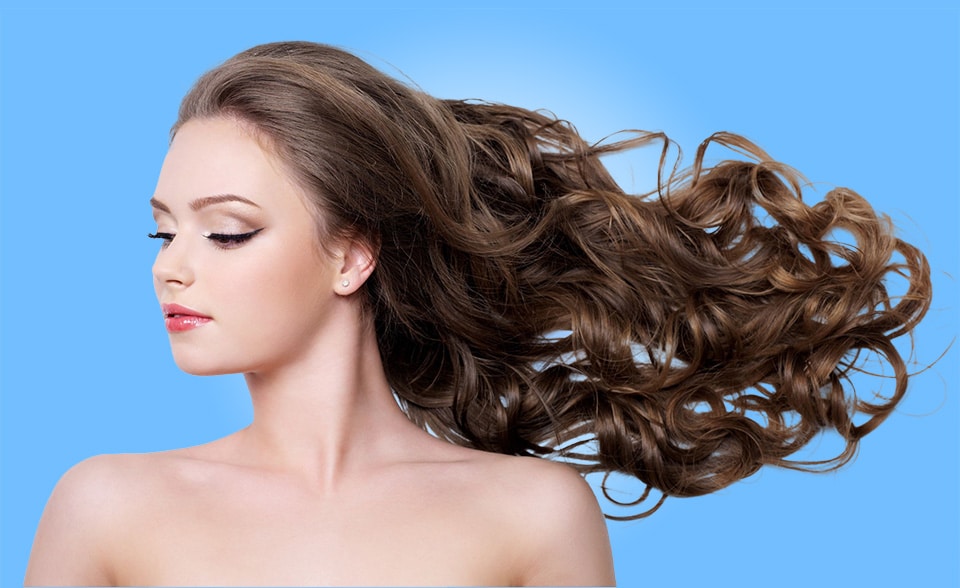
And this is your result after hair treatment. Here I put the gradient color to make it more eye-catching.
2. How to separate trees in Photoshop very quickly
This method does not use the Object Selection Tool and is more suitable for trees than for people
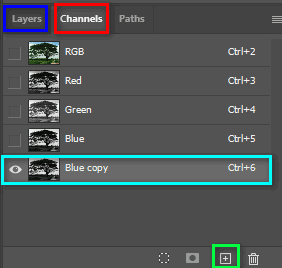
Step 1: Select the Channel panel of the layer to separate then select Layer Blue
Step 2: Turn off all remaining layers then drag the Blue layer down to the + sign to copy that layer
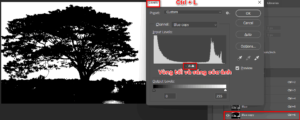
Step 3: Use Layer Copy to clearly increase the brightness and darkness of that layer using the keyboard shortcut Ctrl + L to increase or decrease the light
Step 4: The parts that need to be taken I adjust to the darkest and the parts that are removed I adjust to the lightest
Step 5: Then hold down the Ctrl button and click on that layer, now a selection area appears with only the outside selection
Step 6: Invert the selection by pressing Ctrl + Shift + I to select inside
Step 7: Then turn on all those layers and click on the Main Layer section
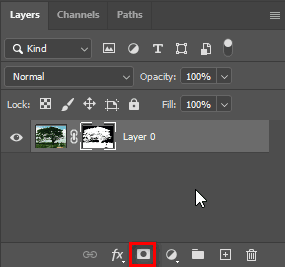
Step 8: Now that the area we selected appears red, we create a layer mask to separate that background
Split the tree |
|
|
- These are the two fastest and most accurate ways to separate hair and trees from the background in Photoshop without losing too much detail of the object we want to keep.
- The two ways are separate from each other and suitable for each object and purpose we want
[note]
- How to use Spot Healing Brush Tool Photoshop
- HOW TO Pen Tool Photoshop
- How to use Rectangular Tool photoshop
- How to use Move tool Photoshop
[/note]
This is the most detailed article on how to quickly and effectively separate objects from the background in Photoshop. If this article is useful to you, please vote 5* and share to let everyone know how to separate objects. certain objects, if you want to learn about graphic design, illustrator, photoshop,... you can refer to courses from Graphic Express for thorough advice and 1:1 tutoring that is easy to understand and at the same time suitable for students and working adults.
Conclusion
So in this article, I have just guided you in detail how separate photoshop background through 2 exercises. Separating hair in photoshop and separate trees in photoshop. Hopefully this article will help you a lot so you can apply it more in your work.
Don't forget to follow us on Facebook To be updated with new content when there is the latest article