Skip to content
  • About us
  • Contact
  • en_USEN
  • viVI
FacebookTwitterPinterest
HOWTOHOWTO
  • All
    • Tips
      • Google
      • Facebook
      • Tiktok
    • Instruct
      • What is Q&A?
      • Taobao
    • WordPress
      • Code
      • Plugins
      • Themes
        • Flatsome
        • Theme Nevo
  • ShareHot
    • WordPress
    • Code
    • Plugins
    • Tips
    • Windows
    • Apple
    • Graphics
    • Experience
  • Graphics documents
    • illustrator
    • Sketchup
    • Coreldraw
    • 3ds max
    • Enscape
    • Photoshop
    • Graphics Plugin
  • Course
    • Photoshop course
    • illustrator course
    • Coreldraw course
    • Edit video course
    • Course Sketchup
    • Autocad course
    • Website management course
  • Service
  • Software
    • Windows
      • Tips
      • Office
      • Necessary
      • Tools
    • Apple
  • Game
  • News
    • Technology
    • Review
Hello!

  • Lost your password ?
HOWTOHOWTO
  • Home > 
  • Graphics > 
  • Adobe illustrator > 
  • Instructions for using Illustrator's Scale tool

Instructions for using Illustrator's Scale tool

By Tung Thai 16/09/2024 0 606 Views
HOW TO Illustrator's Scale tool
Article categories

Illustrator's Scale tool helps objects to change size simply and quickly. In addition, the Scale tool of illustrator also has many extremely useful effects when editing points together when editing at the same time. From there, it brings balance in the design. Let's learn more about the Scale tool of illustrator.

Instructions for using Illustrator's Scale tool

Scale tool 2022 09 17 110752: Used to copy what you want to shrink inside the image. There is a text shortcut (S)
Scale tools illustrator Helps us copy and create the small images inside that we want and can adjust the size and distance of the two images together.
Illustrator's Scale tool
scale tool

Step 1: I draw a circle
Step 2: I use the tool Scale tool (There is also a keyboard shortcut S)
Step 3: A blue point will appear at the center of the circle
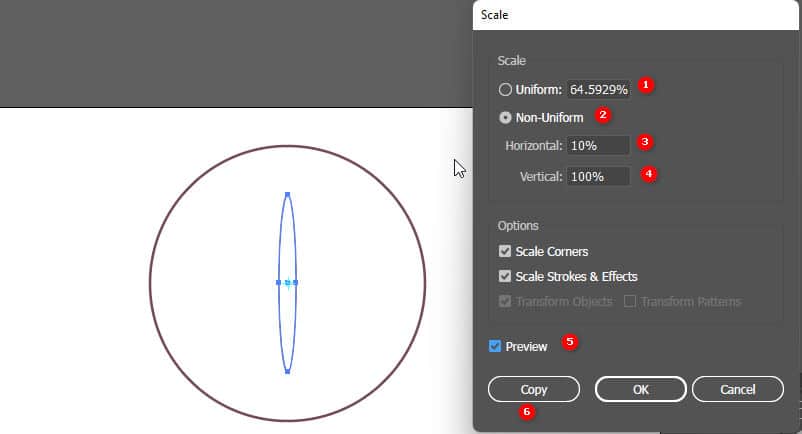
Step 4: when we press Enter A parameter sheet will appear

  1. Uniform: is the distance between 2 circles, from the outer circle to the inner circle is how many %
  2. Non-uniform: is the horizontal distance (Horizontal), vertical (Vertical) how many vertical or horizontal % do you want to create the image you want
  3. Horizontal: % horizontal direction (horizontal)
  4. Vertical : % vertical (vertical) direction
  5. Preview: Preview before clicking Ok or Copy
  6. Copy: used to copy and create the size you have chosen

Step 5: If we click OK or keys Enter This will mean that the current circle will return to the size you selected on the parameter sheet
If Copy will create a second image according to the selected size and at the same time repeat the key operation Ctrl+D

Some ways and tips when using the tool

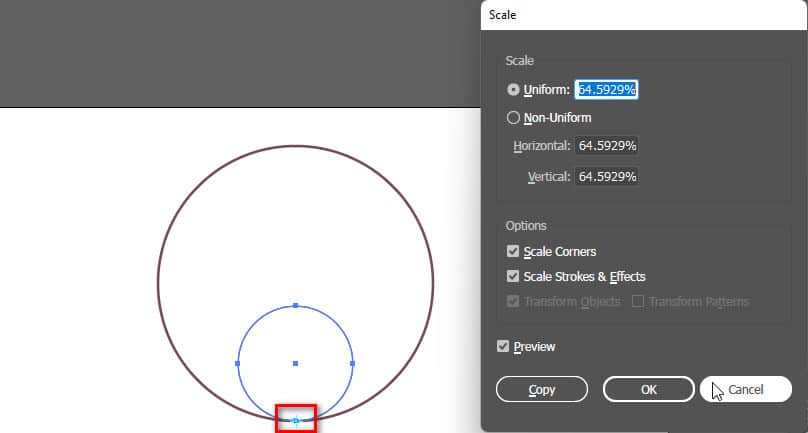
If we want the mind to be in a different position, we will do the following
Illustrator's Scale tool
Select the center of rotation

Step 1: I also created a circle
Step 2: use the tool Scale tool (S)
Step 3
: If you want the center of the image you want to create, hold down the key Alt and Hover the mouse over that point then left click
Step 4: At this time, the parameter table that I want to adjust will appear

see more

  • Instructions for using tools in Illustrator
  • Instructions for Setting up sketchup when first installing
  • Download Capcut PC for free to use full features
  • How to create a taobao account in Vietnamese

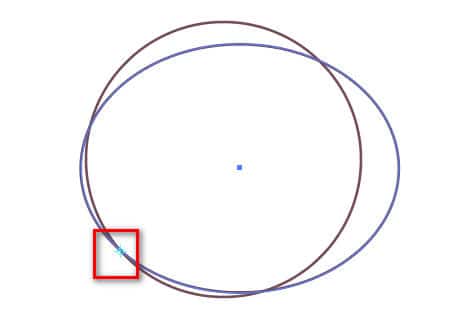
If we change the size with the mouse, we will do the following
scale tool
scale tool

Step 1: I also created a circle
Step 2: use the tool Scale tool (S)
Step 3: but I choose my mind by way Hover the mouse over that point Later left click
Step 4: 
I keep it now keys Alt and place the mouse pointer right at the border of the image, a white and black mouse pointer will appear
Step 5: when dragging in or out, an image will appear, the size is determined by the mouse (length, width)
Step 6: When finished, let go of the mouse first and then let go Alt key
Alt 
Used to copy but the center remains the same. If we want the circle to be more even, we can keep it more Shift key drag the mouse at the same time

Epilogue:

After this article, I have introduced briefly Illustrator's Scale tool . Help me know about the tool and its function in design.
I have introduced it in detail and at the same time, I have also shared many ways and some good tips while using the tool. If you find it interesting and interesting, don't hesitate to give me 5*, so I can have more motivation. More good articles to support you.

If you want to learn about Illustrator, or learn photoshop can refer illustrator course by Graphic Express. There will be 1-on-1 training to help you understand better, and is convenient for students and workers, and the study time can be freely chosen.

Good luck. Don't forget to subscribe to the channel Facebook To receive more good articles from me.

Tags : Tags Scale tool   learn adobe illustrator   learn from   learn illustrator   Scale tool in illustrator   Using Scale tool in AI
Share
FacebookShare on FacebookpinterestShare on PinterestMessengerShare on Facebook Messenger
twitterShare on TwitterlinkedinShare on LinkedinvkShare on VkredditShare on ReddittumblrShare on TumblrvideoShare on Viadeobuffer. bufferShare on Bufferpocket. pocketShare on PocketwhatsappShare on WhatsappViberShare on ViberemailShare on EmailskypeShare on SkypediggShare on DiggmyspaceShare on MyspacebloggerShare on Blogger YahooMailShare on Yahoo mailtelegramShare on Telegram gmailShare on GmailAmazonShare on AmazonSMSShare on SMS
Tung Thai

Tung Thai

As a student at the center. I write what I know to share with you.
1 is to share with you so you can know and learn.
2 improve knowledge and remember longer, with the motto of giving to receive, I want to write more

Related articles

Instructions for using Illustrator's Scale tool

How to create flowers in illustrator

By Tung Thai 10/12/2025 0

How to create flowers in illustrator to create flowers…

Instructions for using Illustrator's Scale tool

How to create borders for text in illustrator

By Tung Thai 10/12/2025 0

How to create borders for text in illustrator. Maybe a…

Instructions for using Illustrator's Scale tool

Draw flowers in illustrator

By Tung Thai 05/12/2025 0

How to draw flowers in illustrator. As you have…

Leave a Comment Cancel reply

Categories What is Q&A? What is the structure of that place?

What is Interior Design? How much does an interior design job pay?

12/12/2025
What is Material?

What is Material? Material application in the field of design

11/12/2025
What is the poster?

What are posters? 9 Tips for designing beautiful, quick Posters

11/12/2025
What does graphic design do? Is it easy to get a job?

What does graphic design do? Is it easy to get a job?

11/12/2025
Water is the water material in Enscap

Water is the water material in Enscap

11/12/2025

Recent comments

  • male1 year ago
    On How to create a fade effect in Photoshop
    Great
  • phat phat2 years ago
    On Who is 5SMedia?
    Useful article
  • Minh Anh3 years ago
    On How to create basic materials in vray Sketchup
    Very good, admin
Copyright © 2025 HOWTO - Powered by HOWTO

5SMedia.net | hocdohoacaptoc.com | huongdansudung.vn | webantam.com

Back to Top
Hello!
  • All
    • Tips
      • Google
      • Facebook
      • Tiktok
    • Instruct
      • What is Q&A?
      • Taobao
    • WordPress
      • Code
      • Plugins
      • Themes
        • Flatsome
        • Theme Nevo
  • Share
    • WordPress
    • Code
    • Plugins
    • Tips
    • Windows
    • Apple
    • Graphics
    • Experience
  • Graphics documents
    • illustrator
    • Sketchup
    • Coreldraw
    • 3ds max
    • Enscape
    • Photoshop
    • Graphics Plugin
  • Course
    • Photoshop course
    • illustrator course
    • Coreldraw course
    • Edit video course
    • Course Sketchup
    • Autocad course
    • Website management course
  • Service
  • Software
    • Windows
      • Tips
      • Office
      • Necessary
      • Tools
    • Apple
  • Game
  • News
    • Technology
    • Review
en_US EN
en_US EN vi VI