How to completely uninstall applications on your computer very quickly
To delete using software on the computer, not everyone knows how to delete. When you delete it, it will usually cause your computer to still have the files it previously installed. When you remove those files, they are still hanging around somewhere on your computer without you knowing. This article will guide you How to completely uninstall applications on your computer Helps your computer save memory space and run smoother.
Note: To completely uninstall the application, you need to install additional supporting software that will scan your computer for remaining files and delete them.
1. How to uninstall applications on your computer with the "free" IObit Uninstaller software
Step 1: Download IObit Uninstaller software
First of all we need Download and install IObit Uninstaller software for computers.
Step 2: Install IObit Uninstaller software
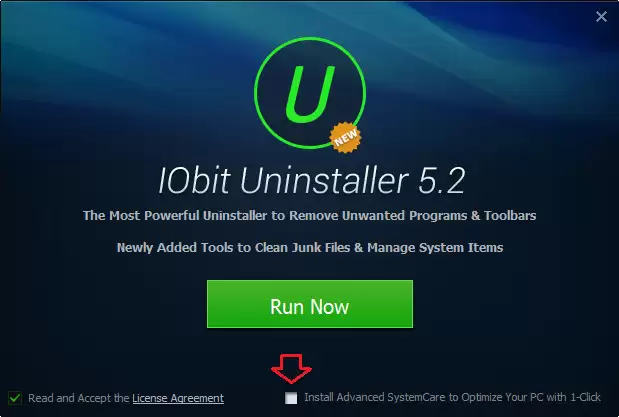
When you install software, you need to be careful. To prevent the application from installing other software, you need to uncheck the box Install Advanced Systemcare then choose Run Now to install
See more:
- Download unikey latest standard version 2023
- Download extremely beautiful Vietnamese font for free
- Download Microsoft Visual C++ full to fix many errors
Step 3: Interface when installation is complete.
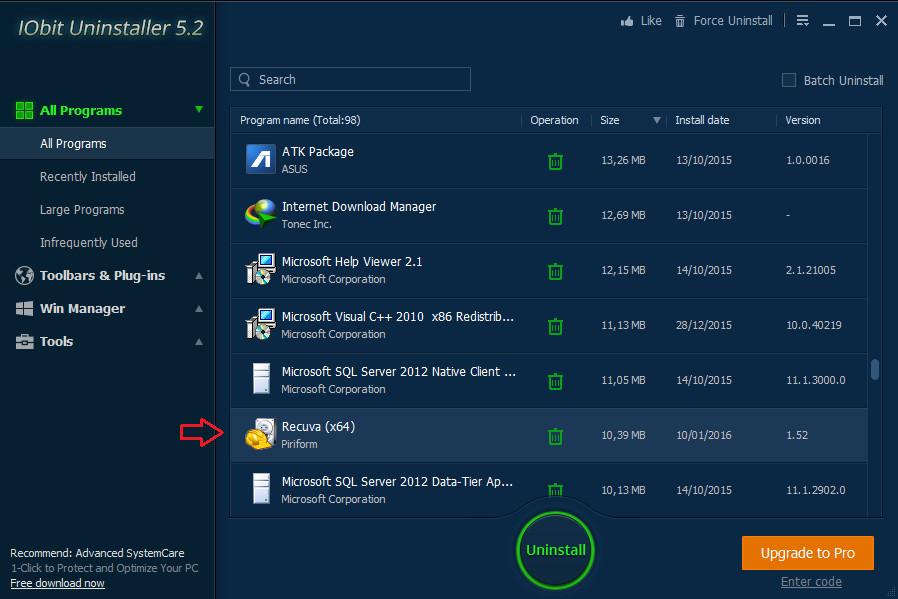
When the software installs successfully, open the software. You will have the interface as shown below. You will be presented with a list of installed programs appearing here. Now you just need to search for the software you need to remove. If you want to remove multiple software at the same time, you can keep it Ctrl or Check the Batch Unitast box.
This is a function I really like in this software. It is not only convenient but also saves us a lot of time when uninstalling applications.
Step 4: How to completely uninstall installed software
Uninstalling the application is completely simple. You just need to check the application and click on the trash icon or select the Uninstall button and the software will automatically uninstall the application for you.
IObit Uninstaller software will scan deeply into the registry and folders related to the newly uninstalled application, then give you options on whether to delete it or not. It's best to delete it. This is the strength of uninstallation tools that Windows does not have.
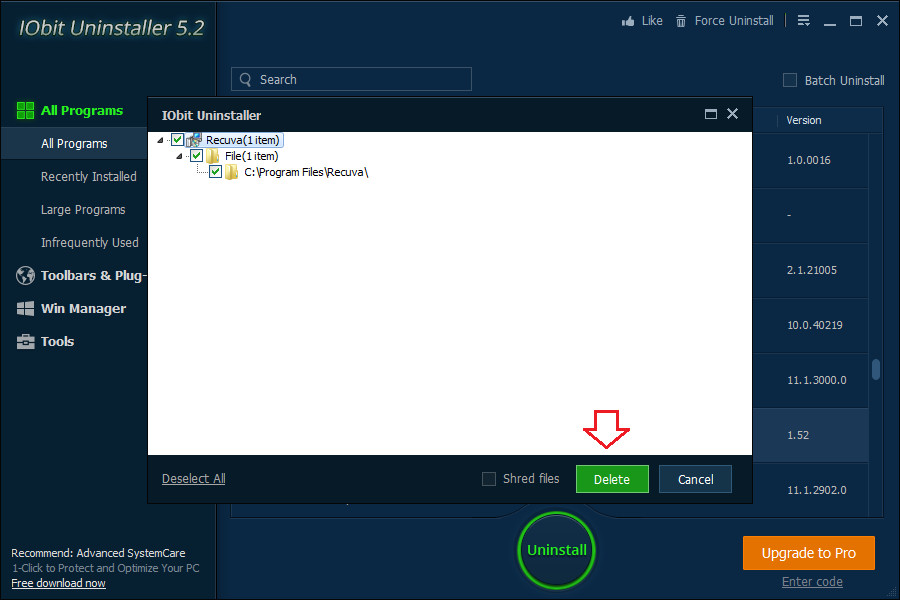
After uninstalling the software, the system will automatically find any remaining folders select all and choose Delete, Already Click the Install button to proceed with the installation. It is done.
2. How to uninstall applications on your computer using the "paid" Your Uninstaller software
Software Your Uninstaller is a specialized application removal software that has been around for a long time. Currently, this software is no longer updated but it is still very good. The software includes a deep scan function to remove remaining program files.
Advantage: Easy-to-use interface, completely uninstall apps and repair broken apps due to incorrect uninstallation.
Defect: Software costs money to buy. The free version has a time limit.
How to delete applications using software on Your Uninstaller:
Step 1: Double-click the application to delete.
You just need to select a software you want to delete and then double-click or select Uninstall to remove the application

Step 2: Choose deletion mode
When the software is deleting, you can choose the following modes to suit your computer. If you click "Next" it will delete in normal mode.
Your Uninstaller's deletion modes include:
Built-in Mode: Normal deletion.
Safe modse: Regular deletion and scanning of junk files.
Normal Mode: Includes Safe mode and deeper scanning of junk files.
Super Mode: Includes Normal Mode and performs a full scan of the computer and deletes all related software files.

Step 3: Complete
Once you have finished deleting the software, click “Next” > Click “Finish”.

3. How to remove applications on your computer with "free" CCleaner software
When talking about CCleaner software, people immediately know that it is junk cleaning software. The names say it all. CCleaner is computer cleaning software with the function of removing junk files and deleting applications installed on the computer.
– Advantage: Good compatibility, completely deletes applications on the device, easy-to-use interface and can delete browsing history and many types of junk files.
– Defect: Need to update manually every time the software is updated and to fully function you need to install additional versions such as CCEnhancer, CCleaner Portable.
Steps to delete applications on your computer using CCleaner software
– After installing Ccleaner software, to remove the software on Ccleaner, do the following:
Step 1: Select the "Tools" section to uninstall the application
This is where all the applications that your computer is installing and using are located. To uninstall applications, you just need to select the software or double click on the software and the system will automatically uninstall the application on your computer for you.
Below is the interface of CCleaner software
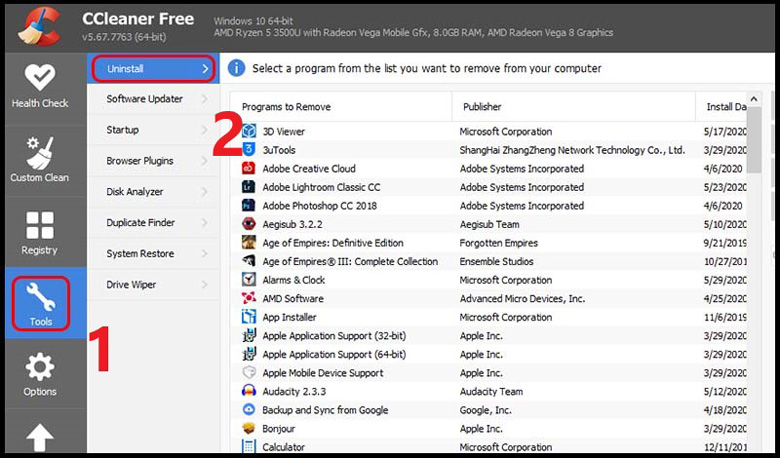
Step 2: Select the software to delete
You select the software you want to delete in the order as shown below

After uninstalling, the system will automatically clean the remaining folders on your computer. So the installation process is complete.
4. How to completely uninstall the application using the main software on the computer
Uninstalling applications using software on your computer has the advantage that you do not need to install any additional software. However, it also produces many disadvantages. No matter what application you uninstall, it will never go away. You will have to do a few more steps to be able to remove it more thoroughly. Let's get started.
To uninstall applications, proceed as follows.
Step 1: Quick action to access and remove the application.
You select this icon on the keyboard  A dialog box appears and you type the command appwiz.cpl You will have direct access to the table "Programs and Features” without having to go around
If you have normal access, you can access the following link. Access the menu "Control Panel” > “Programs” > “Programs and Features” > “Uninstall a program“. to uninstall the application
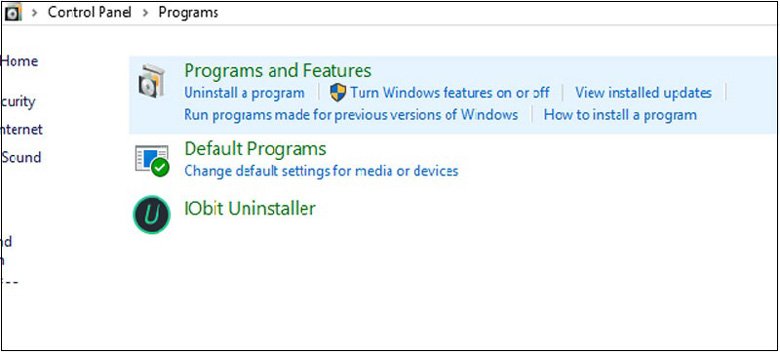
Step 2: uninstall the application
Here you will see the names of applications and software you have installed on your computer. Just "double click on the application you want to delete" and select "Uninstall”. Then, follow the simple instructions to delete the application as desired.

Step 3. How to remove the application completely
However, having done this, it is still not enough. It only temporarily uninstalled your application, but it still has a lot of files left on your computer. To completely uninstall the software, go to the following folders and if you see the correct name for the software you are uninstalling, delete it. Or you can copy the bold part of the pate quickly.
- Internal directory %USERPROFILE%AppDataRoaming
- Internal directory %USERPROFILE%AppDataLocal
- Internal directory %USERPROFILE%AppDataLocalPrograms
- Internal directory C:Program Files
- Internal directory C:Program FilesCommon Files
- Internal directory C:Users%USERPROFILE%Documents
Remember, if there is anything with the same name, delete it all.
Or to make it easier, you can also install the software Search Everything This is an extremely fast search software for every corner of your computer. Since having this software, I've almost become lazier. Finding your documents is easier than ever. It is in Vietnamese and very easy to use.
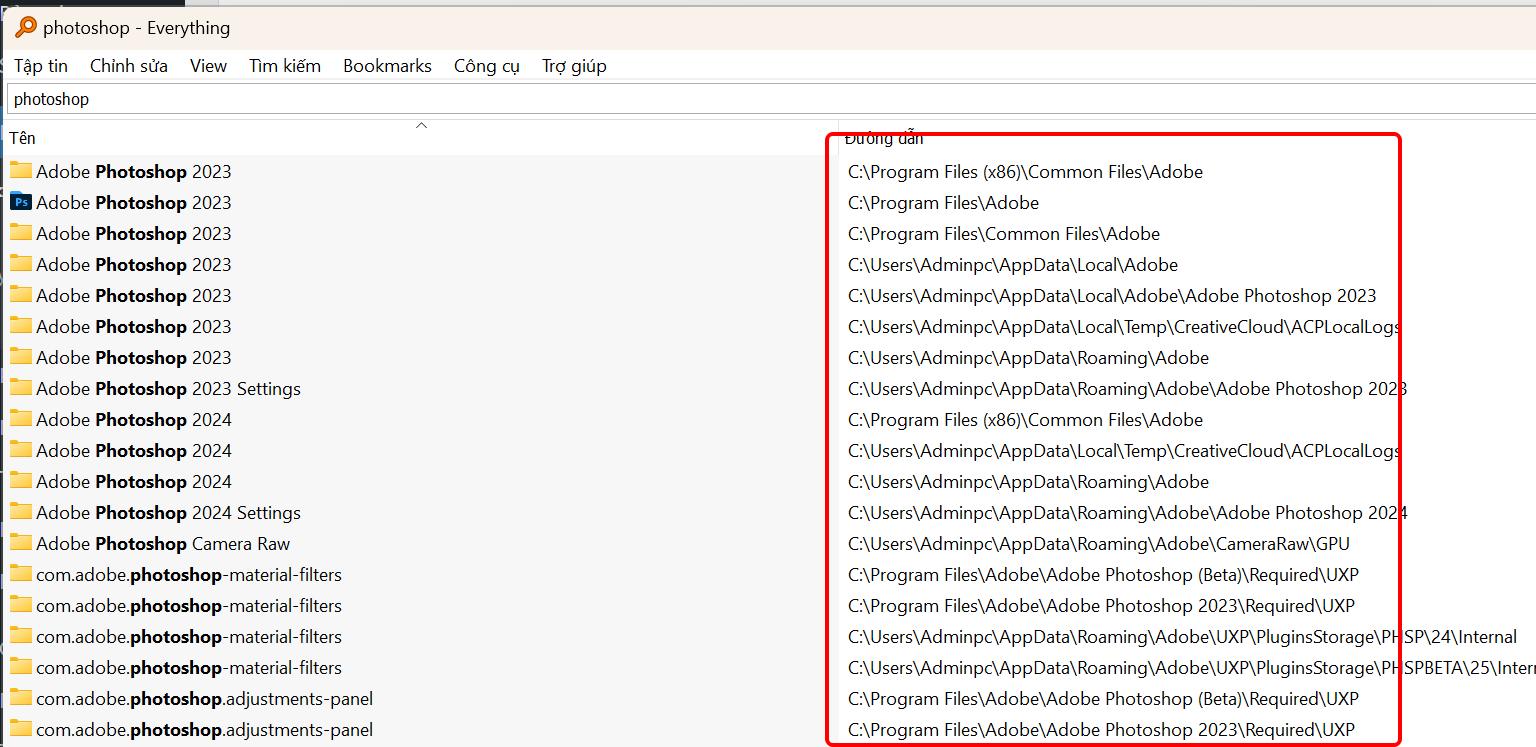
As you can see, it can find every corner, you just need to select and delete.
5. How to completely uninstall an application using its program's Uninstall.exe file
When you install software, most software has files Uninstall.exe Its included so you can uninstall the application more conveniently. This section is located below the part of the window where your applications are displayed for quick access. You can see as shown below
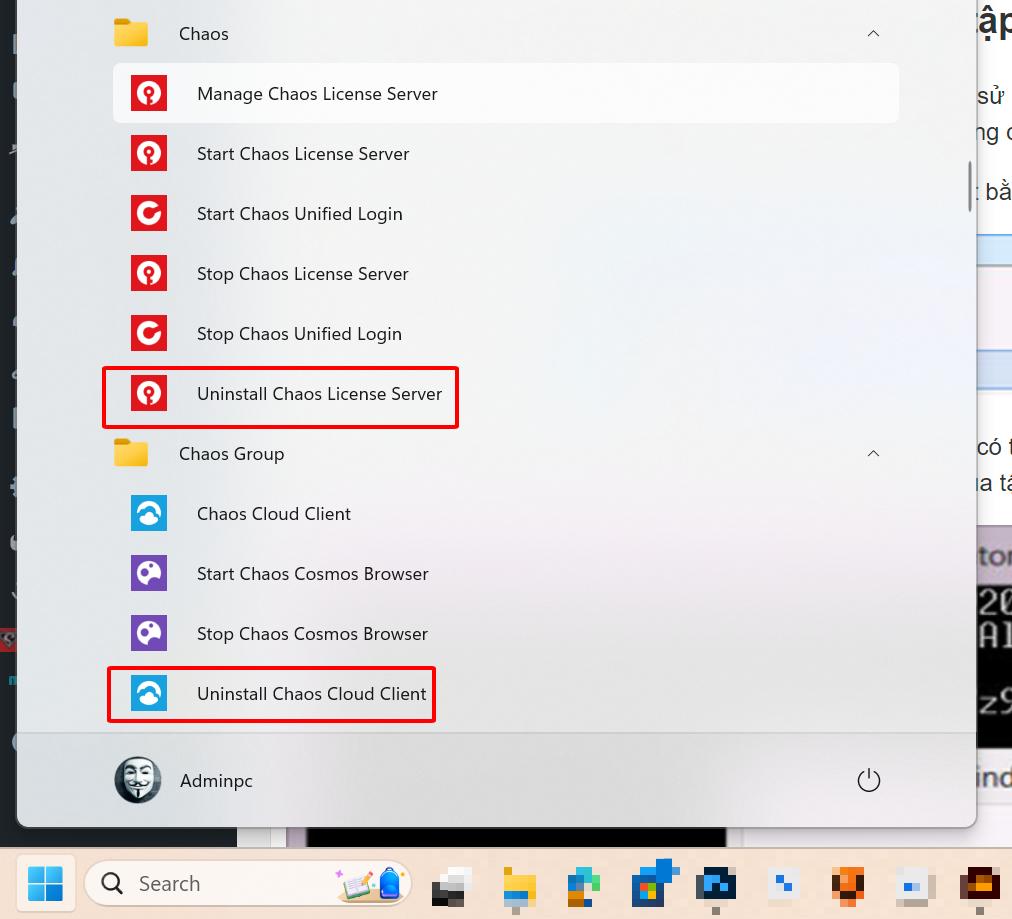
to completely uninstall the application For computer applications using this method, you need to continue with step 3 in the method above access cahp step number 3
6. How to delete applications on laptop using MSI installation file
– There are some programs that will not use the file setup.exe to install. Instead, the installation file will have the extension “*.msi”. This format is used by Windows Installer, a special installation format reserved by Microsoft for its Windows operating system.
– Therefore, the installation files are of the form “*.msi” will be easy to uninstall by right-clicking on the file and selecting command Uninstall.

– Removing programs from the system from msi files can also be “triggered from the command line”. By activating the Command Prompt feature with admin rights and then entering the command “msiexec /x abc“: abc is the name of the file as shown in the image below.

7. Uninstall applications installed from Microsoft Store and programs from the Start screen
– This method usually applies to cases where you want to delete software or uninstall applications from the Start screen. To do this is very simple, just double click on the title of the application you want to remove, then "Uninstall" will appear on the screen. Just click to immediately delete the application.
– To make sure the application has completely disappeared from your computer, you should check the application again in the search section. If the application still appears here, just "double click and remove it as above". However, for Windows 8, clicking on the application will lead to the Programs and Features page.
Note: Some software cannot be removed, you can use Microsoft's removal software Download troubleshooter to remove. This is a tool released by the supplier that can remove all software so that it can be reinstalled and reinstalled, especially for Autodesk software.
Conclude.
With 7 How to completely uninstall an application on your computer above are the most effective ways to uninstall applications to make your computer cleaner and less space-consuming. And here I share my knowledge. If you see a better way, you can leave a comment below and I will update and supplement it to make it better for you.
Hope you can choose the way How to completely uninstall an application for myself. Thanks for watching.