
I. How to set up security for Facebook to avoid being hacked
Set security for Facebook is a very important factor. It helps your account to be used safely. It ensures the safety and privacy of the user. Many users are subjective or do not know that their passwords are easy to be hacked and blackmailed.
Worse is losing many customers doing business on Facebook, losing friends, losing pages and many other groups, even using that Facebook account to chat with family members to cheat money. So in this article, I will guide you. How to set up security for Facebook to avoid being hacked let's do it anyway
Reasons to set security for Facebook:
- Protection of personal information: Facebook stores and stores a lot of personal information about its users, including names, addresses, phone numbers, and other data. Security helps ensure that this information is not disclosed or used inappropriately.
- Prevent attacks and fraud: Facebook is a hacking platform, making it an attractive target for hackers and other bad guys. Security helps prevent attacks from breaking into systems, defrauding users, or disrupting services.
- Identity Verification: Setting up security for Facebook helps Facebook verify the identity of users, ensuring that only the real owners of the account can access and use the service.
- Privacy Protection: Facebook allows users to share their personal information and content. Security ensures that this information is only shared with people the user has chosen and is not disclosed to the public or unwanted third parties.
- Meet legal requirements: Facebook privacy settings must comply with the regulations and legal requirements of each country. Facebook privacy settings help ensure that user information is protected according to regulations and is only disclosed when there is a valid request from law enforcement.
In short, security is important to Facebook to protect personal information, prevent attacks and fraud, verify identity, protect privacy, and comply with legal requirements.
SEE MORE.
- How to delegate Facebook Fanpage administration rights
- Should I run Facebook or TikTok ads?
- How to quickly disable Facebook account
- 2 simple ways to create standard Facebook Fanpage for beginners
How to set security for Facebook on phone
The safest way to set up security for Facebook is to set up 2-layer security. This security helps hackers have the password but still cannot get in. To use it, you need a second password or have to verify your identity or familiar addresses to be able to log in, so how? set security for facebook 2 layers on your phone with a few simple steps below.
Step 1: Open the Facebook app and follow the instructions below.
Step 2: Select the mark ≡ tile as shown below. Use the operation as shown. Go to ≡ Select tools Setting.
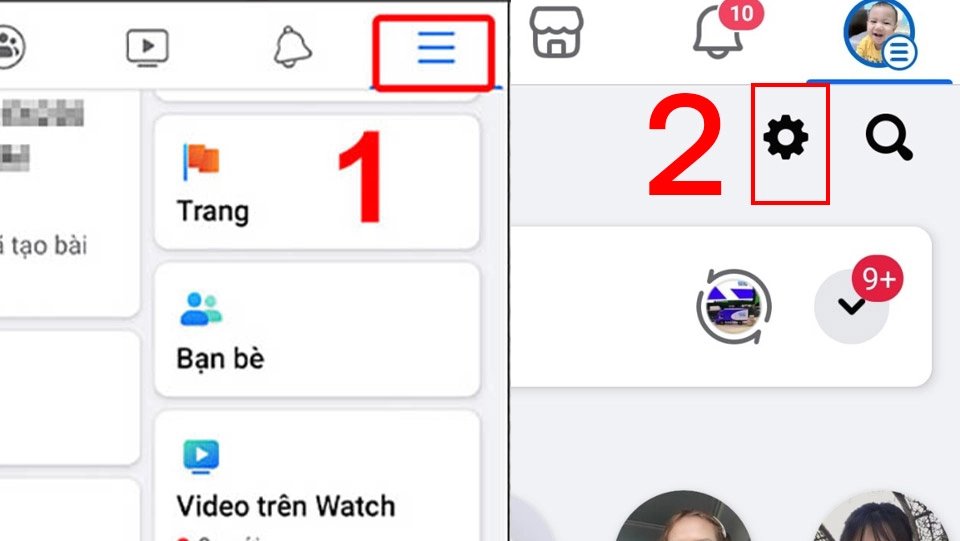
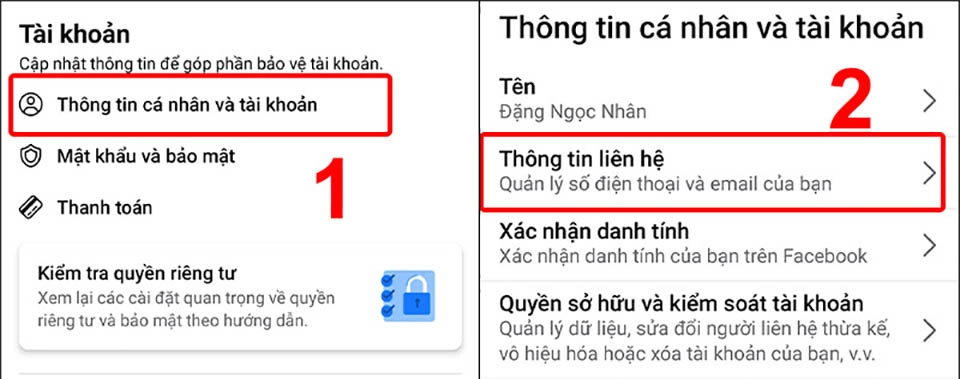
Step 3: Click Personal and account information > Select Contact Info.
Here you can add recovery account for your Facebook account like phone number and gmail
Step 4: Enter information to restore
This item you need to enter Add phone number > Enter your phone number > Press Continue.
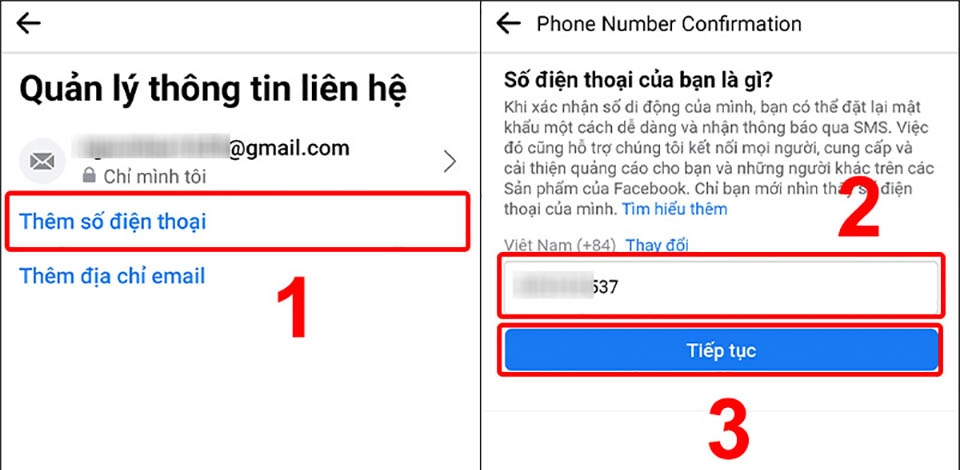
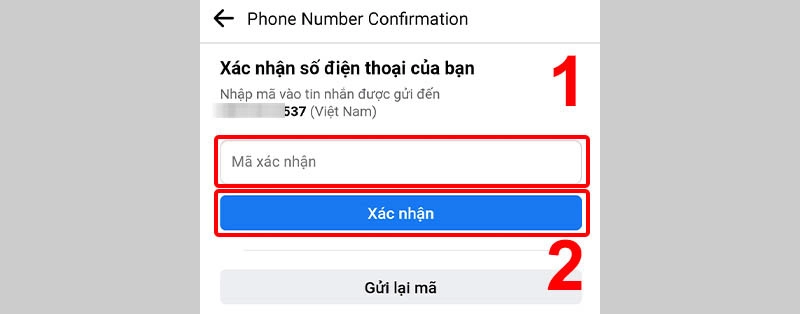
After entering the phone number, the system will ask for confirmation by entering the confirmation code sent to the phone number you just entered to activate the phone number.
Step 5: Add gmail address
After successfully adding the phone number, you add gmail as a backup. There are many cases where I see it cannot be sent to the phone, so I will add gmail as a backup.
The operation will be exactly the same as step 3 so I won't say it again. You just need to add the email address you are using, then go to gmail to get the code and confirm.
Step 6: Turn on 2-factor authentication.
You come back at the section account you choose Password and Security > you choose Use 2-factor authentication.
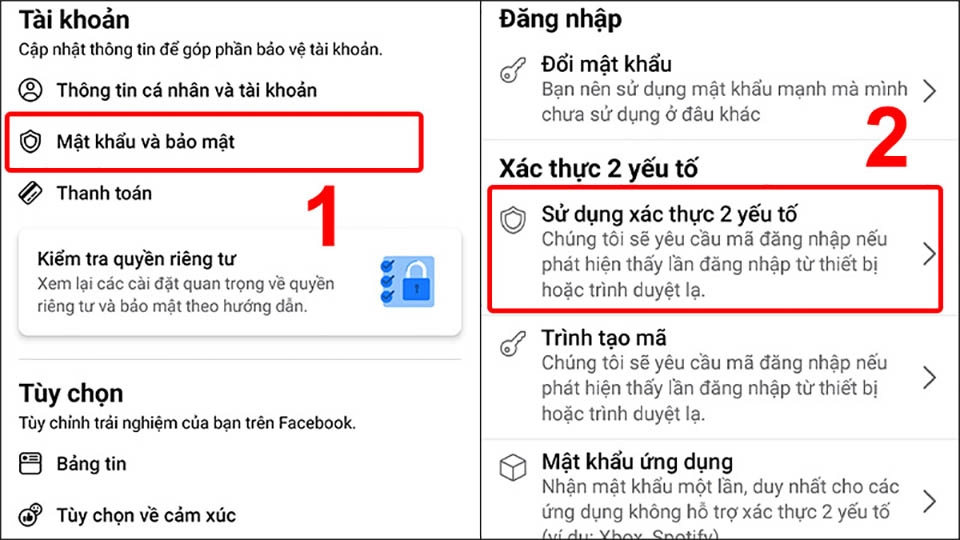
Step 7: Select security form 2 layers
Here you will have 3 ways to activate your 2-factor authentication
- Use Google Authenticator app google code manager or duo mobile
- Use SMS text messaging and Facebook also makes it very clear that you cannot reset your password when you enable this feature.
- Use a physical security key from the outside.
Here we will use the second method which is using SMS text messages for 2-layer security.
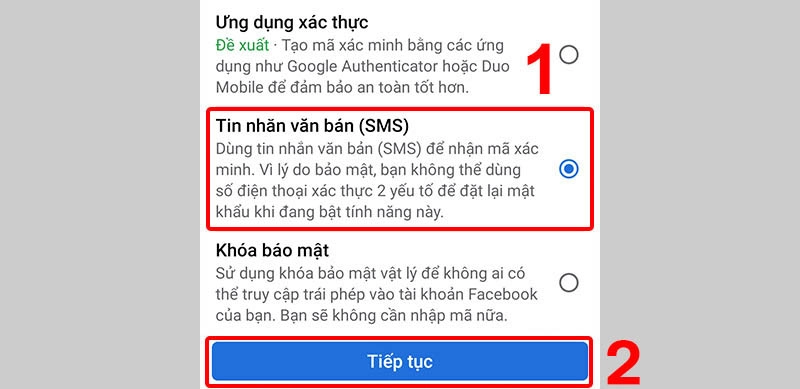
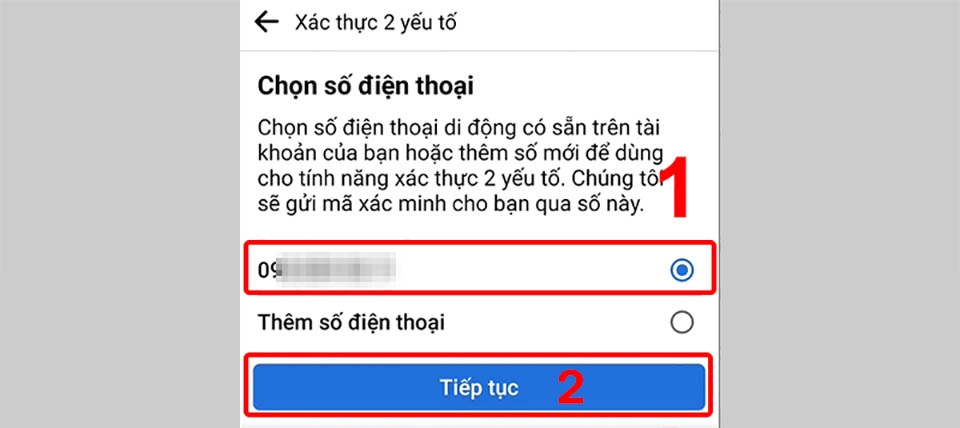
Step 8: Enter Phone number
You need to enter the phone number you are using so that Facebook can send a confirmation code to make sure that Facebook and the phone number are working properly.
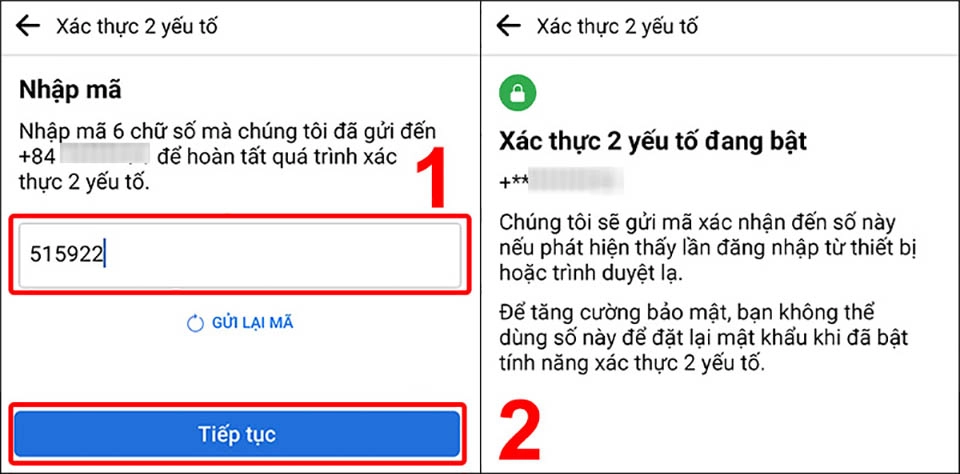
Step 9: Enter verification code
When the code is sent to your phone, you just need to Enter verification code and choose continue
How to cancel Facebook 2-layer security on phone
For some reason, if you want to cancel Facebook's 2-layer security, you can do the following:
Step 1: Open the Facebook app and follow the instructions below.
Step 2: Select the mark ≡ tile as shown below. Use the operation as shown. Go to ≡Select tools Setting.
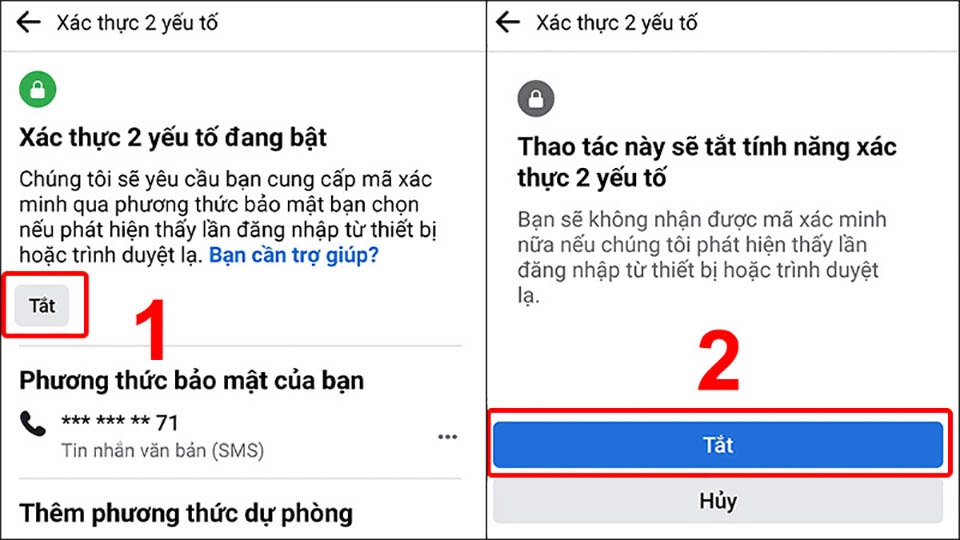
Step 3: You enter the section Account > select Passwords and Security > Use 2-factor authentication
Step 4: TFacebook 2 Factor Authentication
When you go inside, you will see which form of 2-factor authentication your account is enabled in. At this time, you just need to click off immediately, you will need to re-enter your Facebook account password to authenticate. When you enter the password successfully, Facebook will proceed. Turn off Facebook 2-factor authentication for you.
II. How to set up 2-layer security for Facebook on computer
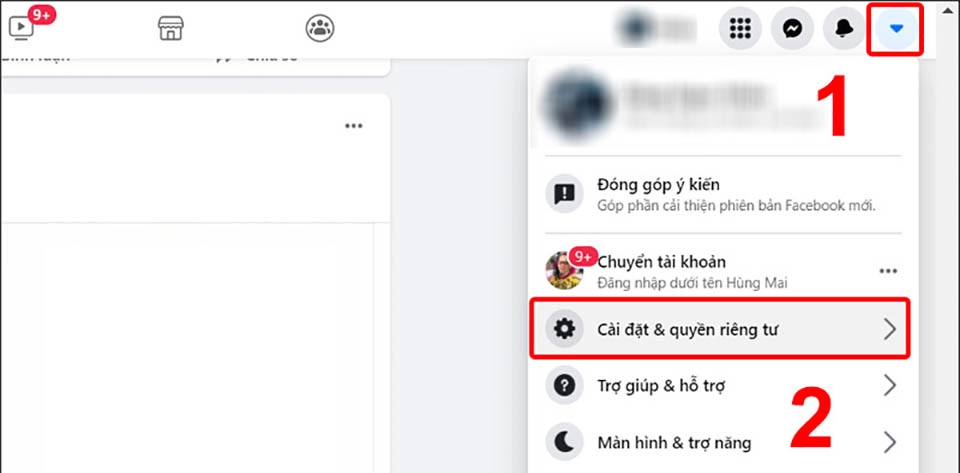
Step 1: On the Facebook homepage on your computer, click on the images in the order below.
Select image inverted triangle > Select setting & privacy
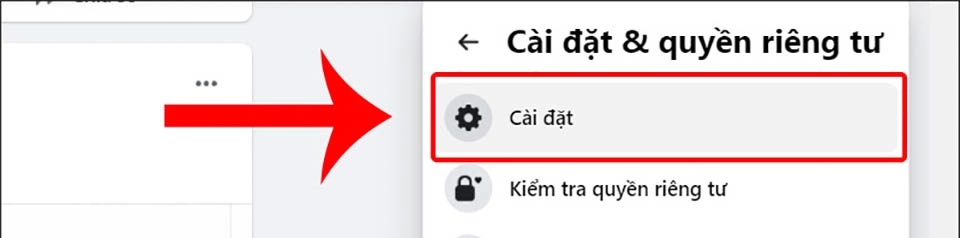
Step 2: Continue to select Setting.
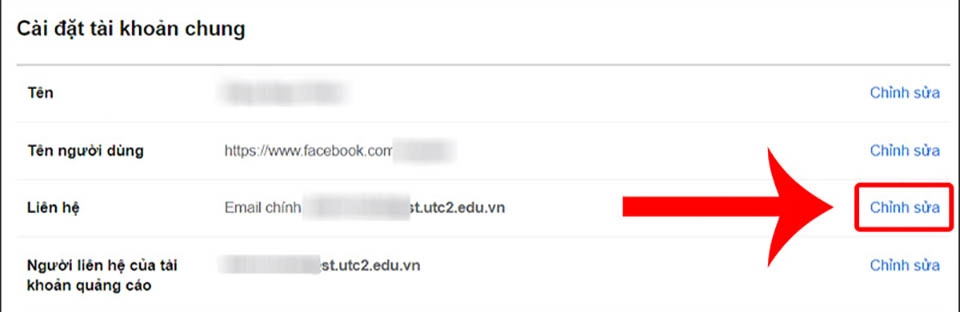
Step 3: Edit contact information
Section Contact, you click on the item Edit to adjust contact email
Step 4: Edit information
At the contact interface you can add or delete previous contacts. Here I will click on Add another email or mobile number.
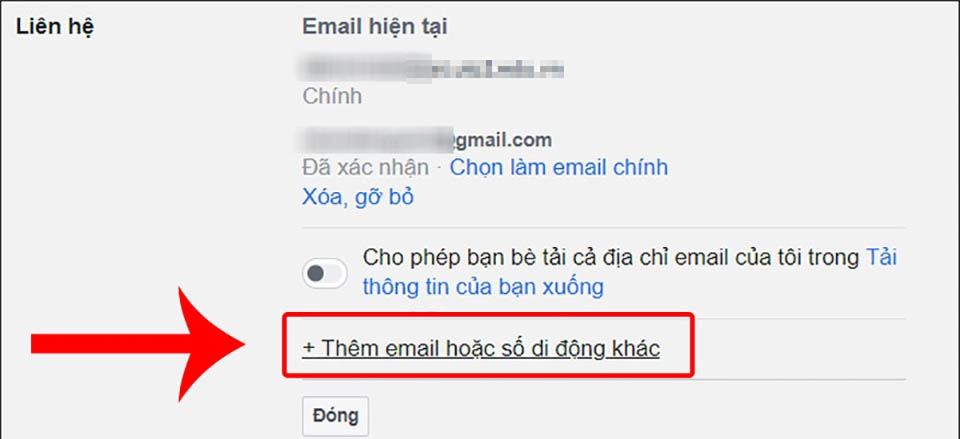
Step 5: Add contact information
I will click add your phone number? then select add.

Step 6: Add phone number
In the Confirm your phone number section
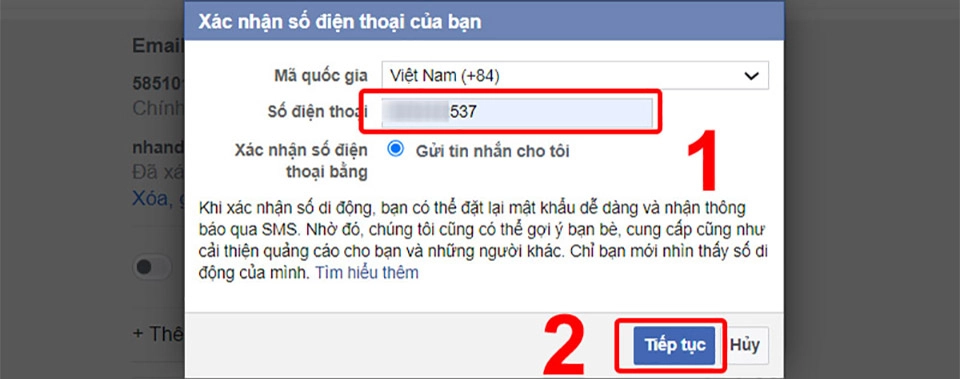
I will enter my phone number. Note that this phone number should be your main phone number so that when there is a problem with your account or you log in somewhere else, it will notify you on your phone.
After filling everything in, we choose to continue.
Step 7: Enter confirmation code
You enter the confirmation code in the box then press confirm
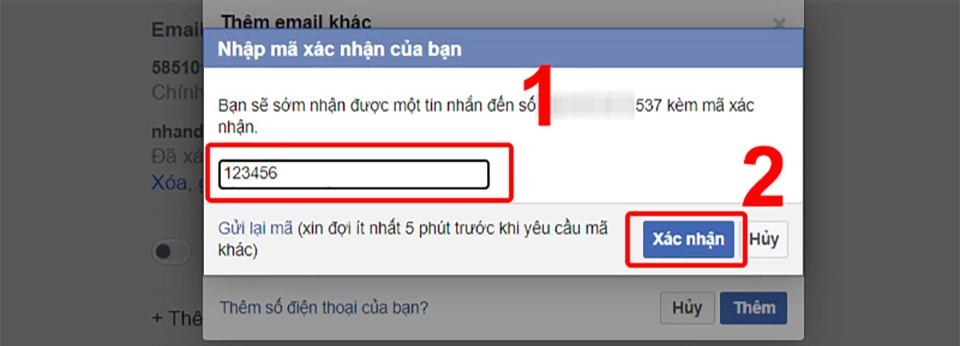
Step 8: Enable 2-factor authentication
In the settings section, click on Security and login > In the right column of the item Use 2-factor authentication, press Edit.
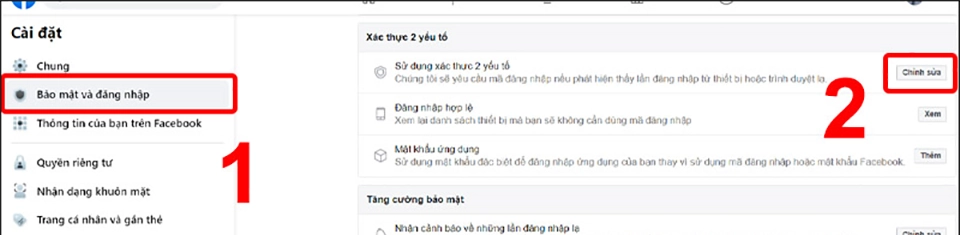
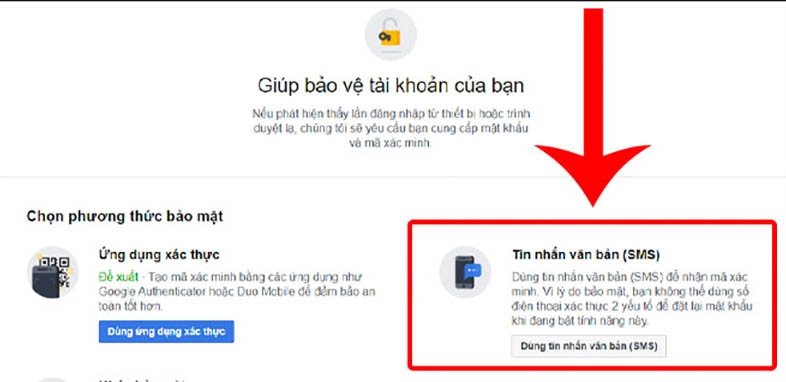
Step 9: Select Security method.
You can choose 1 of 3 security methods:
- Verify security using Google Authenticator app google code generator.
- Receive security code via SMS on your phone.
- Use a third party external device to attach.
Here, I choose Text message (SMS).
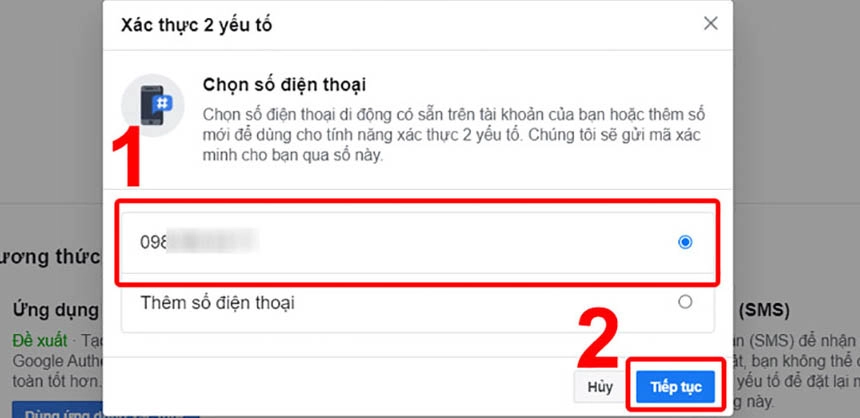
Step 10: Enter phone number
You need to enter Phone number your security > Click Continue.
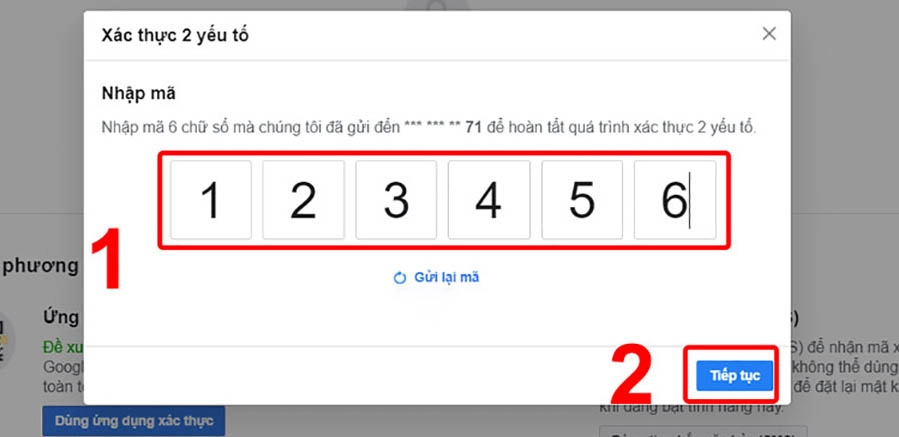
Step 11: Enter the verification code sent to your phone number > Click Continue.
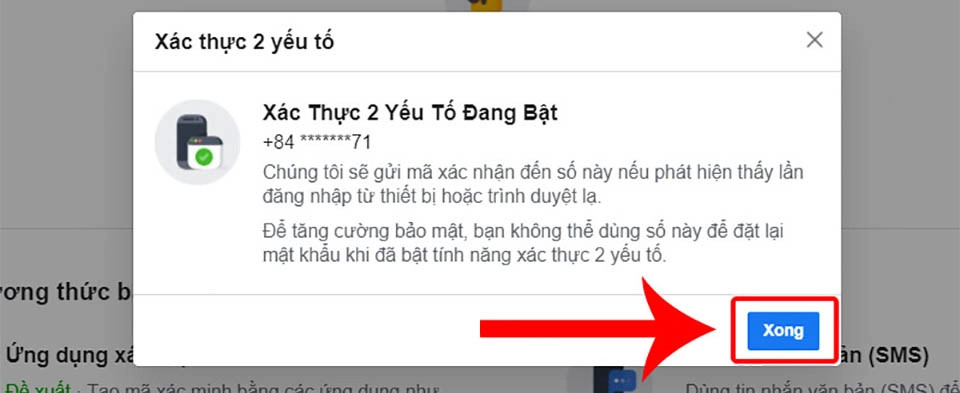
Step 12: Press Finished to complete the installation.
How to cancel Facebook 2-layer security on computer
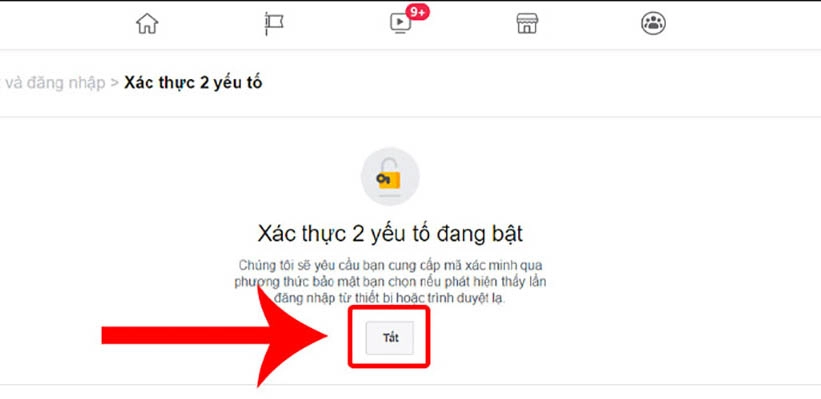
Step 1: At tab Security and login, item Use 2-factor authentication, press select Edit.
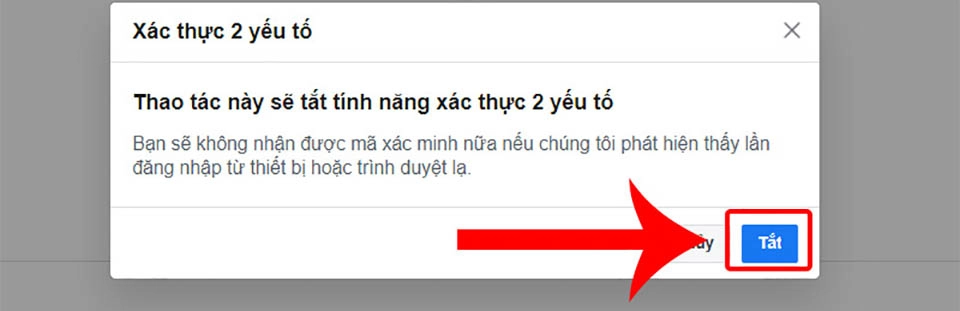
Step 2: Click to select Turn off.
Step 3: Select Turn off to complete setup.
3. Answer some related questions
Turn on Facebook 2-step authentication but can't log in?
– Reply: If you have enabled 2-factor authentication on Facebook but do not receive the verification code when you try to log in on another device, it could be because:
+ The verification code may not be sent immediately, please wait a moment and check your phone again.
+ If you log in on another browser or device, check the notification to approve the login.
+ If you have saved a recovery code before, you can use it to approve this login.
Didn't receive Facebook verification code?
– Reply: You did not receive the Facebook confirmation code, it could be because:
+ The phone number you used to register your Facebook account is incorrect.
+ You did not receive the Facebook confirmation code due to slow network.
+ You entered the wrong email when registering for a Facebook account.
+ The confirmation code email may be in your spam folder.
What is the authentication app security method?
– Reply: This is one of the three Facebook 2-factor authentication methods. You can use a third-party authentication app (like Google Authenticator, LastPass, etc.) to generate a login code. When you log in on a new device for the first time, you will be asked to use the app, scan a QR code to confirm your login.
Conclude:
Job Set security for Facebook is extremely necessary when you use social networks. It will help you be safer and avoid hackers who steal your account. Nowadays, this situation is more and more due to sophisticated tricks. They also use tools and then use instructions to upload to youtube so that anyone who describes how to install it, even though 2-layer security will still be affected.
So when people use this social network, they should be kept in the best and safest way possible.
View article origin: