Skip to content
  • About us
  • Contact
  • en_USEN
  • viVI
FacebookTwitterPinterest
HOWTOHOWTO
  • All
    • Tips
      • Google
      • Facebook
      • Tiktok
    • Instruct
      • What is Q&A?
      • Taobao
    • WordPress
      • Code
      • Plugins
      • Themes
        • Flatsome
        • Theme Nevo
  • ShareHot
    • WordPress
    • Code
    • Plugins
    • Tips
    • Windows
    • Apple
    • Graphics
    • Experience
  • Graphics documents
    • illustrator
    • Sketchup
    • Coreldraw
    • 3ds max
    • Enscape
    • Photoshop
    • Graphics Plugin
  • Course
    • Photoshop course
    • illustrator course
    • Coreldraw course
    • Edit video course
    • Course Sketchup
    • Autocad course
    • Website management course
  • Service
  • Software
    • Windows
      • Tips
      • Office
      • Necessary
      • Tools
    • Apple
  • Game
  • News
    • Technology
    • Review
Hello!

  • Lost your password ?
HOWTOHOWTO
  • Home > 
  • Graphics > 
  • Adobe Photoshop > 
  • How to separate transparent material background in Photoshop

How to separate transparent material background in Photoshop

By Tung Thai 17/11/2025 1015 Views
how-to-teach-information-in-process-in-photoshop
Article categories

How to separate transparent material background in Photoshop. Software Adobe Photoshop is a professional photo editing software developed by Adobe. With many diverse and powerful features, Photoshop allows users to edit, design and create unique, beautiful and professional images.

With a friendly and simple interface, Photoshop is easy to use for both beginners and those with experience in the field of graphic design. Besides, Adobe Photoshop is also widely used in other fields such as graphics, advertising, digital photography, and even in creating technical drawings.

I won't make it any longer, here it is How to separate transparent material background in Photoshop Please follow me.

See more...The ultimate way to smooth skin in Photoshop, part 2

  • How to create natural light in Photoshop
  • How to create classic portraits in Photoshop simply
  • How to change background color in Photoshop
  • Instructions for smoothing skin in Photoshop
  • The best way to remove acne in photoshop in 2022

How to separate transparent material background in Photoshop

How to get transparent glass bottles in Photoshop

Step 1: Open the glass or bottle image file that you want to separate the background from

  • Enter File > Open Open the photo of the bottle or glass you want to get

Step 2: Open the Background where you insert the glass or bottle

  • Drag the glass bottle image file to the Background that I just opened

Step 3: Separate the glass bottle from the white background

  • Select the glass bottle layer
  • I go to Select > Subject to separate the subject from the background
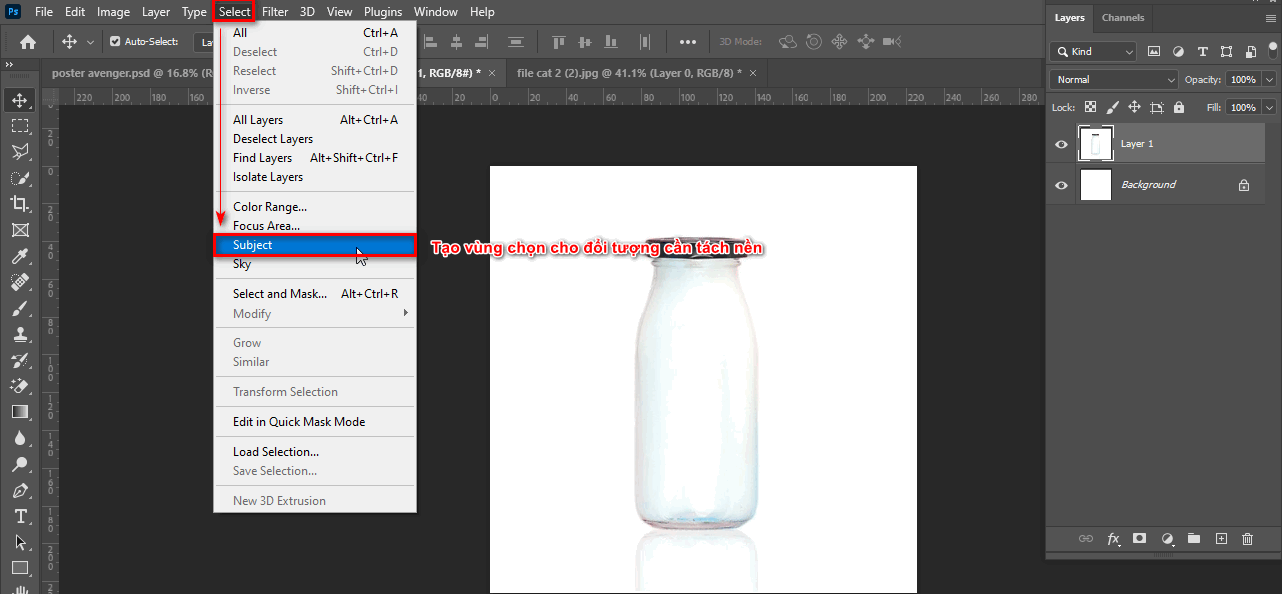
How to separate transparent material background in Photoshop
Step 3 create a selection for the object to be separated
  • Afterward Ctrl + J Duplicate the selected glass bottle object
How to get transparent glass bottles in Photoshop
Step 3.1 duplicates the object

Step 4: Separate the bottle cap from the bottle to use the effect without being affected

  • Bring the bottle layer to another Background
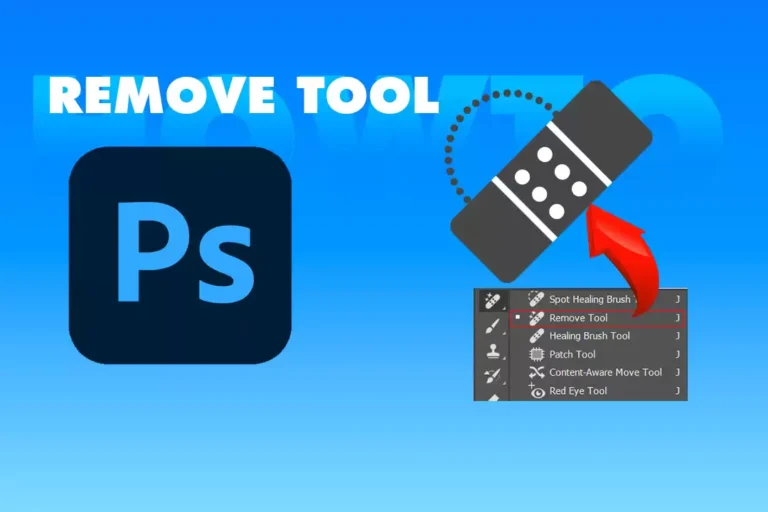
  • Create an area in the bottle cap using the tool Rectangular Marquee Tool (M) 
  • Then Ctrl + Shift +J to separate the bottle cap and body into 2 separate layers
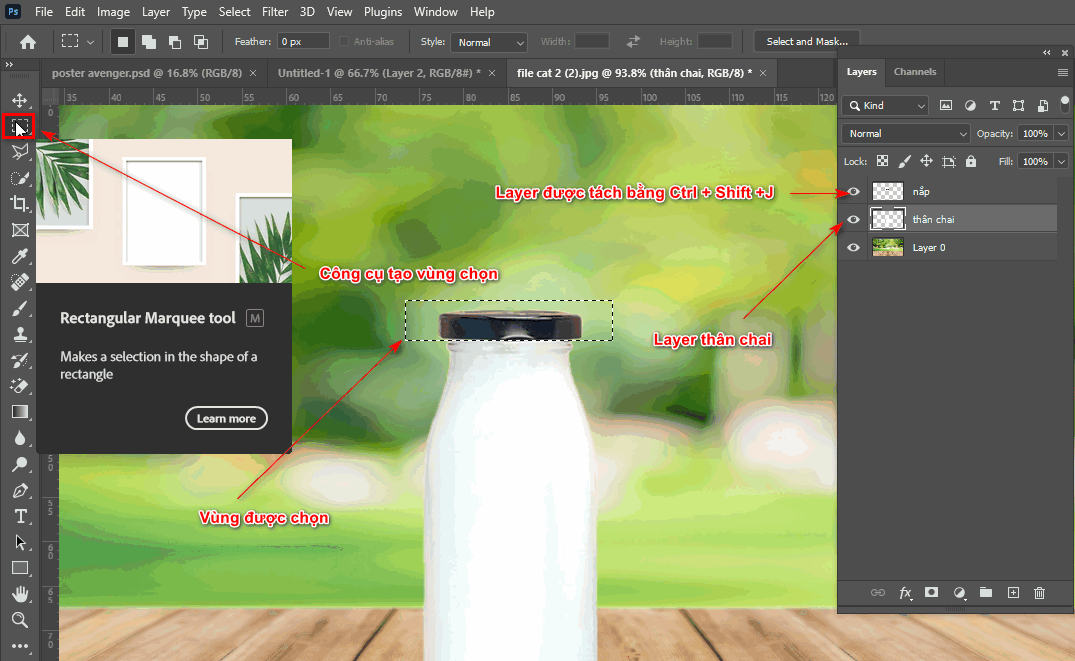
How to get transparent glass bottles in Photoshop
Step 4 Separate the lid and bottle body layers

Step 5: Copy the layer of the glass bottle body

  • Use the glass bottle body layer then Ctrl + J 3 times to create 4 layers of bottle body
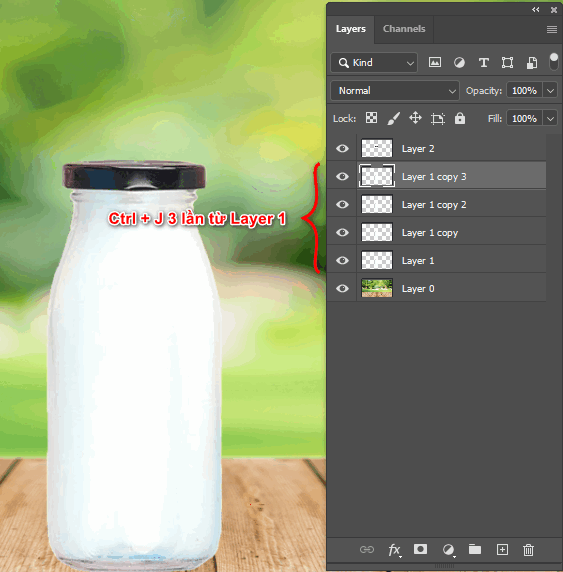
How to get transparent glass bottles in Photoshop
Step 5 multiply the bottle body layer 3 times

Step 6: Use the effect to make the glass bottle transparent when in the background

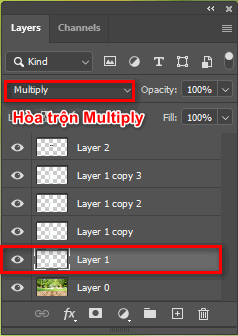
  • Layer 1 we use is blending Multiply
How to get transparent glass bottles in Photoshop
Step 6 mixing
  • Layer 1 copy we use blending is Multiply and Opacity 50% (opacity)
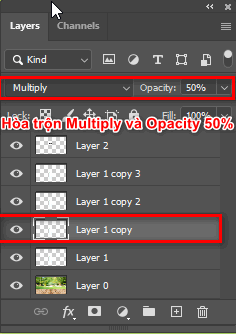
How to get transparent glass bottles in Photoshop
Step 6.1 blending and opacity
  • Layer 1 copy 2 we use blending Luminosity and fx > Blending Options 
  • And pull the bar Underlying Layers The dark area at 255 coincides with the light area
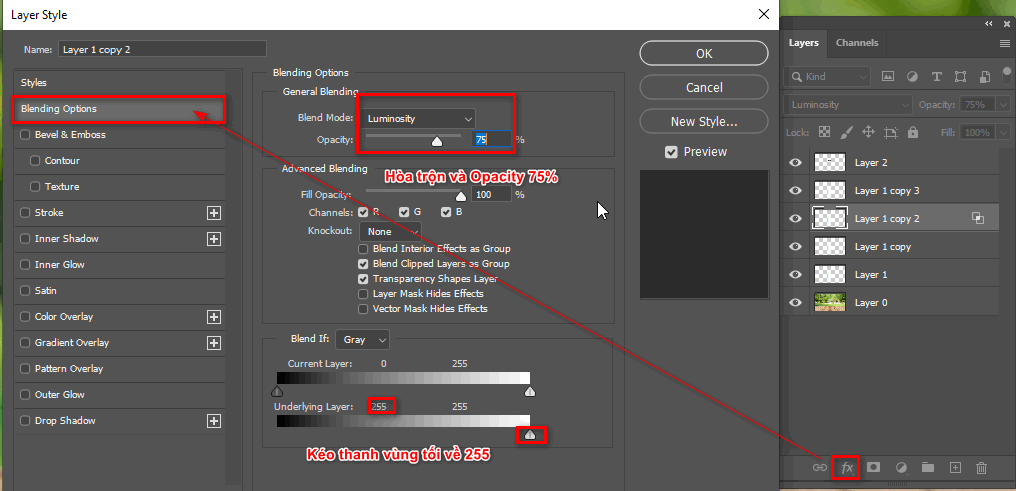
How to get transparent glass bottles in Photoshop
Step 6.2 blend and fx
  • Layer 1 copy 3 we use blending Soft Light and Opacity is 50% (opacity)
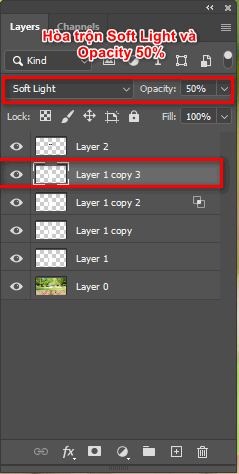
How to get transparent glass bottles in Photoshop
Step 6.3

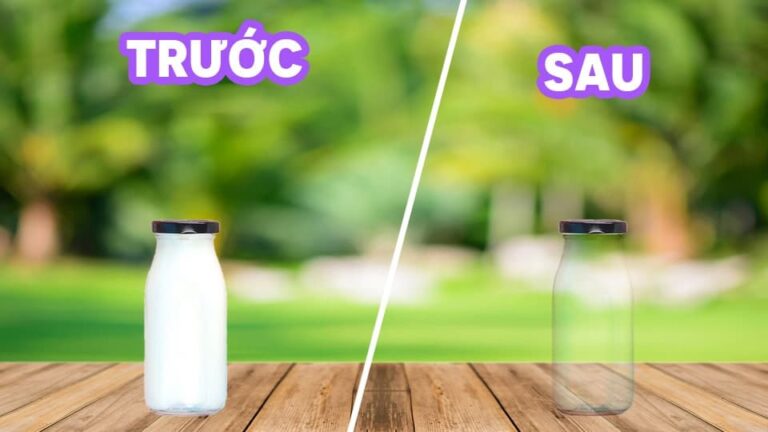
Step 7: Results using transparent glass bottles in Photoshop

How to separate transparent material background in Photoshop
How to get transparent glass bottles in Photoshop

In short

How to separate transparent material background in Photoshop is a quite useful article for those of you who want it separate transparent material background. Background separation products such as: Separate the glass base, separate the bottle base, separating the chiffon background, separating the skirt background... Sort of transparent materials or translucent materials in photoshop.

Also if you have a need Learn Photoshop If you like it, if you want to learn it, come here Graphic Express for advice and guidance. When you register to study, you will receive 1:1 support and better study support materials, and you will be able to install free software and use it forever.

Wishing you success with this article

Tags : Tags adobe photoshop   How to get transparent glass bottles in Photoshop   learn photoshop   learn basic photoshop   study graphic design
Share
FacebookShare on FacebookpinterestShare on PinterestMessengerShare on Facebook Messenger
twitterShare on TwitterlinkedinShare on LinkedinvkShare on VkredditShare on ReddittumblrShare on TumblrvideoShare on Viadeobuffer. bufferShare on Bufferpocket. pocketShare on PocketwhatsappShare on WhatsappViberShare on ViberemailShare on EmailskypeShare on SkypediggShare on DiggmyspaceShare on MyspacebloggerShare on Blogger YahooMailShare on Yahoo mailtelegramShare on Telegram gmailShare on GmailAmazonShare on AmazonSMSShare on SMS
Tung Thai

Tung Thai

As a student at the center. I write what I know to share with you.
1 is to share with you so you can know and learn.
2 improve knowledge and remember longer, with the motto of giving to receive, I want to write more

Related articles

How to separate transparent material background in Photoshop

How to use camera Raw in photoshop

By How To 08/12/2025

Camera Raw in photoshop is a tool that has been around since…

How to separate transparent material background in Photoshop

Latest instructions for using camera raw in photoshop

By How To 07/12/2025

Camera raw in photoshop is a correction tool…

How to separate transparent material background in Photoshop

3 Ways to create speed effects in Photoshop

By Tung Thai 06/12/2025 0

3 Ways to create speed effects in photoshop Speed effects…

Categories What is Q&A? What is the structure of that place?

What is Interior Design? How much does an interior design job pay?

12/12/2025
What is Material?

What is Material? Material application in the field of design

11/12/2025
What is the poster?

What are posters? 9 Tips for designing beautiful, quick Posters

11/12/2025
What does graphic design do? Is it easy to get a job?

What does graphic design do? Is it easy to get a job?

11/12/2025
Water is the water material in Enscap

Water is the water material in Enscap

11/12/2025

Recent comments

  • male1 year ago
    On How to create a fade effect in Photoshop
    Great
  • phat phat2 years ago
    On Who is 5SMedia?
    Useful article
  • Minh Anh3 years ago
    On How to create basic materials in vray Sketchup
    Very good, admin
Copyright © 2025 HOWTO - Powered by HOWTO

5SMedia.net | hocdohoacaptoc.com | huongdansudung.vn | webantam.com

Back to Top
Hello!
  • All
    • Tips
      • Google
      • Facebook
      • Tiktok
    • Instruct
      • What is Q&A?
      • Taobao
    • WordPress
      • Code
      • Plugins
      • Themes
        • Flatsome
        • Theme Nevo
  • Share
    • WordPress
    • Code
    • Plugins
    • Tips
    • Windows
    • Apple
    • Graphics
    • Experience
  • Graphics documents
    • illustrator
    • Sketchup
    • Coreldraw
    • 3ds max
    • Enscape
    • Photoshop
    • Graphics Plugin
  • Course
    • Photoshop course
    • illustrator course
    • Coreldraw course
    • Edit video course
    • Course Sketchup
    • Autocad course
    • Website management course
  • Service
  • Software
    • Windows
      • Tips
      • Office
      • Necessary
      • Tools
    • Apple
  • Game
  • News
    • Technology
    • Review
en_US EN
en_US EN vi VI