
How to save files on Photoshop
Saving files is one of the important and indispensable steps in working with Photoshop. Once you've made edits, designed or created unique works of art, saving files will help you protect your work and retain the fruits of your creative process.
Saving files in Photoshop allows you to continue editing or reuse work in the future. In addition, saving files also helps you share your work with others or print it in the desired format.
If you don't save your file properly, you may risk losing your edits or limiting your ability to edit them again later. Therefore, understanding and applying the correct file saving methods in Photoshop is extremely important to protect your work and ensure the continuity of the work process.
See more.
- What is Photoshop? How to learn Photoshop effectively and quickly
- New features photoshop 2023
- Photoshop course from basic to advanced with 1:1 tutoring
How to save files in Photoshop using the "Save" function in Photoshop
To use the Save feature “Save” In Photoshop you can follow these steps:
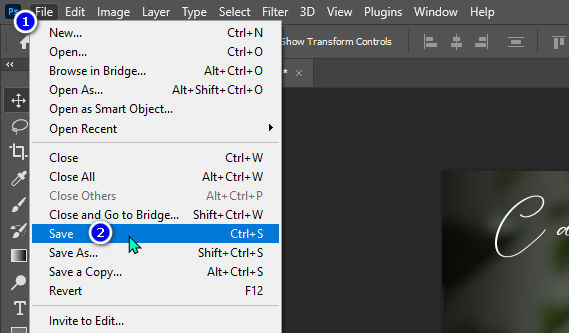
- Click menu "File" on Photoshop's main toolbar.
- In the menu that appears, select “Save” or press a key combination Ctrl + S on the keyboard (Windows) or Command + S (Mac).
- Window “Save As” Name your file in the field “File name”.
- Select the folder where you want to save the file in the field “Save in”.
- Select the file format you want to save in the field “Format”. Photoshop supports many formats such as PSD (Photoshop Document), JPEG, PNG, GIF and more.
- Click the button “Save” to complete the file saving process.
How to save files in Photoshop using the "Save as" function in Photoshop
To use the Save feature “Save as” In Photoshop you can follow these steps:
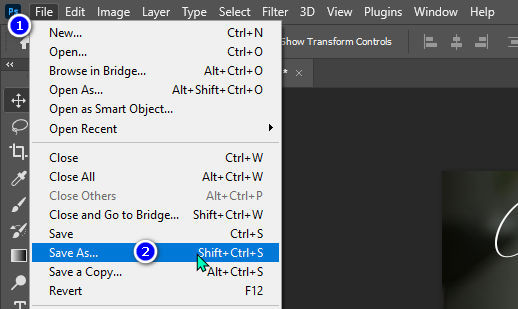
- Click menu "File" on Photoshop's main toolbar.
- In the menu that appears, select “Save As” or press a key combination Shift + Ctrl + S (Windows) or Shift + Command + S (Mac).
- Window “Save As” will appear.
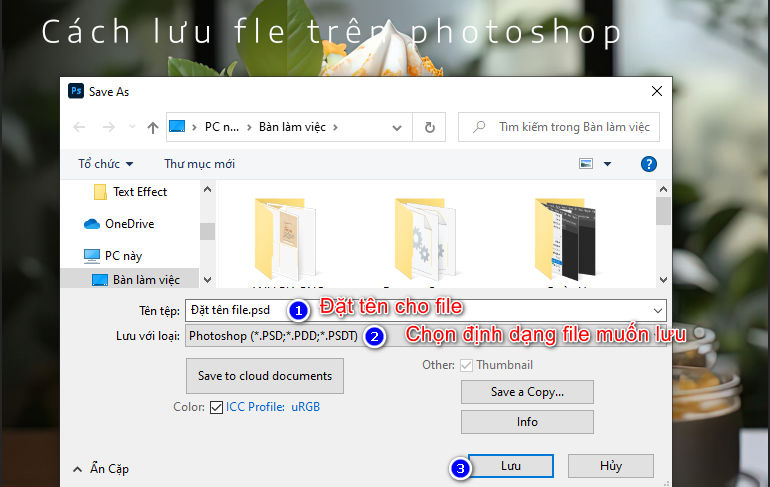
- Give your file a new name in the field “File name”.
- Select the folder where you want to save the file in the field "Save".
- Select the file format you want to save in the field “Format”. Photoshop supports many formats such as PSD (Photoshop Document), PSB, PDF, TIF and more.
- Click the button “Save” to complete the file saving process.
How to save files in Photoshop using the "Export as" function in Photoshop
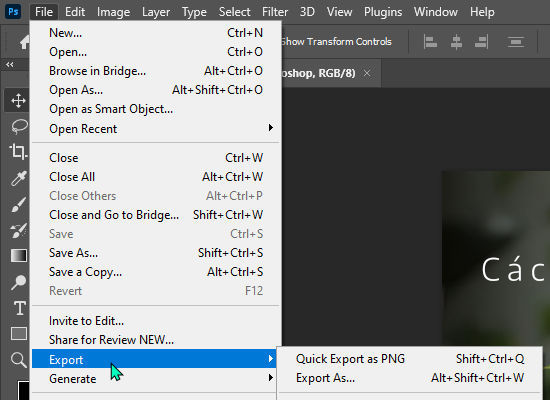
To save files using function “Export” in Photoshop, follow these steps:
- Click menu "File" On Photoshop's main toolbar, hover over to select “Export” and then select the option that suits your needs, for example: Export As, Export for Web, or Quick Export as PNG/JPEG/GIF.
- If you choose “Export As”, a new window will appear and you can customize the export settings, such as file format, image quality and file saving location.
- If you choose “Export for Web”, window “Save for Web” will display and allow you to tweak settings such as file format (JPEG, PNG, GIF), image size and optimization to reduce file size.
- If you choose “Quick Export as PNG/JPEG/GIF”, Photoshop will automatically merge the layers into a PNG/JPEG/GIF file immediately.
- Customize export settings (if applicable).
- Name your file and choose a save location.
- Click the button “Export” or “Save” to complete the export process.
Note: “Export” options in Photoshop may vary depending on your version and installed plugins. But with the highest version you have to choose accordingly “Export as” to save the file.
Common formats when exporting Photoshop files
- .JPG (or .JPEG): Popular image format, often used for web photos and online sharing.
- .PNG: Image format that supports transparency, commonly used for charts, icons, and other images that need to remain transparent.
- .GIF: Image format that supports animation, commonly used for animated charts and famous gif files.
- .TIFF: Lossy uncompressed image format, commonly used for high-quality printing and storing image-related data.
- .PDF: Portable document format used to share and print Photoshop files with full layer and adjustment information.
How to save JPG/JPEG, PNG and GIF files in Photoshop
How to export JPG/JPEG files on Photoshop:
- At the top menu, select File > Export > Save for Web (Legacy).
- In the dialog box Save for Web, select format JPEG from the Format list.
- Adjust settings such as image quality and file size if necessary.
- Click the Save button to save the file with the format JPG/JPEG.
How to export PNG files on Photoshop:
- Similar to JPG/JPEG, select File > Export > Save for Web (Legacy).
- Choose format PNG from the Format list in the dialog box Save for Web.
- Provides various options for exporting photos PNG, including Transparency and Interlaced values.
- Click the Save button to save the file with the format PNG.
How to export GIF files on Photoshop:
- Select File > Export > Save for Web (Legacy).
- In the Save for Web dialog box, choose a format GIFs from the Format list.
- Adjust various settings for exporting photos GIFs, for example the number of colors and animation speed.
- Click the Save button to save the file with the format GIFs.
Note: On newer versions of Photoshop, steps and options may have slight differences.
How to save TIFF files in Photoshop
To save a file in TIFF format in Photoshop, you can follow these steps:
- At the top menu, select File > Save As.
- In the dialog box Save As, select format TIFF from the Format list.
- Name the file and choose a save location.
- Adjust various options for saving files TIFF, including compression and other parameters if necessary.
- Click the Save button to save the file with the format TIFF.
Note: You can also use File > Export > Export As to export photos to format TIFF in some newer versions of Photoshop.
How to save PDF files in Photoshop
To save the file in format PDF on Photoshop, you can follow these steps:
- At the top menu, select File > Save As.
- In the dialog box Save As, select Photoshop format PDF from the Format list.
- Name the file and choose a save location.
- Adjust various options for saving files PDF, including color profiles, image compression and other parameters if necessary.
- Click the Save button to save the file with the format PDF.
Note: In the Save As dialog box, you can find additional options to adjust how file components are exported. PDF like layers, corrections, and alpha channels (if applicable).
Conclude
Above are some How to save files on Photoshop that you can apply. Saving files properly not only helps protect your work, but also ensures file quality and stability. By following these guidelines and processes, you can save time and effort in processing and sharing your work in Photoshop. Hopefully this information has helped you in your work with Photoshop.
If you want to learn about Photoshop courses, you can refer to it photoshop course ours. The course offers 1:1 tutoring training, very suitable for students and working people.
Don't forget to follow Facebook channel us to be updated with the latest information



 EN
EN  VI
VI