
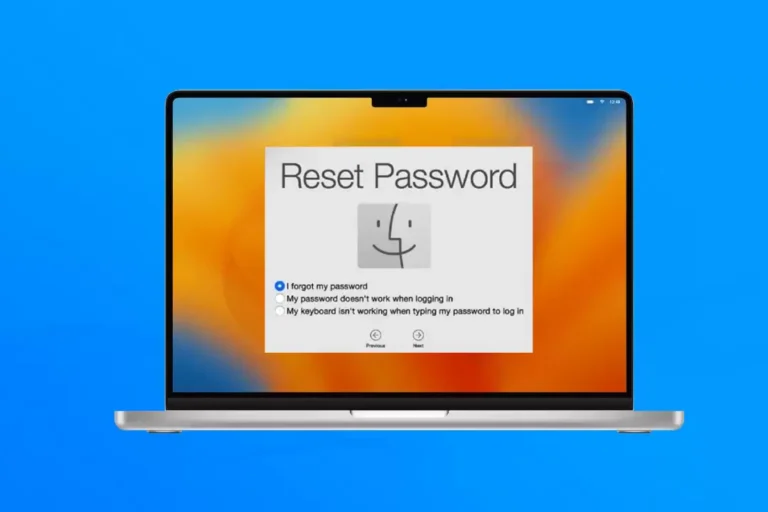
I. What are the benefits of resetting MacBook password?
- Recover Access: If you forget your password, resetting your password will help you regain access to your MacBook.
- Data Security: Resetting your password is one way to ensure the safety of your personal data on your computer. Changing your password means preventing others from gaining unauthorized access to your system and personal information.
- Fix system errors: In some cases, resetting your password can help fix technical issues or system errors on your MacBook.
Attention: Resetting your password may erase all data available on your computer, so back up important data before resetting.
- Resetting MacBook password is a necessary process in case the user forgets the password or wants to change the current password.
- Passwords play an important role in protecting the data and personal information on your MacBook.
- In this article, we will learn about how to reset MacBook password and things to know.
See more.
- How to install windows for macbook in detail
- Online macbook installation service
- How to install Photoshop software on Windows Mac simply
II. How to reset password for macbook Intel chip
Step 1: You hold the power button or turn off the device as usual.
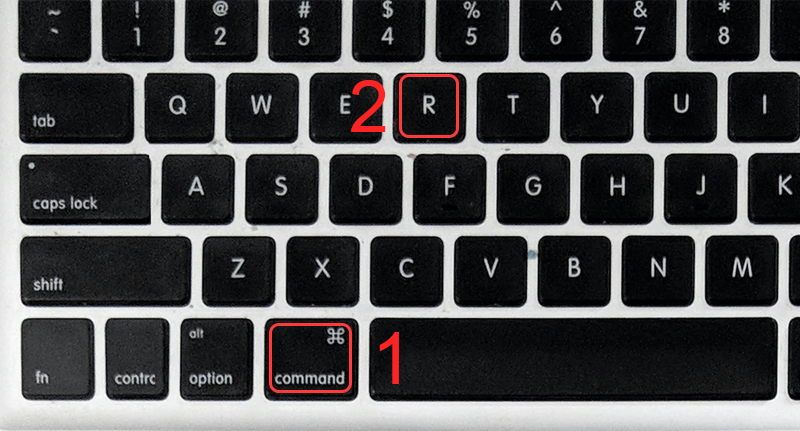
Step 2: Hold down the 2 key combination Command (⌘) + R and power on the device with the hardware button to enter the new mode.
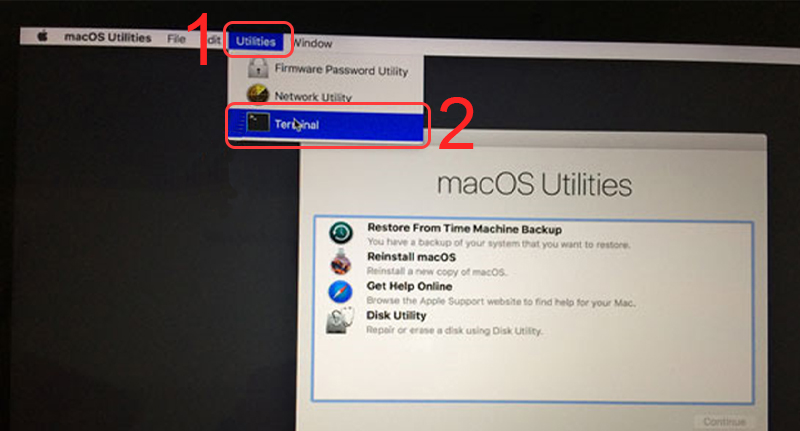
Step 3: Continue to choose Utilities > Select Terminal to enter the command code
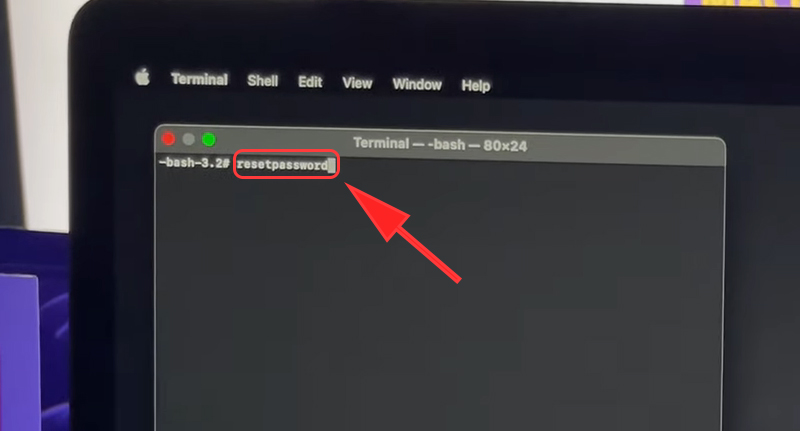
Step 4: Continue to enter the following command line to reset the password for macbook "reset password” > (Note: Write without spaces) then press Enter.
Step 5: Your laptop will ask to confirm information (if you use two-layer security) > After selecting, you choose tiếp tục.
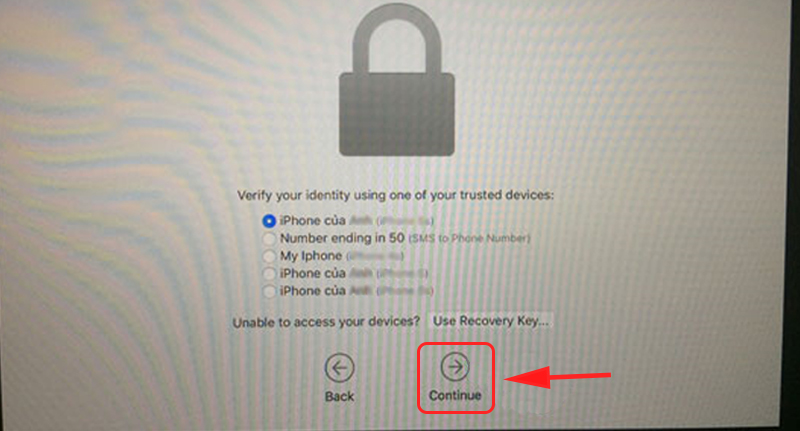
Step 6: Enter code code Apple sends to your phone > Select tiếp tục. If you do not set security, skip this step.
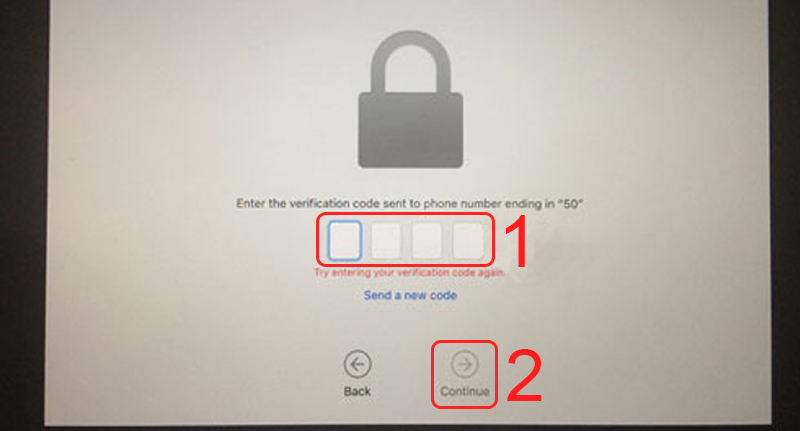
Step 7: When you successfully enter the code, you proceed to reset a new password for your computer.
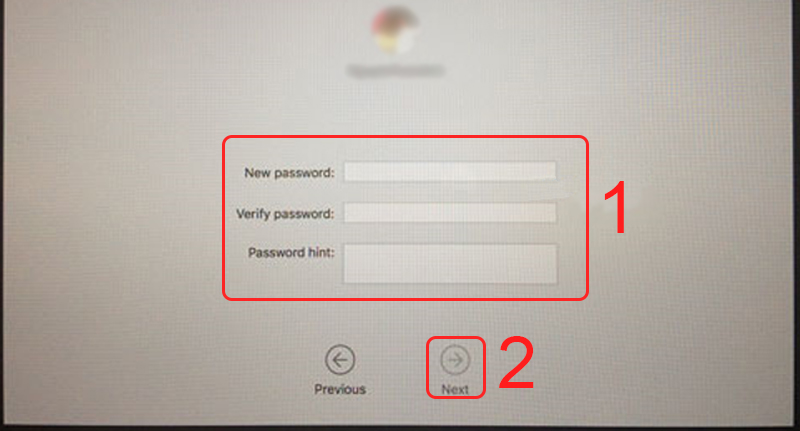
III. How to retrieve MacBook M1 Apple chip password
Step 1: Completely power off
Step 2: Hold the power button again until the device displays the options.
Step 3: Select Options > Select tiếp tục.
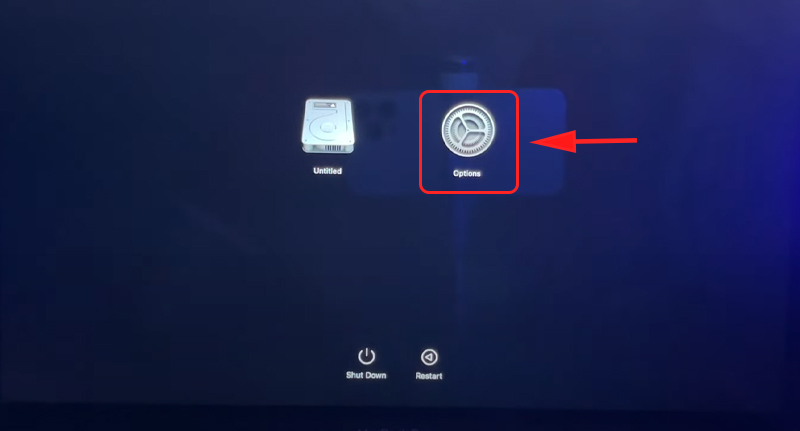
Select Options
Step 4: Select Utilities > Select Terminal.
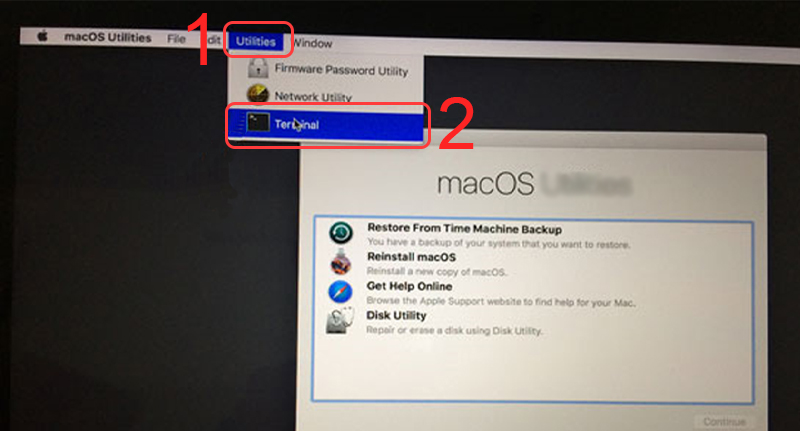
Select Terminal
Step 5: Enter “reset password” > Click Enter.
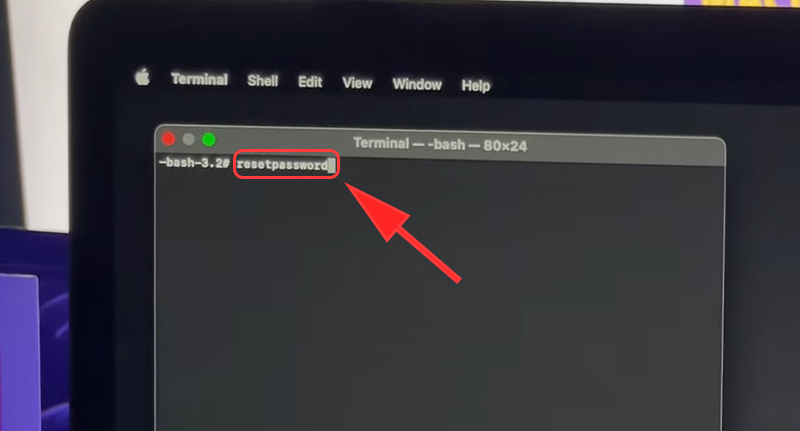
Enter resetpassword
Step 6: (If the machine has iCloud) Select Deactivate Mac > Select Deactivate.
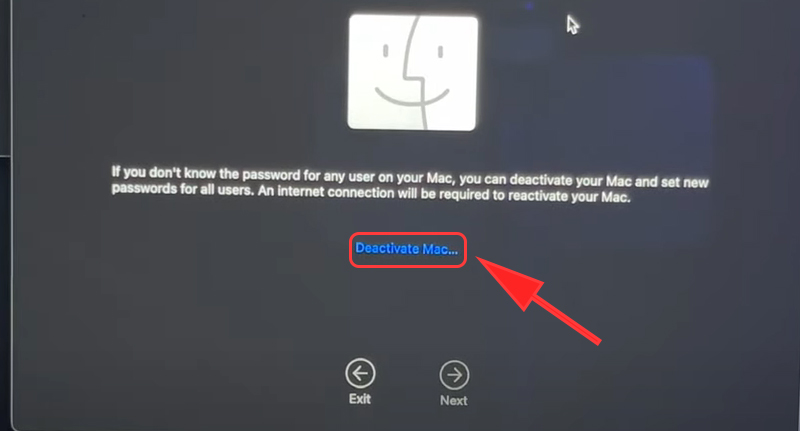
Select Deactivate Mac
Step 7: Login account iCloud > Proceed to reset password.
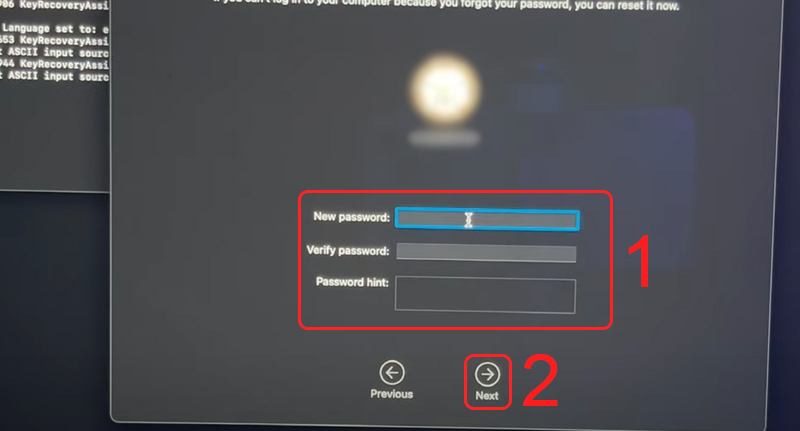
Reset Password
Wait for the device to restart and you have successfully changed your MacBook password!
4. Change MacBook password from another account
If you have other accounts on your device and you remember the passwords for them, you can use those accounts to reset the password for the account you forgot.
This only applies if you have the device open and are using it.
Step 1: Press the key combination Command + Shift + Q to log out of account forgot password.
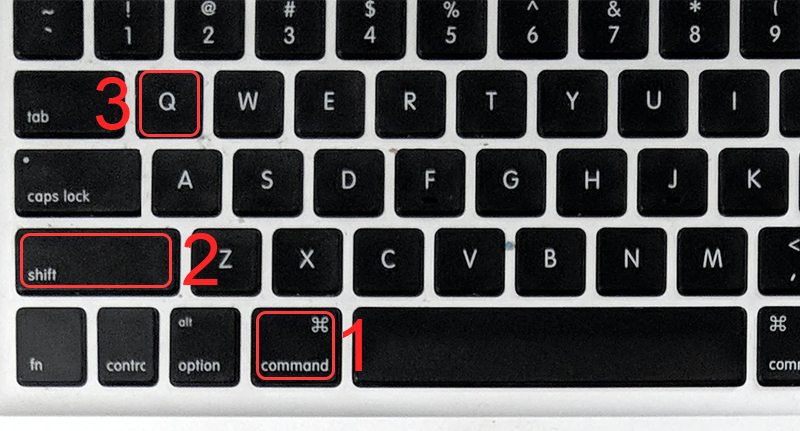
Select the key combination to log out of your account
Step 2: Log in to another account you still remember the password > Select System Options.
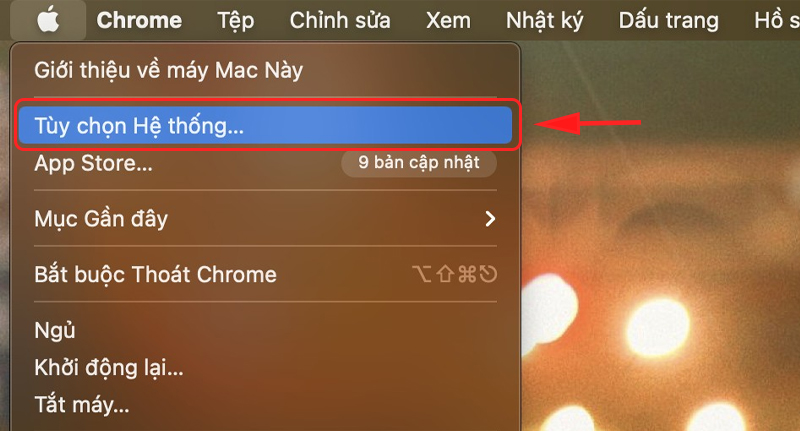
Select System Preferences
Step 3: Select Users & Groups.
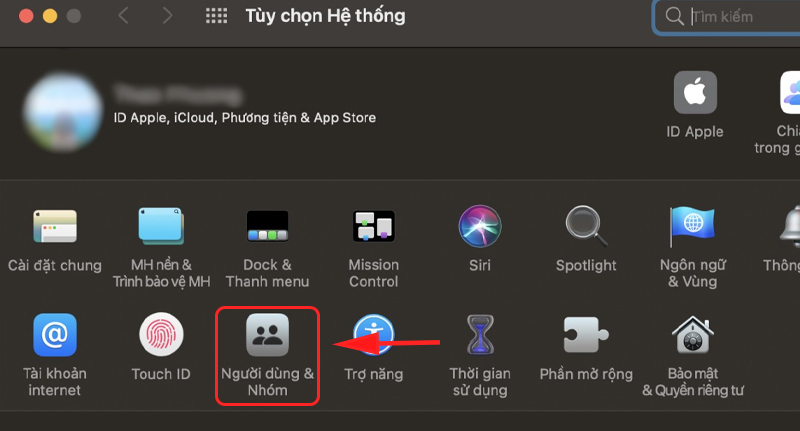
Select Users and Groups
Step 4: Select unlock at the bottom left.
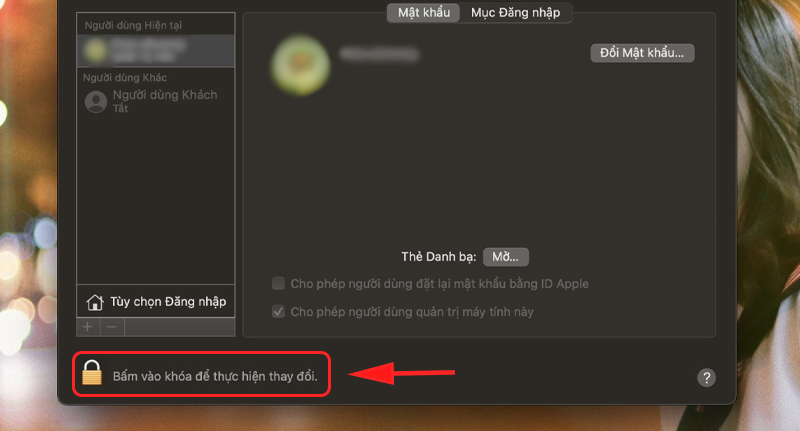
Select the unlock box
Step 5: Select the account you forgot the password for > Click and proceed to reset the password.
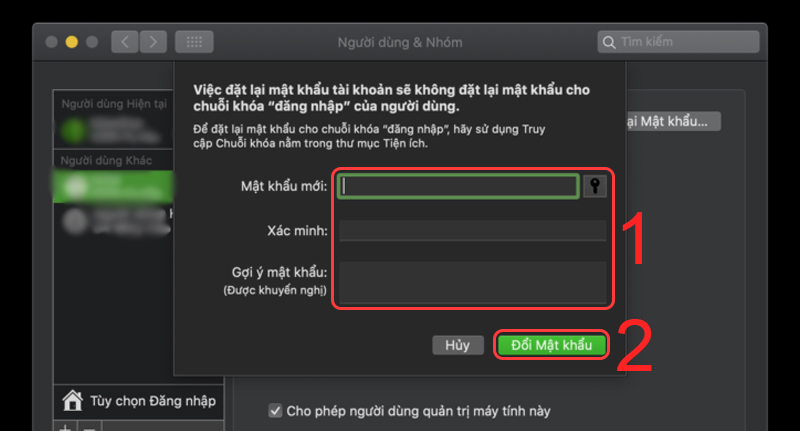
Reset Password
II. How to reset MacBook password via Apple ID
- Restart your MacBook.
- When the login screen appears, enter the wrong password and press Enter.
- A pop-up window will appear asking for your Apple ID and password.
- Enter your Apple ID and press Enter.
- Then, on the next window, select “Forgot Password”.
- You will be asked to confirm your identity by entering your two-factor verification code or the answer to your secret question.
- Complete the identity verification process following the on-screen instructions.
- Once verified successfully, you will be able to create a new password for your Apple ID account.
- Enter a new password and confirm it.
- Next, your MacBook will automatically connect to the internet to complete the password reset process.
III. How to reset MacBook password without Apple ID
To reset your MacBook password when you don't have an Apple ID, you can use the reboot mode from Recovery Mode. Follow these steps:
- Completely shut down your MacBook.
- Press the power button and hold the Command (⌘) and R keys at the same time until you see the Apple logo appear on the screen.
- A Utilities window will appear. Select “Utilities” from the menu bar at the top of the screen, and then select “Terminal”.
- Type command
reset passwordin Terminal and press Enter to open the Reset Password utility. - Next, a new window will appear with a list of user accounts on your computer. Select the user account whose password you want to reset.
- Enter a new password for that account and confirm it.
- Finally, click the “Save” button to apply the new password.
After completing the above steps, restart your MacBook and use the new password to log in to the reset user account.
- Use Recovery Mode to reset your password
- Step 1: Restart MacBook and press the key combination to enter Recovery Mode
- Step 2: Select the “Computer Utilities” utility and then select “Change Password”
- Step 3: Enter the required information and create a new password
IV. Notes when resetting MacBook password
Here are some important notes when resetting your MacBook password:
- Data Backup: Before resetting your password, make sure to back up all important data from your MacBook. Resetting your password may erase all data on your computer.
- Log in with administrator account: To reset your password, you need to log in to your MacBook's administrator account. Note that only users with administrator rights can perform this operation.
- Using Recovery Mode: To reset your password, you need to restart your MacBook and use Recovery Mode. You can boot into Recovery Mode by holding down Command + R during startup.
- Proceed to Reset Password: In Recovery Mode, select the Utilities utility and then select Reset Password. You will be asked to re-enter the new password for the user or administrator account.
- Restore from Time Machine (optional): If you have backed up your data from Time Machine, you can restore your entire system from this backup after resetting your password.
Note that resetting your password is a serious process and may erase all data on your MacBook. Make sure you have backed up important data before proceeding.
- Backup important data before performing reset
- Ensure compliance with regulations on security and use of personal information
V. Conclusion
Reset password for MacBook This process helps you regain access to your device in case you forget your password. However, it is important to note that resetting your password will erase all personal data on your MacBook, so you should back up important information before doing so.
If you have successfully reset your MacBook password, you will be able to create a new password and continue using your device. This means that your user accounts, settings, and personal data are completely erased and cannot be recovered after the reset.
So, before resetting your MacBook password, make sure you have backed up all your essential data and are ready to start from scratch.
Don't forget to follow the channel Instructions for use on Facebook to update more latest information



 EN
EN  VI
VI