Skip to content
  • About us
  • Contact
  • en_USEN
  • viVI
FacebookTwitterPinterest
HOWTOHOWTO
  • All
    • Tips
      • Google
      • Facebook
      • Tiktok
    • Instruct
      • What is Q&A?
      • Taobao
    • WordPress
      • Code
      • Plugins
      • Themes
        • Flatsome
        • Theme Nevo
  • ShareHot
    • WordPress
    • Code
    • Plugins
    • Tips
    • Windows
    • Apple
    • Graphics
    • Experience
  • Graphics documents
    • illustrator
    • Sketchup
    • Coreldraw
    • 3ds max
    • Enscape
    • Photoshop
    • Graphics Plugin
  • Course
    • Photoshop course
    • illustrator course
    • Coreldraw course
    • Edit video course
    • Course Sketchup
    • Autocad course
    • Website management course
  • Service
  • Software
    • Windows
      • Tips
      • Office
      • Necessary
      • Tools
    • Apple
  • Game
  • News
    • Technology
    • Review
Hello!

  • Lost your password ?
HOWTOHOWTO
  • Home > 
  • Graphics > 
  • Adobe Photoshop > 
  • How to delete excess details in Photoshop

How to delete excess details in Photoshop

By Tung Thai 18/11/2025 0 480 Views
How to delete excess details in Photoshop
Article categories

How to delete excess details in Photoshop. Removing extra objects on photos is quite difficult for some people. To erase those objects as well as redundant details, there are a number of ways that are not very effective or realistic.

This article will guide you How to delete excess details in Photoshop Helps erase your leftovers easier and more effective. Helps your photo not be blurry in the parts you delete and will look more realistic than websites that quickly delete objects. Let's not keep you waiting any longer, here it is How to delete excess details in Photoshop, let's do it together
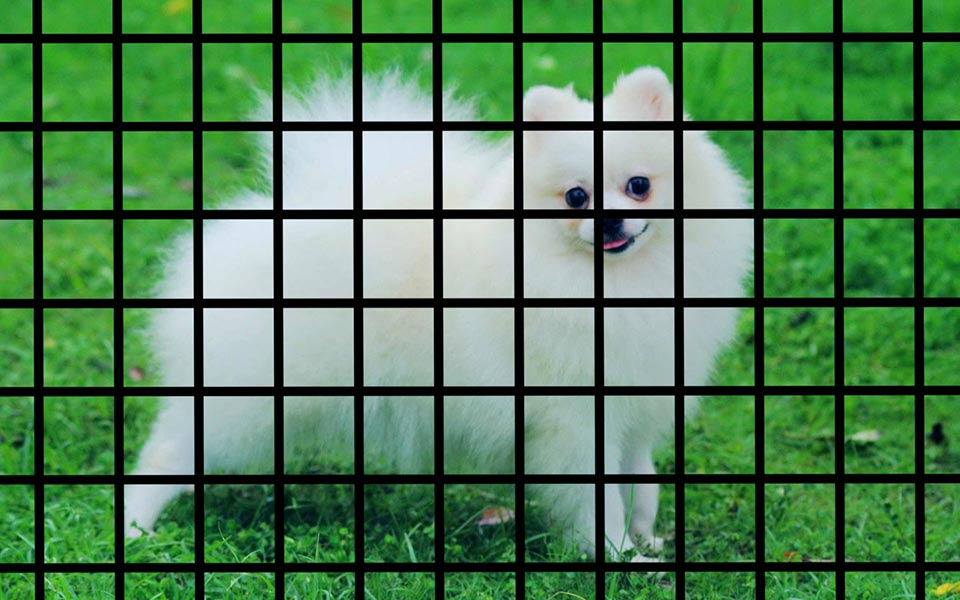
How to delete excess details in Photoshop
How to delete extra objects in Photoshop

Limbs 3 See more: Photoshop courseFrom basic to advanced with 1:1 or find more documents about Adobe photoshop

  • Top 1 Image sharpening app not to be missed
  • How to create snow in Photoshop is extremely simple
  • The latest and most beautiful way to adjust colors in Photoshop in 2022
  • How to apply materials to subjects in Photoshop
  • How to create rain in Photoshop is extremely simple
  • The latest and most beautiful way to adjust colors in Photoshop in 2022

How to delete excess details in Photoshop

Step 1: Open the photo in which you want to delete the object in the photo

  • File > Open Find the section containing the photo that needs to be edited

Step 2: Create a selection for the object that needs to be deleted in the image

  • Select > Color Range Then a parameter table appears
How to delete excess details in Photoshop
Step 2 The color absorber tool creates a selection
  • You will then attract the color of the object you need to delete in the image
  • On that spec sheet I have a part: Fuzziness to expand the selection of the color you initially drew
  • You adjust the parameters accordingly
  • After you're done, click ok for yourself
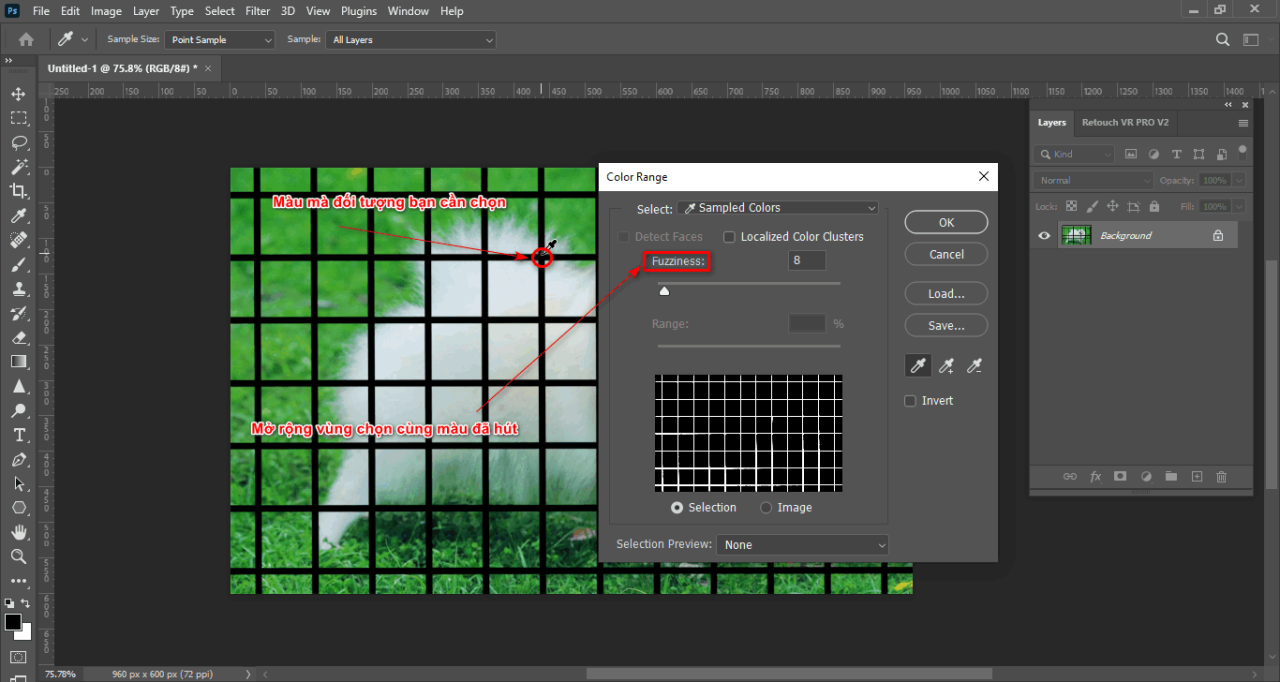
How to delete excess details in Photoshop
Step 2.1 Extract color and expand selection

Step 3: Separate the mesh object from the image more accurately

  • You will use tools that create selections
  • Then you select the item Select and Mask on the menu bar
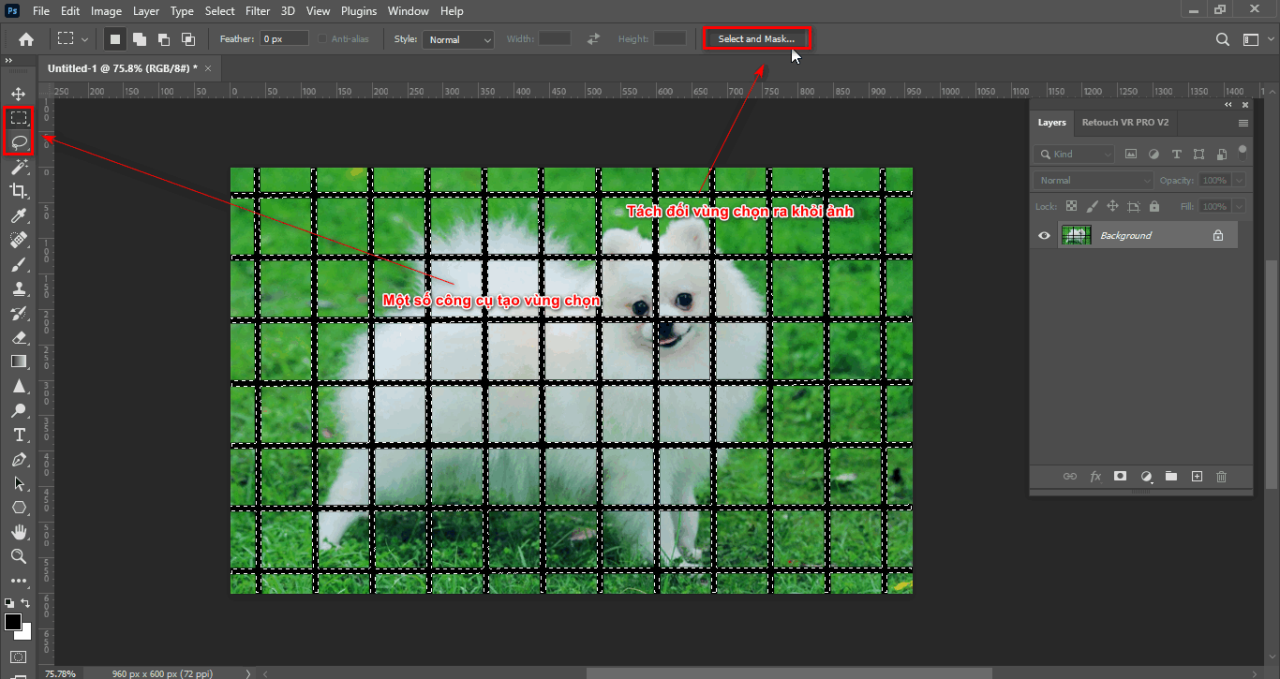
How to delete extra objects in Photoshop
Step 3 Separate the object from the image more precisely
  • After you select it, a parameter table will appear
  • Now you look at the section View you should choose mode Overlay to see the object you selected previously
  • You drag the slider down then adjust the parameters of 3 items: Feather, Contrast, Shift Edge, Feather: the soft edge of the area you previously selected, Contrast: the closing distance of the selection you previously selected, Shift Edge: Change the edge of that selection
  • After adjusting the appropriate parameters of those 3 items, we make a choice > OK
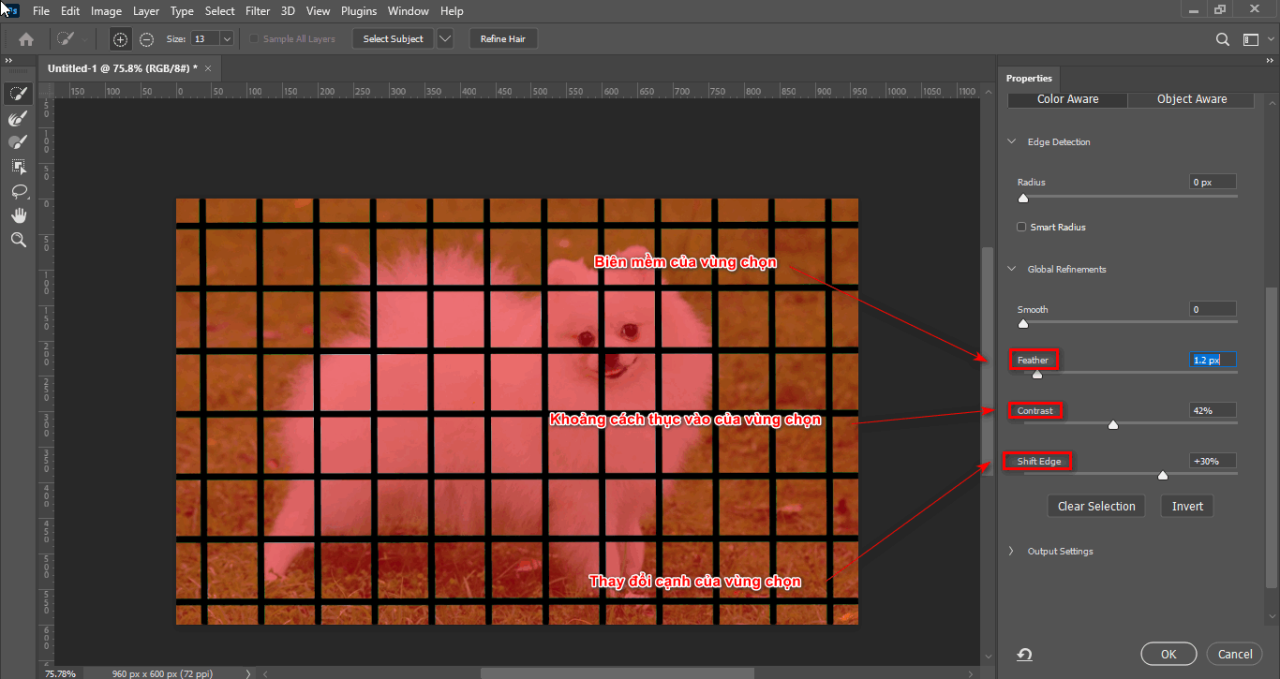
How to delete extra objects in Photoshop
Step 3.1 Detailed parameter table of the tool

Limbs 3 See more: Instructions for removing photoshop background very quickly

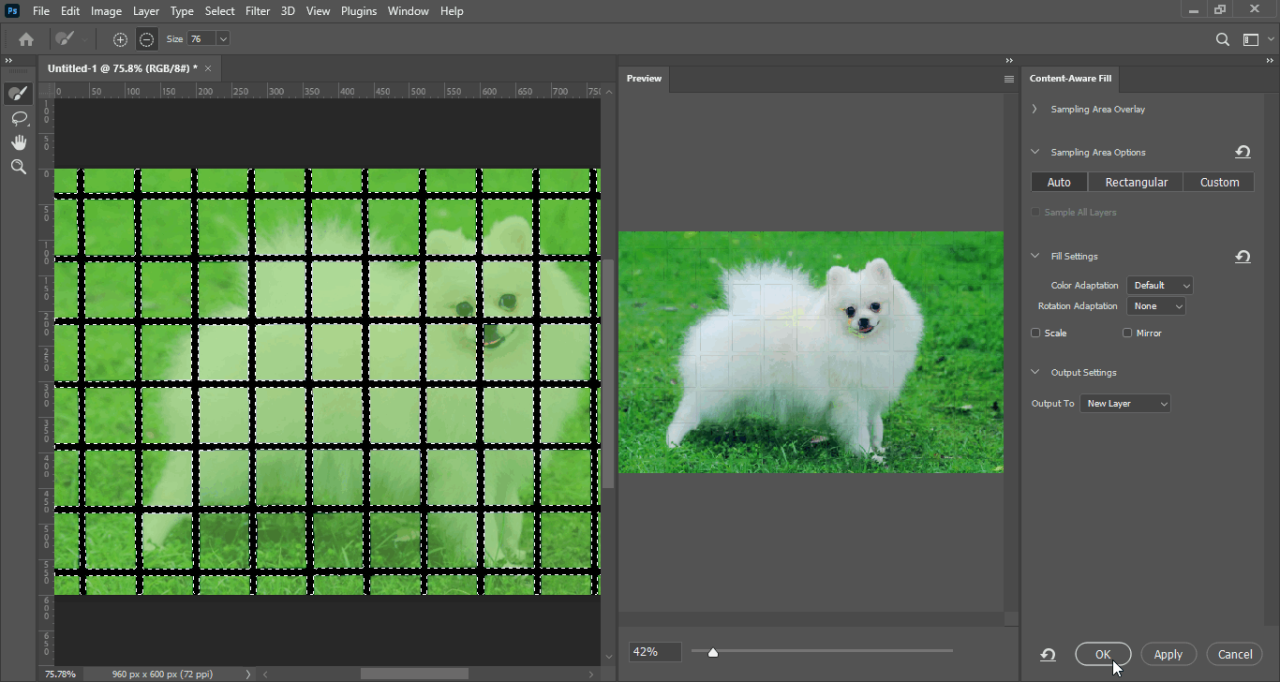
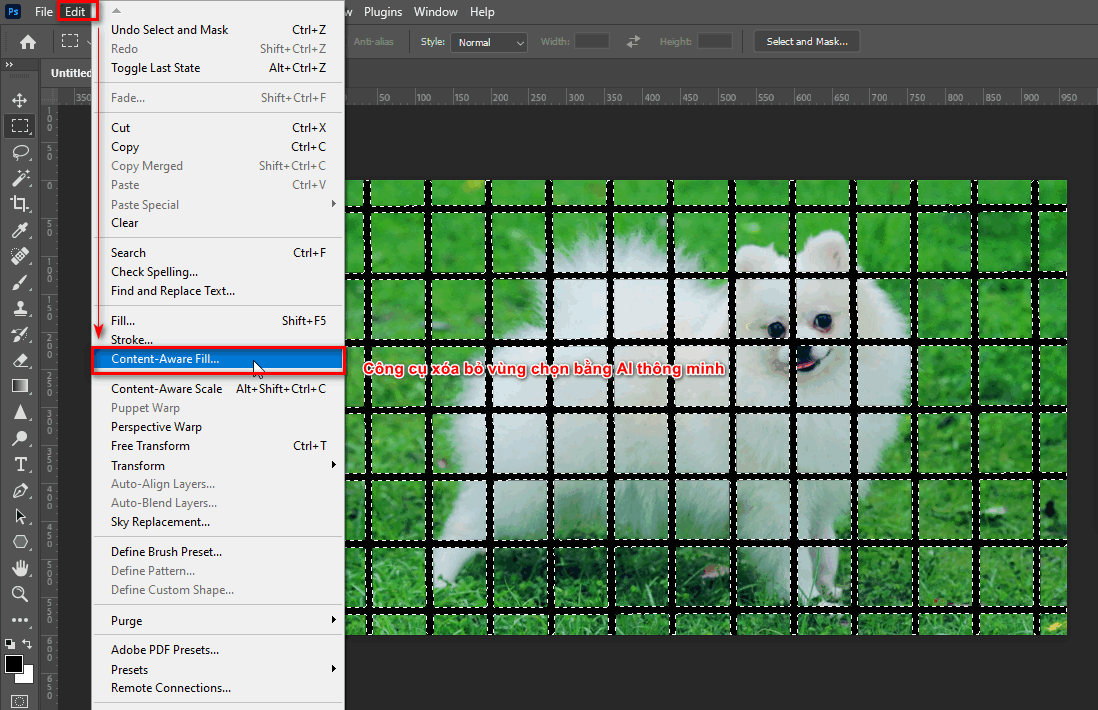
Step 4: Delete excess objects with the Content Aware Fill tool

  • You choose and Edit > Content Aware Fill At this time, a parameter table appears for you to preview the product after using the command
How to delete extra objects in Photoshop
Step 4 Tool to erase selection using AI technology
  • If you find it suitable, click > Okay
How to delete extra objects in Photoshop
Step 4.1 Parameter table of object eraser tool
  • Then merge the two layer objects together

Step 5: Erase excess areas with the Spot Healing Brush tool

  • You choose the tool Spot Healing Brush Then click on areas that have not been carefully erased before
  • When using this tool, you should adjust the cursor size to suit the object you need to delete
How to delete extra objects in Photoshop
Step 5 Use the tool to delete the remaining details.png

Limbs 3 See more: How to use Spot Healing Brush Tool Photoshop

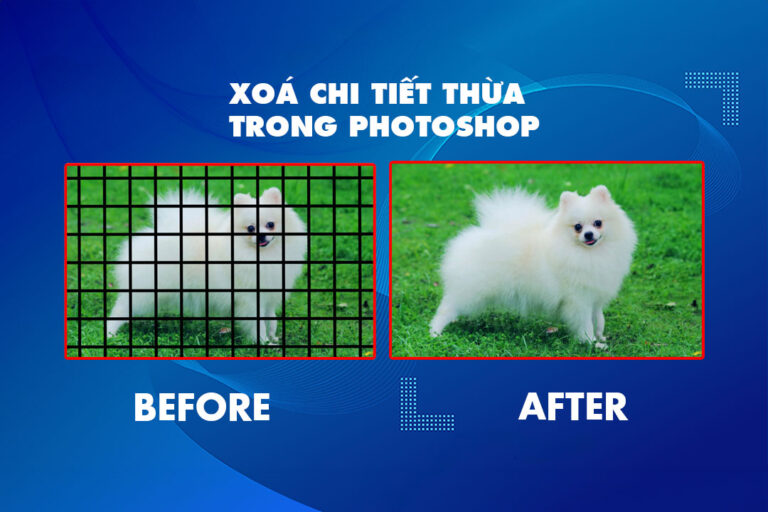
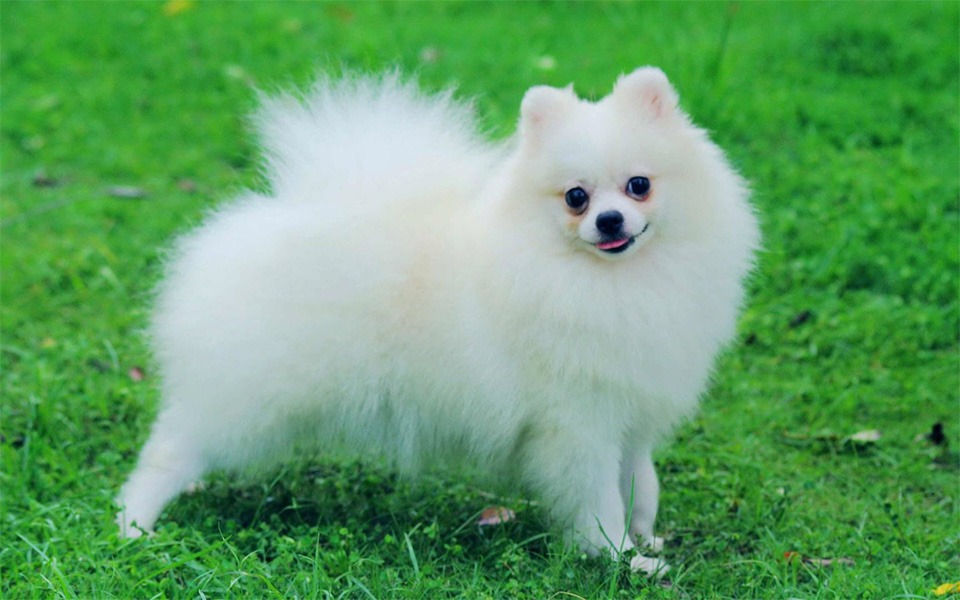
Step 6: Product after applying how to delete excess objects in Photoshop
How to delete extra objects in Photoshop
Product after applying how to delete excess objects in Photoshop

In short

Deleting an object or excess detail on a photo is no longer difficult once you know the article How to delete excess details in Photoshop Graphic Expressand helps your photo editing process retain the same image quality and the deletion result is also the most beautiful and natural, compared to the websites we have available. These websites are often used for those who have not yet learned Photoshop, but if you want to find them Photoshop course Come immediately for advice and support.

If you feel the article How to delete excess details in Photoshop If it's good and you need it, please try it and share with everyone good tips in photoshop. Good luck.

Tags : Tags How to delete extra objects in Photoshop   learn adobe photoshop   learn photoshop   study pts   study graphic design   basic photoshop
Share
FacebookShare on FacebookpinterestShare on PinterestMessengerShare on Facebook Messenger
twitterShare on TwitterlinkedinShare on LinkedinvkShare on VkredditShare on ReddittumblrShare on TumblrvideoShare on Viadeobuffer. bufferShare on Bufferpocket. pocketShare on PocketwhatsappShare on WhatsappViberShare on ViberemailShare on EmailskypeShare on SkypediggShare on DiggmyspaceShare on MyspacebloggerShare on Blogger YahooMailShare on Yahoo mailtelegramShare on Telegram gmailShare on GmailAmazonShare on AmazonSMSShare on SMS
Tung Thai

Tung Thai

As a student at the center. I write what I know to share with you.
1 is to share with you so you can know and learn.
2 improve knowledge and remember longer, with the motto of giving to receive, I want to write more

Related articles

How to delete excess details in Photoshop

How to use camera Raw in photoshop

By How To 08/12/2025

Camera Raw in photoshop is a tool that has been around since…

How to delete excess details in Photoshop

Latest instructions for using camera raw in photoshop

By How To 07/12/2025

Camera raw in photoshop is a correction tool…

How to delete excess details in Photoshop

3 Ways to create speed effects in Photoshop

By Tung Thai 06/12/2025 0

3 Ways to create speed effects in photoshop Speed effects…

Leave a Comment Cancel reply

Categories What is Q&A? What is the structure of that place?

What is Interior Design? How much does an interior design job pay?

12/12/2025
What is Material?

What is Material? Material application in the field of design

11/12/2025
What is the poster?

What are posters? 9 Tips for designing beautiful, quick Posters

11/12/2025
What does graphic design do? Is it easy to get a job?

What does graphic design do? Is it easy to get a job?

11/12/2025
Water is the water material in Enscap

Water is the water material in Enscap

11/12/2025

Recent comments

  • male1 year ago
    On How to create a fade effect in Photoshop
    Great
  • phat phat2 years ago
    On Who is 5SMedia?
    Useful article
  • Minh Anh3 years ago
    On How to create basic materials in vray Sketchup
    Very good, admin
Copyright © 2025 HOWTO - Powered by HOWTO

5SMedia.net | hocdohoacaptoc.com | huongdansudung.vn | webantam.com

Back to Top
Hello!
  • All
    • Tips
      • Google
      • Facebook
      • Tiktok
    • Instruct
      • What is Q&A?
      • Taobao
    • WordPress
      • Code
      • Plugins
      • Themes
        • Flatsome
        • Theme Nevo
  • Share
    • WordPress
    • Code
    • Plugins
    • Tips
    • Windows
    • Apple
    • Graphics
    • Experience
  • Graphics documents
    • illustrator
    • Sketchup
    • Coreldraw
    • 3ds max
    • Enscape
    • Photoshop
    • Graphics Plugin
  • Course
    • Photoshop course
    • illustrator course
    • Coreldraw course
    • Edit video course
    • Course Sketchup
    • Autocad course
    • Website management course
  • Service
  • Software
    • Windows
      • Tips
      • Office
      • Necessary
      • Tools
    • Apple
  • Game
  • News
    • Technology
    • Review
en_US EN
en_US EN vi VI