When drive C is red, this shows that C drive is full running out of storage space. Common causes include too much data, temporary and cached files, unnecessary programs, and large files.
The consequences of a full C drive can be reduced computer performance, system errors, difficulty in storing new data, and the risk of data loss. You need to delete unnecessary files or upgrade the drive capacity to fix it. Here I will guide you How to fix red drive C completely and details


How to fix red C drive error
When drive C is red, drive C is full, the first thing you need to do is determine the cause of this situation. There are many reasons why drive C is full, from downloading too many unnecessary files to installing too much software, having too many junk files in the computer because you have used it for a long time without deleting... To fix this situation, you need to take steps to clean up, optimize capacity and manage drive C capacity reasonably.
Determine the cause of red C drive
First, you need to check the remaining space on C drive. If the free space is less than 10%, then there is a high possibility that C drive is full. Some common causes of C drive being full include:
- Downloading too many unnecessary files: Many users have the habit of downloading many files from the internet without considering their necessity.
- Installing too much software: Installing many heavy software can also take up C drive space quickly.
- Too many cache files, temporary memory: When using applications and operating systems, they often create many temporary files and caches to help them operate faster and smoother. Your computer will accumulate and take up a lot of space if it is used for a long time without being cleaned regularly.
Clean up red drive C
Once you have identified the cause, the next step is to clean up your C drive. You can start by deleting unnecessary files, including downloads, temporary files, and logs. Additionally, uninstall unused software to free up more space.
Use disk cleanup tools
There are many free and paid disk cleanup tools that you can use to automate the cleanup process. Some popular tools include available code file, move file, use Treesize software, CCleaner, Disk Cleanup… These tools help you remove junk files, temporary files and logs quickly and effectively. Prioritize the implementation in order.
Method 1: Use available code file
The benefit of using this code file is that you do not need to install and set up complicatedly, just download and run it. You also do not need to install, so your C drive does not take up space.
How to use:
- Step 1: Load Computer cleaning code file available.
- Step 2: Run with power Administrator.
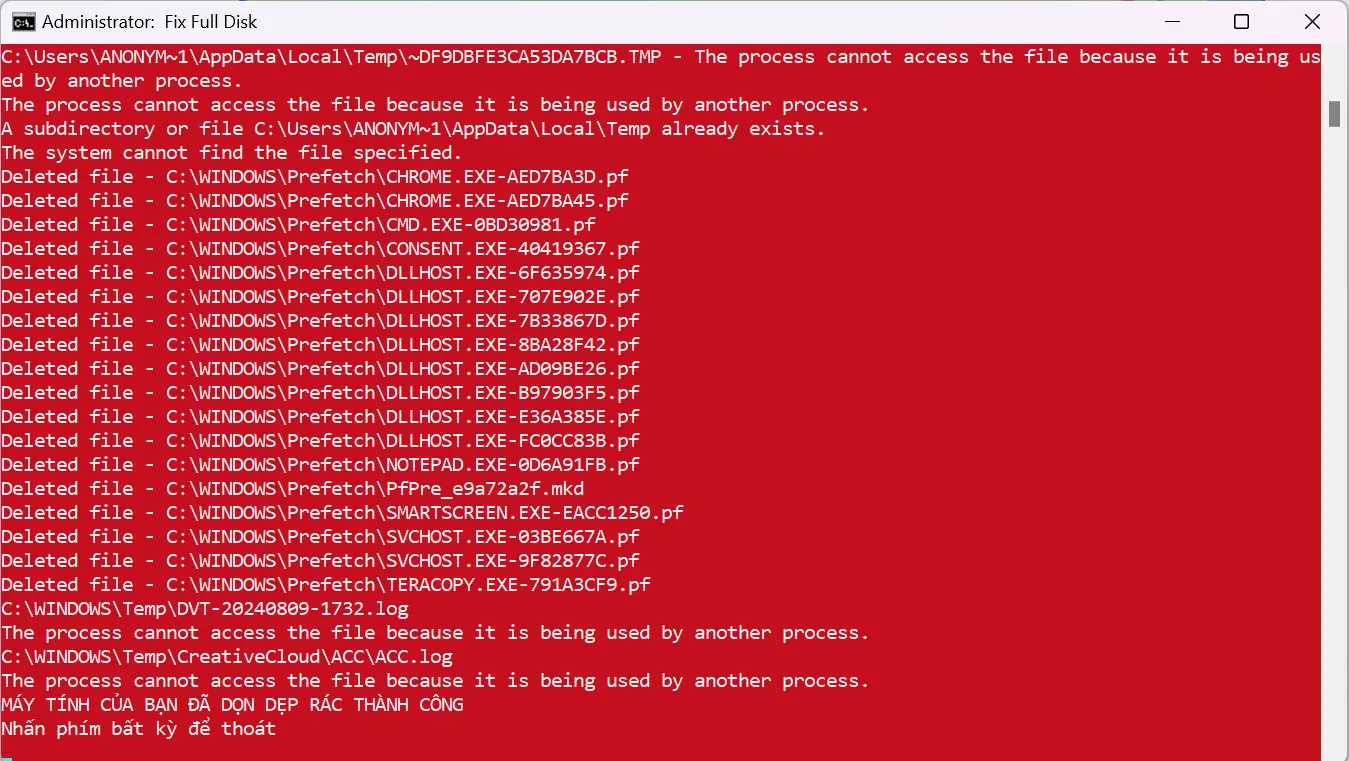
- Step 3: When you run the interface will be as shown in step 2. At this point you do not need to do anything. You just need to sit back and enjoy the results. When the message "Press any key to exit" means the script has finished running.
Method 2: Move the file to an empty drive
Move data to free space.
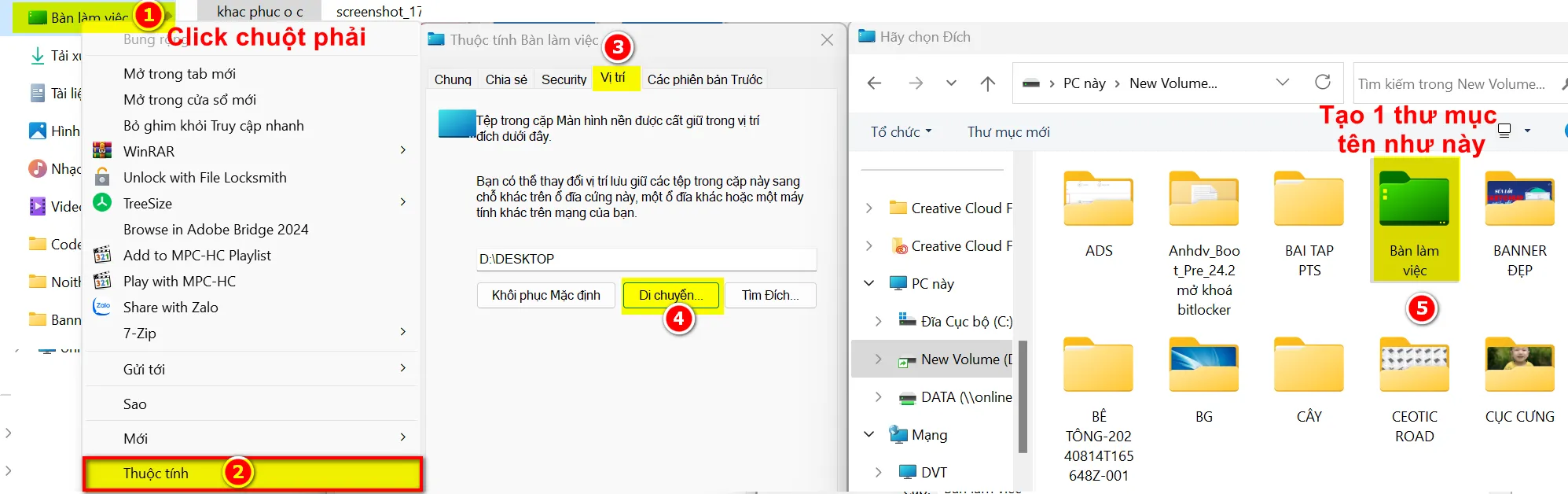
- Move Desktop in drive C is full to free drive.
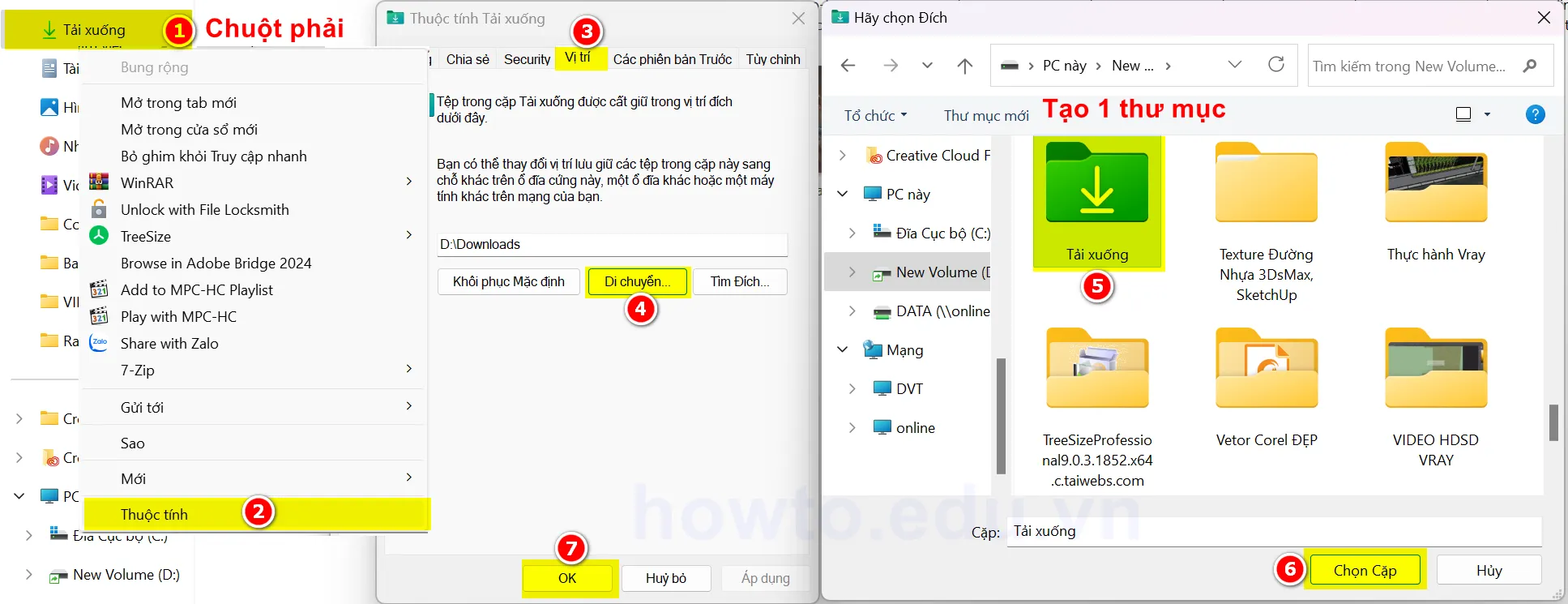
- Move Download in drive C is full to free drive.
- Move Documents in drive C is full to free drive.
This method is also widely used. This method is used in combination with method 1 above. This method makes your data very safe when reinstalling Windows without losing data.
How to operate as follows
- Step 1: Move content in Desktop in drive C is full to a new location: Right click on Desk > Properties > Location > Move > Select the free drive > Create a folder then name “Desktop” > Ok as shown below.
- Step 2: Move folder Download in the C drive is full to the new location. Right click on Download > Properties or attribute > Location > Move > Select to free drive > Create a folder then name “Download” > Ok as shown below.
- Step 3. Move the folders Documents In drive C is full, you do the same as steps 1 and 2.
- Step 4: Check if there are any strange folders in drive C that contain a lot of data. A normal drive C will have data like this, note that there is also hidden data. Step 4 If you are not familiar with it, please skip it.If you don't know deleted by mistake will lead to windows not accessible there.
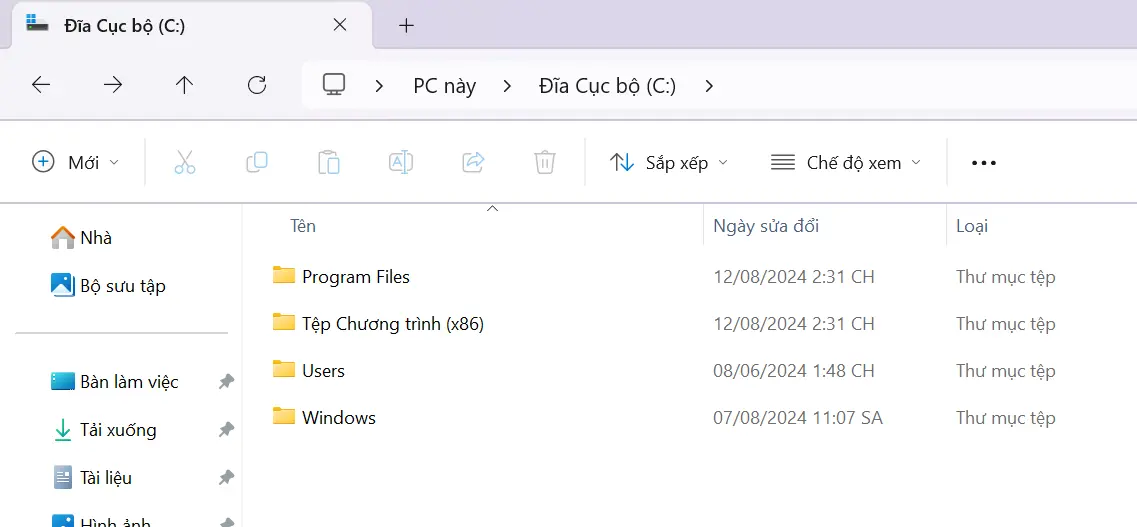
This is an image of a complete windows file containing no other data.
Method 3: Use Treesize software to fix red C drive
I find this method extremely effective. However, it also has some disadvantages such as having to install cracked software or buying a license. If you are able to download and use it, you should do this. This method will analyze your drive in great detail. Where there is the most storage capacity, in which location, it will help you easily verify to delete or move it.
With this software, I will not guide you how to install it because it is related to copyright. Here, I only introduce it to you so that you can have the best and most effective solution. Below is an illustration for analyzing the memory occupancy by location on Treesize software.
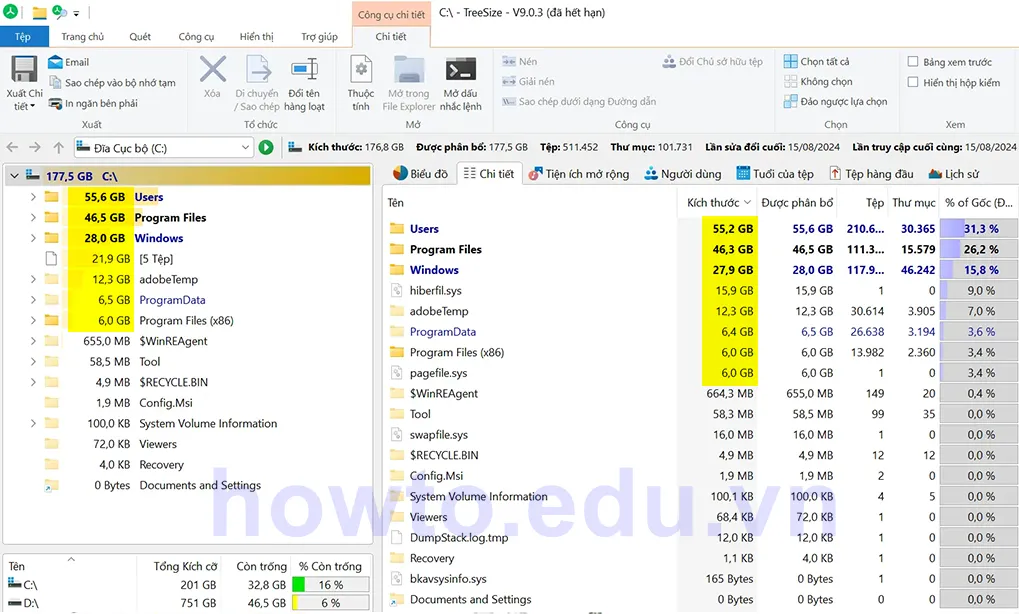
When looking at the image, you will see the folders that take up the most data, from which we can track down which folders or which software take up a lot of space. From there, we can come up with the best solution.
To use this Treesize software, once you have installed it, you just need to open it and select the drive. Then the software will automatically calculate the data in each folder very quickly. This helps the full C drive no longer show red.
Method 4: Using the app Disk Cleanup of windows
This is a Windows application that is used to delete junk files and temporary memory applications that are stored when you use software without you knowing.
How to do it is very simple. You just need to do the following and you will solve the red drive error.
Step 1: Download file Disk Cleanup This is about
Step 2: After downloading, you just need to run it with administrator rights.
Method 5: Using software CCleaner to delete
Software CCleaner has been very famous up to now. It helps your computer clean up junk, delete all computer and browser caches. However, I don't like to use it much for the following reasons.
- Must be installed on computer.
- Need to crack to use full features.
However, it is also very useful when we want to fix this error. To solve C drive is full then you just need to use the free version and you can use it well without needing to use the pro version.
Here are instructions on how to use CCleaner to clean your computer:
Step 1: Download and Install CCleaner on home page
Step 2: Open CCleaner Once installed, open CCleaner from the Start menu or desktop icon. Select the tab “Cleaner” This is where you can uninstall unused and space-consuming apps and clean up temporary files and browsing history.
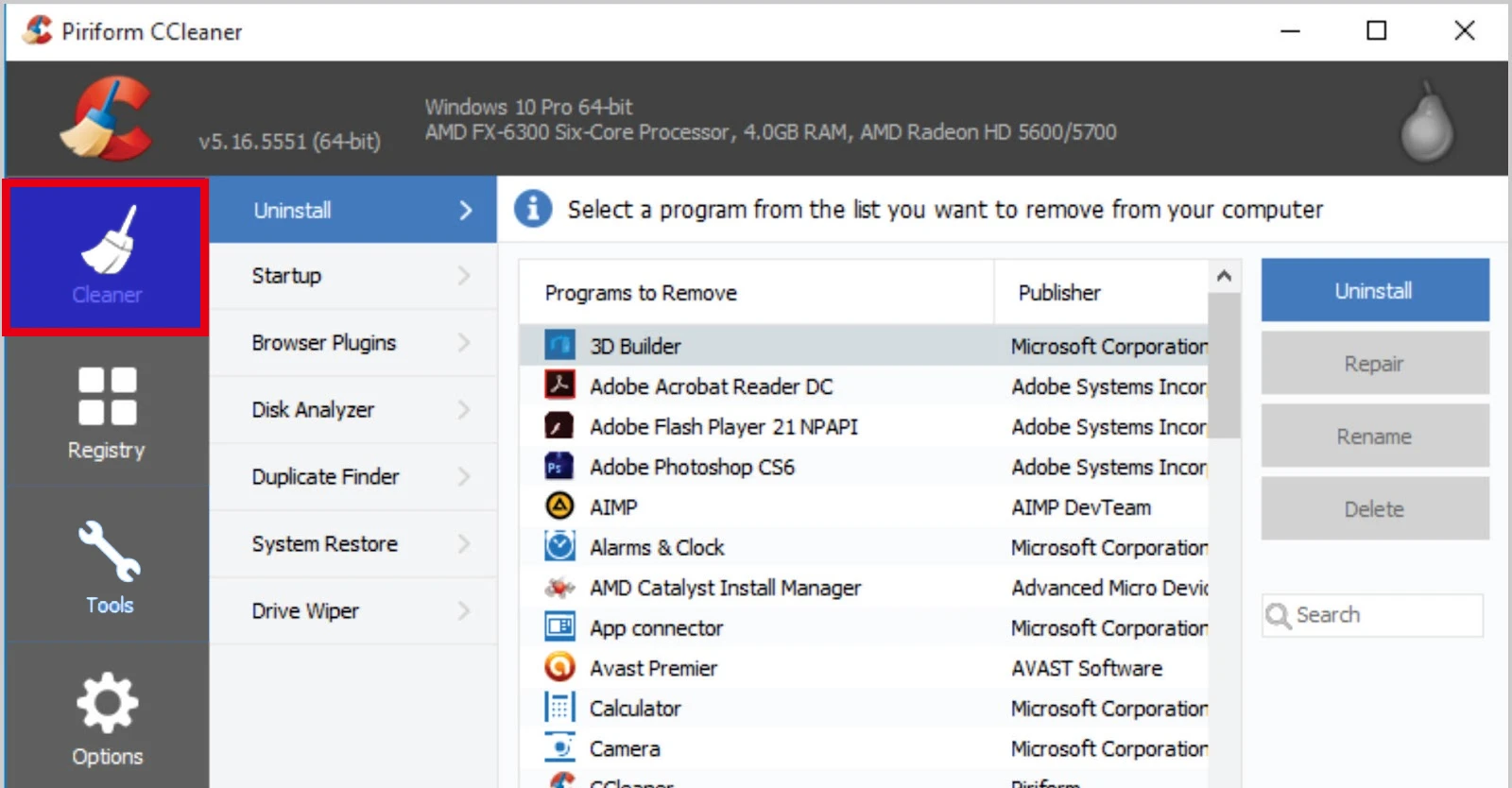
Step 3: Select the items to clean up. First item Uninstall is the category of software that takes up a lot of space and is not used and you need to delete it. Consider which applications you know and do not use, then delete them. Do not delete randomly if you do not know what software it is. Because there are some installed software that are not used directly, but are some software that support your computer to run.
Step 4: Manage applications when the computer starts up. When you start up your computer, there are too many applications starting up at the same time. “Startup”: View the list of startup applications and select the unnecessary ones Click “Disable” to turn them off.
This also helps them not to work and not to generate junk files, making the C drive not full.
Step 5: Clean up the Registry (if necessary)
- Select the “Registry” tab: CCleaner can scan and fix errors in the Registry.
- Click “Scan for Issues”: The software will scan and display problems if any.
- Click “Fix selected Issues”: You can create a backup before editing to be safe.
Method 6: Use software to change the capacity of drive C to be larger
Here I will use the software MiniTool Partition winrar Free to increase C drive capacity
To see instructions on how to use the software MiniTool Partition winrar Free to increase C drive capacity. You can see the article details: Instructions on how to effectively partition Windows hard drives using Mini Partition Wizard this
Summarize
Error drive C red light or also known as C drive is full is a common problem but can be completely fixed. When you know the cause and use our disk cleaning method, you can increase the capacity of your C drive a lot.
Hopefully this article will help you a lot in fixing the red C drive in the most detailed way. Wish you success in fixing the red C drive error.
Don't forget to follow us on Facebook fanpage our to update the latest