Skip to content
  • About us
  • Contact
  • en_USEN
  • viVI
FacebookTwitterPinterest
HOWTOHOWTO
  • All
    • Tips
      • Google
      • Facebook
      • Tiktok
    • Instruct
      • What is Q&A?
      • Taobao
    • WordPress
      • Code
      • Plugins
      • Themes
        • Flatsome
        • Theme Nevo
  • ShareHot
    • WordPress
    • Code
    • Plugins
    • Tips
    • Windows
    • Apple
    • Graphics
    • Experience
  • Graphics documents
    • illustrator
    • Sketchup
    • Coreldraw
    • 3ds max
    • Enscape
    • Photoshop
    • Graphics Plugin
  • Course
    • Photoshop course
    • illustrator course
    • Coreldraw course
    • Edit video course
    • Course Sketchup
    • Autocad course
    • Website management course
  • Service
  • Software
    • Windows
      • Tips
      • Office
      • Necessary
      • Tools
    • Apple
  • Game
  • News
    • Technology
    • Review
Hello!

  • Lost your password ?
HOWTOHOWTO
  • Home > 
  • Graphics > 
  • Adobe Photoshop > 
  • The latest way to create photo frames in Photoshop

The latest way to create photo frames in Photoshop

By Tung Thai 04/12/2025 0 313 Views
how-to-create-beautiful-photo-frames-in-photoshop
Article categories

How to create photo frames in photoshop. Adobe Photoshop is the most popular and professional photo editing software in the world. With many powerful features and tools, Photoshop allows users to create beautiful and unique photos as desired.

From editing, creating effects, compositing photos to graphic design, Photoshop is always the top choice for photographers, designers, or anyone who is passionate about creativity and wants to express their ideas through images. Let's explore the power of Photoshop and create top-notch works of art.

To avoid being long-winded, let's learn together. how to create photo frame in photoshop below

See more >> Photoshop course from basic to advanced 1 on 1 training

  • How to change background color in Photoshop
  • Instructions for smoothing skin in Photoshop
  • The ultimate way to smooth skin in Photoshop, part 2
  • The best way to remove acne in photoshop in 2022
  • Instructions for removing photoshop background very quickly
  • How to create snow in Photoshop is extremely simple
  • How to create rain in Photoshop is extremely simple

How to create photo frames in photoshop

To create a photo frame like in the picture. You need to prepare a picture of yourself or someone. A background so we can cover the excess parts.

How to proceed as follows

Step 1: Open the image file and frame you want to design

  • Go to File > Open to open the image you want to design in the folder.

Step 2: Copy the image to the wallpaper you want to design

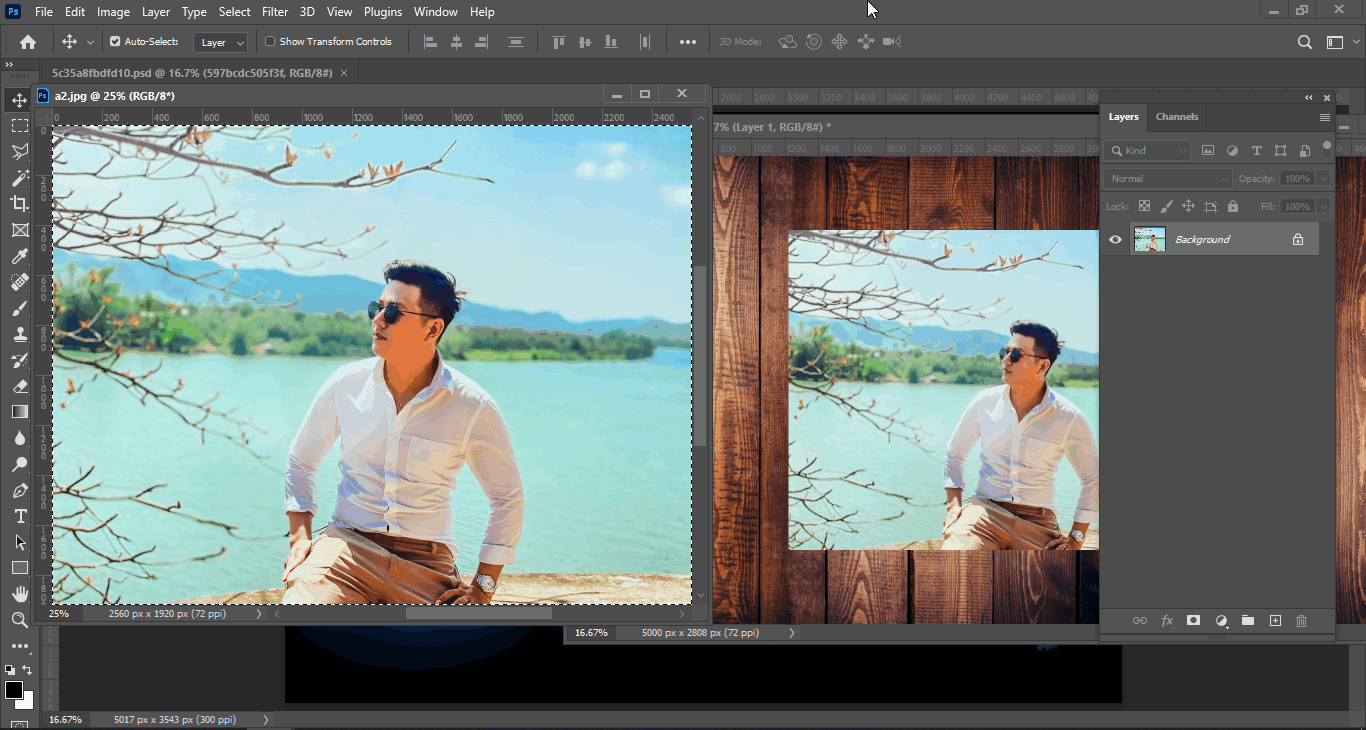
  • I select the photo then press the key Ctrl + A to select all frames
  • Then I click Ctrl + C copy that image and then go back to the page with the wallpaper you want to make later Ctrl + V to paste the image that I just copied
how-to-create-beautiful-photo-frames-in-photoshop
Copy image to another background

Step 3: Swap image into background

For photo frames, you need to change the display size to fit first. press Ctrl + T and drag the corner of the image to
how-to-create-beautiful-photo-frames-in-photoshop
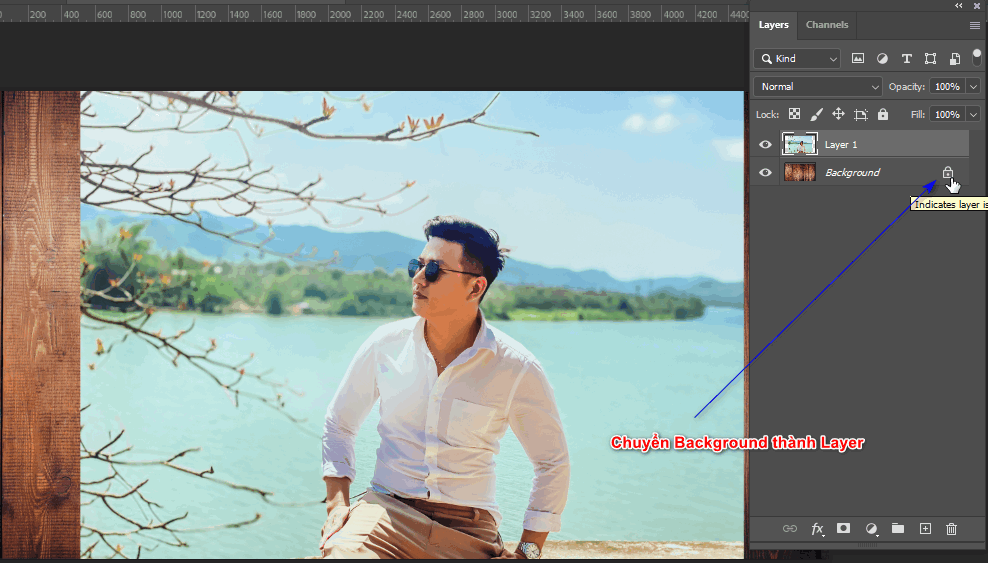
Convert Background to Layer
  • Then we click on the image layer then go to the menu bar Layer > New > Background form Layer. Now the image layer will become Background and will automatically move to the bottom.
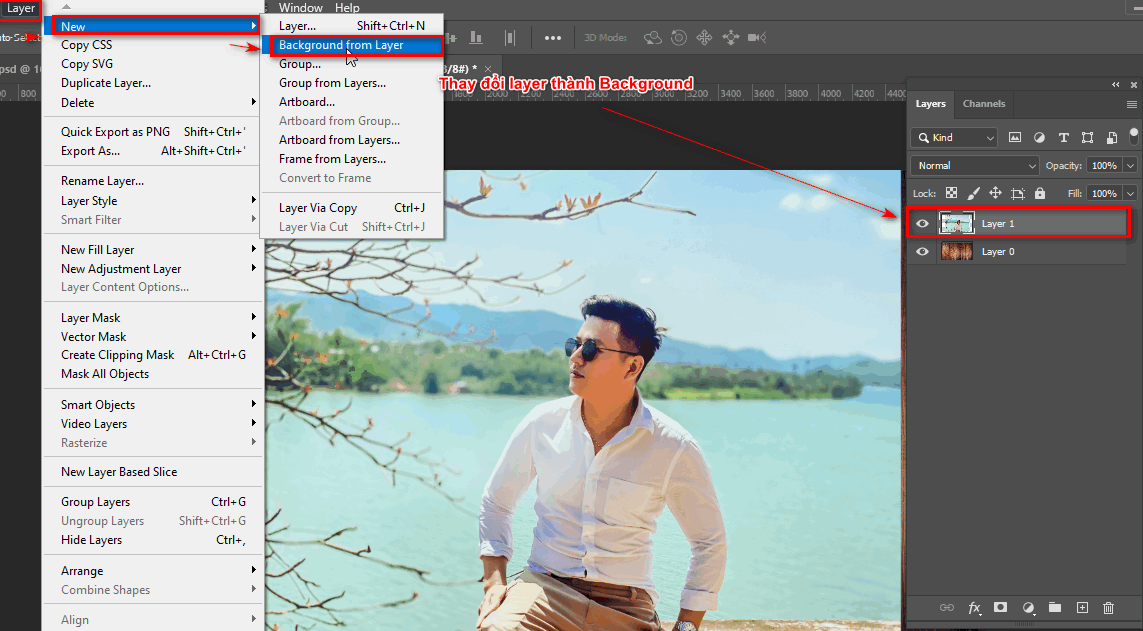
how-to-create-beautiful-photo-frames-in-photoshop
Change Layer to Background

Step 4: Create the photo frames you want

  • I create an empty Layer using the + icon next to the trash can on the Layer panel. (Atl + Ctrl + Shift + N)
  • After creating, we can now choose the tools that have a selection area.
  • Then we pour black color on it. Alt + Delete on that selection area after you finish you press Ctrl + D to turn off the selection
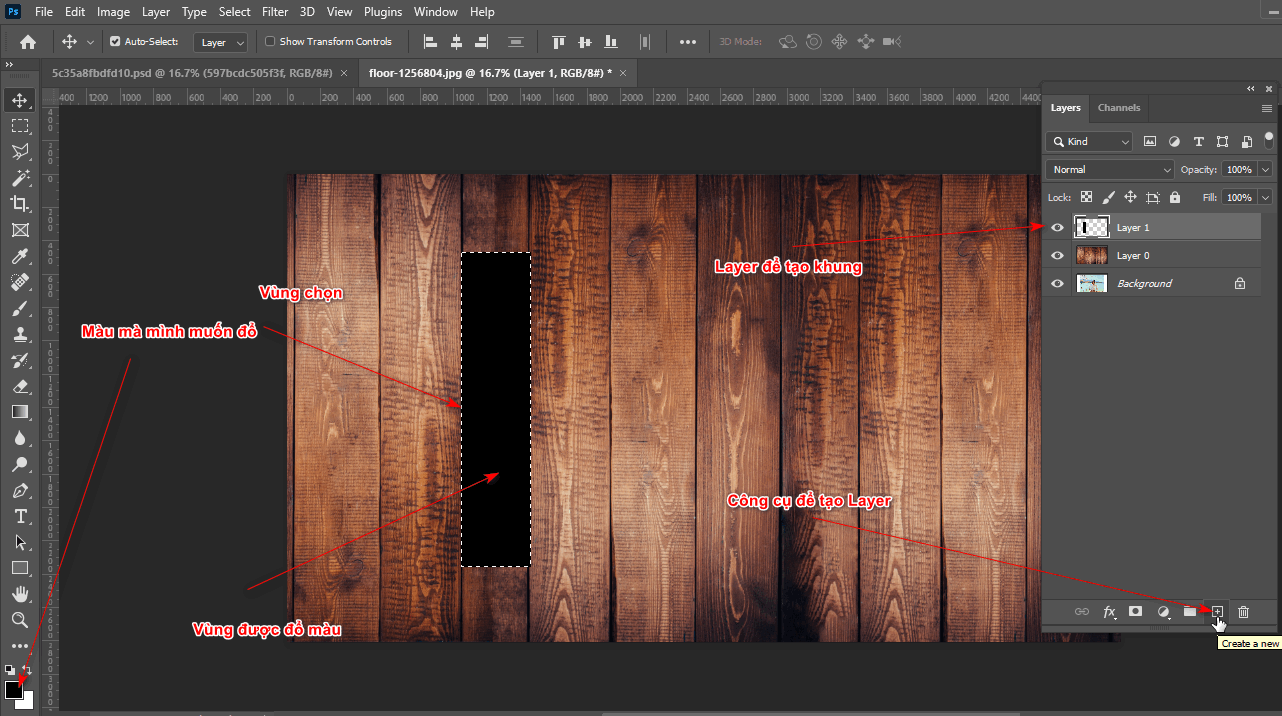
how-to-create-beautiful-photo-frames-in-photoshop
Create a frame and fill it with color
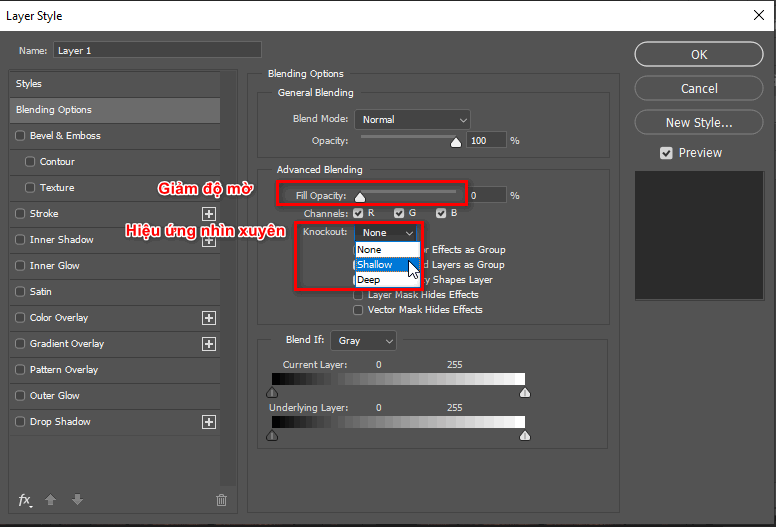
  • Now I go to the fx section right below the Layer panel. Fx > Blending Option > silencer Fill Opacity: 0 > Knockout: Shallow > OK
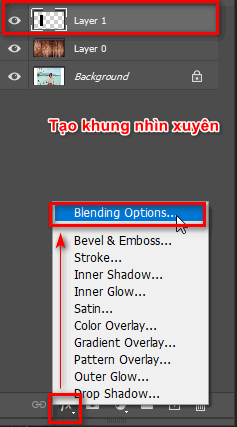
how-to-create-beautiful-photo-frames-in-photoshop
Create see-through layer effect
how-to-create-beautiful-photo-frames-in-photoshop
Blending Option Parameter Table

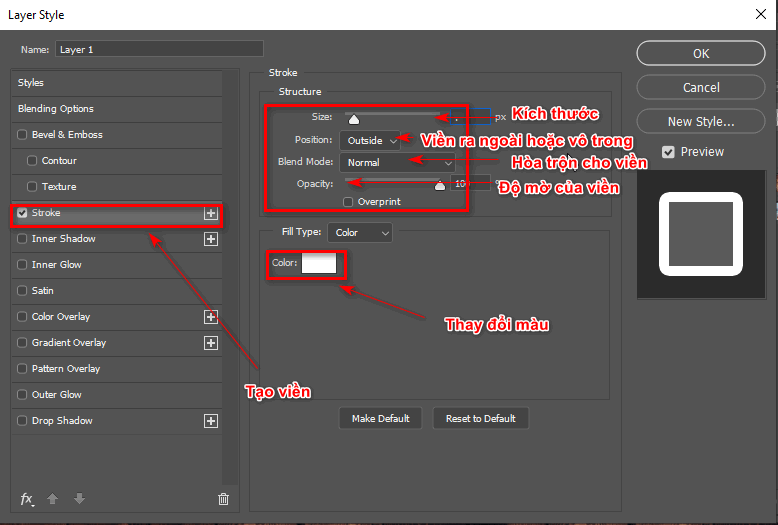
Make the border white by selecting

  • Fx > Stroke > give white border > OK
how-to-create-beautiful-photo-frames-in-photoshop
How to create a border for an object
  • Now the frame you choose will be visible through to see the background.
  • Now select the Layer you just created the frame for and hold down the key. Alt + move mouse to copy drag or can use Ctrl + J then move that layer
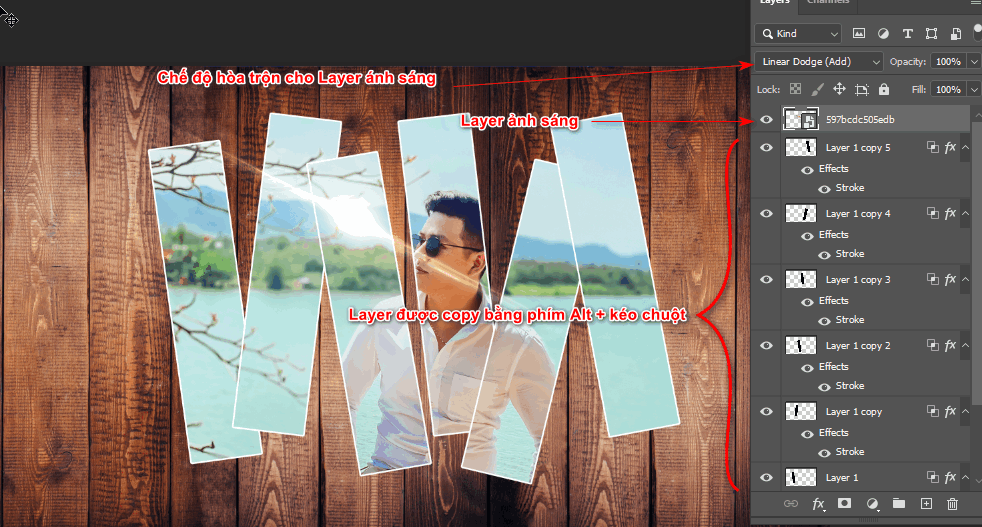
how-to-create-beautiful-photo-frames-in-photoshop
Copy the frame and add light to the photo
  • Then I download the PSD light files and then add them to the image and remember to use blending to match the image.

Step 5: Product after using how to create beautiful photo frames in photoshop

how to create beautiful photo frames in photoshop
finished product

Conclude

Posts how to create photo frame in photoshop also a tip to help us create a beautiful and virtual portrait photo. At the same time, it helps us know how to convert Layer to Background as well as fx effects, helping us know how to use Blending Option better.

If you are looking for a course on photo editing or want to make banners or posters for websites or printing, you can refer to Photoshop course belong to Graphic Express When you register, you will be able to install free software and at the same time have valuable library documents to help the learning and working process become faster and more convenient.

Thank you for reading this article. If you find it useful, don't forget to share it and read more good articles I've written. And if you don't understand the tools clearly, there are also articles for each Photoshop tool.


Tags : Tags adobe photoshop   how-to-create-beautiful-photo-frames-in-photoshop   learn basic photoshop   study pts   study graphic design
Share
FacebookShare on FacebookpinterestShare on PinterestMessengerShare on Facebook Messenger
twitterShare on TwitterlinkedinShare on LinkedinvkShare on VkredditShare on ReddittumblrShare on TumblrvideoShare on Viadeobuffer. bufferShare on Bufferpocket. pocketShare on PocketwhatsappShare on WhatsappViberShare on ViberemailShare on EmailskypeShare on SkypediggShare on DiggmyspaceShare on MyspacebloggerShare on Blogger YahooMailShare on Yahoo mailtelegramShare on Telegram gmailShare on GmailAmazonShare on AmazonSMSShare on SMS
Tung Thai

Tung Thai

As a student at the center. I write what I know to share with you.
1 is to share with you so you can know and learn.
2 improve knowledge and remember longer, with the motto of giving to receive, I want to write more

Related articles

The latest way to create photo frames in Photoshop

How to use camera Raw in photoshop

By How To 08/12/2025

Camera Raw in photoshop is a tool that has been around since…

The latest way to create photo frames in Photoshop

Latest instructions for using camera raw in photoshop

By How To 07/12/2025

Camera raw in photoshop is a correction tool…

The latest way to create photo frames in Photoshop

3 Ways to create speed effects in Photoshop

By Tung Thai 06/12/2025 0

3 Ways to create speed effects in photoshop Speed effects…

Leave a Comment Cancel reply

Categories What is Q&A? What is the structure of that place?

What is Interior Design? How much does an interior design job pay?

12/12/2025
What is Material?

What is Material? Material application in the field of design

11/12/2025
What is the poster?

What are posters? 9 Tips for designing beautiful, quick Posters

11/12/2025
What does graphic design do? Is it easy to get a job?

What does graphic design do? Is it easy to get a job?

11/12/2025
Water is the water material in Enscap

Water is the water material in Enscap

11/12/2025

Recent comments

  • male1 year ago
    On How to create a fade effect in Photoshop
    Great
  • phat phat2 years ago
    On Who is 5SMedia?
    Useful article
  • Minh Anh3 years ago
    On How to create basic materials in vray Sketchup
    Very good, admin
Copyright © 2025 HOWTO - Powered by HOWTO

5SMedia.net | hocdohoacaptoc.com | huongdansudung.vn | webantam.com

Back to Top
Hello!
  • All
    • Tips
      • Google
      • Facebook
      • Tiktok
    • Instruct
      • What is Q&A?
      • Taobao
    • WordPress
      • Code
      • Plugins
      • Themes
        • Flatsome
        • Theme Nevo
  • Share
    • WordPress
    • Code
    • Plugins
    • Tips
    • Windows
    • Apple
    • Graphics
    • Experience
  • Graphics documents
    • illustrator
    • Sketchup
    • Coreldraw
    • 3ds max
    • Enscape
    • Photoshop
    • Graphics Plugin
  • Course
    • Photoshop course
    • illustrator course
    • Coreldraw course
    • Edit video course
    • Course Sketchup
    • Autocad course
    • Website management course
  • Service
  • Software
    • Windows
      • Tips
      • Office
      • Necessary
      • Tools
    • Apple
  • Game
  • News
    • Technology
    • Review
en_US EN
en_US EN vi VI