Skip to content
  • About us
  • Contact
  • en_USEN
  • viVI
FacebookTwitterPinterest
HOWTOHOWTO
  • All
    • Tips
      • Google
      • Facebook
      • Tiktok
    • Instruct
      • What is Q&A?
      • Taobao
    • WordPress
      • Code
      • Plugins
      • Themes
        • Flatsome
        • Theme Nevo
  • ShareHot
    • WordPress
    • Code
    • Plugins
    • Tips
    • Windows
    • Apple
    • Graphics
    • Experience
  • Graphics documents
    • illustrator
    • Sketchup
    • Coreldraw
    • 3ds max
    • Enscape
    • Photoshop
    • Graphics Plugin
  • Course
    • Photoshop course
    • illustrator course
    • Coreldraw course
    • Edit video course
    • Course Sketchup
    • Autocad course
    • Website management course
  • Service
  • Software
    • Windows
      • Tips
      • Office
      • Necessary
      • Tools
    • Apple
  • Game
  • News
    • Technology
    • Review
Hello!

  • Lost your password ?
HOWTOHOWTO
  • Home > 
  • Graphics > 
  • Adobe Photoshop > 
  • How to apply materials to subjects in Photoshop

How to apply materials to subjects in Photoshop

By Angel 26/09/2024 0 1010 Views
How to apply materials to subjects in Photoshop
Article categories

How to apply materials to subjects in Photoshop

If you want to become a professional graphic designer or a good photo editor, you cannot miss this article. Everyone knows that the Photoshop tool provides the power to help users create unique products and creative photos. But if you don't know how to use the tools effectively, you won't be able to unleash the full power of Photoshop.

That's why I will introduce you cApplying materials to subjects in Photoshop. 

That's using tools Displacement Map. This tool will allow you to add images and materials to the subject. You can add flags, brand logos or images, etc. to an existing subject background to make them more unique. So let's get started.

Step 1: Choose an image.

You start with the bar Menu of Photoshop. Open the 2 files you need to use File > Open. You can Download practice documents here to follow the article.
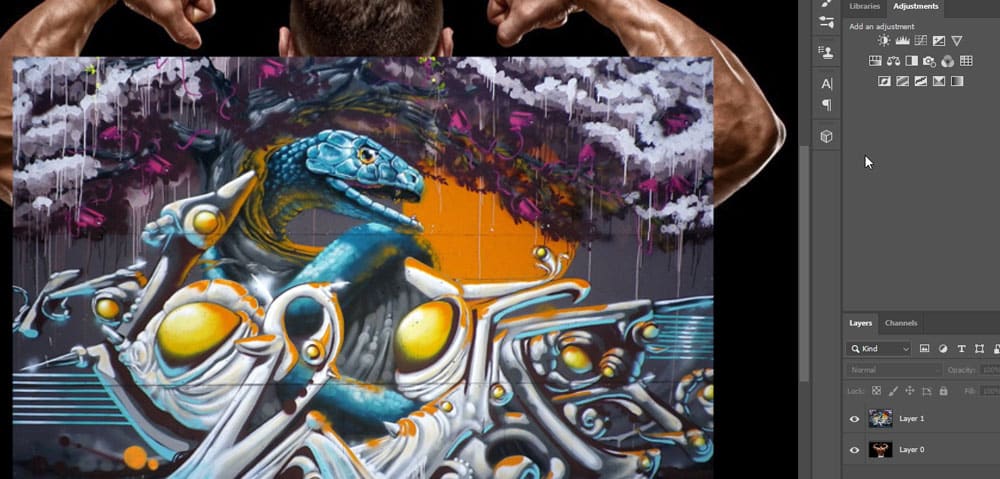
Images are used to apply materials to the subject

Choose an image as the subject, use as Background. Here, we will choose Layer 0 be the subject. Right click Layer 0, select Duplicate Layer…
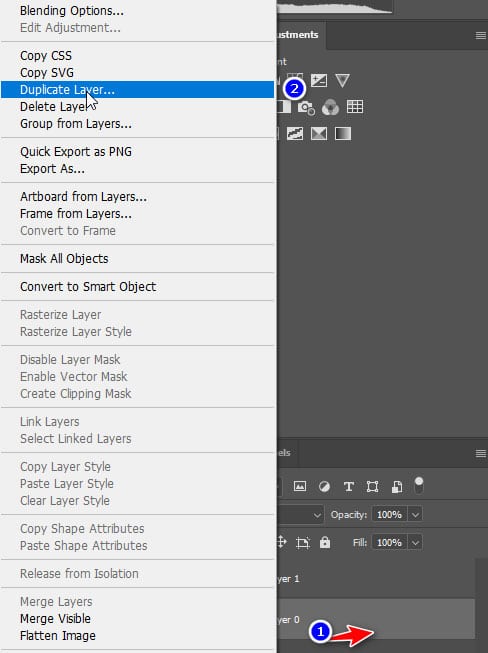
How to apply materials to subjects in Photoshop

We'll do it on one Layer new, so we'll choose New > OK.
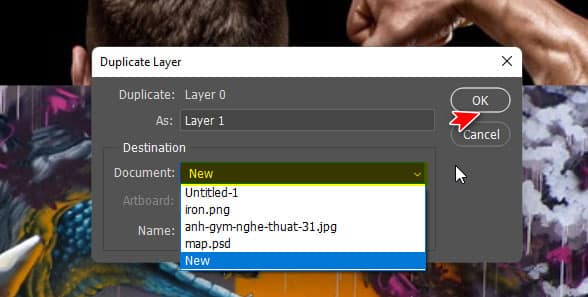
How to apply materials to subjects in Photoshop

Step 2: Work with the Background image

With the new background image, we need to restore it to a black and white image. We will follow these steps: select Image > Adjustments >  Desaturate.
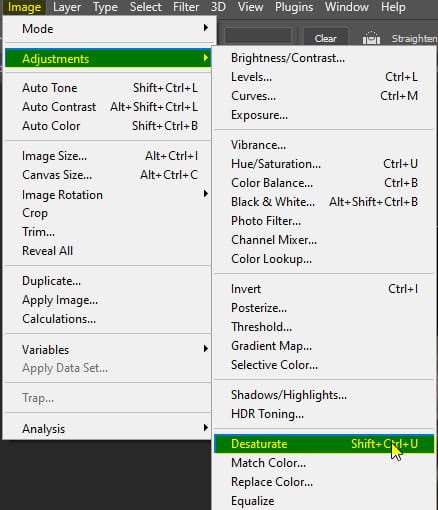
How to apply materials to subjects in Photoshop

Next, you'll want to increase your contrast Layer by pressing Ctrl L. We will adjust the two keys on both sides a bit to increase the brightness and darkness.
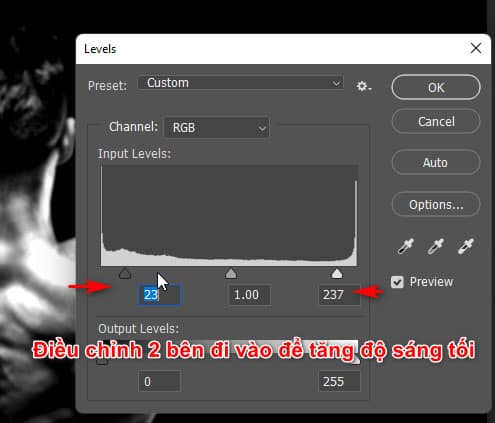
How to apply materials to subjects in Photoshop

Again, you will need to Blur it goes by choice Filter > Blur > Gaussian Blur.
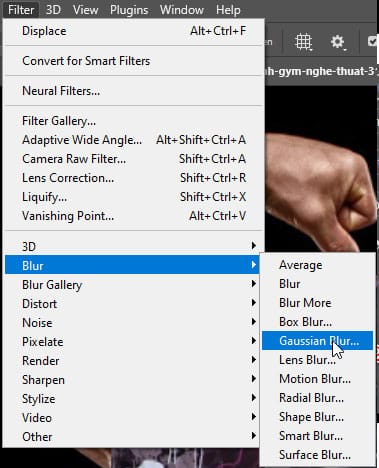
How to apply materials to subjects in Photoshop

We just need it Blur from 1 to 2 pix, so we will adjust as follows:
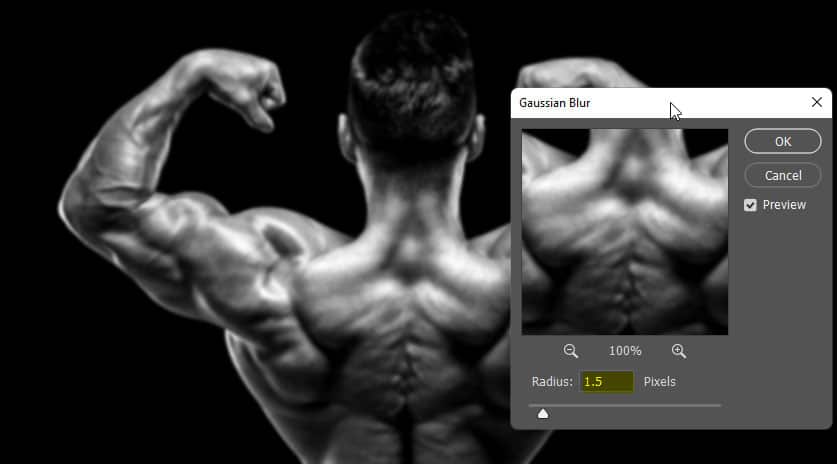
How to apply materials to subjects in Photoshop

Once you're done, you'll save it as a format .PSD. Name it whatever you want Save it again.

Step 3: Work with the 2nd Layer

If you're done, you need to go back to 2 Layer before to continue operation. Adjust it so that you want the front image to be immersed in the subject you want.

.How to apply materials to subjects in Photoshop
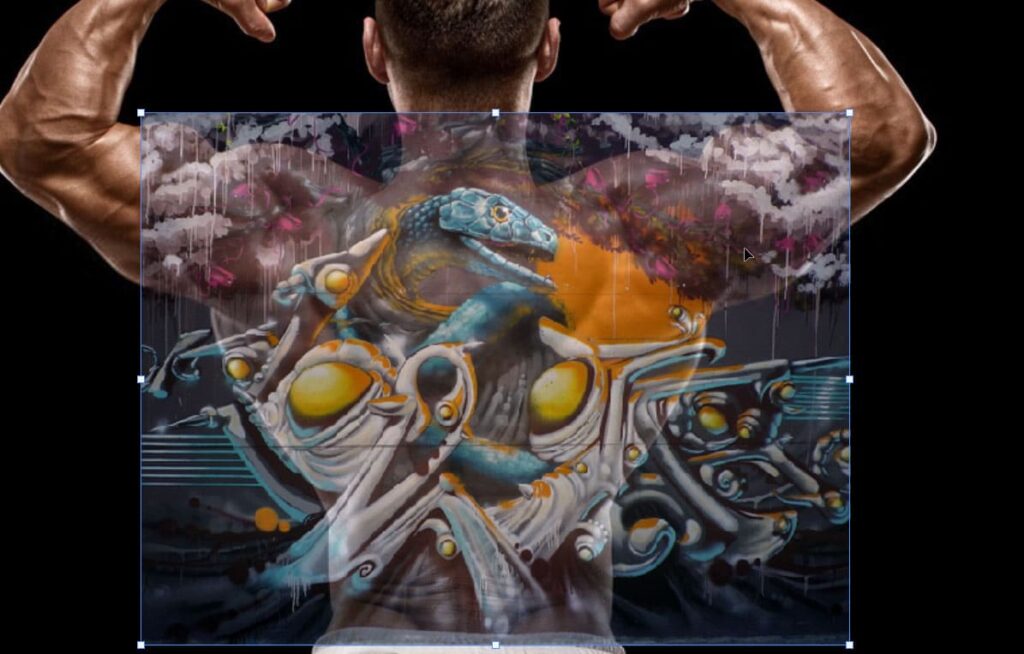
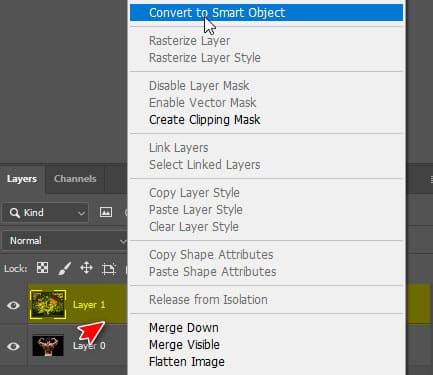
With Layer Second, here is a very beautiful Graffiti photo, you will right click on it Layer then choose Convert to Smart Objects.
How to apply materials to subjects in Photoshop

From here, you'll soon be able to tell way Apply materials to subjects in Photoshop and that.

  • New features photoshop 2023
  • Instructions on how to make product mockups in Photoshop.
  • How to use Quick Selection Tool Photoshop

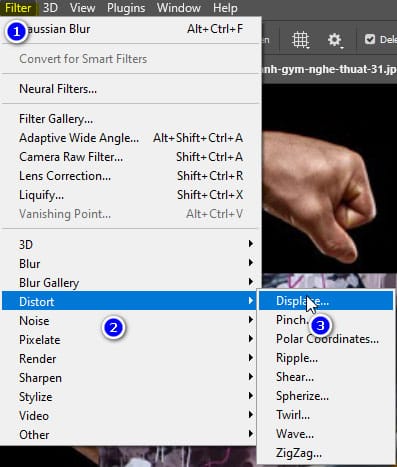
By itself Layer we just chose, we can choose Filter > Distort > Displace to select the saved file format and put it in
How to apply materials to subjects in Photoshop

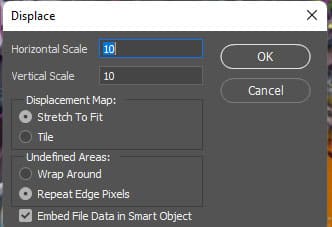
We will leave the default parameters as is or edit them to suit your image. They will then select the file .PSD we just saved.
How to apply materials to subjects in Photoshop

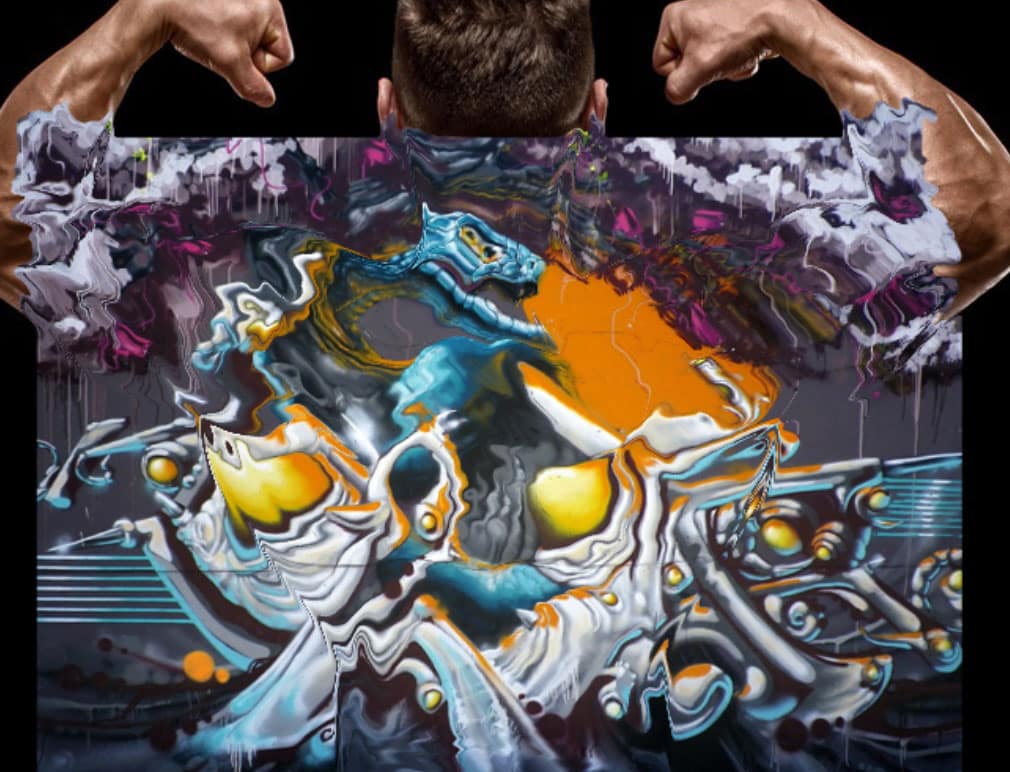
If done correctly we will get an image like the following sample
How to apply materials to subjects in Photoshop

Step 4: Use the Layer Map tool

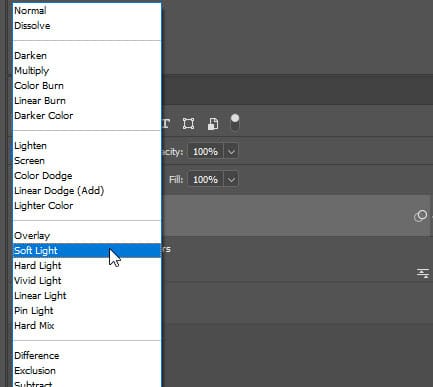
So that we can let the image sink into the body more realistically. I will give you light Layer graffiti city Soft Light.
How to apply materials to subjects in Photoshop

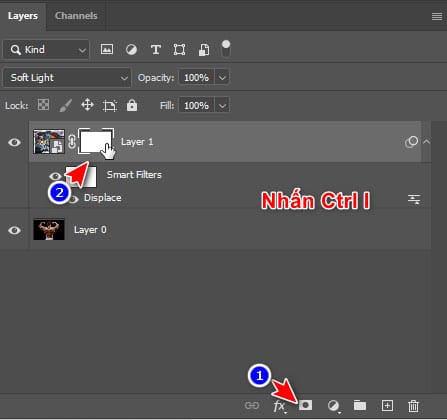
Then we will add a layer mask to it in the following way. Select the icon Layer Mask, left click. Select the accent white frame Ctrl I to turn it black.
How to apply materials to subjects in Photoshop

Great, from now on you'll be using the tool Brush, the shortcut is B to start painting on the material that needs to be shown. Or you can get the exact subject by selecting the tool Quick Selection Tool, select the subject you want.How to apply materials to subjects in Photoshop
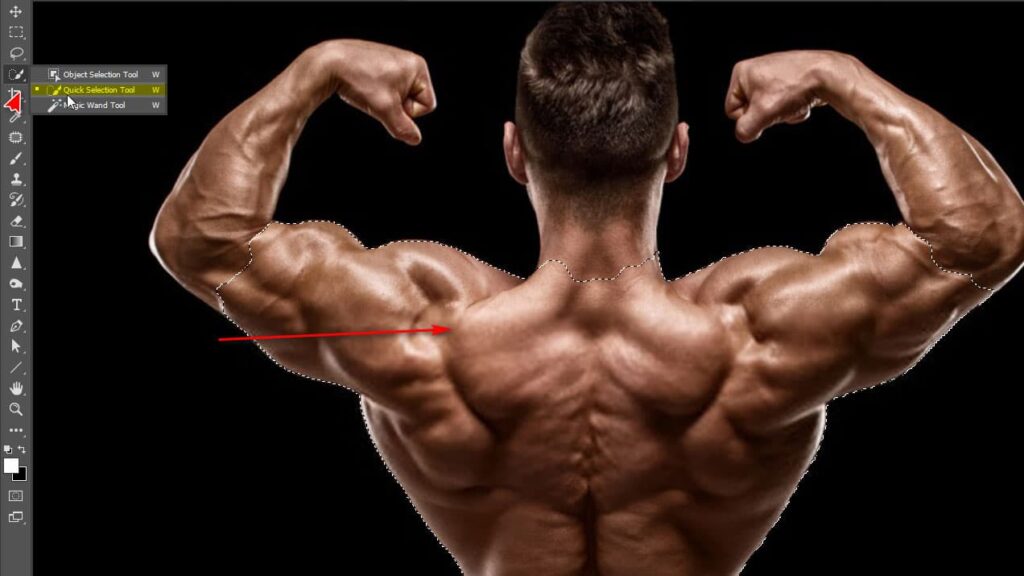
From here you can go back to using the tool Brush comfortably without fear of the image smudging on the outside. To be able to work better with the tool Brush Please read the article HOW TO Photoshop Brush Tool for more detailed usage.

If you have followed the above steps correctly, you should already know cApplying materials to subjects in Photoshop and know.

How to apply materials to subjects in Photoshop

Epilogue:

So I just gave you instructions How to apply materials to subjects in Photoshop. With just a few basic steps but requiring high precision, you can make a perfect photo yourself. There are also many other specific applications such as incorporating brand logos into products or designs Texture for myself. Please try it.

Hope it will help you a lot in your studying process. If you need to improve your knowledge of photo editing, don't forget to contact us Graphic express Please. Photoshop course Tutoring is suitable for everyone who is studying and working. You can also rate 5* or click on the ad to express your thanks.

Tags : Tags How to apply materials to the subject   How to apply materials to subjects in Photoshop   Match the material to the subject
Share
FacebookShare on FacebookpinterestShare on PinterestMessengerShare on Facebook Messenger
twitterShare on TwitterlinkedinShare on LinkedinvkShare on VkredditShare on ReddittumblrShare on TumblrvideoShare on Viadeobuffer. bufferShare on Bufferpocket. pocketShare on PocketwhatsappShare on WhatsappViberShare on ViberemailShare on EmailskypeShare on SkypediggShare on DiggmyspaceShare on MyspacebloggerShare on Blogger YahooMailShare on Yahoo mailtelegramShare on Telegram gmailShare on GmailAmazonShare on AmazonSMSShare on SMS
Angel

Angel

As a student at the center. I always try to find out new things. I want to learn more by giving what I know to patch up the places I don't know.

Related articles

How to apply materials to subjects in Photoshop

How to use camera Raw in photoshop

By How To 08/12/2025

Camera Raw in photoshop is a tool that has been around since…

How to apply materials to subjects in Photoshop

Latest instructions for using camera raw in photoshop

By How To 07/12/2025

Camera raw in photoshop is a correction tool…

How to apply materials to subjects in Photoshop

3 Ways to create speed effects in Photoshop

By Tung Thai 06/12/2025 0

3 Ways to create speed effects in photoshop Speed effects…

Leave a Comment Cancel reply

Categories Enscape Foliage information in enscape 8

Foliage of grass and leaf materials in Enscape

10/12/2025
Clearcoat metal materials in Enscape 1 1

Clearcoat metallic material in Enscape

10/12/2025
How to create flowers in illustrator

How to create flowers in illustrator

10/12/2025
Carpet in Enscape banner

Carpet in Enscape material Carpet, Fur

10/12/2025
How to create borders for text in illustrator

How to create borders for text in illustrator

10/12/2025

Recent comments

  • male1 year ago
    On How to create a fade effect in Photoshop
    Great
  • phat phat2 years ago
    On Who is 5SMedia?
    Useful article
  • Minh Anh3 years ago
    On How to create basic materials in vray Sketchup
    Very good, admin
Copyright © 2025 HOWTO - Powered by HOWTO

5SMedia.net | hocdohoacaptoc.com | huongdansudung.vn | webantam.com

Back to Top
Hello!
  • All
    • Tips
      • Google
      • Facebook
      • Tiktok
    • Instruct
      • What is Q&A?
      • Taobao
    • WordPress
      • Code
      • Plugins
      • Themes
        • Flatsome
        • Theme Nevo
  • Share
    • WordPress
    • Code
    • Plugins
    • Tips
    • Windows
    • Apple
    • Graphics
    • Experience
  • Graphics documents
    • illustrator
    • Sketchup
    • Coreldraw
    • 3ds max
    • Enscape
    • Photoshop
    • Graphics Plugin
  • Course
    • Photoshop course
    • illustrator course
    • Coreldraw course
    • Edit video course
    • Course Sketchup
    • Autocad course
    • Website management course
  • Service
  • Software
    • Windows
      • Tips
      • Office
      • Necessary
      • Tools
    • Apple
  • Game
  • News
    • Technology
    • Review
en_US EN
en_US EN vi VI