Introduction to skin smoothing in Photoshop
Want to know how to smooth skin in Photoshop? Read our guide to create high-quality, smooth, and brighter photos than ever before. With simple and easy-to-understand steps, our guide will help you remove skin imperfections, improve pigmentation, and create a dreamy photo.
We will also share with you advanced techniques to refine skin and highlight facial details, making your photos more vivid and attractive. With our guide, you will be able to become a photo editing expert and create unique and impressive works of art.
Instructions for smoothing skin in Photoshop
– In the latest versions of Adobe Photoshop, they have recently upgraded new features, at the same time upgraded better tool features, in addition, it has added the most natural and beautiful facial changes instead. Change the eyes, nose, forehead, chin, and mouth naturally to make the face more balanced and beautiful.
In this article I will Instructions for smoothing skin in Photoshop Change the entire face and retouch unbeautiful areas of the face.
- Top 1 Image sharpening app not to be missed
- How to create snow in Photoshop is extremely simple
- The latest and most beautiful way to adjust colors in Photoshop in 2022
- How to apply materials to subjects in Photoshop
- How to create rain in Photoshop is extremely simple
- The latest and most beautiful way to adjust colors in Photoshop in 2022
Steps to smooth skin in Photoshop:
Step 1: Select the photo to edit
You choose File > Open (Ctrl + O) > select the photo to edit
Step 2: Remove acne and freckles
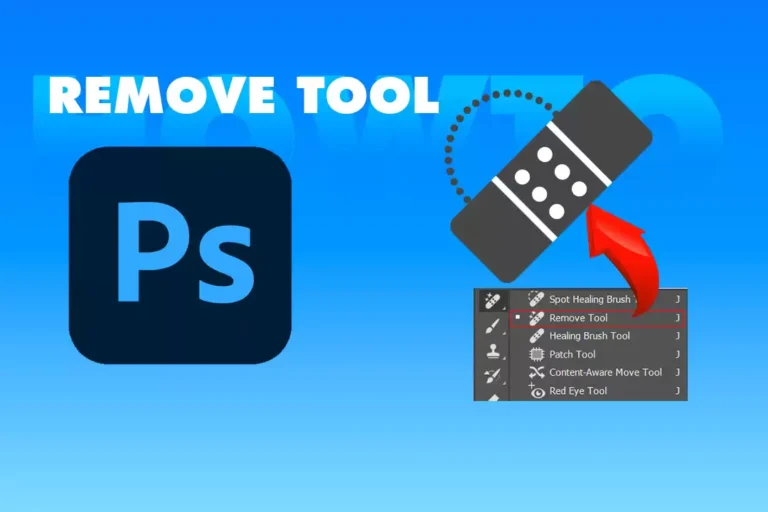
In this step, click Ctrl + J to duplicate Layer > use tool Spot Healing Brush tool > Dab on areas with spots or freckles and it will disappear. This is just one of the simplest ways, there are many more.
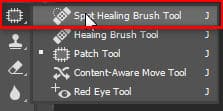
See more: The best way to remove acne in photoshop in 2022, the latest in 2022 (howto.edu.vn)
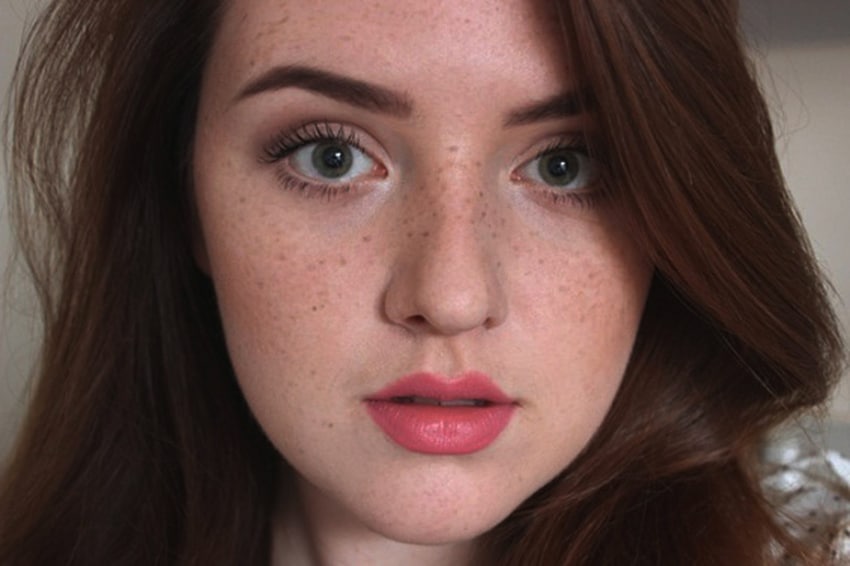
After you finish dotting the surface, we will have a surface like the image below
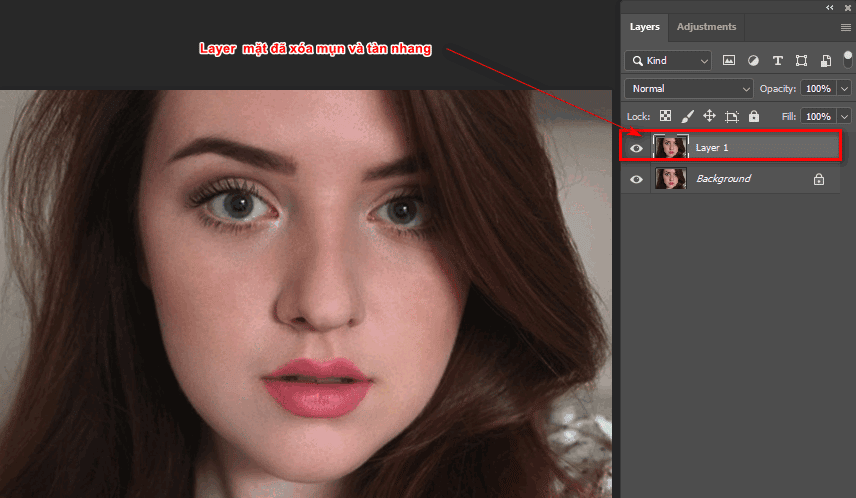
Step 3: I will change the color of my lips and eyes
- I will create a selection for the lips using the tool Pen (P) then use the keyboard shortcut Ctrl + Enter to make the selection appear
- I will remove the selection in the middle of the lips using the same tool Pen (P) But after drawing, I will press the shortcut key Alt + Ctrl + Enter to subtract that selection
- Then duplicate that lip selection using the keyboard shortcut Ctrl + J
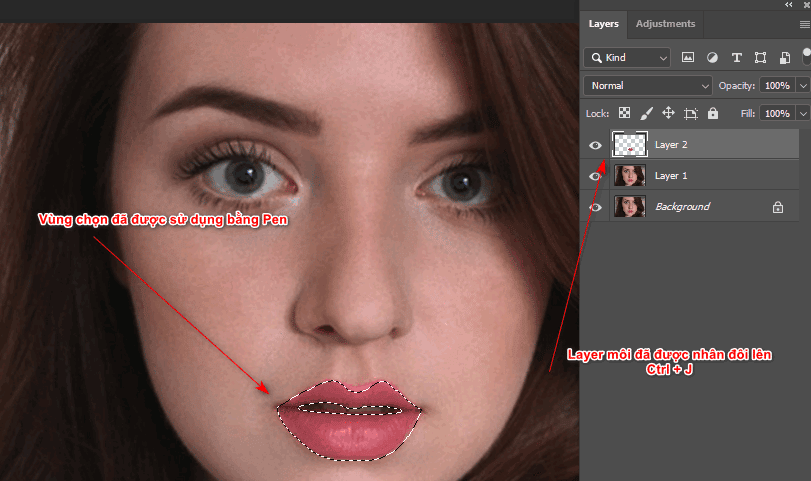
- This time I will color change lips using keyboard shortcuts Ctrl + U
- Now we adjust the color bar Hue and the lightness of the color through the bar Saturation
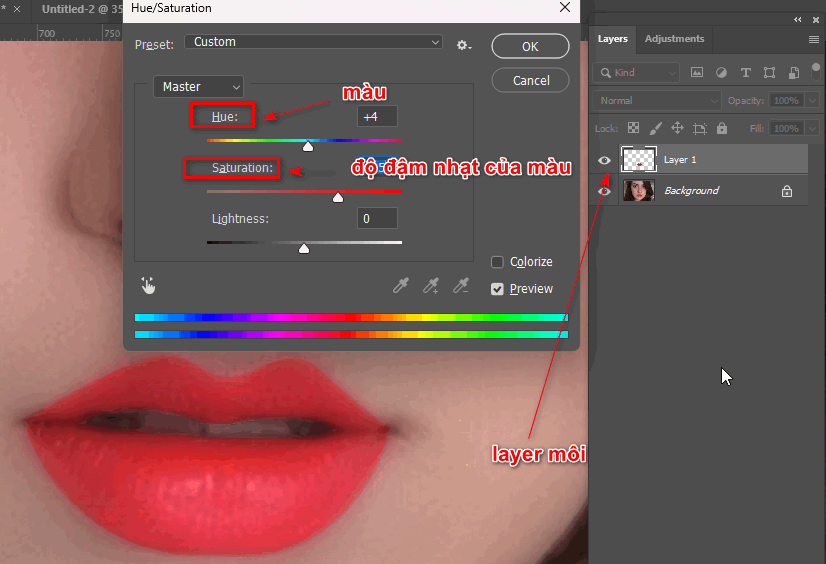
- Similarly, I also changed the color of the eyes
- This time I use a tool used to make the eyes look up
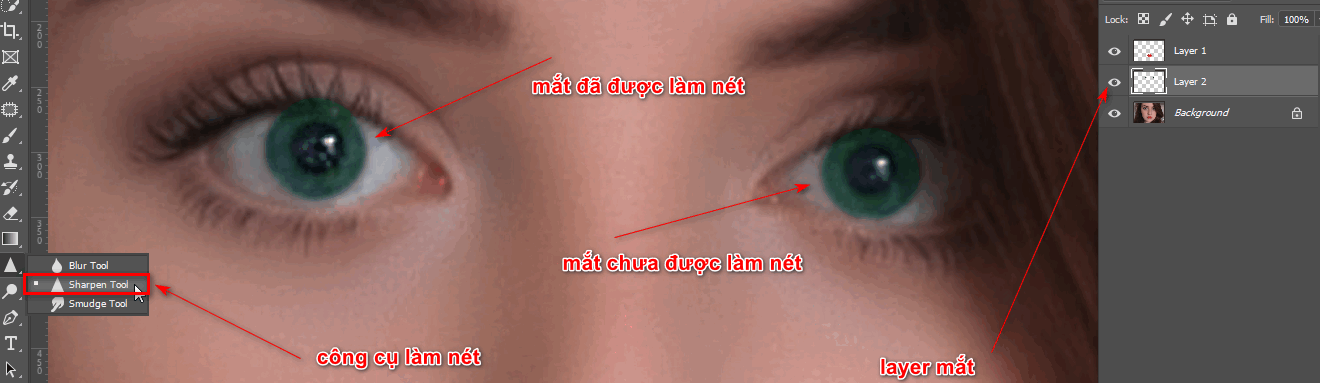
Step 4: Edit color and lighting for the girl's photo
- At this point, I will merge all the layers so I can edit all the light and color for the photo
- I go to the menu bar and select Filter > Camera Raw to adjust the lighting and color of the face
Step 5: Edit details about the eyes, nose, lips, chin, and mouth of the photo
- Then I select the menu bar Filter > Liquify
- At this time, a parameter table appears to change the eyes, nose, mouth, chin, lips, and forehead to make the face more beautiful and balanced.
- After adjusting, I clicked OK to finish the tool Liquify
Step 6: Complete
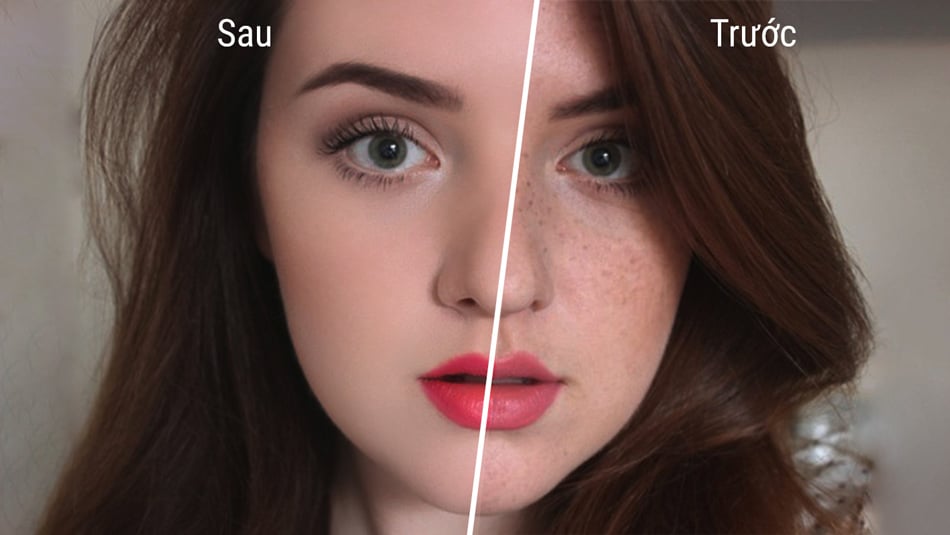
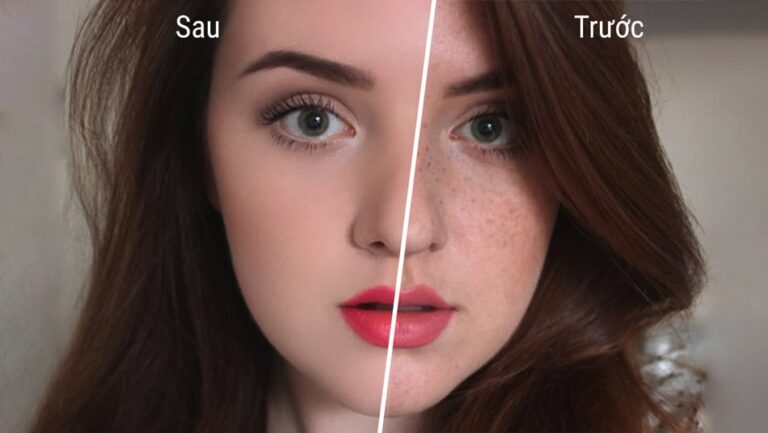
– This is the result after editing the girl's face as well as removing acne and freckles, editing the light and changing the color of her eyes and lips.
– You may be a bit surprised because the change is too virtual, you feel like it's not real, because part of the process of using the tool has some parameters that are a bit too adjusted, so can you edit it again? for the most reasonable. If your face only has a few pimples or freckles, I can adjust the parameters to lower them, but if the color or lighting of your photo feels like it's not bright enough or has some color cast on it, I can adjust it. Camera Raw And if your face is a bit thin or too big.
Epilogue
– I just did it Instructions for smoothing skin in Photoshop detail. How to change your entire face naturally. If you feel that this article is a bit fictitious, it is because of the parameters that you can adjust to be reasonable and appropriate. This article is usually for those of you who already know everything about the tool, so the operation will be easier than for newbies.
For beginners, if you want to do it, you can try it. The first few times I may not have done it beautifully and evenly. After doing it many times, the parameters will be more accurate.
– If you are a beginner learning about photoshop, you can take a class Photoshop course for beginners to be able to grasp it better. Instead of having to take a detour of 2-3 months to become proficient, you only need to spend 15 days with 1:1 tutoring to be proficient.
Wishing you success, don't forget to share this article so more people know.