Skip to content
FacebookTwitterPinterest
HOWTOHOWTO
  • All
    • Tips
      • Google
      • Facebook
      • Tiktok
    • Instruct
      • What is Q&A?
      • Taobao
    • WordPress
      • Code
      • Plugins
      • Themes
        • Flatsome
        • Theme Nevo
  • Share
    • WordPress
    • Code
    • Plugins
    • Tips
    • Windows
    • Apple
    • Graphics
    • Experience
  • Graphics documents
    • illustrator
    • Sketchup
    • Coreldraw
    • 3ds max
    • Enscape
    • Photoshop
    • Graphics Plugin
  • Course
    • Photoshop course
    • illustrator course
    • Coreldraw course
    • Edit video course
    • Course Sketchup
    • Autocad course
    • Website management course
  • Service
  • Software
    • Windows
      • Tips
      • Office
      • Necessary
      • Tools
    • Apple
  • Game
  • News
    • Technology
    • Review
HOWTOHOWTO
  • Home > 
  • Graphics > 
  • Adobe illustrator > 
  • How to use the Gradient tool in Illustrator

How to use the Gradient tool in Illustrator

By Tung Thai 18/12/2025 0 278 Views
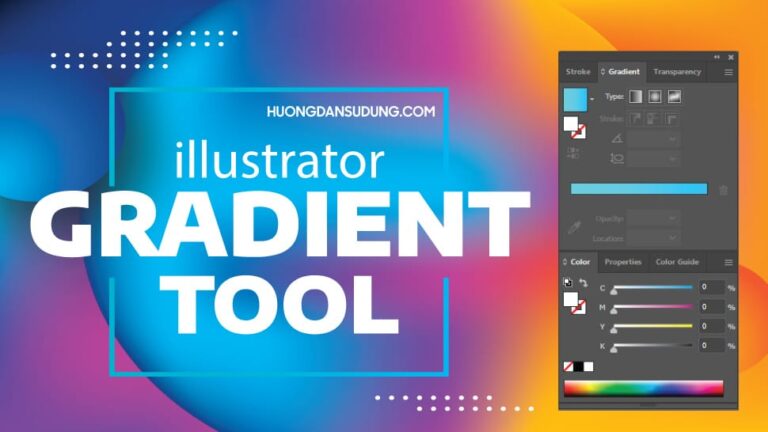
gradient banner
Article categories

How to use the Gradient tool in Illustrator

Gradient Tool Illutrator The tool's shortcut is the key (G)
Tool used to mix colors for a certain object we want
This tool helps us mix 2 or more colors to create beautiful and unique colors
This tool is also often used to design a company's logo or banner
HOW TO Illustrator Gradient tool
gradient tool
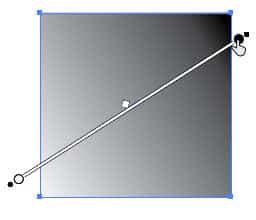
  1. Use it with the background of the photo

    HOW TO Illustrator Gradient tool
    from left to right

    Gradient tool Illustrator
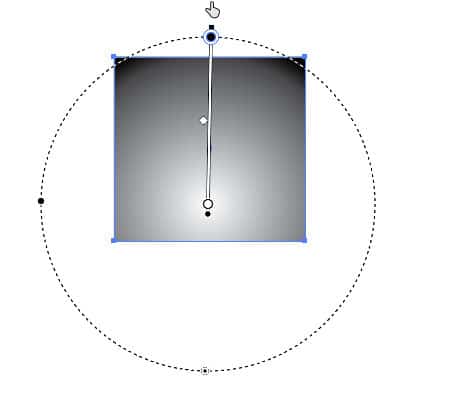
    from the inside out

    Gradient tool Illustrator
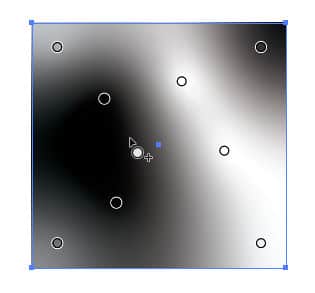
    created between points

    – This is using the tool on the image background
    Gradient tool Illustrator
    entails tilt

    Gradient tool Illustrator
    entails tilt

    Gradient tool Illustrator
    Select or delete points
  2. Used for image borders

    Gradient tool Illustrator
    border from left to right

    Gradient tool Illustrator
    BecauseFollow the lines

    Gradient tool Illustrator
    border from inside to front
  3. Used to absorb color
    – You can choose your own color or draw color from an image
    – You can add colorful herbs to smoke

Gradient tool Illustrator
color version

Gradient tool Illustrator
color version

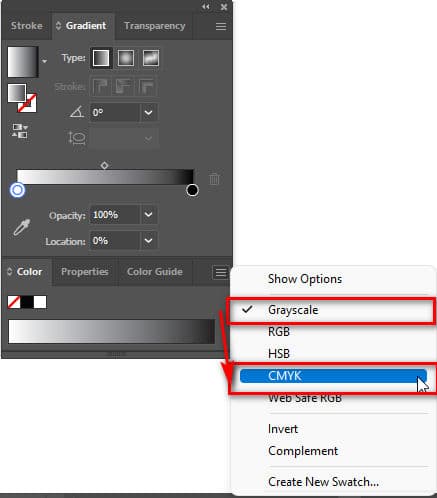
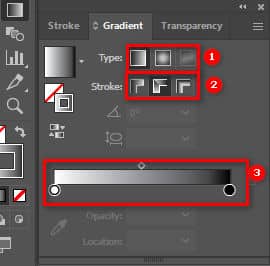
Here are some things to note when using the tool again without the color palette appearing. At this time, I click on the right side. Grayscale wall CMYK to appear the color palette.

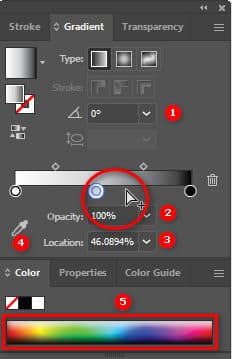
  1. Shows the gradient of white and black
  2. The lightness of the tool's background or border color
  3. Location of the third color gap is between the two colors white and black
  4. Tool to absorb color from a photo or other object
  5. CMYK color chart makes it easier for me to choose colors
  6. The mouse cursor appears with a plus sign to add a color point. When you want to delete it, just click on that color point and press the key. Delete
  7. Under the background and border color boxes there is a tool to flip colors (white - gray - black > black - gray - white)

See more.

  • Illustrator Rotate & Reflect Tool
  • Instructions for using the Shear Tool in Illustrator
  • Type Tool in illustrator
  • How to use Pen Tool Illustrator
  • Instructions for using Illustrator's Scale tool

Good tips when using Gradient Tool illustrator

The rule for choosing colors 60 - 30 -10 is often used for interior design
– The main color accounts for 60%, the decorative color accounts for 30%, the remaining 10% is the color used as an accent.
– 60% main color: used for large areas: walls, floors or door partitions, etc. The main color is the foundation for other colors
– 30% decorative color: used for interior furniture details: sofas, cabinets, tables
– 10% accent color: used for small objects in the room: crafts, pillows, mattresses or decorative accessories

Gradient tool Illustrator
color scheme

This process helps us use colors better, more beautifully, and more appropriately than when designing a logo or a banner
Gradient tool Illustrator
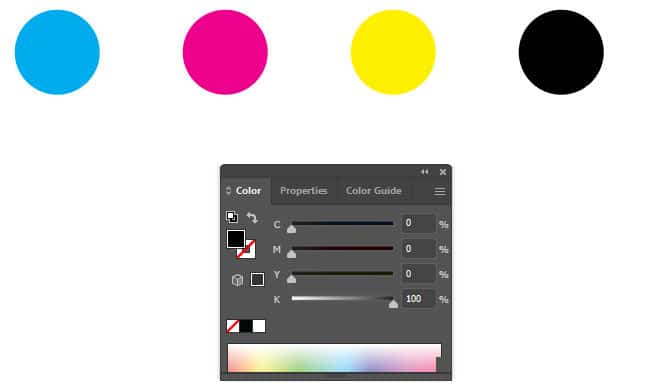
CMYK color

CMYK is the color used to print products
C: If you pull up to 100%, it will be green, MYK: 0%
M: If you pull up to 100%, it will be pink, CYK: 0%
Y: If you pull up to 100%, it will be yellow, CMK: 0%
K: If you drag it up to 100% it will be black, CMY: 0%

In the process of color matching, we in turn pull the CMYK parameters to help us mix the colors we want to be light or dark, dark or light.

Epilogue:

After this article, I introduced Gradient Tool Illustrator about how to use and some good tips when mixing colors in the tool gradient tool Helps newcomers understand colors and how to combine them properly and beautifully. This article also gives newbies some common mistakes when using the tool Gradient Tool Illustrator. If you find it interesting or have any other good ideas, please comment down and give me 5* to have more motivation to write many good articles for those who are new to graphic design.

If you are not proficient yet Adobe illustrator You can refer to the course illustrator by Graphic Express. One-on-one training is very good. Convenient for students and working people. Good luck. Don't forget to subscribe to the channel Facebook to receive the latest useful information

Tags : Tags adobe illustrator   Gradient Tool illustrator   Gradient Tool   learn adobe illustrator   learn from
Share
FacebookShare on FacebookpinterestShare on PinterestMessengerShare on Facebook Messenger
twitterShare on TwitterlinkedinShare on LinkedinvkShare on VkredditShare on ReddittumblrShare on TumblrvideoShare on Viadeobuffer. bufferShare on Bufferpocket. pocketShare on PocketwhatsappShare on WhatsappViberShare on ViberemailShare on EmailskypeShare on SkypediggShare on DiggmyspaceShare on MyspacebloggerShare on Blogger YahooMailShare on Yahoo mailtelegramShare on Telegram gmailShare on GmailAmazonShare on AmazonSMSShare on SMS

Tung Thai

As a student at the center. I write what I know to share with you.
1 is to share with you so you can know and learn.
2 improve knowledge and remember longer, with the motto of giving to receive, I want to write more

Related articles

How to use the Gradient tool in Illustrator

Instructions for 3D design using Adobe Illustrator

By Angel 03/01/2026

Adobe Illustrator is one of the design software…

How to use the Gradient tool in Illustrator

How to export Illustrator files quickly and accurately

By Angel 02/01/2026 0

Exporting Illustrator files efficiently is not possible…

How to use the Gradient tool in Illustrator

The latest way to save files on Illustrator

By Le Quan 01/01/2026 0

I. How to save files on Illustrator Illustrator is a part…

Leave a Comment Cancel reply

Categories Adobe Photoshop Remove tool in photoshop

Remove tool in photoshop

27/03/2026
4 Ways to create speed effects in Photoshop

4 Ways to create speed effects in Photoshop

27/03/2026
Graphic Design

Graphic Design The art of creating appeal

27/02/2026
What is google plays app? Is installation necessary?

What is google plays app? Is installation necessary?

24/02/2026
create flatsome slider

How to create a slider that runs super smoothly on flatsome

05/01/2026

Recent comments

  • male2 years ago
    On How to create a fade effect in Photoshop
    Great
  • phat phat2 years ago
    On Who is 5SMedia?
    Useful article
  • Minh Anh3 years ago
    On How to create basic materials in vray Sketchup
    Very good, admin
Copyright © 2026 HOWTO - Powered by HOWTO

5SMedia.net | hocdohoacaptoc.com | huongdansudung.vn | webantam.com

Back to Top
Hello!
  • All
    • Tips
      • Google
      • Facebook
      • Tiktok
    • Instruct
      • What is Q&A?
      • Taobao
    • WordPress
      • Code
      • Plugins
      • Themes
        • Flatsome
        • Theme Nevo
  • Share
    • WordPress
    • Code
    • Plugins
    • Tips
    • Windows
    • Apple
    • Graphics
    • Experience
  • Graphics documents
    • illustrator
    • Sketchup
    • Coreldraw
    • 3ds max
    • Enscape
    • Photoshop
    • Graphics Plugin
  • Course
    • Photoshop course
    • illustrator course
    • Coreldraw course
    • Edit video course
    • Course Sketchup
    • Autocad course
    • Website management course
  • Service
  • Software
    • Windows
      • Tips
      • Office
      • Necessary
      • Tools
    • Apple
  • Game
  • News
    • Technology
    • Review
EN
EN
VI
Hello!

  • Lost your password ?