Skip to content
  • About us
  • Contact
  • en_USEN
  • viVI
FacebookTwitterPinterest
HOWTOHOWTO
  • All
    • Tips
      • Google
      • Facebook
      • Tiktok
    • Instruct
      • What is Q&A?
      • Taobao
    • WordPress
      • Code
      • Plugins
      • Themes
        • Flatsome
        • Theme Nevo
  • ShareHot
    • WordPress
    • Code
    • Plugins
    • Tips
    • Windows
    • Apple
    • Graphics
    • Experience
  • Graphics documents
    • illustrator
    • Sketchup
    • Coreldraw
    • 3ds max
    • Enscape
    • Photoshop
    • Graphics Plugin
  • Course
    • Photoshop course
    • illustrator course
    • Coreldraw course
    • Edit video course
    • Course Sketchup
    • Autocad course
    • Website management course
  • Service
  • Software
    • Windows
      • Tips
      • Office
      • Necessary
      • Tools
    • Apple
  • Game
  • News
    • Technology
    • Review
Hello!

  • Lost your password ?
HOWTOHOWTO
  • Home > 
  • Graphics > 
  • Adobe illustrator > 
  • How to use the Symbol Sprayer Tool illustrator

How to use the Symbol Sprayer Tool illustrator

By Tung Thai 19/09/2024 0 377 Views
banner 2
Article categories

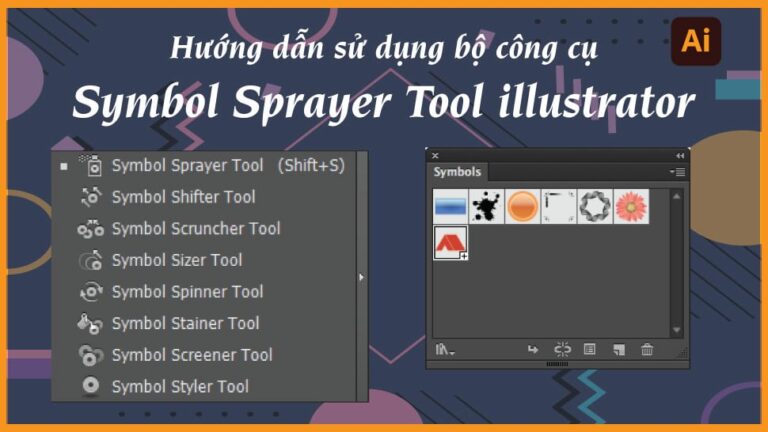
How to use the Symbol Sprayer Tool in illustrator

Symbol Sprayer Tool illustrator

  • A tool combined with the Symbol version to create shapes like a spray can. This tool helps us save many steps in the process of using images multiple times on one page
  • Can help us control the quantity when using this tool, in addition there are a number of tools to support its use. Symbol Sprayer Tool illustrator
  • This tool can contain images that we have saved to the computer with the shortcut key Shift + S
Symbol Sprayer Tool illustrator
Symbol Sprayer Tool
  1. Symbol Sprayer (Shift + S): This tool is used to create a set of instances or to add instances to an existing set.
  2. Symbol Shifter: Used to push instances into sparse places.
  3. Symbol Scruncher: This tool is used to attract instances, press the middle Alt key to push the instances out
  4. Symbol Sizer: Change the zoom size of instances, press the Alt key to zoom out.
  5. Symbol Spinner: This tool is used to record instances.
  6. Symbol Stainer: This tool is used to color instances.
  7. Symbol Screener: Used to increase or decrease the opacity (Opacity) for instances.
  8. Symbol Styler: Used to assign the selected style to instances
instance
For example.

These are instances that are already available in the software and have been used previously, or we can use images that we have added to the Symbol table for use.

Icon Styler
Icon Styler

Symbol Shifter
Icon Styler

Icon cutter
Icon cutter

Icon tuner
Icon tuner

Iconic spinner
Iconic spinner

Stainer icon
Stainer icon

Icon filter
Icon filter

Icon Styler
Icon Styler

Here are the uses of each tool described in illustrator

If you want to change the size and color of the instance, double click on the object in the symbol and then change its size.

To separate that object, we just Expand it into a separate image, then unground it, then you can change the color and now there is no more intrance in the Symbol panel.

Symbol table
Symbol table
  1. This is Symbol's library containing many instances for use
  2. Add an object that we want to become an instance in the Symbol version or drag that object into the Symbol table
  3. Delete instances when not needed

[note]

  • HOW TO Rotate Reflect tool illustrator
  • How to use and create Blend in Illustrator
  • HOW TO Illustrator Gradient tool
  • How to use the Width Tool in illustrator
  • HOW TO Mesh Tool Illustrator
  • How to create Pattern in Illustrator in detail
  • Instructions for 5 Line Segment Tool illustrator
  • How to use the Shape Builder Tool illustrator toolkit

[/note]

Symbol Sprayer Tool illustrator If you want to increase or decrease the number of objects that appear when you click, double-click Symbol Sprayer Tool At this time, a parameter table will appear for us to adjust

Epilogue

This article helps us understand CMr. Symbol Sprayer Tool  in illustrator. Helps us understand the function of each of these tools and how to use them most effectively for beginners. This tool helps us limit many steps in the process of converting that object many times, helping us separate that object. , change the color of the object, change the size and thickness of each object that we want.

If you want to learn more about illustrator, I have put links to some tools and in addition, this fanpage also contains many good articles from Photoshop, illustrator,... If you want to find a place to learn about illustrator or photoshop Then register for a Graphic Express course. There will be 1-on-1 training to help you understand better, and is convenient for students and workers, and the study time can be freely chosen.

There are also a number of courses such as 3DS MAX, Autocad, Sketchup,... and thousands of valuable copyrighted library documents.

Good luck. Don't forget to subscribe to the channel Graphic design community | Facebook to receive lots of useful information.


Tags : Tags adobe illustrator   Symbol Sprayer Tool illustrator   learn from   learn illustrator
Share
FacebookShare on FacebookpinterestShare on PinterestMessengerShare on Facebook Messenger
twitterShare on TwitterlinkedinShare on LinkedinvkShare on VkredditShare on ReddittumblrShare on TumblrvideoShare on Viadeobuffer. bufferShare on Bufferpocket. pocketShare on PocketwhatsappShare on WhatsappViberShare on ViberemailShare on EmailskypeShare on SkypediggShare on DiggmyspaceShare on MyspacebloggerShare on Blogger YahooMailShare on Yahoo mailtelegramShare on Telegram gmailShare on GmailAmazonShare on AmazonSMSShare on SMS
Tung Thai

Tung Thai

As a student at the center. I write what I know to share with you.
1 is to share with you so you can know and learn.
2 improve knowledge and remember longer, with the motto of giving to receive, I want to write more

Related articles

How to use the Symbol Sprayer Tool illustrator

How to create flowers in illustrator

By Tung Thai 10/12/2025 0

How to create flowers in illustrator to create flowers…

How to use the Symbol Sprayer Tool illustrator

How to create borders for text in illustrator

By Tung Thai 10/12/2025 0

How to create borders for text in illustrator. Maybe a…

How to use the Symbol Sprayer Tool illustrator

Draw flowers in illustrator

By Tung Thai 05/12/2025 0

How to draw flowers in illustrator. As you have…

Leave a Comment Cancel reply

Categories What is Q&A? What is the structure of that place?

What is Interior Design? How much does an interior design job pay?

12/12/2025
What is Material?

What is Material? Material application in the field of design

11/12/2025
What is the poster?

What are posters? 9 Tips for designing beautiful, quick Posters

11/12/2025
What does graphic design do? Is it easy to get a job?

What does graphic design do? Is it easy to get a job?

11/12/2025
Water is the water material in Enscap

Water is the water material in Enscap

11/12/2025

Recent comments

  • male1 year ago
    On How to create a fade effect in Photoshop
    Great
  • phat phat2 years ago
    On Who is 5SMedia?
    Useful article
  • Minh Anh3 years ago
    On How to create basic materials in vray Sketchup
    Very good, admin
Copyright © 2025 HOWTO - Powered by HOWTO

5SMedia.net | hocdohoacaptoc.com | huongdansudung.vn | webantam.com

Back to Top
Hello!
  • All
    • Tips
      • Google
      • Facebook
      • Tiktok
    • Instruct
      • What is Q&A?
      • Taobao
    • WordPress
      • Code
      • Plugins
      • Themes
        • Flatsome
        • Theme Nevo
  • Share
    • WordPress
    • Code
    • Plugins
    • Tips
    • Windows
    • Apple
    • Graphics
    • Experience
  • Graphics documents
    • illustrator
    • Sketchup
    • Coreldraw
    • 3ds max
    • Enscape
    • Photoshop
    • Graphics Plugin
  • Course
    • Photoshop course
    • illustrator course
    • Coreldraw course
    • Edit video course
    • Course Sketchup
    • Autocad course
    • Website management course
  • Service
  • Software
    • Windows
      • Tips
      • Office
      • Necessary
      • Tools
    • Apple
  • Game
  • News
    • Technology
    • Review
en_US EN
en_US EN vi VI