Skip to content
  • About us
  • Contact
  • en_USEN
  • viVI
FacebookTwitterPinterest
HOWTOHOWTO
  • All
    • Tips
      • Google
      • Facebook
      • Tiktok
    • Instruct
      • What is Q&A?
      • Taobao
    • WordPress
      • Code
      • Plugins
      • Themes
        • Flatsome
        • Theme Nevo
  • ShareHot
    • WordPress
    • Code
    • Plugins
    • Tips
    • Windows
    • Apple
    • Graphics
    • Experience
  • Graphics documents
    • illustrator
    • Sketchup
    • Coreldraw
    • 3ds max
    • Enscape
    • Photoshop
    • Graphics Plugin
  • Course
    • Photoshop course
    • illustrator course
    • Coreldraw course
    • Edit video course
    • Course Sketchup
    • Autocad course
    • Website management course
  • Service
  • Software
    • Windows
      • Tips
      • Office
      • Necessary
      • Tools
    • Apple
  • Game
  • News
    • Technology
    • Review
Hello!

  • Lost your password ?
HOWTOHOWTO
  • Home > 
  • Graphics > 
  • Adobe illustrator > 
  • How to use Shear Tool illustrator

How to use Shear Tool illustrator

By Tung Thai 16/09/2024 0 670 Views
How to use Shear Tool illustrator
Article categories

Shear Tool illustrator is a tool that helps to tilt objects in a certain direction. This Shear Tool can tilt up and down, left and right. In addition, this toolkit also has several other very useful tools. Let's learn about how to use this illustrator Shear Tool.

How to use Shear Tool illustrator

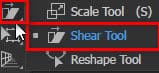
Is the small tool inside Scale Tool.
It is a tool used to tilt a certain plane that we want. Or used to create multi-faceted addictions, we can be more fixed with the mind of that object, and our mind can change as we like.
Shear Tool is also basic and suitable for beginners Illustrator
HOW TO Illustrator Shear Tool
cutting tool

HOW TO Illustrator Shear Tool

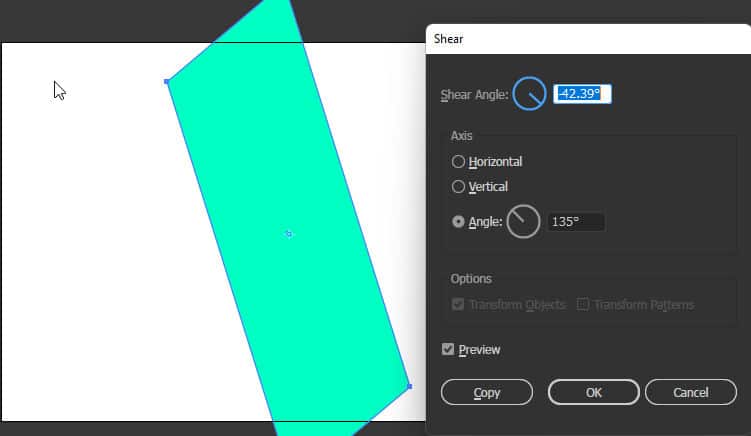
When we click on the tool Shear Tool A green pointer will appear in the center of the image when we press the key Enter
At this time, a parameter list appears including: Shear Angle, Vertical, Horizontal, Preview, etc.
Copy will create the image that I have given the tilt parameter
OK is the current image will follow the selected parameters

Some tips and ways to use 
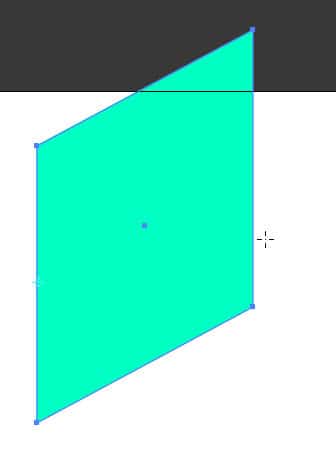
How to use Shear Tool illustratorWhen we want an edge to be tilted, we use the tool Shear Tool then left click on the remaining edge.
After finishing, drag the edge you want up or down while pressing another key Shift to be straighter
Or you can select sharp roots to fix by selecting the tool later click to that root
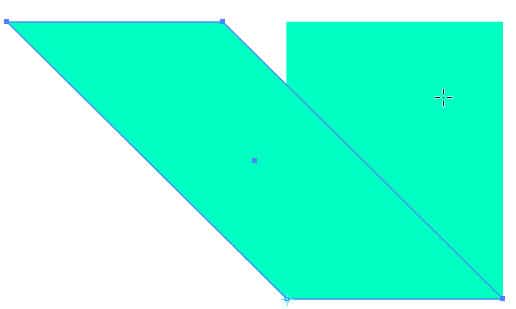
HOW TO Illustrator Shear Tool

This is when I want to tilt and create an additional image at the same time
First we use the Shear Tool then left click to select the center of the image you want to tilt
Then we combine it with the key Alt + Shift to copy at the same time, the tilting process is always straight like the tool Scale Tool

See more.

  • Instructions for using Illustrator's Scale tool
  • Instructions for using tools in Illustrator
  • What does graphic design do? Is it easy to get a job?
  • 6 Steps to learn interior design for beginners

Epilogue:

The above article has helped you learn about a basic tool and some ways to use it. Using tools Shear Tool illustrator to be most effective. Thereby improving manipulation skills in Photoshop. If you are not familiar with Photoshop, you can refer to it photoshop course by Graphic Express. One-on-one training is very good. Convenient for students and working people.

Good luck. Don't forget to subscribe to the channel Graphic design community | Facebook to receive lots of useful information

Tags : Tags adobe illustrator   shear tool   learn adobe illustrator   learn from   study graphic design   shear tool
Share
FacebookShare on FacebookpinterestShare on PinterestMessengerShare on Facebook Messenger
twitterShare on TwitterlinkedinShare on LinkedinvkShare on VkredditShare on ReddittumblrShare on TumblrvideoShare on Viadeobuffer. bufferShare on Bufferpocket. pocketShare on PocketwhatsappShare on WhatsappViberShare on ViberemailShare on EmailskypeShare on SkypediggShare on DiggmyspaceShare on MyspacebloggerShare on Blogger YahooMailShare on Yahoo mailtelegramShare on Telegram gmailShare on GmailAmazonShare on AmazonSMSShare on SMS
Tung Thai

Tung Thai

As a student at the center. I write what I know to share with you.
1 is to share with you so you can know and learn.
2 improve knowledge and remember longer, with the motto of giving to receive, I want to write more

Related articles

How to use Shear Tool illustrator

How to create flowers in illustrator

By Tung Thai 10/12/2025 0

How to create flowers in illustrator to create flowers…

How to use Shear Tool illustrator

How to create borders for text in illustrator

By Tung Thai 10/12/2025 0

How to create borders for text in illustrator. Maybe a…

How to use Shear Tool illustrator

Draw flowers in illustrator

By Tung Thai 05/12/2025 0

How to draw flowers in illustrator. As you have…

Leave a Comment Cancel reply

Categories Enscape Foliage information in enscape 8

Foliage of grass and leaf materials in Enscape

10/12/2025
Clearcoat metal materials in Enscape 1 1

Clearcoat metallic material in Enscape

10/12/2025
How to create flowers in illustrator

How to create flowers in illustrator

10/12/2025
Carpet in Enscape banner

Carpet in Enscape material Carpet, Fur

10/12/2025
How to create borders for text in illustrator

How to create borders for text in illustrator

10/12/2025

Recent comments

  • male1 year ago
    On How to create a fade effect in Photoshop
    Great
  • phat phat2 years ago
    On Who is 5SMedia?
    Useful article
  • Minh Anh3 years ago
    On How to create basic materials in vray Sketchup
    Very good, admin
Copyright © 2025 HOWTO - Powered by HOWTO

5SMedia.net | hocdohoacaptoc.com | huongdansudung.vn | webantam.com

Back to Top
Hello!
  • All
    • Tips
      • Google
      • Facebook
      • Tiktok
    • Instruct
      • What is Q&A?
      • Taobao
    • WordPress
      • Code
      • Plugins
      • Themes
        • Flatsome
        • Theme Nevo
  • Share
    • WordPress
    • Code
    • Plugins
    • Tips
    • Windows
    • Apple
    • Graphics
    • Experience
  • Graphics documents
    • illustrator
    • Sketchup
    • Coreldraw
    • 3ds max
    • Enscape
    • Photoshop
    • Graphics Plugin
  • Course
    • Photoshop course
    • illustrator course
    • Coreldraw course
    • Edit video course
    • Course Sketchup
    • Autocad course
    • Website management course
  • Service
  • Software
    • Windows
      • Tips
      • Office
      • Necessary
      • Tools
    • Apple
  • Game
  • News
    • Technology
    • Review
en_US EN
en_US EN vi VI