Skip to content
  • About us
  • Contact
  • en_USEN
  • viVI
FacebookTwitterPinterest
HOWTOHOWTO
  • All
    • Tips
      • Google
      • Facebook
      • Tiktok
    • Instruct
      • What is Q&A?
      • Taobao
    • WordPress
      • Code
      • Plugins
      • Themes
        • Flatsome
        • Theme Nevo
  • ShareHot
    • WordPress
    • Code
    • Plugins
    • Tips
    • Windows
    • Apple
    • Graphics
    • Experience
  • Graphics documents
    • illustrator
    • Sketchup
    • Coreldraw
    • 3ds max
    • Enscape
    • Photoshop
    • Graphics Plugin
  • Course
    • Photoshop course
    • illustrator course
    • Coreldraw course
    • Edit video course
    • Course Sketchup
    • Autocad course
    • Website management course
  • Service
  • Software
    • Windows
      • Tips
      • Office
      • Necessary
      • Tools
    • Apple
  • Game
  • News
    • Technology
    • Review
Hello!

  • Lost your password ?
HOWTOHOWTO
  • Home > 
  • Graphics > 
  • Adobe Photoshop > 
  • 4 Ways to create speed effects in Photoshop

4 Ways to create speed effects in Photoshop

By Tung Thai 20/11/2025 0 792 Views
4 Ways to create speed effects in Photoshop
Article categories

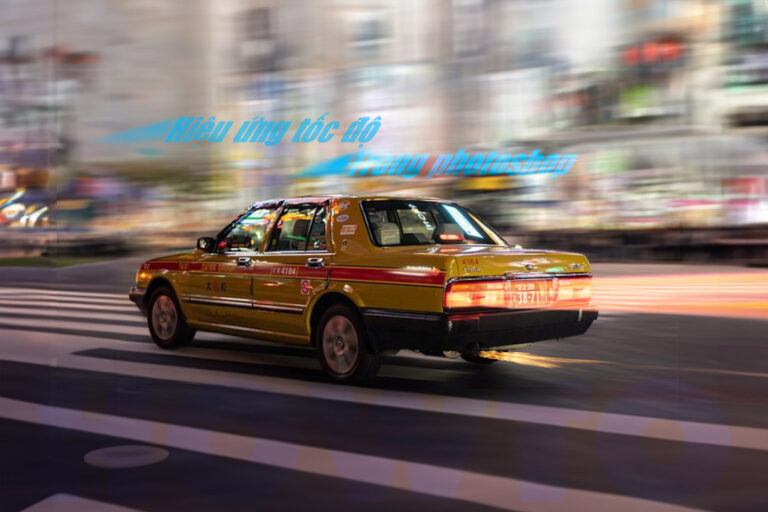
4 ways to create speed effects in Photoshop This is an effect that can be captured with good cameras, including skills and how to shoot to suit the context you want to capture. To take photos that reflect the vehicle's speed, the camera's shutter speed must be reduced. But what about those of you who don't have good cameras or that kind of photography skills?

That's why I will have an article about 3 How to create speed effect in photoshop Just a simple photo, please follow me to do this to create a beautiful photo.

  • How to blend colors simply in photoshop
  • How to create 3D background in Photoshop
  • How to restore photos in Photoshop
  • A simple way to mock up a bag in Photoshop

4 Ways to create speed effects in Photoshop

Method 1: Create a speed effect using the Motion Blur tool

Step 1: Open the car and background objects

  • File > Open opens the image of the vehicle object and background

Step 2: Use the Motion Blur effect

  • Select the car layer, then copy the car object and place it below the original layer
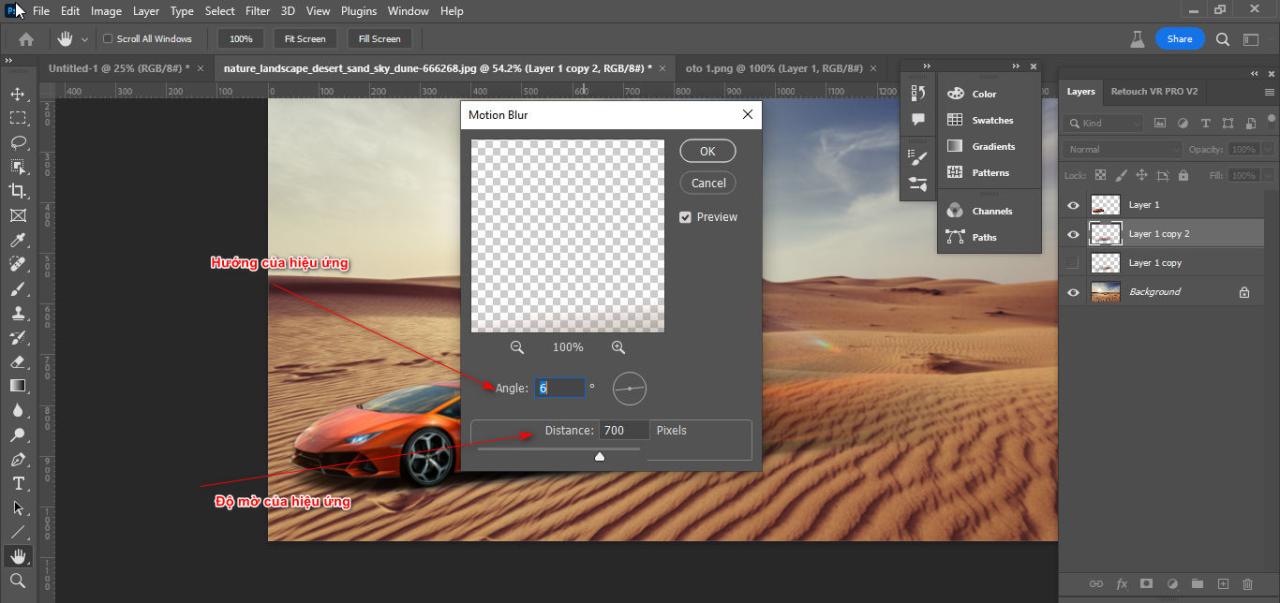
  • Select the vehicle layer object then enter it Filter > Blur > Motion Blur
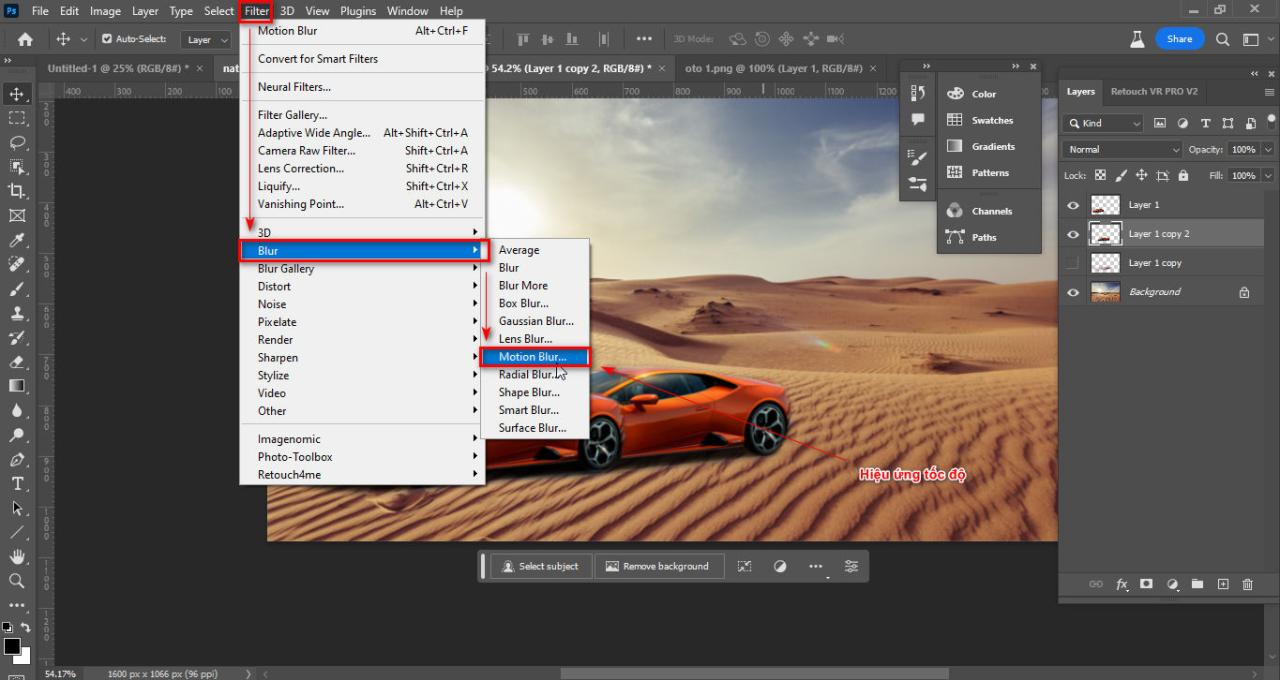
3 Ways to create speed effects in Photoshop
Step 2 Create speed effect
  • Effect parameter table Motion Blur
3 Ways to create speed effects in Photoshop
Step 2.1 Effect parameters

Step 3: Result after using the Motion Blur effect
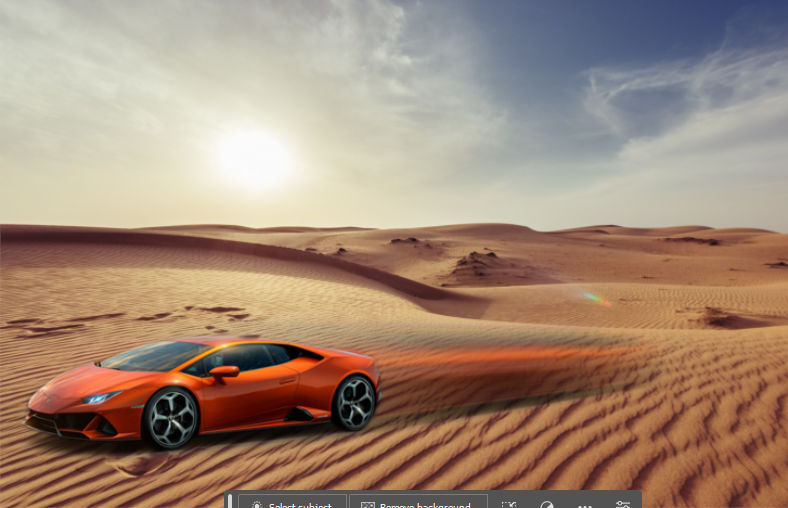
3 Ways to create speed effects in Photoshop
Step 3 Result using Motion Blur effect

Method 2: Create a speed effect using the Path Blur tool

Step 1: Search and open a photo of the car driving on the street

  • I chose Open then opened the image file I downloaded earlier

Step 2: Separate the car object from the background

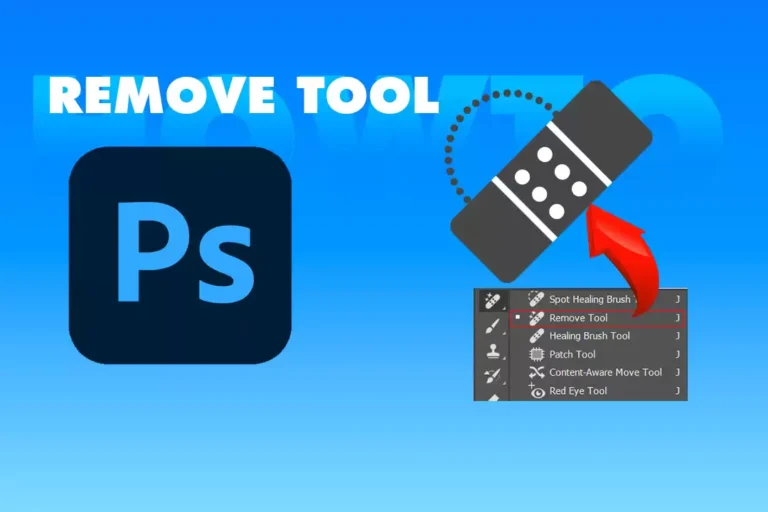
  • Enter Select > Subject Let the machine automatically scan the object
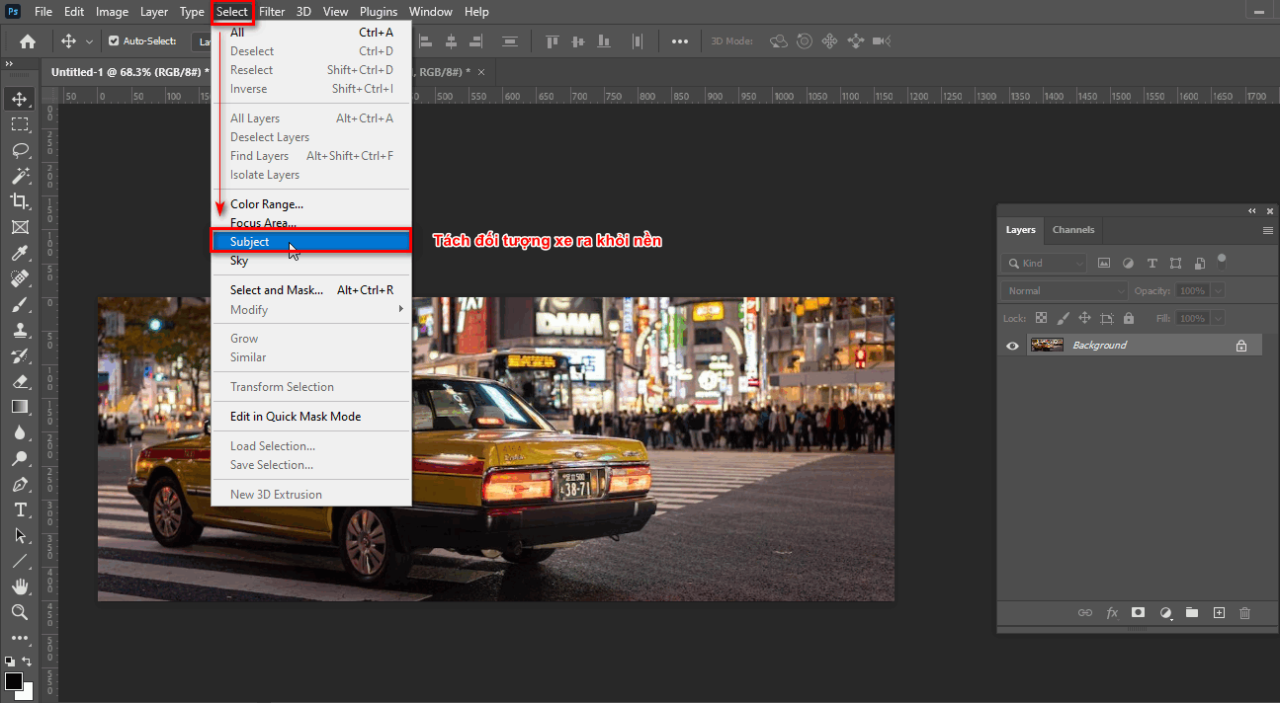
How to create speed effect in photoshop
Step 2 The separation tool converts the object to the background
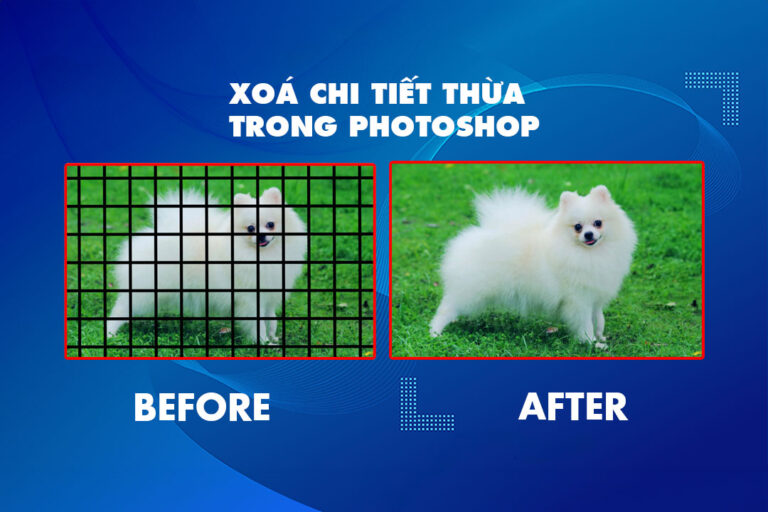
  • After scanning, some areas may be under- or over-scanned
  • Now we use the tool Lasso Tool (L) combined with keys Shift To get more missing areas, hold down the key Alt to delete redundant areas
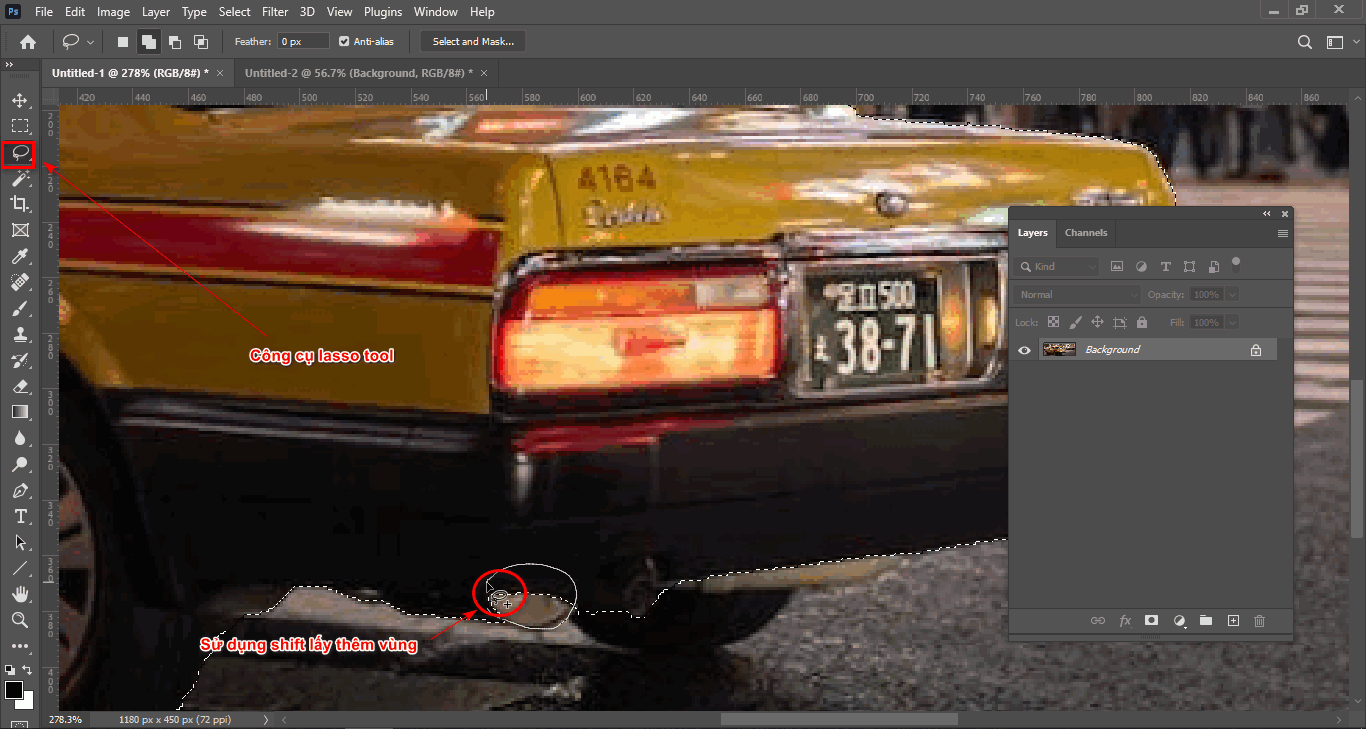
How to create speed effect in photoshop
step 2.1 add selection

But the part it chose is not what you want ship. ship to get more or keep alt to remove it
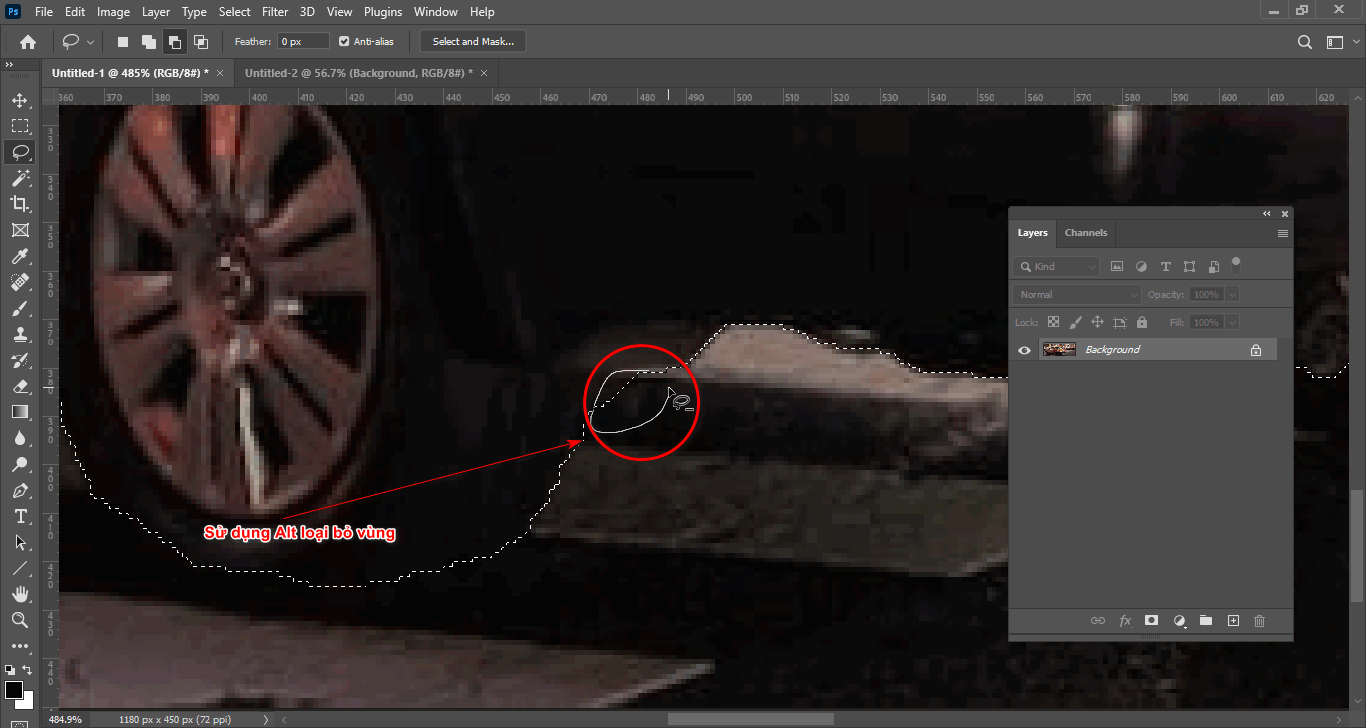
3 Ways to create speed effects for cars in Photoshop (part 1)
Step 2.2 delete the remaining selection
  • Then duplicate the car object using the key Ctrl + J
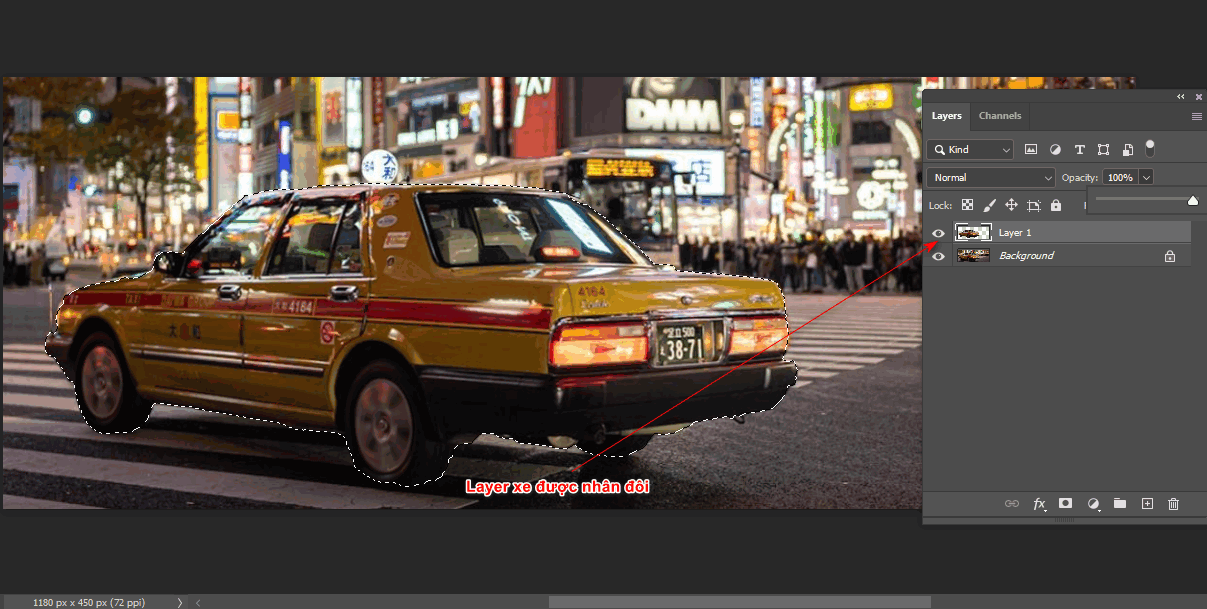
3 Ways to create speed effects for cars in Photoshop (part 1)
Step 2.3 the vehicle layer is duplicated

Step 3: Make the car object disappear and turn the background into a speed effect

  • Press Ctrl Click on the car layer to reappear the selection
  • Then enter the order Edit > Fill to delete the car object in the background
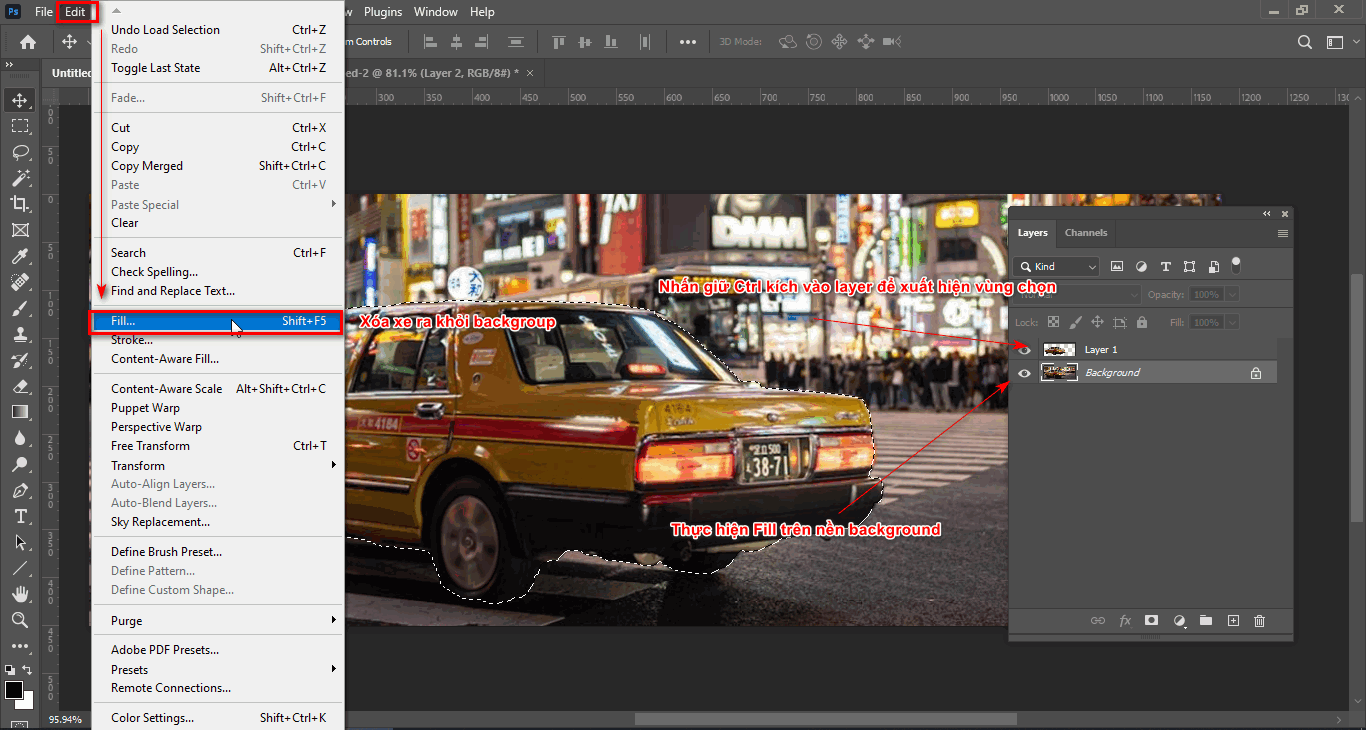
3 Ways to create speed effects for cars in Photoshop (part 1)
Step 3 remove the car from the background

A new tool panel appears for you to operate as shown below
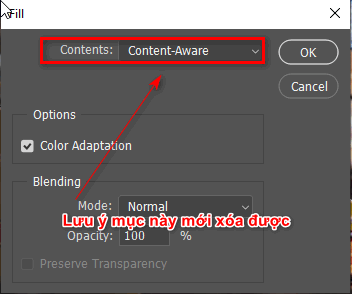
3 Ways to create speed effects for cars in Photoshop (part 1)
Step 3.1 fill parameter table
  • Now we select the Backgroud layer to create the speed effect we enter Filter > Blur Gallery > Path Blur
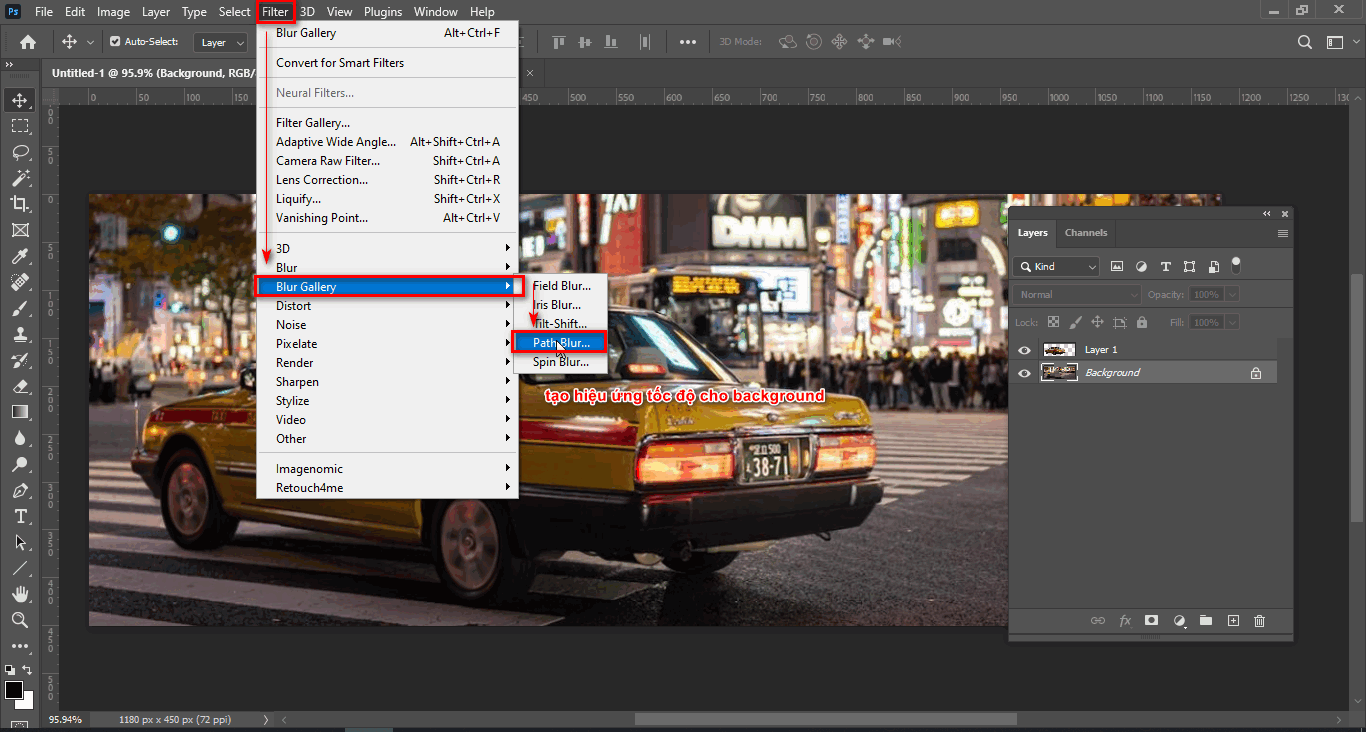
3 Ways to create speed effects for cars in Photoshop (part 1)
Step 3.2 creates a speed effect for the background
  • To create a speed effect for the background, click and drag towards the front of the car > now we adjust the speed and opacity as we want (speed, taper) > Ok
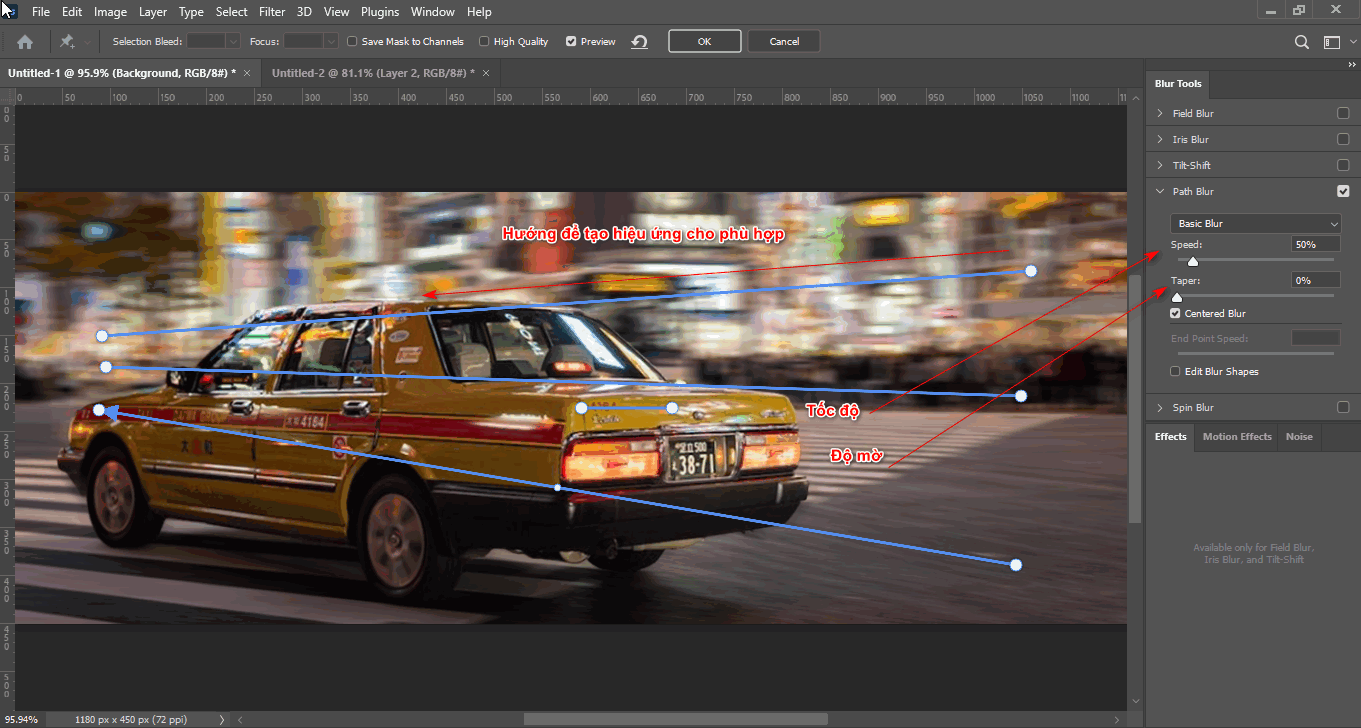
3 Ways to create speed effects for cars in Photoshop (part 1)
Step 3.3 Path Blur parameter table

Step 4: Create light for the car lights to look like it's running

  • Use tools Rectangular Marquee Tool (M) to create a selection of the vehicle's lights then duplicate that object within that selection
  • After we're done Ctrl + T then press and hold Shift to extend one edge of the layer that I just duplicated
  • We right-click and select command Perspective Then lengthen the 2 corners of the edge to fit
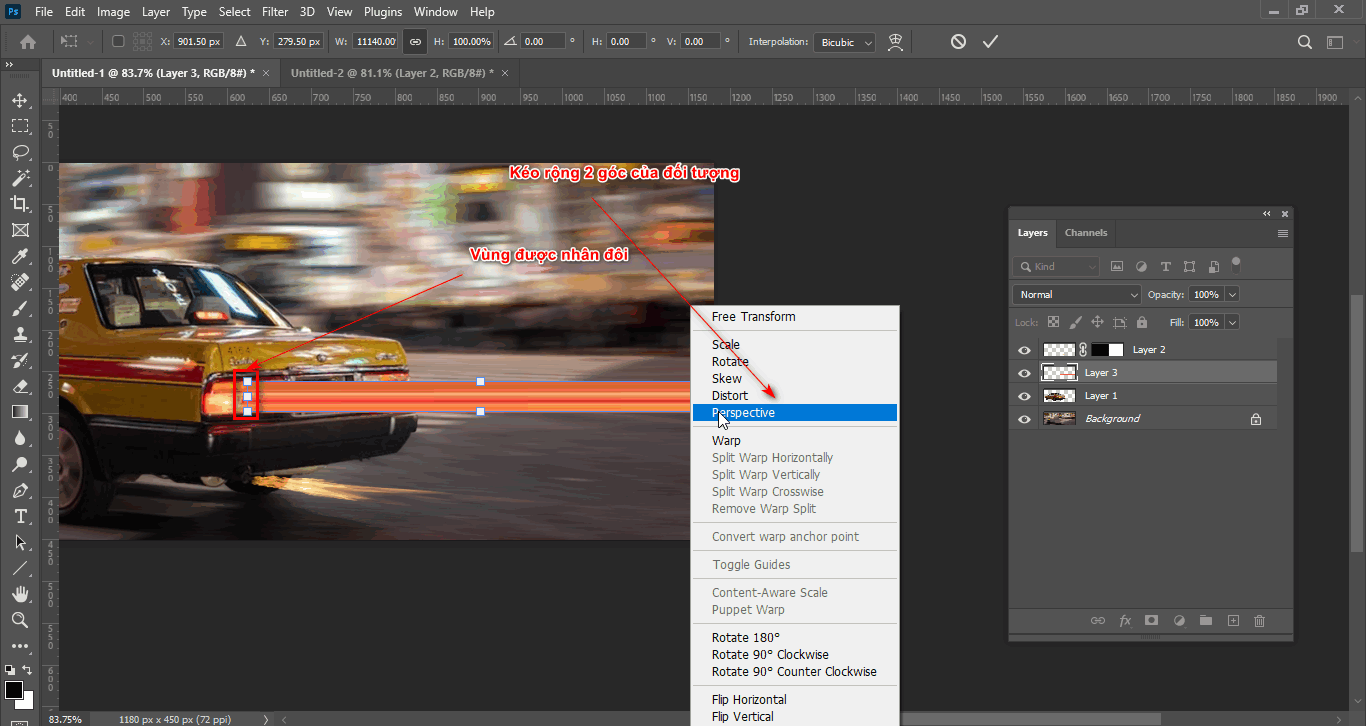
3 Ways to create speed effects for cars in Photoshop (part 1)
Step 4 create lights for the object
  • Use blending modes Screen so that the car lights stand out
  • Create a layer mask for that object then use the Brush tool to erase the area near the car lights
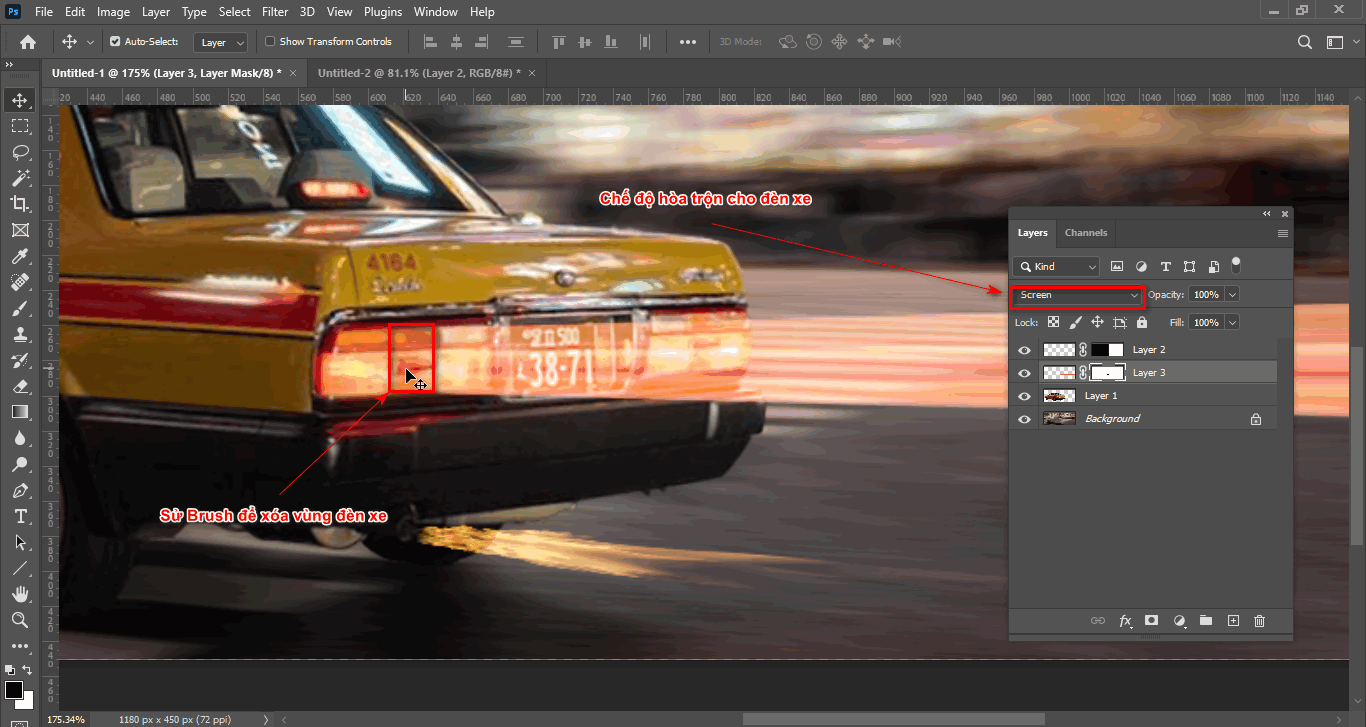
3 Ways to create speed effects for cars in Photoshop (part 1)
Step 4.1 creates more realistic car lights
  • Duplicate that image and drag it to the next light

Step 5: Product after implementing 3 ways to create speed effects for cars in Photoshop (part 1)
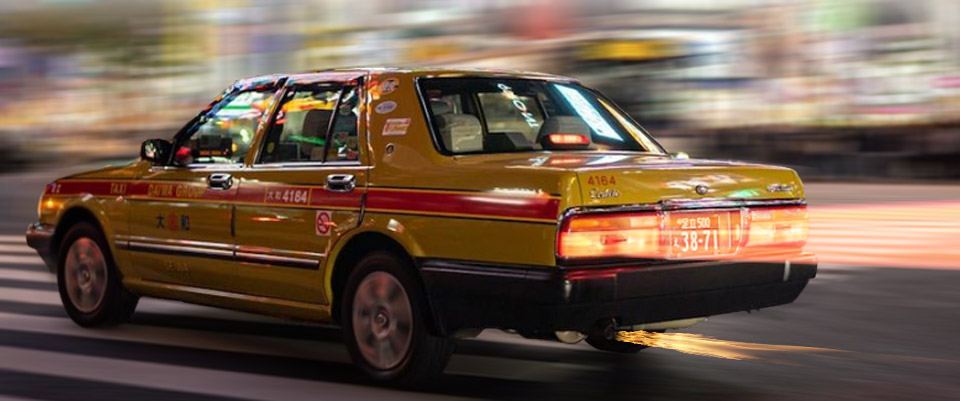
3 Ways to create speed effects for cars in Photoshop (part 1)
How to create speed effects for cars in photoshop

Method 3: Create a speed effect using the Radial blur tool

Step 1: Open the car and background objects

  • Go to File > Open then open the car and background objects

Step 2: Use the Radial Blur effect

  • Select the car layer then enter Filter > Blur > Radial Blur
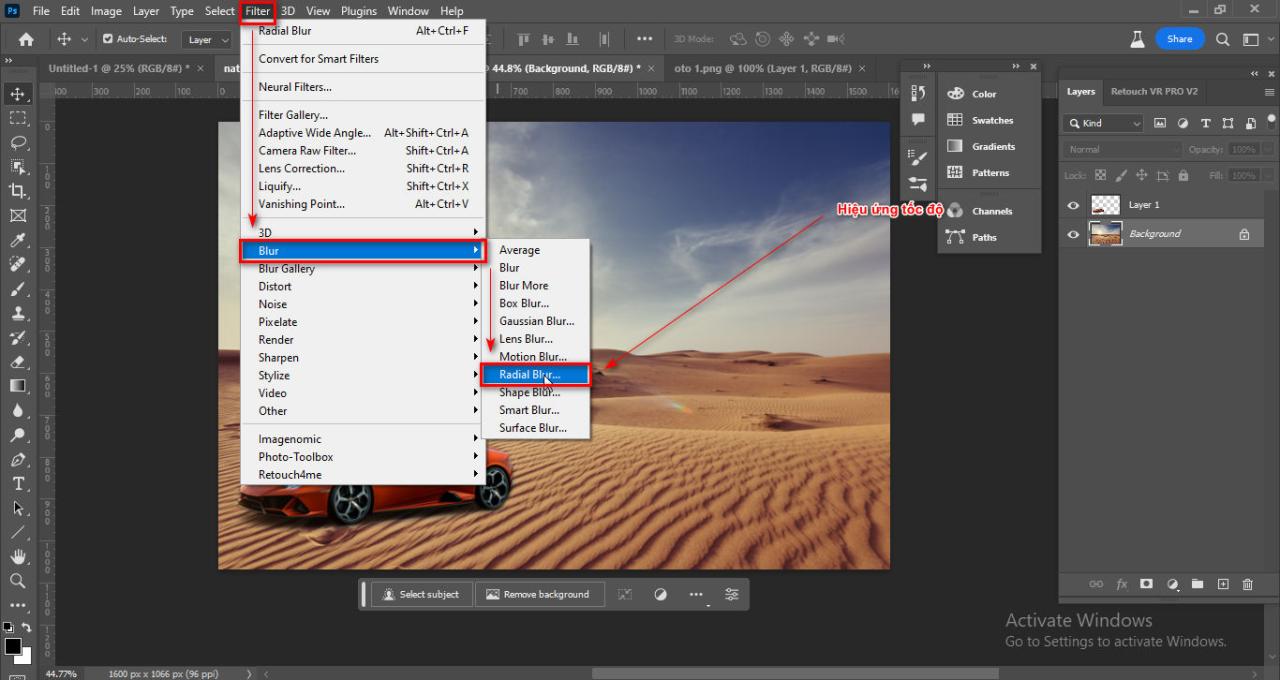
3 Ways to create speed effects in Photoshop
Step 2 Speed effect
  • Parameter table Radial Blur Choose the direction and increase the opacity of the effect
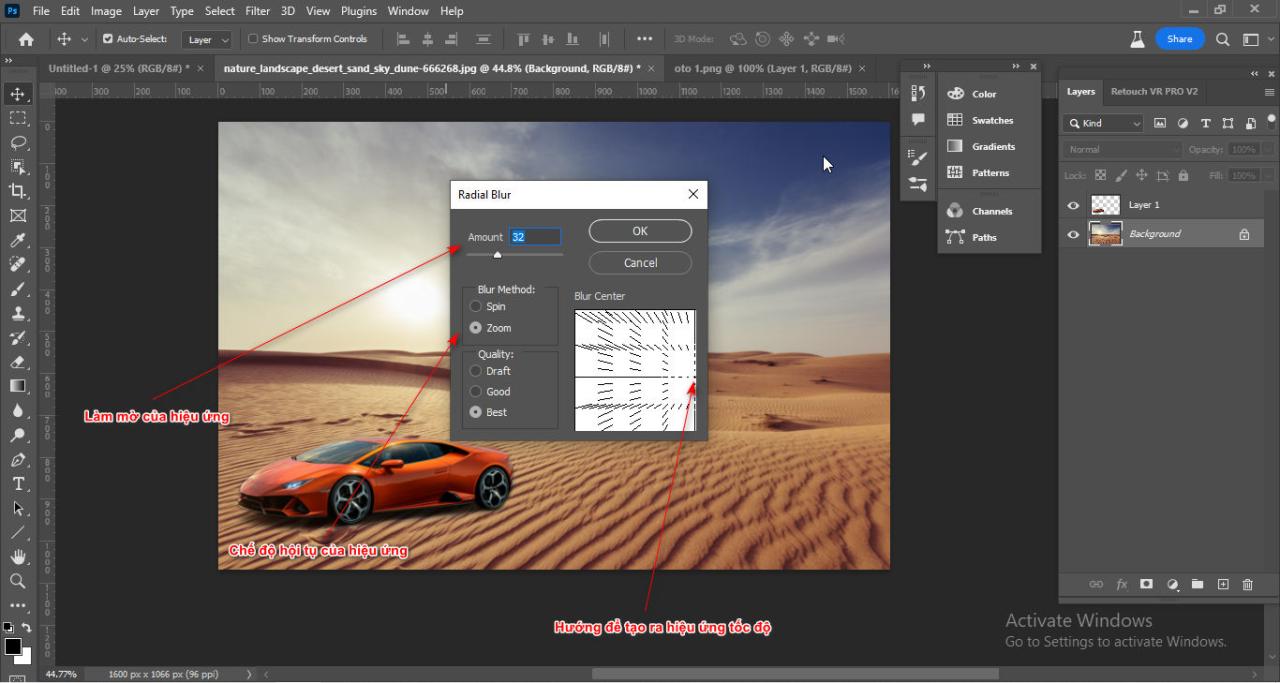
3 Ways to create speed effects in Photoshop
Step 2.1 Effect parameters

Step 3: Result after using the Radial Blur effect
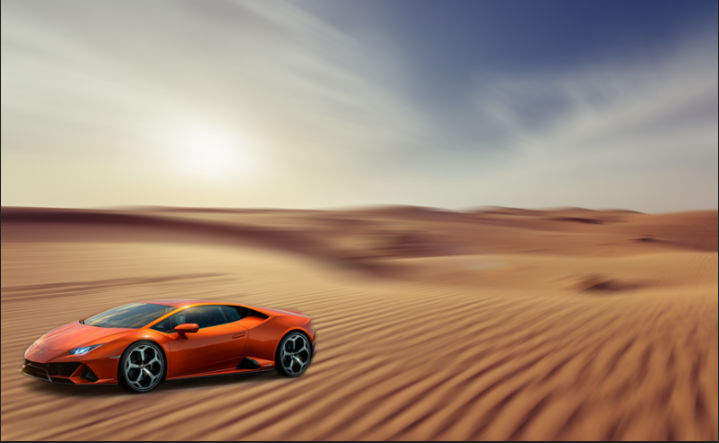
3 Ways to create speed effects in Photoshop
Step 3: Result after using the Radial Blur effect

Method 4: Create a speed effect using Motion Blur in Photoshop

Step 1: Open the image that needs to create the Motion Blur speed effect

  • Go to File > Open to open the image or backgroup you want to create a speed effect

Step 2: Bring the car object that has already been separated from the background

See more: Instructions for separating photoshop background very quickly (howto.edu.vn)

  • If you have a car photo with the background removed, you can open it and bring it to the backgroup
  • Then copy the car photo that has been separated from the background
  • I enter an order Filter > Blur > Motion Blur to create speed effects for vehicle objects
  • At this time, a parameter table will appear including the direction and opacity of the command Motion Blur > OK

Step 3: Create speed effects for the backgroup

  • Draw a selection on the background layer
  • Then create a soft border for that selection by entering Select > Modify > Feather
  • At this time, I give the parameters that match the photo > OK
  • Press Ctrl + J to duplicate the object within that selection

Step 5: Create a black sky for the photo subject

  • Hold down the key Ctrl + Click Click on the image of the layer that just created the speed effect
  • At this point, a selection of that object appears, then we create a new layer
  • After use Gradient Tool (G) Gradient color for sky background
  • Then turn off that selection with the command

Step 6: Create a realistic moving wheel effect

  • Select Filter > Blur Gallery > Spin Blur to create moving wheels for the vehicle object
  • The command parameter table appears Spin Blur
  • Click on the object's wheel and a circle will appear, then adjust it so that the circle is inside the wheel
  • Then increase the portion Blur Angle to create speed and direction for the wheel object

In short

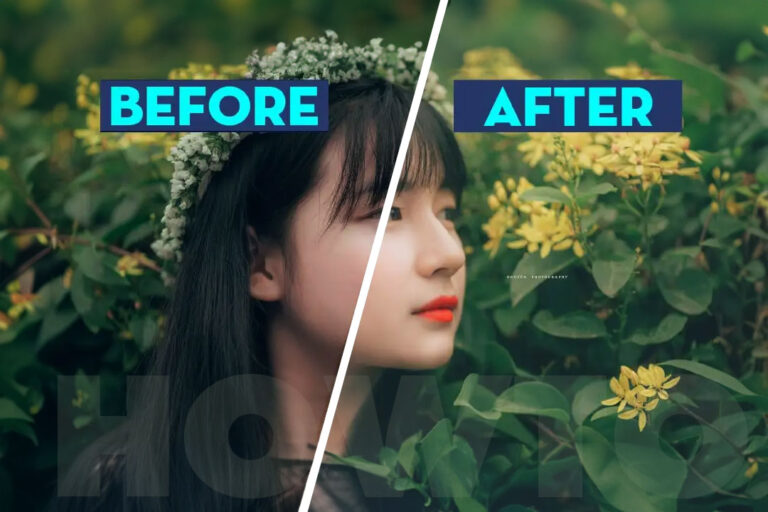
This is 3 ways to create speed effects in Photoshop Helps you create beautiful photos without using expensive cameras or having no experience in photography.

If you are learning about photoshop course Don't forget to check out our course. We are a graphics training unit Graphic Express 1-on-1 design training helps improve awareness and brings high efficiency in learning.

Wishing you success in your assignment.

Tags : Tags 3 Ways to create speed effects for cars in Photoshop (part 1)   adobe photoshop   learn photoshop   study pts
Share
FacebookShare on FacebookpinterestShare on PinterestMessengerShare on Facebook Messenger
twitterShare on TwitterlinkedinShare on LinkedinvkShare on VkredditShare on ReddittumblrShare on TumblrvideoShare on Viadeobuffer. bufferShare on Bufferpocket. pocketShare on PocketwhatsappShare on WhatsappViberShare on ViberemailShare on EmailskypeShare on SkypediggShare on DiggmyspaceShare on MyspacebloggerShare on Blogger YahooMailShare on Yahoo mailtelegramShare on Telegram gmailShare on GmailAmazonShare on AmazonSMSShare on SMS
Tung Thai

Tung Thai

As a student at the center. I write what I know to share with you.
1 is to share with you so you can know and learn.
2 improve knowledge and remember longer, with the motto of giving to receive, I want to write more

Related articles

4 Ways to create speed effects in Photoshop

How to use camera Raw in photoshop

By How To 08/12/2025

Camera Raw in photoshop is a tool that has been around since…

4 Ways to create speed effects in Photoshop

Latest instructions for using camera raw in photoshop

By How To 07/12/2025

Camera raw in photoshop is a correction tool…

4 Ways to create speed effects in Photoshop

3 Ways to create speed effects in Photoshop

By Tung Thai 06/12/2025 0

3 Ways to create speed effects in photoshop Speed effects…

Leave a Comment Cancel reply

Categories Enscape Foliage information in enscape 8

Foliage of grass and leaf materials in Enscape

10/12/2025
Clearcoat metal materials in Enscape 1 1

Clearcoat metallic material in Enscape

10/12/2025
How to create flowers in illustrator

How to create flowers in illustrator

10/12/2025
Carpet in Enscape banner

Carpet in Enscape material Carpet, Fur

10/12/2025
How to create borders for text in illustrator

How to create borders for text in illustrator

10/12/2025

Recent comments

  • male1 year ago
    On How to create a fade effect in Photoshop
    Great
  • phat phat2 years ago
    On Who is 5SMedia?
    Useful article
  • Minh Anh3 years ago
    On How to create basic materials in vray Sketchup
    Very good, admin
Copyright © 2025 HOWTO - Powered by HOWTO

5SMedia.net | hocdohoacaptoc.com | huongdansudung.vn | webantam.com

Back to Top
Hello!
  • All
    • Tips
      • Google
      • Facebook
      • Tiktok
    • Instruct
      • What is Q&A?
      • Taobao
    • WordPress
      • Code
      • Plugins
      • Themes
        • Flatsome
        • Theme Nevo
  • Share
    • WordPress
    • Code
    • Plugins
    • Tips
    • Windows
    • Apple
    • Graphics
    • Experience
  • Graphics documents
    • illustrator
    • Sketchup
    • Coreldraw
    • 3ds max
    • Enscape
    • Photoshop
    • Graphics Plugin
  • Course
    • Photoshop course
    • illustrator course
    • Coreldraw course
    • Edit video course
    • Course Sketchup
    • Autocad course
    • Website management course
  • Service
  • Software
    • Windows
      • Tips
      • Office
      • Necessary
      • Tools
    • Apple
  • Game
  • News
    • Technology
    • Review
en_US EN
en_US EN vi VI