Skip to content
  • About us
  • Contact
  • en_USEN
  • viVI
FacebookTwitterPinterest
HOWTOHOWTO
  • All
    • Tips
      • Google
      • Facebook
      • Tiktok
    • Instruct
      • What is Q&A?
      • Taobao
    • WordPress
      • Code
      • Plugins
      • Themes
        • Flatsome
        • Theme Nevo
  • ShareHot
    • WordPress
    • Code
    • Plugins
    • Tips
    • Windows
    • Apple
    • Graphics
    • Experience
  • Graphics documents
    • illustrator
    • Sketchup
    • Coreldraw
    • 3ds max
    • Enscape
    • Photoshop
    • Graphics Plugin
  • Course
    • Photoshop course
    • illustrator course
    • Coreldraw course
    • Edit video course
    • Course Sketchup
    • Autocad course
    • Website management course
  • Service
  • Software
    • Windows
      • Tips
      • Office
      • Necessary
      • Tools
    • Apple
  • Game
  • News
    • Technology
    • Review
Hello!

  • Lost your password ?
HOWTOHOWTO
  • Home > 
  • Graphics > 
  • Adobe Photoshop > 
  • The latest and most beautiful way to adjust colors in Photoshop in 2022

The latest and most beautiful way to adjust colors in Photoshop in 2022

By Angel 05/12/2025 0 491 Views
color correction in photoshop
Article categories

Are you a photography lover or do you like to travel? No matter what, you will definitely want to have beautiful photos to show off to your friends and relatives, right?

Delete the common editing apps on your phone, below I will help you how to highlight a perfect beautiful photo from easy to difficult.

To learn about Photoshop, Adobe Photoshop or abbreviated Ps, is an image editing software, used by many designers and photographers to enhance colors or design unique products. You too can do that. Let us guide you How to adjust color in Photoshop cEnjoy this article

3 beautiful ways to adjust color in Photoshop

Original file as in the article for practice. 

[note]

  • How to combine funny pictures with Photoshop
  • The best way to remove acne in photoshop in 2022
  • Top 1 Image sharpening app not to be missed
  • How to create rain in photoshop

[/note]

#1 Color correction in Photoshop using Vibrance

The Vibrance tool indicates color saturation, also known as color brightness. Accordingly, when increasing the Vibrance level, the color will be fresher, brighter and more dazzling, but if the user reduces the Vibrance level, Vibrance Down also means the color level will decrease, the color will be less bright and more faded.

Accordingly, we will choose the following. First, open an image with File > Open > open the image to edit.
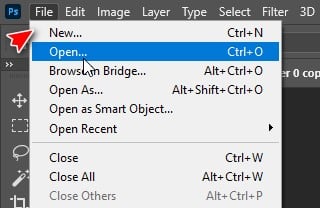
How to adjust color in Photoshop extremely beautifully

Continuing, we choose the tool Vibrance by selecting icon like number 1, right click, select Vibrance…
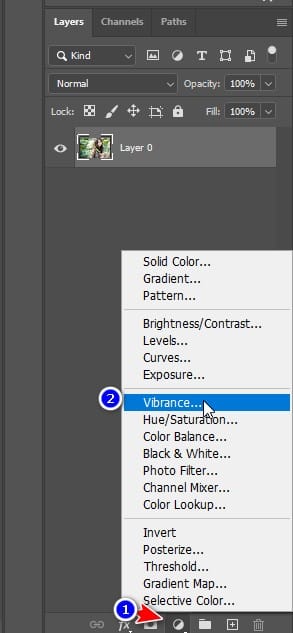
How to adjust color in Photoshop extremely beautifully

We will have a selection table as follows.
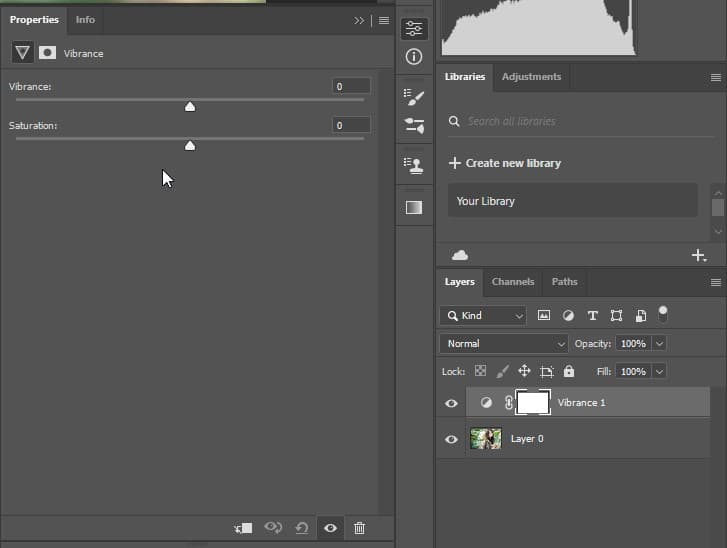
How to adjust color in Photoshop extremely beautifully

By pulling Vibrance and Saturation To the right you will highlight your photo. If you drag to the left, the image will become grayer.
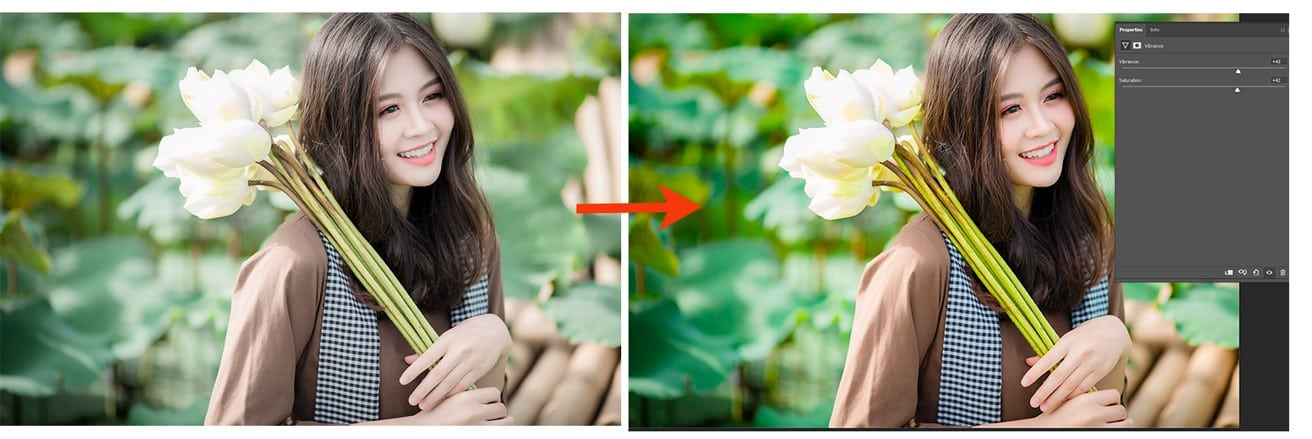
Results of color correction in Photoshop
Results of color correction in Photoshop using Vibrance

By pulling Vibrance and Saturation To the right you will highlight your photo. If you drag to the left, the image will become grayer. With a little simple adjustment, you can bring life to your photo.

So with just a few simple steps, we can adjust colors in Photoshop using the tool Vibrance Extremely simple, right?

But! Wait, there's more. We have more tools below for better editing

#2 Color correction in Photoshop using Hue/Saturation.

If you felt the color change earlier, then the tool Hue/Saturation may surprise you more. What if, as I said, you could make that girl, maybe make your crush more beautiful?

Similar to before, we will right-click on icon number 1, select Hue/Saturation.

How to adjust color in Photoshop extremely beautifully

The software will appear giving you the following options:
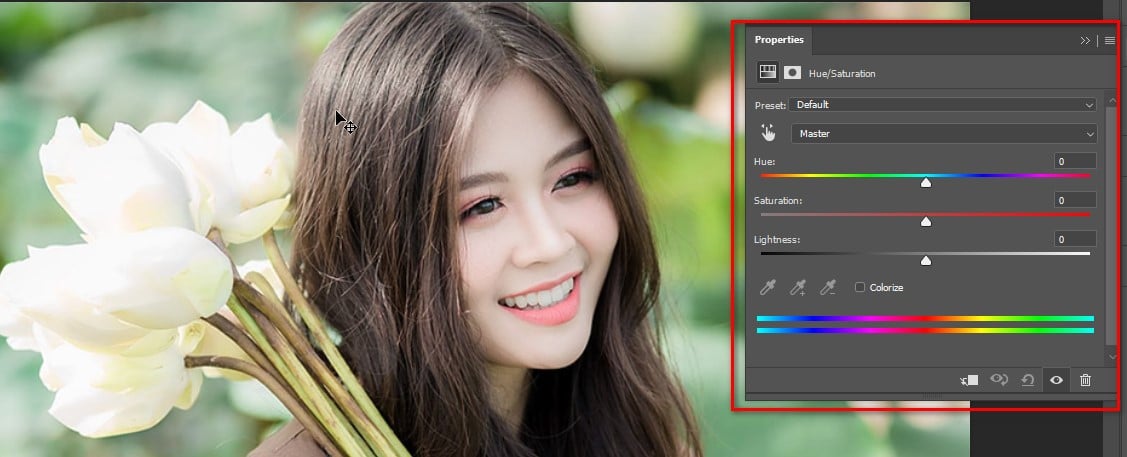
Adjust color using hue status

Please pay a little attention. We will have three tables which are Hue, Saturation and Lightness.

Hue is to change the color of an object, Saturation is the increase or decrease in color and Lightness is to adjust the lighting of the photo.

We will only work with the two tools below. Start with Lightness, we will adjust the light down a bit to just 1 to 10 to reduce the background. One thing to note is that you should adjust the lighting when you are sure of the text Master is selected.
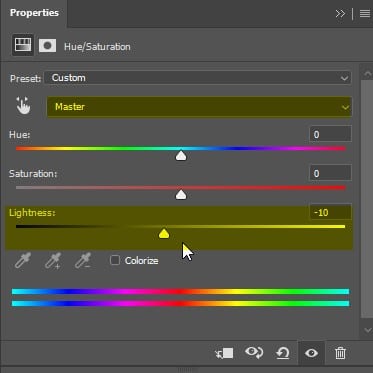
Color adjustment tool panel in photoshop

Great, click on the hand tool, we can choose the color of any object we want to highlight.
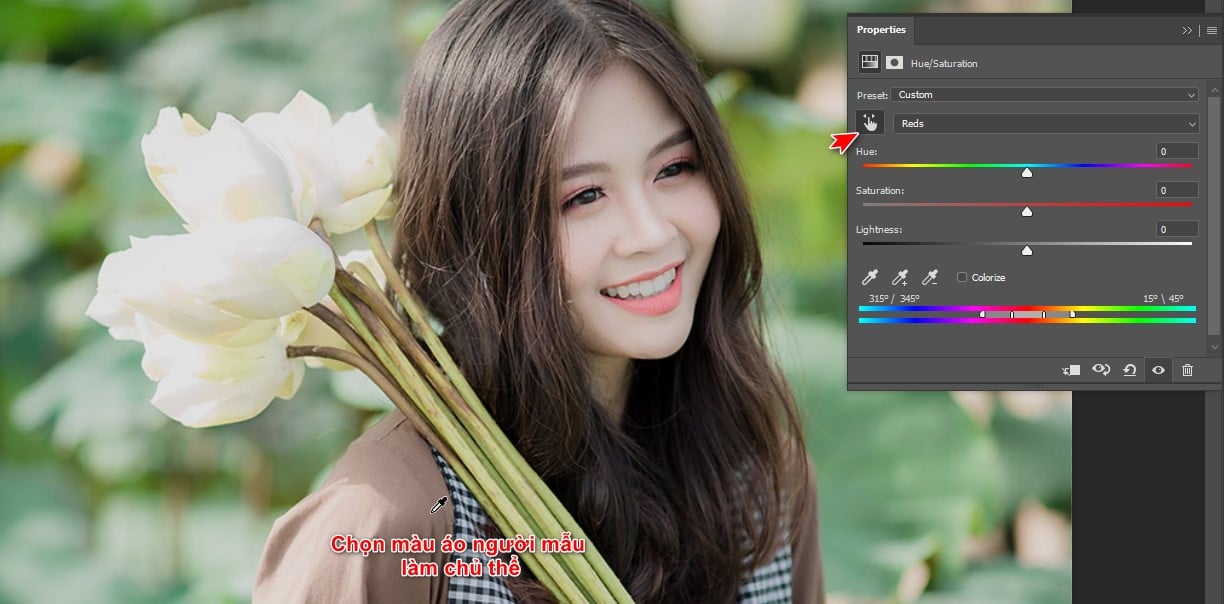
Select the color you want to highlight in the image

We will increase Saturation appears when the colors are separated, it can be Red, Yellow or Blue, depending on the object you choose.
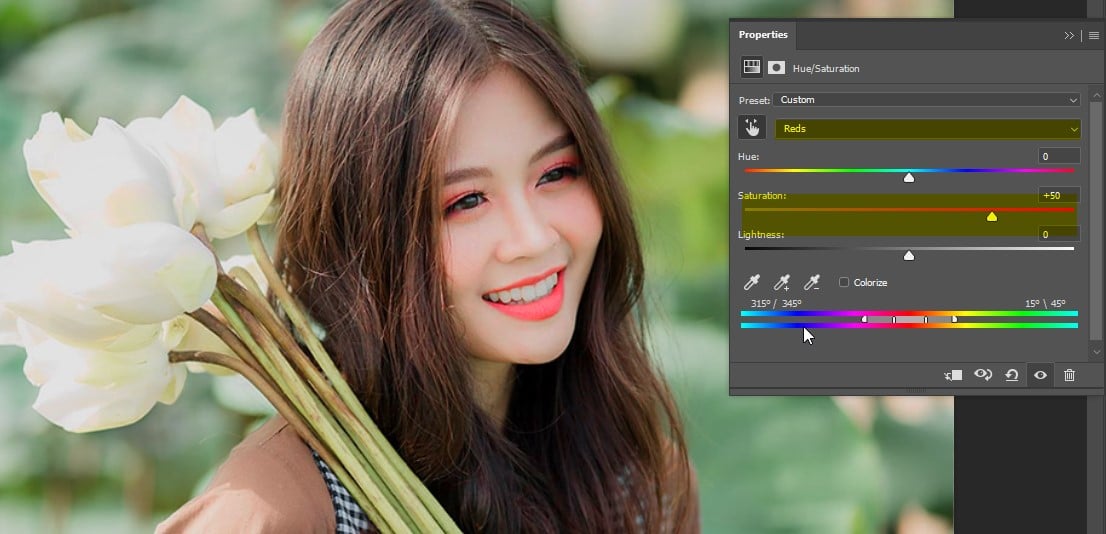
Result after choosing color

By increasing Saturation, you have highlighted the model a lot. Here are the products you can make.
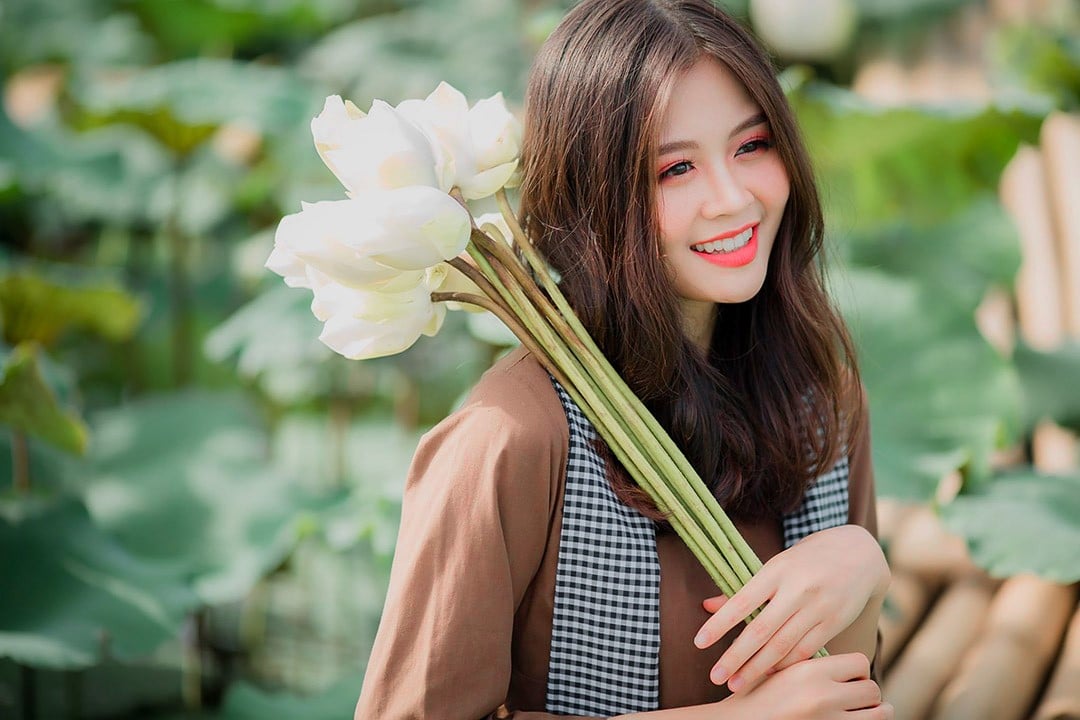
Product after editing with Hue/Saturation tool

It's very easy, isn't it? Shall we try a more difficult way? Don't worry, the more effort you put in, the better the results will be.

#3 Color correction in Photoshop using cMr. Solid Color.

There will always be a way to make your photos more vivid, with Solid Color Not only can you highlight the subject, but you can also highlight any point you want.

Again we select the icon, then Solid Color
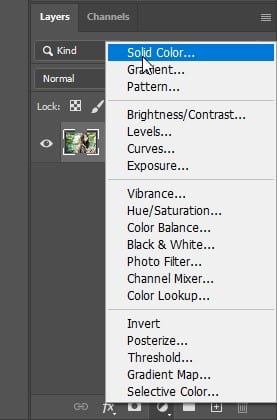
Color correction tool in Photoshop

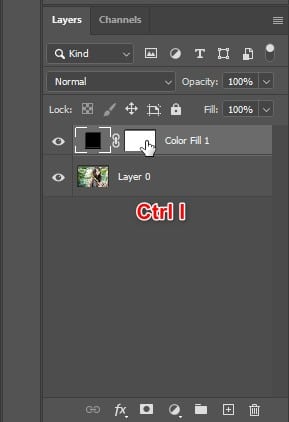
Your photo will be 1 Layer black overlap. Don't worry, just left click on Layer Mask right press Ctrl I
Color correction tool in Photoshop

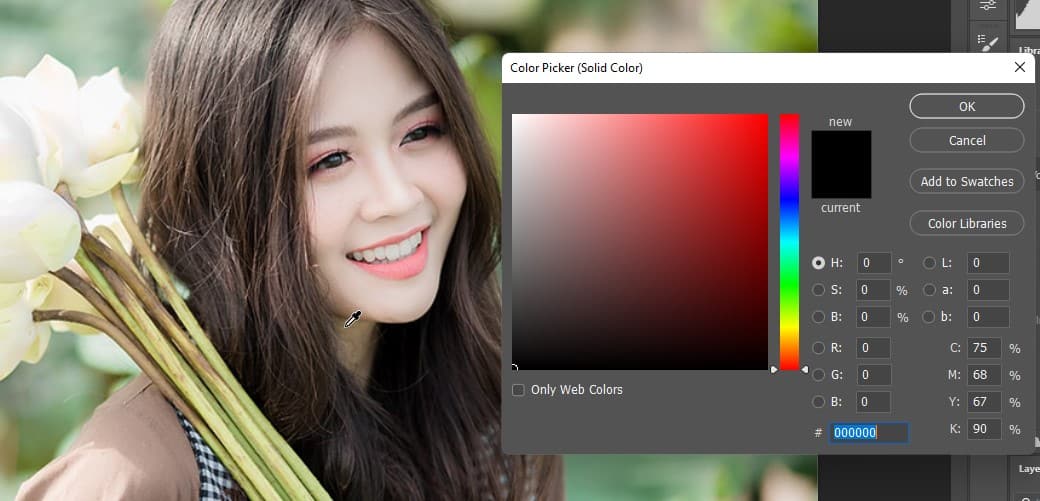
Good, you will choose again Layer black, now that your photo is back, double tap Layer That black color.
Color correction tool in Photoshop

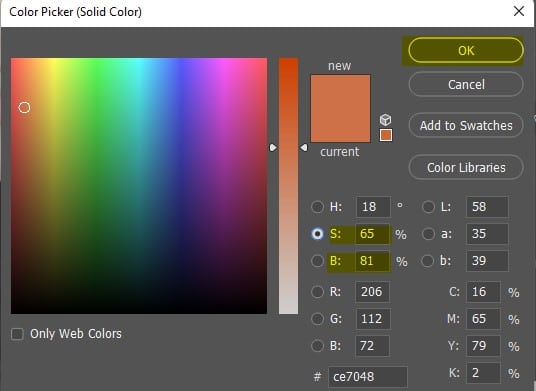
We will have a color picker. Hover over the color you want to use. Here, we will continue to choose the color of that girl's shirt.
Color correction tool in Photoshop

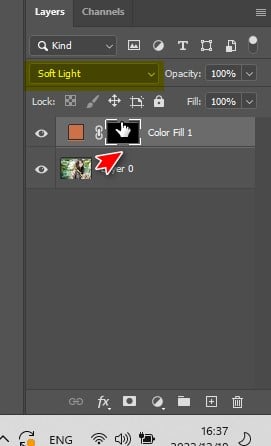
Once we have the brown color, we will adjust 2 lines Saturation and Brightness. We're going to increase the brightness and color a little bit. Done, click Layer Mask once again. Remember to switch color mode Soft Light Please.
Color correction tool in Photoshop

This time we will use the tool Brush, shortcut is B. Slowly fill in the image. To use the tool Brush effective, try reading through the article Instructions for using the Brush tool
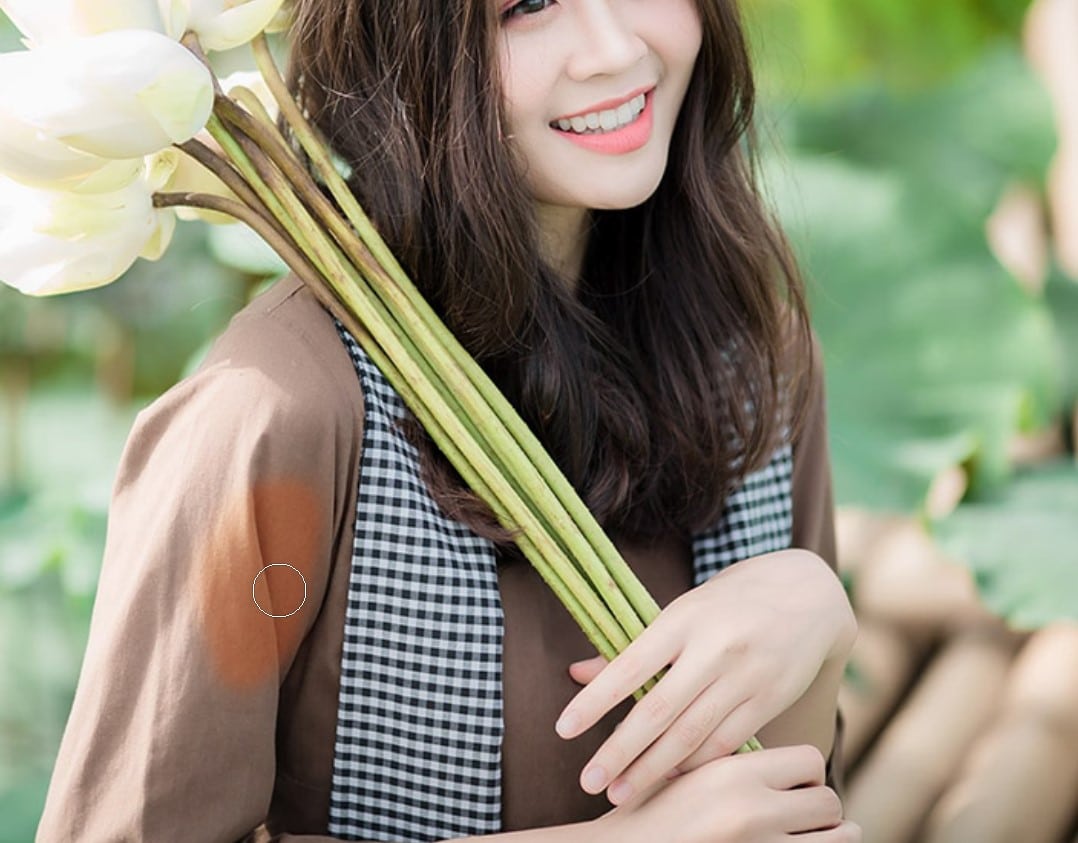
Color correction tool in Photoshop

For simplicity, the keyboard shortcut increases or decreases the volume Brush To be [ and ]. Use wisely Brush you will be able to make the colors brighter.

You can repeat these steps to adjust each specific color.
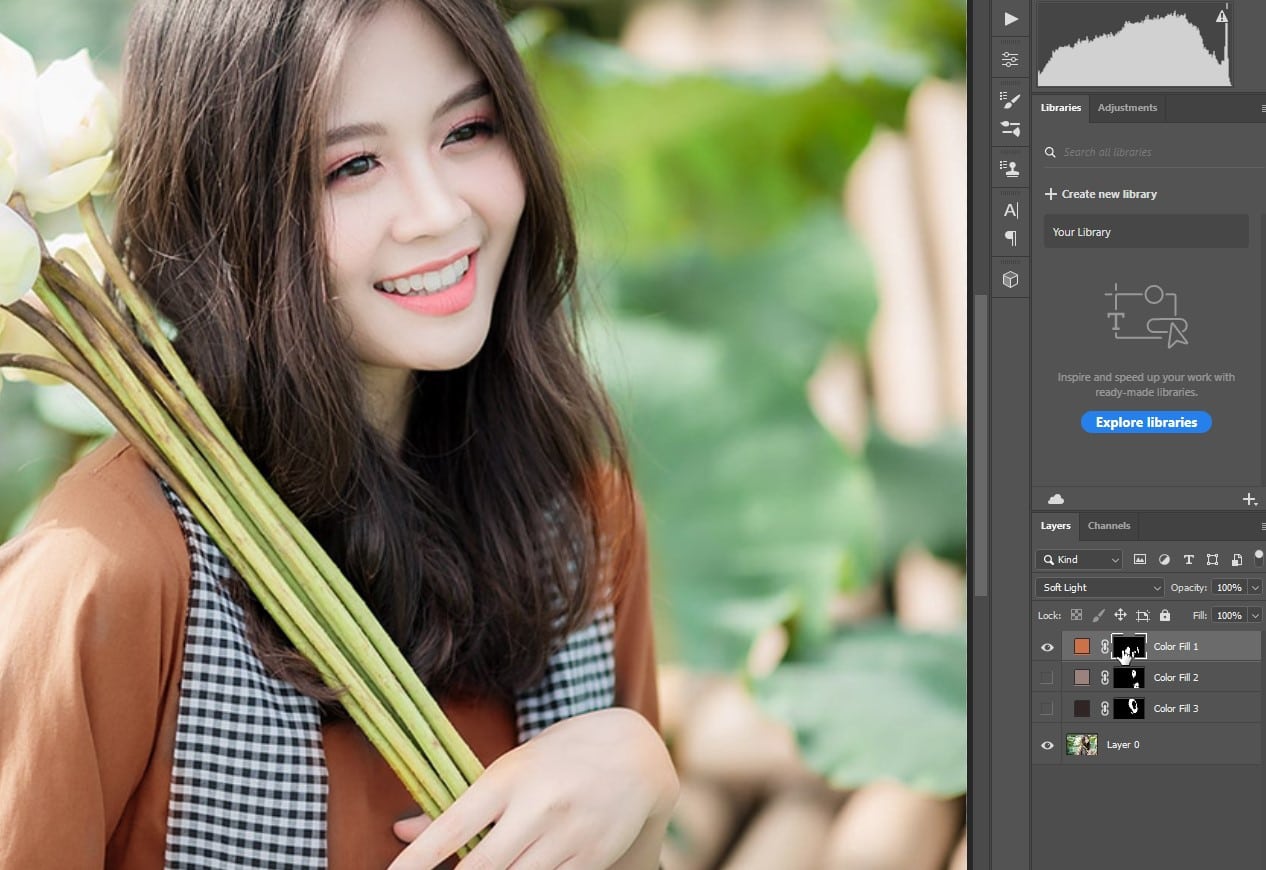
Color correction tool in Photoshop

With a little skillful manipulation and aesthetic thinking, you will get the wonderful products you desire.
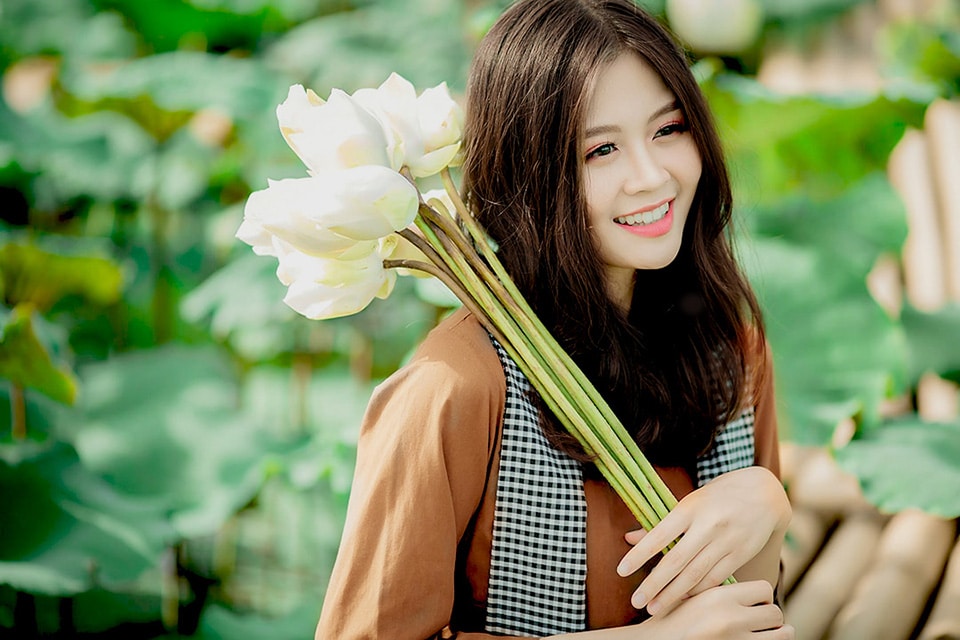
Product after color correction with photoshop

Epilogue.

With 3 color editing tools in Photoshop ( Vibrance, Hue, Saturation, Solid Color ) You can easily get a beautiful photo for yourself right away. Through the article cColor correction in Photoshop is extremely beautiful This…Hope it will help you a lot in your photo editing process.

If you need to improve your knowledge of photo editing, don't forget to contact us Graphic express Please. Photoshop course Tutoring is suitable for everyone who is studying and working.

You can also rate 5* or click on the ad to express your thanks. Please stop by and follow Facebook fanpage to be updated with the latest information from us.

Tags : Tags How to adjust color in Photoshop   color edition   Photoshop color correction
Share
FacebookShare on FacebookpinterestShare on PinterestMessengerShare on Facebook Messenger
twitterShare on TwitterlinkedinShare on LinkedinvkShare on VkredditShare on ReddittumblrShare on TumblrvideoShare on Viadeobuffer. bufferShare on Bufferpocket. pocketShare on PocketwhatsappShare on WhatsappViberShare on ViberemailShare on EmailskypeShare on SkypediggShare on DiggmyspaceShare on MyspacebloggerShare on Blogger YahooMailShare on Yahoo mailtelegramShare on Telegram gmailShare on GmailAmazonShare on AmazonSMSShare on SMS
Angel

Angel

As a student at the center. I always try to find out new things. I want to learn more by giving what I know to patch up the places I don't know.

Related articles

The latest and most beautiful way to adjust colors in Photoshop in 2022

How to use camera Raw in photoshop

By How To 08/12/2025

Camera Raw in photoshop is a tool that has been around since…

The latest and most beautiful way to adjust colors in Photoshop in 2022

Latest instructions for using camera raw in photoshop

By How To 07/12/2025

Camera raw in photoshop is a correction tool…

The latest and most beautiful way to adjust colors in Photoshop in 2022

3 Ways to create speed effects in Photoshop

By Tung Thai 06/12/2025 0

3 Ways to create speed effects in photoshop Speed effects…

Leave a Comment Cancel reply

Categories Enscape Foliage information in enscape 8

Foliage of grass and leaf materials in Enscape

10/12/2025
Clearcoat metal materials in Enscape 1 1

Clearcoat metallic material in Enscape

10/12/2025
How to create flowers in illustrator

How to create flowers in illustrator

10/12/2025
Carpet in Enscape banner

Carpet in Enscape material Carpet, Fur

10/12/2025
How to create borders for text in illustrator

How to create borders for text in illustrator

10/12/2025

Recent comments

  • male1 year ago
    On How to create a fade effect in Photoshop
    Great
  • phat phat2 years ago
    On Who is 5SMedia?
    Useful article
  • Minh Anh3 years ago
    On How to create basic materials in vray Sketchup
    Very good, admin
Copyright © 2025 HOWTO - Powered by HOWTO

5SMedia.net | hocdohoacaptoc.com | huongdansudung.vn | webantam.com

Back to Top
Hello!
  • All
    • Tips
      • Google
      • Facebook
      • Tiktok
    • Instruct
      • What is Q&A?
      • Taobao
    • WordPress
      • Code
      • Plugins
      • Themes
        • Flatsome
        • Theme Nevo
  • Share
    • WordPress
    • Code
    • Plugins
    • Tips
    • Windows
    • Apple
    • Graphics
    • Experience
  • Graphics documents
    • illustrator
    • Sketchup
    • Coreldraw
    • 3ds max
    • Enscape
    • Photoshop
    • Graphics Plugin
  • Course
    • Photoshop course
    • illustrator course
    • Coreldraw course
    • Edit video course
    • Course Sketchup
    • Autocad course
    • Website management course
  • Service
  • Software
    • Windows
      • Tips
      • Office
      • Necessary
      • Tools
    • Apple
  • Game
  • News
    • Technology
    • Review
en_US EN
en_US EN vi VI