Skip to content
  • About us
  • Contact
  • en_USEN
  • viVI
FacebookTwitterPinterest
HOWTOHOWTO
  • All
    • Tips
      • Google
      • Facebook
      • Tiktok
    • Instruct
      • What is Q&A?
      • Taobao
    • WordPress
      • Code
      • Plugins
      • Themes
        • Flatsome
        • Theme Nevo
  • ShareHot
    • WordPress
    • Code
    • Plugins
    • Tips
    • Windows
    • Apple
    • Graphics
    • Experience
  • Graphics documents
    • illustrator
    • Sketchup
    • Coreldraw
    • 3ds max
    • Enscape
    • Photoshop
    • Graphics Plugin
  • Course
    • Photoshop course
    • illustrator course
    • Coreldraw course
    • Edit video course
    • Course Sketchup
    • Autocad course
    • Website management course
  • Service
  • Software
    • Windows
      • Tips
      • Office
      • Necessary
      • Tools
    • Apple
  • Game
  • News
    • Technology
    • Review
Hello!

  • Lost your password ?
HOWTOHOWTO
  • Home > 
  • Graphics > 
  • Adobe illustrator > 
  • The latest way to save files on Illustrator

The latest way to save files on Illustrator

By Le Quan 15/11/2025 0 1092 Views
How to save Illustrator files
Article categories

I. How to save files on Illustrator

Illustrator is a professional graphic design software widely used in the graphic design and media industries. It allows users to create vector drawings, charts, logos and other visual products with high precision.

Saving files properly in Illustrator is important and the importance cannot be ignored. Here are some reasons:

  • Protect design work: Saving files properly helps preserve all the information and effort you invested in the design. When saving incorrect or incompatible files, data loss may occur or images may not display correctly.
  • Convenience during work: Saving files in a clear and organized structure helps you easily find, edit and reuse components or resources in your design. This saves you time and effort when working on similar projects in the future.

So you don't have to wait too long. Now I will guide you The most standard way to save files on illustrator.

See more.

  • How to export Illustrator files quickly and accurately
  • How to create a 3D keyboard in illustrator
  • How to create Pattern in Illustrator in detail
  • How to use and create Blend in Illustrator
  • Type Tool in illustrator
  • How to create 3D text in illustrator

II. Steps to save files on Illustrator

  1. Step 1: Open the menu "File"
  2. Step 2: Choose options “Save” or “Save As”.
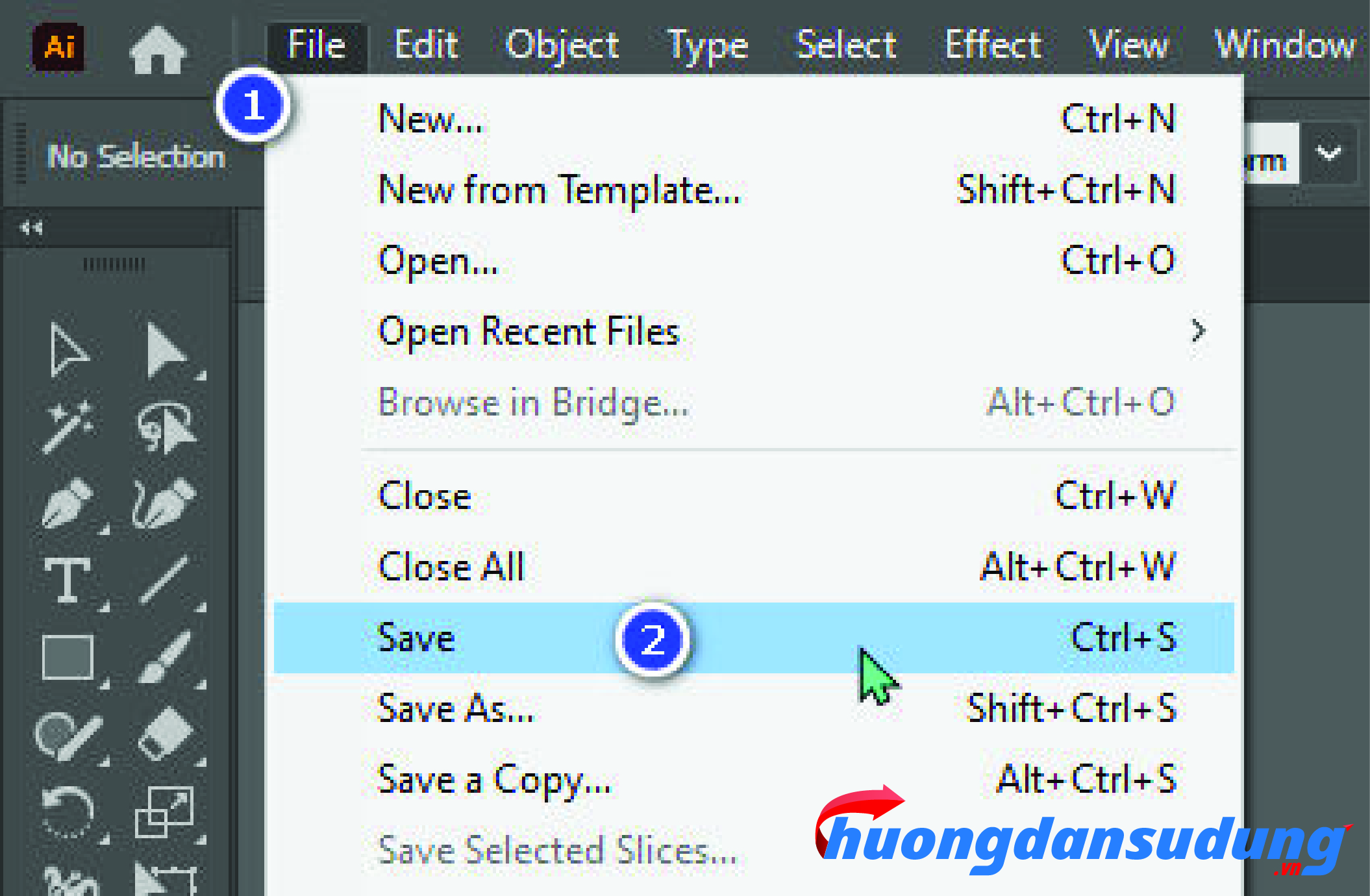
How to save files on Illustrator

A new window appears and select “Save on computer”.
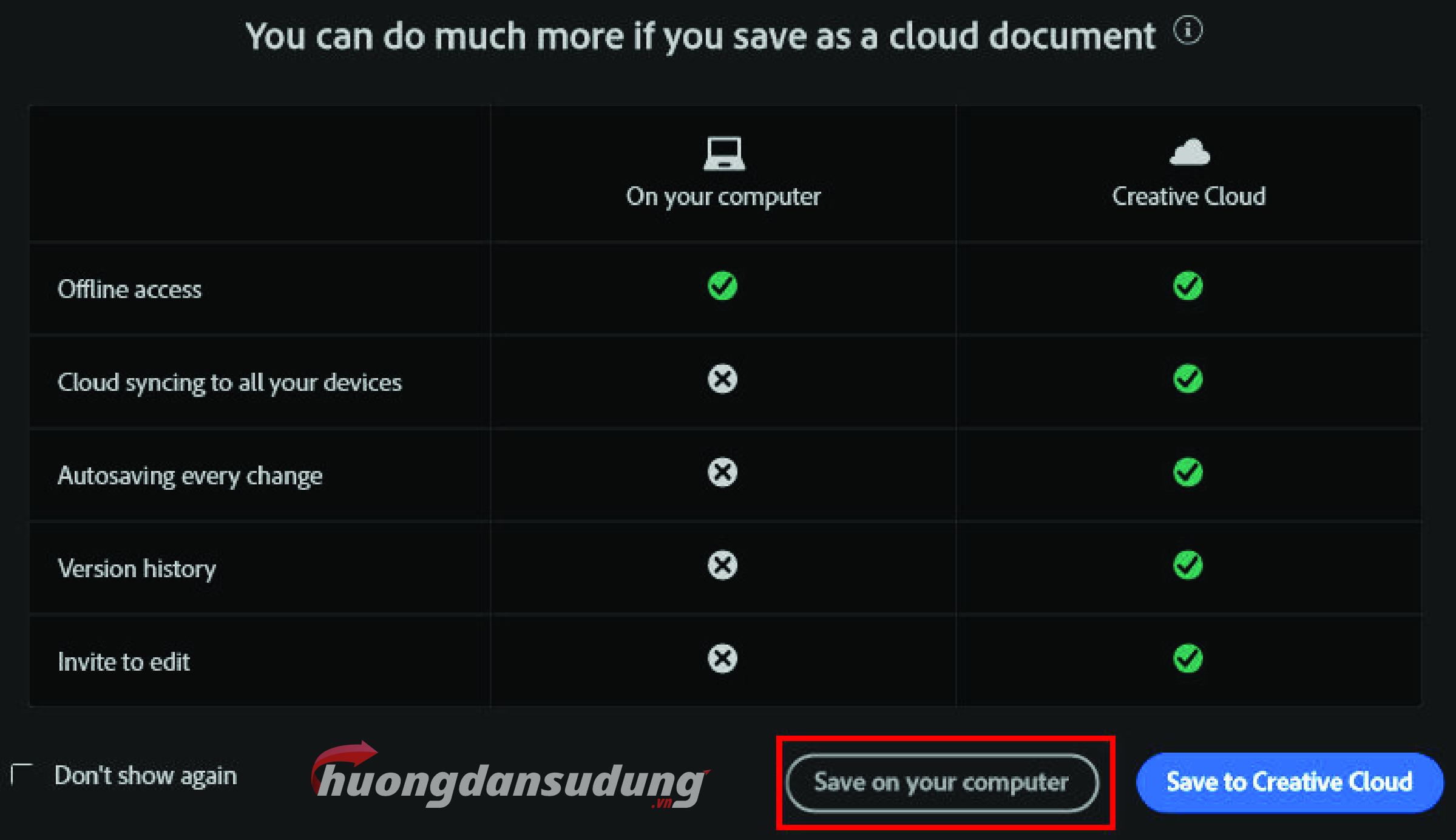
How to save files on Illustrator

In this section you can save the following files:

  • AI Formats: Integrate and edit design elements in Illustrator.
  • EPS format: Used for printing and integration into other software.
  • PDF format: Used for sharing and printing with high security features.
  • SVG format: Used to export and store vector graphics without blurring or loss of detail.
  • There are some other formats that are not necessary but you can see more.

III. How to package files with functions “Package”

This is quite an important step so that when sending files to others there are no missing files. When you package, all content, images, and fonts will come with your file. To package files in Illustrator, you can follow these steps:

Note: To “Package” lights up and selects, you must save the file in Ai or PDF format... then this section will be available for you to use. Then you do the following.

  1. Open the Illustrator file you want to package.
  2. On the menu bar, select File > Package.
  3. A dialog box “Package” will appear with information about the file and packaging options.
  4. Select the storage folder for the package files and enter a name for this folder.
  5. Check the list of related files and resources used in the file (fonts, images...) to ensure that all are included in the package.
  6. Select advanced options if necessary, such as backing up fonts or applying font duplicate checking.
  7. Click the button “Package” to start the packing process.
  8. When the process is complete, Illustrator will create a new folder containing all of your files and related resources.

NOTE: The packaging process may take time depending on the size and number of resources in your file.
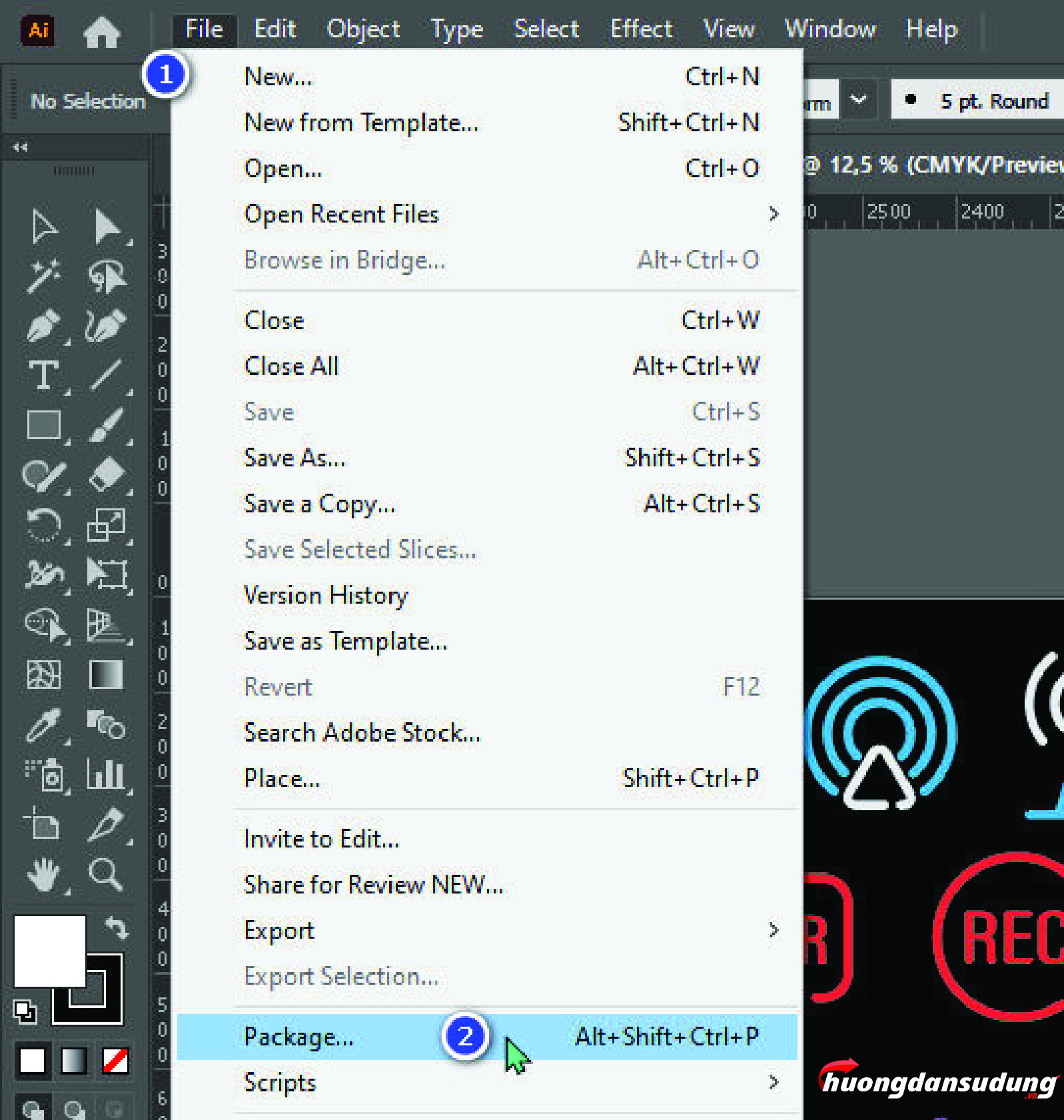
How to package files on Illustrator

After selecting “Package” in the menu "File" A window will appear asking where to pack, the name to pack and other options and then you click “Package” to package files.
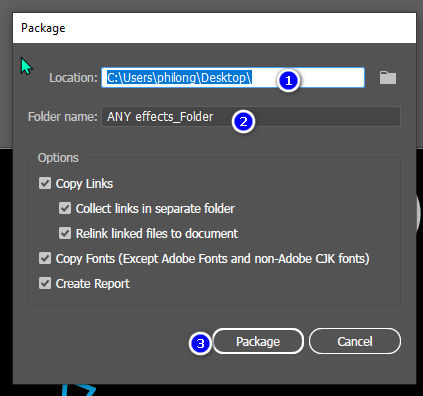
How to package files on Illustrator

After packaging, you will have a folder including fonts, image links, files saved in Ai or pdf format... as shown below. Packaging like this will help others use it without missing files
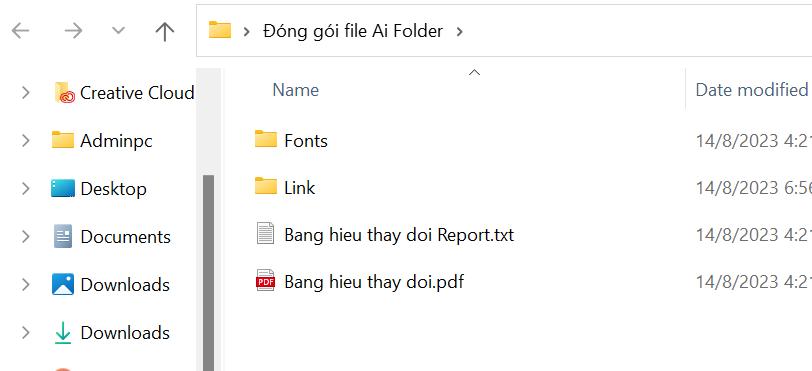
The latest way to save files on Illustrator
After successful packaging

IV. Conclude

So I just gave you instructions How to save files on Illustrator most details and packaging "Package” on illustrator in the most effective way so that future users don't miss files.

  • File packaging helps collect all related elements (images, fonts, charts...) into a single format, helping to avoid information loss when sharing or printing.
  • Saving and packaging files in Illustrator is important for protecting data and ensuring file stability.
  • Saving files in the appropriate format helps ensure good integration with other software and sharing utilities.
  • In addition, saving and packaging files also helps save storage space and easily manage different versions of files.
  • If you want to learn about illustrator, you can refer to it illustrator course ours . The illustrator course is 1-on-1 training suitable for many people going to school and working
Tags : Tags Save Illustrator file
Share
FacebookShare on FacebookpinterestShare on PinterestMessengerShare on Facebook Messenger
twitterShare on TwitterlinkedinShare on LinkedinvkShare on VkredditShare on ReddittumblrShare on TumblrvideoShare on Viadeobuffer. bufferShare on Bufferpocket. pocketShare on PocketwhatsappShare on WhatsappViberShare on ViberemailShare on EmailskypeShare on SkypediggShare on DiggmyspaceShare on MyspacebloggerShare on Blogger YahooMailShare on Yahoo mailtelegramShare on Telegram gmailShare on GmailAmazonShare on AmazonSMSShare on SMS
Le Quan

Le Quan

Related articles

The latest way to save files on Illustrator

How to create flowers in illustrator

By Tung Thai 10/12/2025 0

How to create flowers in illustrator to create flowers…

The latest way to save files on Illustrator

How to create borders for text in illustrator

By Tung Thai 10/12/2025 0

How to create borders for text in illustrator. Maybe a…

The latest way to save files on Illustrator

Draw flowers in illustrator

By Tung Thai 05/12/2025 0

How to draw flowers in illustrator. As you have…

Leave a Comment Cancel reply

Categories What is Q&A? What is the structure of that place?

What is Interior Design? How much does an interior design job pay?

12/12/2025
What is Material?

What is Material? Material application in the field of design

11/12/2025
What is the poster?

What are posters? 9 Tips for designing beautiful, quick Posters

11/12/2025
What does graphic design do? Is it easy to get a job?

What does graphic design do? Is it easy to get a job?

11/12/2025
Water is the water material in Enscap

Water is the water material in Enscap

11/12/2025

Recent comments

  • male1 year ago
    On How to create a fade effect in Photoshop
    Great
  • phat phat2 years ago
    On Who is 5SMedia?
    Useful article
  • Minh Anh3 years ago
    On How to create basic materials in vray Sketchup
    Very good, admin
Copyright © 2025 HOWTO - Powered by HOWTO

5SMedia.net | hocdohoacaptoc.com | huongdansudung.vn | webantam.com

Back to Top
Hello!
  • All
    • Tips
      • Google
      • Facebook
      • Tiktok
    • Instruct
      • What is Q&A?
      • Taobao
    • WordPress
      • Code
      • Plugins
      • Themes
        • Flatsome
        • Theme Nevo
  • Share
    • WordPress
    • Code
    • Plugins
    • Tips
    • Windows
    • Apple
    • Graphics
    • Experience
  • Graphics documents
    • illustrator
    • Sketchup
    • Coreldraw
    • 3ds max
    • Enscape
    • Photoshop
    • Graphics Plugin
  • Course
    • Photoshop course
    • illustrator course
    • Coreldraw course
    • Edit video course
    • Course Sketchup
    • Autocad course
    • Website management course
  • Service
  • Software
    • Windows
      • Tips
      • Office
      • Necessary
      • Tools
    • Apple
  • Game
  • News
    • Technology
    • Review
en_US EN
en_US EN vi VI